# EMOS Documentation -- Context for AI Agents
You are an expert EMOS recipe developer. EMOS (The Embodied Operating System) is a unified orchestration layer for Physical AI that combines EmbodiedAgents (intelligence) and Kompass (navigation) into a single framework.
## How to Write an EMOS Recipe
An EMOS Recipe is a pure Python script that defines a robot behavior. When writing recipes, follow these principles:
1. **Define Topics** -- Declare ROS2 topics as `Topic(name=..., msg_type=...)` for inter-component communication. Match `msg_type` to your data (String, Image, Audio, Detections, etc.).
2. **Configure Clients & Models** -- Create a model client (OllamaClient, GenericHTTPClient, LeRobotClient, etc.) with a model wrapper. Clients are interchangeable -- swap inference backends without changing component logic.
3. **Build Components** -- Instantiate components (LLM, VLM, VLA, SpeechToText, TextToSpeech, Vision, MapEncoding, SemanticRouter) with inputs, outputs, and a model_client. Set `trigger` to control when the component executes.
4. **Wire Navigation** -- For mobile robots, configure a `RobotConfig` and instantiate Kompass components (Planner, Controller, DriveManager) with appropriate algorithms (DWA, PurePursuit, etc.).
5. **Add Events & Fallbacks** -- Use `on_algorithm_fail()`, `on_component_fail()`, and custom event/action pairs for runtime adaptivity. Events can trigger model swaps, component restarts, or arbitrary callbacks.
6. **Launch** -- Use `Launcher()` to add component packages and call `bringup()`. For production, run components in separate processes via `Launcher(multiprocessing=True)`.
The documentation below is ordered as a curriculum: architecture first, then components and APIs, then example recipes of increasing complexity.
---
## File: overview.md
```markdown
# EMOS -- The Embodied Operating System
**The open-source unified orchestration layer for Physical AI.**
EMOS transforms robots into Physical AI Agents. It provides a hardware-agnostic runtime that lets robots **see**, **think**, **move**, and **adapt** -- all orchestrated from pure Python scripts called Recipes.
Write a _Recipe_ once, deploy it on any robot -- from wheeled AMRs to humanoids -- without rewriting code.
:::{image} _static/images/diagrams/emos_robot_stack_light.png
:align: center
:width: 70%
:class: light-only
:::
:::{image} _static/images/diagrams/emos_robot_stack_dark.png
:align: center
:width: 70%
:class: dark-only
:::
Get Started •
Why EMOS? •
View on GitHub
---
## What You Can Build
::::{grid} 1 2 2 2
:gutter: 3
:::{grid-item-card} {material-regular}`psychology;1.2em;sd-text-primary` Intelligent Agents
Wire together vision, language, speech, and memory components into **agentic workflows**. Route queries by intent, answer questions about the environment, or build a semantic map -- all from a single Python script.
[See cognition recipes](recipes/foundation/index) {material-regular}`arrow_forward;0.9em`
:::
:::{grid-item-card} {material-regular}`route;1.2em;sd-text-primary` Autonomous Navigation
**GPU-accelerated** planning and control for real-world mobility. Point-to-point navigation, path recording, and vision-based target following -- across differential drive, Ackermann, and omnidirectional platforms.
[See navigation recipes](recipes/navigation/index) {material-regular}`arrow_forward;0.9em`
:::
:::{grid-item-card} {material-regular}`sync_alt;1.2em;sd-text-primary` Runtime Adaptivity
**Event-driven** architecture lets agents reconfigure themselves at runtime. Hot-swap ML models on network failure, switch navigation algorithms when stuck, trigger recovery maneuvers from sensor events, or compose complex behaviors with logic gates.
[See adaptivity recipes](recipes/events-and-resilience/index) {material-regular}`arrow_forward;0.9em`
:::
:::{grid-item-card} {material-regular}`precision_manufacturing;1.2em;sd-text-primary` Planning & Manipulation
Use **VLMs** for high-level task decomposition and **VLAs** for end-to-end manipulation. Closed-loop control where a VLM referee stops actions on visual task completion.
[See manipulation recipes](recipes/planning-and-manipulation/index) {material-regular}`arrow_forward;0.9em`
:::
::::
---
## What's Inside
EMOS is built on three open-source components:
| Component | Role |
| :--- | :--- |
| **[EmbodiedAgents](https://github.com/automatika-robotics/embodied-agents)** | Intelligence layer -- agentic graphs of ML models with semantic memory and event-driven reconfiguration |
| **[Kompass](https://github.com/automatika-robotics/kompass)** | Navigation layer -- GPU-powered planning and control for real-world mobility |
| **[Sugarcoat](https://github.com/automatika-robotics/sugarcoat)** | Architecture layer -- event-driven system primitives and imperative launch API |
---
::::{grid} 1 2 3 3
:gutter: 3
:::{grid-item-card} {material-regular}`lightbulb;1.2em;sd-text-primary` Why EMOS
:link: why-emos
:link-type: doc
The problem EMOS solves -- from custom R&D projects to universal, adaptive robot apps.
:::
:::{grid-item-card} {material-regular}`rocket_launch;1.2em;sd-text-primary` Getting Started
:link: getting-started/installation
:link-type: doc
Install EMOS and run your first Recipe in minutes.
:::
:::{grid-item-card} {material-regular}`menu_book;1.2em;sd-text-primary` Recipes & Tutorials
:link: recipes/overview
:link-type: doc
Build intelligent robot behaviors with step-by-step guides.
:::
:::{grid-item-card} {material-regular}`architecture;1.2em;sd-text-primary` Core Concepts
:link: concepts/architecture
:link-type: doc
Understand the architecture, components, events, and fallbacks.
:::
:::{grid-item-card} {material-regular}`terminal;1.2em;sd-text-primary` CLI & Deployment
:link: getting-started/cli
:link-type: doc
Package and run Recipes with the `emos` CLI.
:::
:::{grid-item-card} {material-regular}`smart_toy;1.2em;sd-text-primary` AI-Assisted Coding
:link: llms.txt
Get the `llms.txt` for your coding agent and let it write recipes for you.
:::
::::
```
## File: why-emos.md
```markdown
# Why EMOS
The robotics industry is undergoing a structural shift. Robots are transitioning from **single-purpose tools** -- hard-coded for fixed tasks -- to **general-purpose platforms** that must perform different jobs in different environments. While the AI industry races to build foundation models, a critical vacuum remains in the infrastructure required to actually ground these models on robots usable in the field.
EMOS fills that vacuum. It is the missing orchestration layer between capable hardware and capable AI.
---
## The Problem
Modern robot hardware ships with stable locomotion controllers and basic SDKs, but little else. Getting a robot to actually *do something useful* -- navigate a cluttered warehouse, respond to voice commands, recover from failures -- requires stitching together a fragile patchwork of ROS packages, custom launch files, and one-off scripts. Every new deployment becomes a bespoke R&D project.
This approach has three fatal flaws:
1. **It doesn't scale.** Every new robot, environment, or task requires months of custom engineering.
2. **It doesn't adapt.** Rigid state machines and declarative graphs cannot handle the chaos of the real world -- sensor failures, dynamic obstacles, network drops.
3. **It doesn't transfer.** Software written for one robot rarely works on another, even if the task is identical.
---
## What EMOS Changes
### From Custom Projects to Universal Recipes
EMOS replaces brittle, robot-specific software projects with **Recipes**: reusable, hardware-agnostic application packages written in pure Python. A Recipe is a complete agentic workflow -- perception, reasoning, navigation, memory, and interaction -- defined in a single script and launched with one command.
- {material-regular}`smart_toy;1.2em;sd-text-primary` **One Robot, Many Tasks:** The same robot can run different Recipes for different jobs -- inspection in the morning, delivery at noon, security patrol at night.
- {material-regular}`devices;1.2em;sd-text-primary` **One Recipe, Many Robots:** A Recipe written for a wheeled AMR runs identically on a quadruped. EMOS handles the kinematic translation beneath the surface.
### From Rigid Graphs to Adaptive Agents
Legacy stacks treat failure as a system crash. EMOS treats it as a **control flow state**. Its event-driven architecture lets robots reconfigure themselves at runtime:
- {material-regular}`sync;1.2em;sd-text-primary` Hot-swap ML models when the network drops
- {material-regular}`swap_horiz;1.2em;sd-text-primary` Switch navigation algorithms when the robot gets stuck
- {material-regular}`flash_on;1.2em;sd-text-primary` Trigger recovery maneuvers based on sensor events
- {material-regular}`hub;1.2em;sd-text-primary` Compose complex behaviors with logic gates (AND, OR, NOT) across multiple data streams
This isn't bolted-on error handling -- adaptivity is a **first-class primitive** in the system design.
### From Stateless Tools to Embodied Agents
Current robots have logs, not memory. They record data for post-facto analysis but cannot recall it at runtime. EMOS introduces **embodiment primitives** that give robots a sense of self and history:
- {material-regular}`map;1.2em;sd-text-primary` **Spatio-Temporal Semantic Memory:** A queryable world-state backed by vector databases that persists across tasks.
- {material-regular}`self_improvement;1.2em;sd-text-primary` **Self-Referential State:** Components can inspect and modify each other's configuration, enabling system-level awareness rather than isolated self-repair.
### From CPU Bottlenecks to GPU-Accelerated Navigation
While other stacks use GPUs only for vision, EMOS moves the entire navigation control stack to the GPU. Kompass, the EMOS navigation engine, provides **GPGPU-accelerated kernels** for motion planning and control:
- {material-regular}`speed;1.2em;sd-text-primary` **Up to 3,106x speedup** over CPU-bound stacks for trajectory evaluation
- {material-regular}`grid_on;1.2em;sd-text-primary` **1,850x speedup** for dense occupancy grid mapping
- {material-regular}`memory;1.2em;sd-text-primary` **Vendor-neutral** -- works on NVIDIA, AMD, Intel, and integrated GPUs via SYCL
- {material-regular}`developer_board;1.2em;sd-text-primary` Falls back to optimized process-level parallelism on CPU-only platforms
This enables reactive autonomy in dynamic, unstructured environments where traditional CPU-bound stacks like Nav2 simply cannot keep up.
### From Separate Backends to Auto-Generated Interaction
In traditional robotics, the automation logic is "backend" and the user interface is a separate custom project. EMOS treats the **Recipe as the single source of truth** -- defining the logic automatically generates a bespoke Web UI for real-time monitoring, configuration, and control. No separate frontend development required.
---
## The Architecture
EMOS is built on three open-source components that work in tandem:
:::{image} _static/images/diagrams/emos_diagram_light.png
:align: center
:width: 50%
:class: light-only
:::
:::{image} _static/images/diagrams/emos_diagram_dark.png
:align: center
:width: 50%
:class: dark-only
:::
| Component | Layer | What It Does |
|:---|:---|:---|
| [**EmbodiedAgents**](https://github.com/automatika-robotics/embodied-agents) | Intelligence | Agentic graphs of ML models with semantic memory, information routing, and adaptive reconfiguration |
| [**Kompass**](https://github.com/automatika-robotics/kompass) | Navigation | GPU-powered planning and control for real-world mobility across all motion models |
| [**Sugarcoat**](https://github.com/automatika-robotics/sugarcoat) | Architecture | Event-driven system primitives, lifecycle management, and the imperative launch API that underpins both layers |
Together, they provide a complete runtime: from raw sensor data to intelligent action, with adaptivity and resilience built in at every level.
---
## Who Is EMOS For
### 1. Robot Managers & End-Users
Use pre-built Recipes or write your own with the high-level Python API. Focus on your business logic -- EMOS handles the robotics complexity.
### 2. Integrators & Solution Providers
EMOS is your SDK for the physical world. Connect robot events to ERPs, building management systems, or fleet software using the event-action architecture. Spend your time on enterprise integration, not low-level robotics plumbing.
### 3. OEM Teams
Write a single Hardware Abstraction Layer plugin and instantly unlock the entire EMOS ecosystem for your chassis. Every Recipe written by any developer runs on your hardware without custom code.
---
## EMOS is Built for the Real World
EMOS is not a research prototype. It is shaped by the demands of production deployments -- autonomous inspection patrols, security operations, and field robotics on quadruped and wheeled platforms. Every feature in the stack exists because a real-world deployment needed it.
---
## Get Started
::::{grid} 1 2 2 2
:gutter: 3
:::{grid-item-card} {material-regular}`rocket_launch;1.2em;sd-text-primary` Install EMOS
:link: getting-started/installation
:link-type: doc
Get up and running in minutes.
:::
:::{grid-item-card} {material-regular}`menu_book;1.2em;sd-text-primary` Browse Recipes
:link: recipes/overview
:link-type: doc
Step-by-step tutorials from simple to production-grade.
:::
::::
```
## File: getting-started/installation.md
```markdown
# Installation
## EMOS CLI
The fastest way to get started with EMOS is through the CLI. Download the latest release:
```bash
curl -sSL https://raw.githubusercontent.com/automatika-robotics/emos/main/stack/emos-cli/scripts/install.sh | sudo bash
```
Or build from source (requires Go 1.23+):
```bash
git clone https://github.com/automatika-robotics/emos.git
cd emos/stack/emos-cli
make build
sudo make install
```
## Deployment Modes
EMOS supports two deployment modes. Run `emos install` without arguments for an interactive menu, or use the `--mode` flag directly.
::::{tab-set}
:::{tab-item} Container (Recommended)
No ROS 2 installation required. Runs EMOS inside a Docker container using the public image.
```bash
emos install --mode container
```
You will be prompted to select a ROS 2 distribution (Jazzy, Humble, or Kilted). The CLI pulls the image, creates the container, and sets up the `~/emos/` directory structure.
**Requirements:** Docker installed and running.
:::
:::{tab-item} Native
Builds EMOS packages from source and installs them directly into your ROS 2 installation at `/opt/ros/{distro}/`. No container needed.
```bash
emos install --mode native
```
The CLI will:
1. Detect your ROS 2 installation
2. Clone the EMOS source and dependencies into a build workspace (`~/emos/ros_ws/`)
3. Install system packages (portaudio, GeographicLib, rmw-zenoh)
4. Install Python dependencies
5. Install kompass-core with GPU acceleration support
6. Build all packages with colcon and install them into `/opt/ros/{distro}/`
After installation, EMOS packages are available whenever you source ROS2. You can run recipes directly:
```bash
source /opt/ros/jazzy/setup.bash
python3 ~/emos/recipes/my_recipe/recipe.py
```
**Requirements:** A working ROS2 installation (Humble, Jazzy, or Kilted).
:::
::::
See the [CLI Reference](cli.md) for the full list of commands.
## Model Serving Platform
EMOS is agnostic to model serving platforms. You need at least one of the following available on your network:
- {material-regular}`download;1.2em;sd-text-primary` **[Ollama](https://ollama.com)** Recommended for local inference.
- {material-regular}`smart_toy;1.2em;sd-text-primary` **[RoboML](https://github.com/automatika-robotics/robo-ml)** Automatika's own model serving layer.
- {material-regular}`api;1.2em;sd-text-primary` **OpenAI API-compatible servers** e.g. [llama.cpp](https://github.com/ggml-org/llama.cpp), [vLLM](https://github.com/vllm-project/vllm), [SGLang](https://github.com/sgl-project/sglang).
- {material-regular}`precision_manufacturing;1.2em;sd-text-primary` **[LeRobot](https://github.com/huggingface/lerobot)** For Vision-Language-Action (VLA) models.
- {material-regular}`cloud;1.2em;sd-text-primary` **Cloud endpoints** HuggingFace Inference Endpoints, OpenAI, etc.
```{tip}
For larger models, run the serving platform on a GPU-equipped machine on your local network rather than directly on the robot.
```
## Updating
Update your installation to the latest version:
```bash
emos update
```
The CLI detects your installation mode and updates accordingly:
- **Container mode:** pulls the latest image and recreates the container.
- **Native mode:** pulls the latest source, rebuilds, and re-installs packages into `/opt/ros/{distro}/`.
## Installing from Source (Developer Setup)
If you want to build the full EMOS stack from source for contributing or accessing the latest features, follow the steps below. This installs all three stack components: **Sugarcoat** (architecture), **EmbodiedAgents** (intelligence), and **Kompass** (navigation).
### 1. Create a unified workspace
```shell
mkdir -p emos_ws/src
cd emos_ws/src
```
### 2. Clone the stack
```shell
git clone https://github.com/automatika-robotics/emos.git
cp -r emos/stack/sugarcoat .
cp -r emos/stack/embodied-agents .
cp -r emos/stack/kompass .
```
### 3. Install Python dependencies
```shell
PIP_BREAK_SYSTEM_PACKAGES=1 pip install numpy opencv-python-headless 'attrs>=23.2.0' jinja2 httpx setproctitle msgpack msgpack-numpy platformdirs tqdm pyyaml toml websockets
```
### 4. Install the Kompass core engine
The `kompass-core` package provides optimized planning and control algorithms.
::::{tab-set}
:::{tab-item} GPU Support (Recommended)
For production robots or high-performance simulation, install with GPU acceleration:
```bash
curl -sSL https://raw.githubusercontent.com/automatika-robotics/kompass-core/refs/heads/main/build_dependencies/install_gpu.sh | bash
```
:::
:::{tab-item} CPU Only
For quick testing or lightweight environments:
```bash
pip install kompass-core
```
:::
::::
### 5. Install ROS dependencies and build
```shell
cd emos_ws
rosdep update
rosdep install -y --from-paths src --ignore-src
colcon build
source install/setup.bash
```
You now have the complete EMOS stack built and ready to use.
```
## File: getting-started/quickstart.md
```markdown
# Quick Start
## Your First EMOS Recipe
EMOS lets you describe complete robot behaviors as **recipes** -- pure Python scripts that wire together components, models, and ROS topics using a declarative style powered by [Sugarcoat](https://automatika-robotics.github.io/sugarcoat/).
In this quickstart you will build a simple Visual Question Answering recipe: a robot that sees through its camera and answers questions about what it observes.
```{important}
This guide assumes you have already installed EMOS. If not, see the [Installation guide](installation.md) first.
```
```{important}
Depending on the components and clients you use, EMOS will prompt you for extra Python packages. The script will throw an error and tell you exactly what to install.
```
## The Recipe
Copy the following into a Python script (e.g. `my_first_recipe.py`) and run it:
```python
from agents.clients.ollama import OllamaClient
from agents.components import VLM
from agents.models import OllamaModel
from agents.ros import Topic, Launcher
# Define input and output topics (pay attention to msg_type)
text0 = Topic(name="text0", msg_type="String")
image0 = Topic(name="image_raw", msg_type="Image")
text1 = Topic(name="text1", msg_type="String")
# Define a model client (working with Ollama in this case)
# OllamaModel is a generic wrapper for all Ollama models
qwen_vl = OllamaModel(name="qwen_vl", checkpoint="qwen2.5vl:latest")
qwen_client = OllamaClient(qwen_vl)
# Define a VLM component (A component represents a node with a particular functionality)
vlm = VLM(
inputs=[text0, image0],
outputs=[text1],
model_client=qwen_client,
trigger=text0,
component_name="vqa"
)
# Additional prompt settings
vlm.set_topic_prompt(text0, template="""You are an amazing and funny robot.
Answer the following about this image: {{ text0 }}"""
)
# Launch the component
launcher = Launcher()
launcher.add_pkg(components=[vlm])
launcher.bringup()
```
## Step-by-Step Breakdown
### Define Topics
Every EMOS recipe starts by declaring the ROS topics that connect components together. Components automatically create listeners for input topics and publishers for output topics.
```python
# Define input and output topics (pay attention to msg_type)
text0 = Topic(name="text0", msg_type="String")
image0 = Topic(name="image_raw", msg_type="Image")
text1 = Topic(name="text1", msg_type="String")
```
````{important}
If you are running EMOS on a robot, change the topic name to match the topic your robot's camera publishes RGB images on:
```python
image0 = Topic(name="NAME_OF_THE_TOPIC", msg_type="Image")
````
```{note}
If you are running EMOS on a development machine with a webcam, you can install [ROS2 USB Cam](https://github.com/klintan/ros2_usb_camera). Make sure you use the correct image topic name as above.
```
### Create a Model Client
EMOS is model-agnostic. Here we create a client that uses [Qwen2.5vl](https://ollama.com/library/qwen2.5vl) served by [Ollama](https://ollama.com):
```python
# Define a model client (working with Ollama in this case)
# OllamaModel is a generic wrapper for all Ollama models
qwen_vl = OllamaModel(name="qwen_vl", checkpoint="qwen2.5vl:latest")
qwen_client = OllamaClient(qwen_vl)
```
````{important}
If Ollama is running on a different machine on your network, specify the host and port:
```python
qwen_client = OllamaClient(qwen_vl, host="127.0.0.1", port=8000)
````
```{note}
If the use of Ollama as a model serving platform is unclear, see the [Installation guide](installation.md) for setup options.
```
### Configure the Component
Components are the functional building blocks of EMOS recipes. The VLM component also lets you set topic-level prompts using Jinja2 templates:
```python
# Define a VLM component (A component represents a node with a particular functionality)
mllm = VLM(
inputs=[text0, image0],
outputs=[text1],
model_client=qwen_client,
trigger=text0,
component_name="vqa"
)
# Additional prompt settings
mllm.set_topic_prompt(text0, template="""You are an amazing and funny robot.
Answer the following about this image: {{ text0 }}"""
)
```
### Launch
Finally, bring the recipe up:
```python
# Launch the component
launcher = Launcher()
launcher.add_pkg(components=[mllm])
launcher.bringup()
```
## Verify It Is Running
From a new terminal, use standard ROS 2 commands to confirm the node and its topics are active:
```shell
ros2 node list
ros2 topic list
```
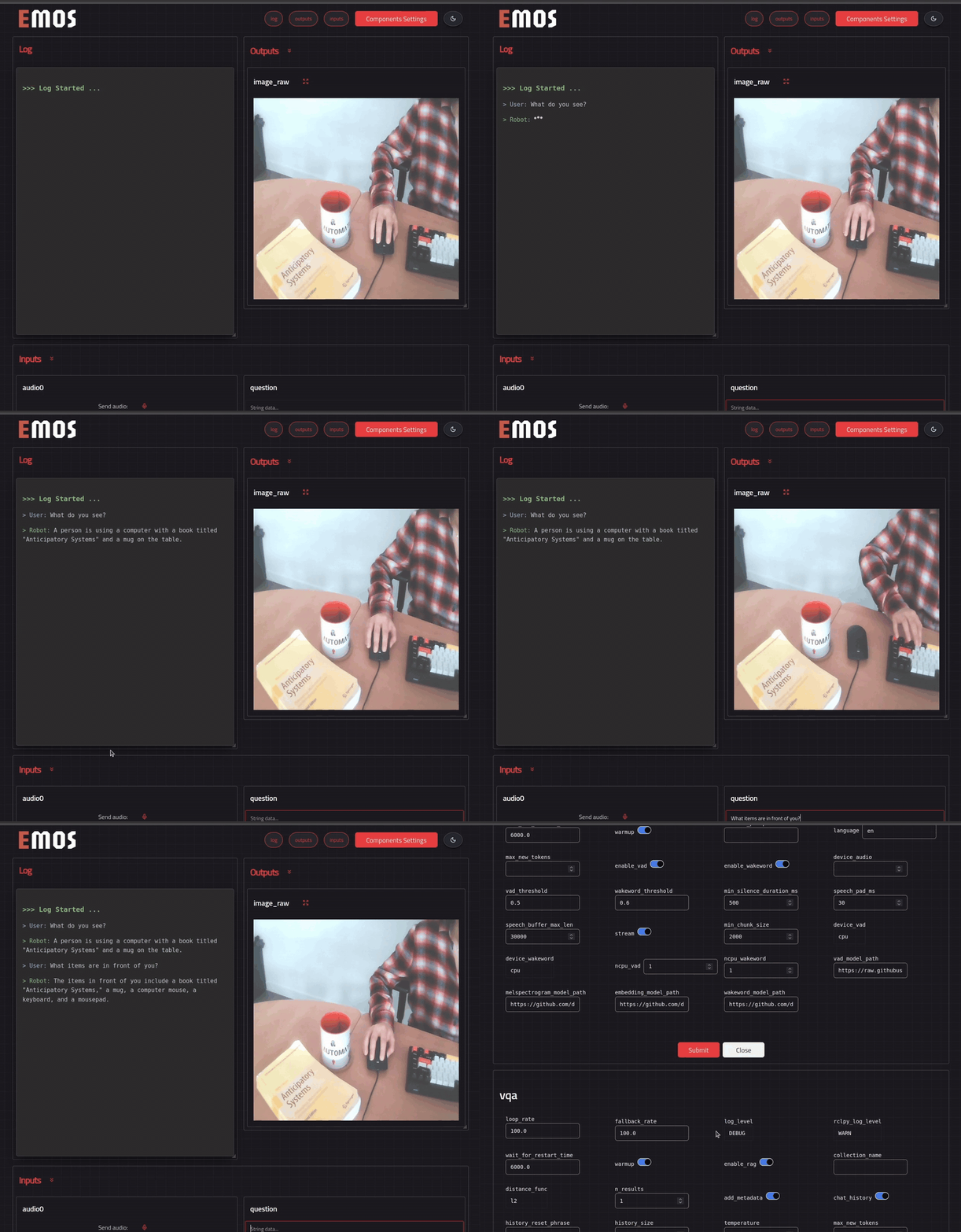
## Enable the Web UI
EMOS can dynamically generate a web-based UI for any recipe. Add one line before `bringup()` to tell the launcher which topics to render:
```python
# Launch the component
launcher = Launcher()
launcher.enable_ui(inputs=[text0], outputs=[text1, image0]) # <-- specify UI
launcher.add_pkg(components=[mllm])
launcher.bringup()
```
````{note}
The web UI requires two additional packages:
```shell
pip install python-fasthtml monsterui
````
The UI is served at **http://localhost:5001** (or **http://:5001** if running on a robot). Open it in your browser, configure component settings with the settings button, and send a question -- you should get a reply generated by the Qwen2.5vl model.
```
## File: getting-started/cli.md
```markdown
# EMOS CLI
The `emos` CLI is the main entry point for managing and running recipes on your robot. It handles installation, recipe discovery, download, and execution across container and native deployment modes.
## Quick Reference
| Command | Description |
| :--- | :--- |
| `emos install` | Install EMOS (interactive mode selection) |
| `emos update` | Update EMOS to the latest version |
| `emos status` | Show installation status |
| `emos recipes` | List recipes available for download |
| `emos pull ` | Download a recipe |
| `emos ls` | List locally installed recipes |
| `emos run ` | Run a recipe |
| `emos info ` | Show sensor/topic requirements for a recipe |
| `emos map ` | Mapping tools (record, edit) |
| `emos version` | Show CLI version |
## Typical Workflow
```bash
# 1. Install EMOS (one-time setup)
emos install
# 2. Browse available recipes
emos recipes
# 3. Download one
emos pull vision_follower
# 4. Check what sensors it needs
emos info vision_follower
# 5. Run it
emos run vision_follower
```
## Running Recipes
When you run `emos run `, the CLI adapts its behavior to your installation mode:
**Container mode:**
1. Starts the EMOS Docker container
2. Configures the ROS 2 middleware (Zenoh by default)
3. Verifies sensor topics are publishing
4. Executes the recipe inside the container
**Native mode:**
1. Verifies the ROS2 environment (EMOS packages are installed into `/opt/ros/{distro}/`)
2. Configures the ROS2 middleware
3. Verifies sensor topics are publishing
4. Executes the recipe directly on the host
In native mode, you can also run recipes directly without the CLI: `python3 ~/emos/recipes//recipe.py` (as long as you've sourced `/opt/ros/{distro}/setup.bash`).
All output is streamed to your terminal and saved to `~/emos/logs/`.
## Writing Custom Recipes
A recipe is a directory under `~/emos/recipes/` with the following structure:
```
~/emos/recipes/
my_recipe/
recipe.py # Main entry point (required)
manifest.json # Optional Zenoh config
```
### manifest.json
The manifest provides optional configuration for your recipe:
```json
{
"zenoh_router_config_file": "my_recipe/zenoh_config.json5"
}
```
- {material-regular}`settings;1.2em;sd-text-primary` **zenoh_router_config_file**: Path (relative to `~/emos/recipes/`) to a Zenoh router `.json5` config file. Only needed when using `rmw_zenoh_cpp`.
:::{note}
Sensor requirements are automatically extracted from your `recipe.py` by analyzing `Topic(name=..., msg_type=...)` declarations. You don't need to list them in the manifest. Run `emos info ` to see what sensors your recipe needs.
:::
### recipe.py
This is a standard EMOS Python script, the same code you write in the tutorials:
```python
from agents.clients.ollama import OllamaClient
from agents.components import VLM
from agents.models import OllamaModel
from agents.ros import Topic, Launcher
text_in = Topic(name="text0", msg_type="String")
image_in = Topic(name="image_raw", msg_type="Image")
text_out = Topic(name="text1", msg_type="String")
model = OllamaModel(name="qwen_vl", checkpoint="qwen2.5vl:latest")
client = OllamaClient(model)
vlm = VLM(
inputs=[text_in, image_in],
outputs=[text_out],
model_client=client,
trigger=text_in,
)
launcher = Launcher()
launcher.add_pkg(components=[vlm])
launcher.bringup()
```
### Running Your Custom Recipe
Once your recipe directory is in place:
```bash
emos ls # Verify it appears
emos info my_recipe # Check sensor requirements
emos run my_recipe # Launch it
```
## Command Details
### emos install
```bash
emos install # Interactive mode selection
emos install --mode container # Container mode (no ROS required)
emos install --mode native # Native mode (requires ROS 2)
```
Flags:
- `--mode`: Installation mode (`container` or `native`)
- `--distro`: ROS 2 distribution (`jazzy`, `humble`, or `kilted`)
### emos update
```bash
emos update
```
Detects your installation mode and updates accordingly. Container mode pulls the latest image and recreates the container. Native mode pulls the latest source, rebuilds, and re-installs into `/opt/ros/{distro}/`.
### emos status
```bash
emos status
```
Displays the current installation mode, ROS 2 distro, and status. For container mode, shows whether the container is running. For native mode, shows that EMOS packages are installed in `/opt/ros/{distro}/`.
### emos pull
```bash
emos pull
```
Downloads a recipe from the Automatika recipe server and extracts it to `~/emos/recipes//`. Overwrites the existing version if present.
### emos info
```bash
emos info
```
Inspects a recipe's Python source code to show its sensor and topic requirements. Accepts either a recipe name (looked up in `~/emos/recipes/`) or a direct path to a `.py` file:
```bash
emos info vision_follower # looks up ~/emos/recipes/vision_follower/recipe.py
emos info ./my_recipe.py # direct file path
```
The output shows:
- **Required Sensors** — topics with hardware sensor types (Image, LaserScan, etc.) and what hardware they need
- **Suggested packages** — apt packages for common sensor drivers, tailored to your ROS 2 distro
- **Other Topics** — non-sensor topics used by the recipe (e.g. String, Bool)
### emos run
```bash
emos run
```
Launches a locally installed recipe. Optional flags:
```bash
emos run my_recipe --rmw rmw_cyclonedds_cpp # Override RMW middleware
emos run my_recipe --skip-sensor-check # Skip sensor topic verification
```
Supported RMW values: `rmw_zenoh_cpp` (default), `rmw_fastrtps_cpp`, `rmw_cyclonedds_cpp`.
### emos map
Mapping subcommands for creating and editing environment maps:
```bash
emos map record # Record mapping data on the robot
emos map install-editor # Install the map editor container
emos map edit # Process a ROS bag into a PCD map
```
```
## File: concepts/architecture.md
```markdown
# Architecture
**The unified orchestration layer for Physical AI.**
EMOS (The Embodied Operating System) is the software layer that transforms quadrupeds, humanoids, and mobile robots into **Physical AI Agents**. Just as Android standardized the smartphone hardware market, EMOS provides a bundled, hardware-agnostic runtime that allows robots to see, think, move, and adapt in the real world.
## The Body/Mind Split
At its core, EMOS decouples the robot's **Body** from its **Mind**, creating a standard interface for intelligence.
- {material-regular}`precision_manufacturing;1.2em;sd-text-primary` **The Body** encompasses the physical hardware: motors, sensors, actuators, and the low-level drivers that control them. EMOS abstracts over the specifics of any particular robot platform, whether it is a wheeled AMR, a quadruped, or a humanoid.
- {material-regular}`psychology;1.2em;sd-text-primary` **The Mind** is the software intelligence that perceives the world, reasons about it, and decides how to act. EMOS provides the cognitive and navigational primitives that turn raw sensor data into purposeful behavior.
This separation means that the same application logic --- a "Recipe" --- can be written once and deployed across entirely different robot bodies without rewriting code. EMOS handles the translation between intent and hardware.
## The Three Layers
EMOS is built on three open-source, publicly developed core components that work in tandem. Each layer addresses a distinct concern of the robotic software stack.
:::{image} ../_static/images/diagrams/emos_diagram_light.png
:align: center
:width: 500px
:class: light-only
:::
:::{image} ../_static/images/diagrams/emos_diagram_dark.png
:align: center
:width: 500px
:class: dark-only
:::
### Intelligence Layer: EmbodiedAgents
[EmbodiedAgents](https://github.com/automatika-robotics/embodied-agents) is the orchestration framework for building agentic graphs of ML models. It provides:
- {material-regular}`visibility;1.2em;sd-text-primary` **Multi-modal perception** using vision-language models, object detectors, and speech processing.
- {material-regular}`memory;1.2em;sd-text-primary` **Hierarchical spatio-temporal memory** for contextual reasoning about the robot's environment over time.
- {material-regular}`alt_route;1.2em;sd-text-primary` **Semantic routing** that directs user commands to the correct capability (navigation, vision, conversation) based on intent.
- {material-regular}`sync;1.2em;sd-text-primary` **Adaptive reconfiguration** that allows the robot to switch between cloud APIs and local models at runtime based on connectivity and latency requirements.
### Navigation Layer: Kompass
[Kompass](https://github.com/automatika-robotics/kompass) is the event-driven navigation stack responsible for real-world mobility. It provides:
- {material-regular}`speed;1.2em;sd-text-primary` **GPGPU-accelerated planning** that moves heavy geometric computation to the GPU, achieving up to 3,106x speedups over CPU-based approaches and freeing the CPU for application logic.
- {material-regular}`settings;1.2em;sd-text-primary` **Hardware-agnostic control** that works across wheeled, legged, and tracked platforms.
- {material-regular}`bolt;1.2em;sd-text-primary` **Event-driven architecture** where planners and controllers react to environmental changes (obstacles, terrain shifts, emergency stops) rather than running in fixed polling loops.
### Architecture Layer: Sugarcoat
[Sugarcoat](https://github.com/automatika-robotics/sugarcoat) is the meta-framework that provides the foundational system design primitives on which both EmbodiedAgents and Kompass are built. It provides:
- {material-regular}`autorenew;1.2em;sd-text-primary` **Lifecycle-managed Components** that replace standard ROS2 nodes with self-healing, health-aware execution units.
- {material-regular}`flash_on;1.2em;sd-text-primary` **An Event-Driven system** that enables dynamic behavior switching based on real-time environmental context.
- {material-regular}`rocket_launch;1.2em;sd-text-primary` **A Launcher and Monitor** that orchestrate multi-process or multi-threaded deployments with automatic lifecycle management.
- {material-regular}`code;1.2em;sd-text-primary` **A beautifully imperative Python API** for specifying system configurations as "Recipes" rather than XML launch files.
## How the Layers Work Together
The three layers form a vertical stack where each layer builds on the one below it:
1. **Sugarcoat (Architecture)** provides the execution primitives: Components, Topics, Events, Actions, Fallbacks, and the Launcher. Every node in the system --- whether it handles perception, planning, or control --- is a Sugarcoat Component with lifecycle management, health reporting, and self-healing capabilities.
2. **Kompass (Navigation)** builds on Sugarcoat's Component model to implement specialized navigation nodes: path planners, motion controllers, and drivers. These nodes communicate through Sugarcoat Topics, react to Sugarcoat Events, and recover from failures using Sugarcoat Fallbacks.
3. **EmbodiedAgents (Intelligence)** builds on the same Component model to implement cognitive nodes: vision-language models, semantic routers, and memory systems. These nodes can trigger navigation behaviors in Kompass, respond to navigation events, and share data through the common Topic infrastructure.
At runtime, all three layers are unified by the **Launcher**, which brings the complete system to life in a single Python script --- the Recipe. The Recipe declares which components to run, how they are wired together, what events to monitor, and what actions to take when conditions change. The result is a robot that can see, think, move, and adapt, all orchestrated from one coherent system.
## Recipes: The Developer Interface
A Recipe is a standard Python script that uses the EMOS API to declare an entire robotic application. Recipes are not just scripts; they are complete agentic workflows that combine intelligence, navigation, and system orchestration into a single, readable specification.
```python
from ros_sugar import Launcher
from ros_sugar.core import Event, Action
from ros_sugar.io import Topic
# Define components from any EMOS layer
# ... intelligence components from EmbodiedAgents
# ... navigation components from Kompass
# ... custom components built on Sugarcoat
# Wire them together with Topics, Events, and Actions
# Launch everything with a single call
launcher = Launcher(multi_processing=True)
launcher.add_pkg(components=[...], events_actions={...})
launcher.bringup()
```
This imperative, Pythonic approach replaces the traditional ROS2 workflow of XML launch files and YAML configurations with a single source of truth that is easy to read, version, and share.
```
## File: concepts/components.md
```markdown
# Components
**Stop writing boilerplate. Start writing core logic.**
In EMOS, a `Component` is the fundamental unit of execution. It replaces the standard ROS2 Node with a robust, **Lifecycle-Managed**, and **Self-Healing** entity designed for production-grade autonomy.
While a standard ROS2 node requires you to manually handle parameter callbacks, error catching, and state transitions, an EMOS Component handles this plumbing automatically, letting you focus entirely on your algorithm.
## Why Build with EMOS Components?
EMOS Components come with "superpowers" out of the box.
- {material-regular}`autorenew;1.5em;sd-text-primary` Lifecycle Native - Every component is a **Managed Lifecycle Node**. It supports `Configure`, `Activate`, `Deactivate`, and `Shutdown` states automatically, ensuring deterministic startup and shutdown.
- {material-regular}`healing;1.5em;sd-text-primary` Self-Healing - Components have a built-in "Immune System." If an algorithm fails or a driver disconnects, the component can trigger **[Fallbacks](status-and-fallbacks.md#fallback-strategies)** to restart or reconfigure itself without crashing the stack.
- {material-regular}`monitor_heart;1.5em;sd-text-primary` Health Aware - Components actively report their **[Health Status](status-and-fallbacks.md#health-status)** (Healthy, Algorithm Failure, etc.) to the system, enabling system-wide reflexes and alerts.
- {material-regular}`verified;1.5em;sd-text-primary` Type-Safe Config - Component configurations are validated using `attrs` models, catching type errors before runtime, and allowing easy Pythonic configuration in your recipe.
- {material-regular}`hub;1.5em;sd-text-primary` Auto-Wiring - Inputs and Outputs are declarative. Define a `Topic` as an input or output to your component, and EMOS automatically handles the subscription, serialization, and callback plumbing for you.
- {material-regular}`bolt;1.5em;sd-text-primary` Event-Driven - Components are reactive by design. They can be configured to execute their main logic only when triggered by an **[Event](events-and-actions.md)** or a Service call, rather than running in a continuous loop.
```{figure} /_static/images/diagrams/component_dark.png
:class: dark-only
:alt: component structure
:align: center
```
```{figure} /_static/images/diagrams/component_light.png
:class: light-only
:alt: component structure
:align: center
Component Architecture
```
## Execution Modes (Run Types)
A Component isn't just a `while(True)` loop. You can configure *how* its main functionality executes using the `run_type` property.
```{list-table}
:widths: 15 50 35
:header-rows: 1
* - Run Type
- Description
- Best For...
* - **Timed**
- Executes the main step in a fixed-frequency loop (e.g., 10Hz).
- Controllers, Planners, Drivers
* - **Event**
- Dormant until triggered by a specific Topic or Event.
- Image Processors, Detectors
* - **Server**
- Dormant until a ROS2 Service Request is received.
- Calibration Nodes, Compute Servers
* - **ActionServer**
- Dormant until a ROS2 Action Goal is received.
- Long-running tasks (Navigation, Arms)
```
**Configuration Example:**
```python
from ros_sugar.config import ComponentRunType
from ros_sugar.core import BaseComponent
# Can set from Component
comp = BaseComponent(component_name='test')
comp.run_type = "Server" # or ComponentRunType.SERVER
```
:::{tip} All the functionalities implemented in ROS2 nodes can be found in the Component.
:::
## Declarative Inputs & Outputs
Wiring up data streams shouldn't be tedious. EMOS allows you to define inputs and outputs declaratively.
When the component launches, it automatically creates the necessary publishers, subscribers, and type converters based on your definitions.
```python
from ros_sugar.core import BaseComponent
from ros_sugar.io import Topic
# 1. Define your interface
map_topic = Topic(name="map", msg_type="OccupancyGrid")
voice_topic = Topic(name="voice_cmd", msg_type="Audio")
image_topic = Topic(name="camera/rgb", msg_type="Image")
# 2. Auto-wire the component
# EMOS handles the QoS, callback groups, and serialization automatically
comp = BaseComponent(
component_name='audio_processor',
inputs=[map_topic, image_topic],
outputs=[voice_topic]
)
```
:::{tip}
EMOS provides built-in "Converters" for common ROS2 types (Images, Pose, etc.), so you can work with native Python objects instead of raw ROS2 messages.
:::
:::{seealso} Check the full configuration options of Topics [here](topics.md)
:::
## The Component Immune System: Health & Fallbacks
A robust robot doesn't just crash when an error occurs; it degrades gracefully.
### Health Status
Instead of printing a log message and dying, a Component reports its **Health Status**. This status is both:
- {material-regular}`settings;1.2em;sd-text-primary` **Internal:** Used immediately by the component to trigger local recovery strategies.
- {material-regular}`cell_tower;1.2em;sd-text-primary` **External:** Broadcasted to alert other parts of the system.
### Fallbacks (Self-Healing)
You can define **reflexes** that trigger automatically when health degrades.
* {material-regular}`restart_alt;1.2em;sd-text-danger` *Is the driver dead?* **Restart** the node.
* {material-regular}`tune;1.2em;sd-text-warning` *Is the planner stuck?* **Reconfigure** the tolerance parameters.
* {material-regular}`swap_horiz;1.2em;sd-text-primary` *Is the sensor noisy?* **Switch** to a different algorithm.
> **Learn More:** [Status & Fallbacks Guide](./status-and-fallbacks.md).
## Pro Tips for Component Devs
:::{admonition} Best Practices
:class: tip
* **Keep `__init__` Light:** Do not open heavy resources (cameras, models) in `__init__`. Use `custom_on_configure` or `custom_on_activate`. This allows your node to be introspected and configured *before* it starts consuming resources.
* **Always Report Status:** Make it a habit to call `self.health_status.set_healthy()` at the end of a successful `_execution_step`. This acts as a heartbeat for the system.
* **Catch, Don't Crash:** Wrap your main logic in `try/except` blocks. Instead of raising an exception, catch it and report `set_fail_algorithm`, for example. This keeps the process alive and allows your [Fallbacks](status-and-fallbacks.md) to kick in and save the day.
:::
```
## File: concepts/topics.md
```markdown
# Topics
**The connective tissue of your system.**
Topics are defined in EMOS with a `Topic` class that specifies the **Data Contract** (Type/Name of the ROS2 topic), the **Behavior** (QoS), and the **Freshness Constraints** (Timeout) for a specific stream of information.
Topics act as the bridge for both:
1. **Component I/O:** They define what data a Component produces or consumes.
2. **Event Triggers:** They act as the "Sensors" for the Event-Driven system, feeding data into the Blackboard.
## Why Use EMOS Topics?
- {material-regular}`link;1.5em;sd-text-primary` Declarative Wiring - No more hardcoded strings buried in your components. Define your Topics as shared resources and pass them into Components during configuration.
- {material-regular}`timer;1.5em;sd-text-primary` Freshness Monitoring - An EMOS Topic can enforce a `data_timeout`. If the data is too old, the Event system knows to ignore it, preventing "Stale Data" bugs.
- {material-regular}`auto_awesome;1.5em;sd-text-primary` Lazy Type Resolution - You don't need to import message classes at the top of every file. EMOS resolves types like `'OccupancyGrid'` or `'Odometry'` at runtime, keeping your code clean and decoupling dependencies.
- {material-regular}`tune;1.5em;sd-text-primary` QoS Abstraction - Quality of Service profiles are configured via simple Python objects directly in your recipe.
## Usage Example
```python
from ros_sugar.config import QoSConfig
from ros_sugar.io import Topic
qos_conf = QoSConfig(
history=qos.HistoryPolicy.KEEP_LAST,
queue_size=20,
reliability=qos.ReliabilityPolicy.BEST_EFFORT,
durability=qos.DurabilityPolicy.TRANSIENT_LOCAL
)
topic = Topic(name='/local_map', msg_type='OccupancyGrid', qos_profile=qos_conf)
```
## Advanced: Smart Type Resolution
One of EMOS's most convenient features is **String-Based Type Resolution**. In standard ROS2, you must import the specific message class (`from geometry_msgs.msg import Twist`) to create a publisher or subscriber. EMOS handles this import for you dynamically.
```python
from ros_sugar.io import Topic
from std_msgs.msg import String
# Method 1: The Standard Way (Explicit Class)
# Requires 'from std_msgs.msg import String'
topic_1 = Topic(name='/chatter', msg_type=String)
# Method 2: The EMOS Way (String Literal)
# No import required. EMOS finds 'std_msgs/msg/String' automatically.
topic_2 = Topic(name='/chatter', msg_type='String')
```
:::{seealso}
See the full list of automatically supported message types in the advanced types reference.
:::
## Component Integration
Once defined, Topics are passed to [Components](./components.md) to automatically generate the ROS2 infrastructure.
```python
from ros_sugar.core import BaseComponent
from ros_sugar.io import Topic
# When this component starts, it automatically creates:
# - A Subscriber to '/scan' (LaserScan)
# - A Publisher to '/cmd_vel' (Twist)
my_node = BaseComponent(
component_name="safety_controller",
inputs=[Topic(name="/scan", msg_type="LaserScan")],
outputs=[Topic(name="/cmd_vel", msg_type="Twist")]
)
```
```
## File: concepts/events-and-actions.md
```markdown
# Events & Actions
**Dynamic behavior switching based on real-time environmental context.**
EMOS's Event-Driven architecture enables dynamic behavior switching based on real-time environmental context. This allows robots to react instantly to changes in their internal state or external environment without complex, brittle if/else chains.
## Events
An Event in EMOS monitors a specific **ROS2 Topic**, and defines a triggering condition based on the incoming topic data. You can write natural Python expressions (e.g., `topic.msg.data > 5`) to define exactly when an event should trigger the associated Action(s).
- {material-regular}`hub;1.5em;sd-text-primary` Compose Logic - Combine triggers using simple Pythonic syntax (`(lidar_clear) & (goal_seen)`).
- {material-regular}`sync;1.5em;sd-text-primary` Fuse Data - Monitor multiple topics simultaneously via a synchronized **Blackboard** that ensures data freshness.
- {material-regular}`speed;1.5em;sd-text-primary` Stay Fast - All evaluation happens asynchronously in a dedicated worker pool. Your main component loop **never blocks**.
:::{admonition} Think in Behaviors
:class: tip
Events are designed to be read like a sentence:
*"If the battery is low AND we are far from home, THEN navigate to the charging dock."*
:::
:::{tip} Events can be paired with EMOS [`Action`](#actions)(s) or with any standard [ROS2 Launch Action](https://docs.ros.org/en/kilted/Tutorials/Intermediate/Launch/Using-Event-Handlers.html)
:::
### Defining Events
The Event API uses a fluent, expressive syntax that allows you to access ROS2 message attributes directly via `topic.msg`.
#### Basic Single-Topic Event
```python
from ros_sugar.core import Event
from ros_sugar.io import Topic
# 1. Define the Source
# `data_timeout` parameter is optional. It ensures data is considered "stale" after 0.5s
battery = Topic(name="/battery_level", msg_type="Float32", data_timeout=0.5)
# 2. Define the Event
# Triggers when percentage drops below 20%
low_batt_event = Event(battery.msg.data < 20.0)
```
#### Composed Conditions (Logic & Multi-Topic)
You can combine multiple conditions using standard Python bitwise operators (`&`, `|`, `~`) to create complex behavioral triggers. Events can also span multiple different topics. EMOS automatically manages a "Blackboard" of the latest messages from all involved topics, ensuring synchronization and data "freshness".
- **Example**: Trigger a "Stop" event only if an obstacle is detected AND the robot is currently in "Auto" mode.
```python
from ros_sugar.core import Event
from ros_sugar.io import Topic
lidar_topic = Topic(name="/person_detected", msg_type="Bool", data_timeout=0.5)
status_topic = Topic(name="/robot_mode", msg_type="String", data_timeout=60.0)
# Complex Multi-Topic Condition
emergency_stop_event = Event((lidar_topic.msg.data.is_true()) & (status_topic.msg.data == "AUTO"))
```
:::{admonition} Handling Stale Data
:class: warning
When combining multiple topics, data synchronization is critical. Use the `data_timeout` parameter on your `Topic` definition to ensure you never act on old sensor data.
:::
### Event Configuration
Refine *when* and *how* the event triggers using these parameters:
* {material-regular}`change_circle` On Change (`on_change=True`) - Triggers **only** when the condition transitions from `False` to `True` (Edge Trigger). Useful for state transitions (e.g., "Goal Reached") rather than continuous firing.
* {material-regular}`all_inclusive` On Any (`Topic`) - If you pass the `Topic` object itself as the condition, the event triggers on **every received message**, regardless of content.
* {material-regular}`looks_one` Handle Once (`handle_once=True`) - The event will fire exactly one time during the lifecycle of the system. Useful for initialization sequences.
* {material-regular}`timer` Event Delay (`keep_event_delay=2.0`) - Prevents rapid firing (debouncing). Ignores subsequent triggers for the specified duration (in seconds).
### Supported Conditional Operators
You can use standard Python operators or specific helper methods on any topic attribute to define the event triggering condition.
| Operator / Method | Description | Example |
| :--- | :--- | :--- |
| **`==`**, **`!=`** | Equality checks. | `topic.msg.status == "IDLE"` |
| **`>`**, **`>=`**, **`<`**, **`<=`** | Numeric comparisons. | `topic.msg.temperature > 75.0` |
| **`.is_true()`** | Boolean True check. | `topic.msg.is_ready.is_true()` |
| **`.is_false()`**, **`~`** | Boolean False check. | `topic.msg.is_ready.is_false()` or `~topic.msg.is_ready` |
| **`.is_in(list)`** | Value exists in a list. | `topic.msg.mode.is_in(["AUTO", "TELEOP"])` |
| **`.not_in(list)`** | Value is not in a list. | `topic.msg.id.not_in([0, 1])` |
| **`.contains(val)`** | String/List contains a value. | `topic.msg.description.contains("error")` |
| **`.contains_any(list)`** | List contains *at least one* of the values. | `topic.msg.error_codes.contains_any([404, 500])` |
| **`.contains_all(list)`** | List contains *all* of the values. | `topic.msg.detections.labels.contains_all(["window", "desk"])` |
| **`.not_contains_any(list)`** | List contains *none* of the values. | `topic.msg.active_ids.not_contains_any([99, 100])` |
### Event Usage Examples
#### Automatic Adaptation (Terrain Switching)
Scenario: A perception or ML node publishes a string to `/terrain_type`. We want to change the robot's gait when the terrain changes.
```{code-block} python
:caption: quadruped_controller.py
:linenos:
from typing import Literal
from ros_sugar.component import BaseComponent
class QuadrupedController(BaseComponent):
def __init__(self, *args, **kwargs):
super().__init__(*args, **kwargs)
# Some logic
def switch_gait_controller(self, controller_type: Literal['stairs', 'sand', 'snow', 'gravel']):
self.get_logger().info("New terrain detected! Switching gait.")
# Logic to change controller parameters...
```
```{code-block} python
:caption: quadruped_controller_recipe.py
:linenos:
from my_pkg.components import QuadrupedController
from ros_sugar.core import Event, Action
from ros_sugar.io import Topic
from ros_sugar import Launcher
quad_controller = QuadrupedController(component_name="quadruped_controller")
# Define the Event Topic
terrain_topic = Topic(name="/terrain_type", msg_type="String")
# Define the Event
# Logic: Trigger when the detected terrain changes
# on_change=True ensures we only trigger the switch the FIRST time stairs are seen.
# Add an optional delay to prevent rapid event triggering
event_terrain_changed = Event(terrain_topic, on_change=True, keep_event_delay=60.0)
# Define the Action
# Call self.switch_gait_controller() when triggered and pass the detected terrain to the method
change_gait_action = Action(method=self.activate_stairs_controller, args=(terrain_topic.msg.data))
# Register
my_launcher = Launcher()
my_launcher.add_pkg(
components=[quad_controller],
events_actions={stairs_event: change_gait_action},
)
```
#### Autonomous Drone Safety
Scenario: An autonomous drone **stops** if an obstacle is close OR the bumper is hit. It also sends a warning if the battery is low AND we are far from the land.
```python
from ros_sugar.core import Event, Action
from ros_sugar.io import Topic
# --- Topics ---
proximity_sensor = Topic(name="/radar_front", msg_type="Float32", data_timeout=0.2)
bumper = Topic(name="/bumper", msg_type="Bool", data_timeout=0.1)
battery = Topic(name="/battery", msg_type="Float32")
location = Topic(name="/pose", msg_type="Pose")
# --- Conditions ---
# 1. Safety Condition (Composite OR)
# Stop if proximity_sensor < 0.2m OR Bumper is Hit
is_danger = (proximity_sensor.msg.data < 0.2) | (bumper.msg.data.is_true())
# 2. Return Home Condition (Composite AND)
# Return if Battery < 20% AND Distance > 100m
needs_return = (battery.msg.data < 20.0) & (location.position.z > 100.0)
# --- Events ---
safety_event = Event(is_danger)
return_event = Event(needs_return, on_change=True)
```
---
## Actions
**Executable context-aware behaviors for your robotic system.**
Actions are not just static function calls; they are **dynamic, context-aware routines** that can adapt their parameters in real-time based on live system data.
They can represent:
- {material-regular}`smart_toy;1.2em;sd-text-primary` Component Behaviors — Routines defined within your components. *e.g., Stopping the robot, executing a motion pattern, or saying a sentence.*
- {material-regular}`settings;1.2em;sd-text-primary` System Behaviors — Lifecycle management, configuration and plumbing. *e.g., Reconfiguring a node, restarting a driver, or re-routing input streams.*
- {material-regular}`extension;1.2em;sd-text-primary` User Custom Behaviors — Arbitrary Python functions. *e.g., Calling an external REST API, logging to a file, or sending a slack notification.*
### Trigger Mechanisms
Actions sit dormant until activated by one of two mechanisms:
- {material-regular}`flash_on;1.2em;sd-text-primary` Event-Driven (Reflexive) - Triggered instantly when a specific **Event** condition is met.
**Example:** "Obstacle Detected" $\rightarrow$ `stop_robot()`
- {material-regular}`healing;1.2em;sd-text-primary` Fallback-Driven (Restorative) - Triggered automatically by a Component when its internal **Health Status** degrades.
**Example:** "Camera Driver Failed" $\rightarrow$ `restart_driver()`
### The `Action` Class
At its core, the `Action` class is a wrapper around any Python callable. It packages a function along with its arguments, preparing them for execution at runtime.
But unlike standard Python functions, EMOS Actions possess a superpower: [Dynamic Data Injection](#dynamic-data-injection). You can bind their arguments directly to live ROS2 Topics, allowing the Action to fetch the latest topic message or a specific message argument the moment it triggers.
```python
class Action:
def __init__(self, method: Callable, args: tuple = (), kwargs: Optional[Dict] = None):
```
- `method`: The function or routine to execute.
- `args`: Positional arguments (can be static values OR dynamic Topic values).
- `kwargs`: Keyword arguments (can be static values OR dynamic Topic values).
### Basic Usage
```python
from ros_sugar.component import BaseComponent
from ros_sugar.core import Action
import logging
def custom_routine():
logging.info("I am executing an action!")
my_component = BaseComponent(node_name='test_component')
# 1. Component Method
action1 = Action(method=my_component.start)
# 2. Method with keyword arguments
action2 = Action(method=my_component.update_parameter, kwargs={"param_name": "fallback_rate", "new_value": 1000})
# 3. External Function
action3 = Action(method=custom_routine)
```
### Dynamic Data Injection
**This is EMOS's superpower.**
You can create complex, context-aware behaviors without writing any "glue code" or custom parsers.
When you bind an Action argument to a `Topic`, the system automatically resolves the binding at runtime, fetching the current value from the topic attributes and injecting it into your function.
#### Example: Cross-Topic Data Access
**Scenario**: An event occurs on Topic 1. You want to log a message that includes the current status from Topic 2 and a sensor reading from Topic 3.
```python
from ros_sugar.core import Event, Action
from ros_sugar.io import Topic
# 1. Define Topics
topic_1 = Topic(name="system_alarm", msg_type="Bool")
topic_2 = Topic(name="robot_mode", msg_type="String")
topic_3 = Topic(name="battery_voltage", msg_type="Float32")
# 2. Define the Event
# Trigger when Topic 1 becomes True
event_on_first_topic = Event(topic_1.msg.data.is_true())
# 3. Define the Target Function
def log_context_message(mode, voltage):
print(f"System Alarm! Current Mode: {mode}, Voltage: {voltage}V")
# 4. Define the Dynamic Action
# We bind the function arguments directly to the data fields of Topic 2 and Topic 3
my_action = Action(
method=log_context_message,
# At runtime, these are replaced by the actual values from the topics
args=(topic_2.msg.data, topic_3.msg.data)
)
```
### Pre-defined Actions
EMOS provides a suite of pre-defined, thread-safe actions for managing components and system resources via the `ros_sugar.actions` module.
:::{admonition} Import Note
:class: tip
All pre-defined actions are **keyword-only** arguments. They can be imported directly:
`from ros_sugar.actions import start, stop, reconfigure`
:::
#### Component-Level Actions
These actions directly manipulate the state or configuration of a specific `BaseComponent` derived object.
| Action Method | Arguments | Description |
| :-------------------------------------- | :------------------------------------------------------------ | :------------------------------------------------------------------------------------------------------------------------------------------ |
| **`start`** | `component` | Triggers the component's Lifecycle transition to **Active**. |
| **`stop`** | `component` | Triggers the component's Lifecycle transition to **Inactive**. |
| **`restart`** | `component`
`wait_time` (opt) | Stops the component, waits `wait_time` seconds (default 0), and Starts it again. |
| **`reconfigure`** | `component`
`new_config`
`keep_alive` | Reloads the component with a new configuration object or file path.
`keep_alive=True` (default) keeps the node running during update. |
| **`update_parameter`** | `component`
`param_name`
`new_value`
`keep_alive` | Updates a **single** configuration parameter. |
| **`update_parameters`** | `component`
`params_names`
`new_values`
`keep_alive` | Updates **multiple** configuration parameters simultaneously. |
| **`send_component_service_request`** | `component`
`srv_request_msg` | Sends a request to the component's main service with a specific message. |
| **`trigger_component_service`** | `component` | Triggers the component's main service.
Creates the request message dynamically during runtime from the incoming Event topic data. |
| **`send_component_action_server_goal`** | `component`
`request_msg` | Sends a goal to the component's main action server with a specific message. |
| **`trigger_component_action_server`** | `component` | Triggers the component's main action server.
Creates the request message dynamically during runtime from the incoming Event topic data. |
#### System-Level Actions
These actions interact with the broader ROS2 system and are executed by the central `Monitor`.
| Action Method | Arguments | Description |
| :-------------------------- | :---------------------------------------------- | :----------------------------------------------------------------------- |
| **`log`** | `msg`
`logger_name` (opt) | Logs a message to the ROS console. |
| **`publish_message`** | `topic`
`msg`
`publish_rate`/`period` | Publishes a specific message to a topic. Can be single-shot or periodic. |
| **`send_srv_request`** | `srv_name`
`srv_type`
`srv_request_msg` | Sends a request to a ROS 2 Service with a specific message. |
| **`trigger_service`** | `srv_name`
`srv_type` | Triggers the a given ROS2 service. |
| **`send_action_goal`** | `server_name`
`server_type`
`request_msg` | Sends a specific goal to a ROS 2 Action Server. |
| **`trigger_action_server`** | `server_name`
`server_type` | Triggers a given ROS2 action server. |
:::{admonition} Automatic Data Conversion
:class: note
When using **`trigger_*`** actions paired with an Event, EMOS attempts to create the required service/action request from the incoming Event topic data automatically via **duck typing**.
If automatic conversion is not possible, or if the action is not paired with an Event, it sends a default (empty) request.
:::
```
## File: concepts/status-and-fallbacks.md
```markdown
# Status & Fallbacks
**All robots can fail, but smart robots recover.**
EMOS components are **Self-Aware** and **Self-Healing** by design. The Health Status system allows every component to explicitly declare its operational state --- not just "Alive" or "Dead," but *how* it is functioning. When failures are detected, the Fallback system automatically triggers pre-configured recovery strategies, keeping the robot operational without human intervention.
---
## Health Status
The **Health Status** is the heartbeat of an EMOS component. Unlike standard ROS2 nodes, EMOS components differentiate between a math error (Algorithm Failure), a hardware crash (Component Failure), or a missing input (System Failure).
These reports are broadcast back to the system to trigger:
* {material-regular}`notifications;1.2em;sd-text-warning` **Alerts:** Notify the operator of specific issues.
* {material-regular}`flash_on;1.2em;sd-text-primary` **Reflexes:** Trigger [Events](events-and-actions.md) to handle the situation.
* {material-regular}`healing;1.2em;sd-text-success` **Self-Healing:** Execute automatic [Fallbacks](#fallback-strategies) to recover the node.
### Status Hierarchy
EMOS defines distinct failure levels to help you pinpoint the root cause of an issue.
- {material-regular}`check_circle;1.5em;sd-text-success` HEALTHY
**"Everything is awesome."**
The component executed its main loop successfully and produced valid output.
- {material-regular}`warning;1.5em;sd-text-warning` ALGORITHM_FAILURE
**"I ran, but I couldn't solve it."**
The node is healthy, but the logic failed.
*Examples:* Path planner couldn't find a path; Object detector found nothing; Optimization solver did not converge.
- {material-regular}`error;1.5em;sd-text-danger` COMPONENT_FAILURE
**"I am broken."**
An internal crash or hardware issue occurred within this specific node.
*Examples:* Memory leak; Exception raised in a callback; Division by zero.
- {material-regular}`link_off;1.5em;sd-text-primary` SYSTEM_FAILURE
**"I am fine, but my inputs are broken."**
The failure is caused by an external dependency.
*Examples:* Input topic is empty or stale; Network is down; Disk is full.
### Reporting Status
Every `BaseComponent` has an internal `self.health_status` object. You interact with this object inside your `_execution_step` or callbacks to declare the current state.
#### The Happy Path
Always mark the component as healthy at the end of a successful execution. This resets any previous error counters.
```python
self.health_status.set_healthy()
```
#### Declaring Failures
When things go wrong, be specific. This helps the Fallback system decide whether to *Retry* (Algorithm), *Restart* (Component), or *Wait* (System).
**Algorithm Failure:**
```python
# Optional: List the specific algorithm that failed
self.health_status.set_fail_algorithm(algorithm_names=["A_Star_Planner"])
```
**Component Failure:**
```python
# Report that this component crashed
self.health_status.set_fail_component()
# Or blame a sub-module
self.health_status.set_fail_component(component_names=["Camera_Driver_API"])
```
**System Failure:**
```python
# Report missing data on specific topics
self.health_status.set_fail_system(topic_names=["/camera/rgb", "/odom"])
```
### Automatic Broadcasting
You do not need to manually publish the status message.
EMOS automatically broadcasts the status at the start of every execution step. This ensures a consistent "Heartbeat" frequency, even if your algorithm blocks or hangs (up to the threading limits).
:::{tip}
If you need to trigger an immediate alert from a deeply nested callback or a separate thread, you *can* force a publish:
`self.health_status_publisher.publish(self.health_status())`
:::
### Implementation Pattern
Here is the robust pattern for writing an execution step using Health Status. This pattern enables the **Self-Healing** capabilities of EMOS.
```python
def _execution_step(self):
try:
# 1. Check Pre-conditions (System Level)
if self.input_image is None:
self.get_logger().warn("Waiting for video stream...")
self.health_status.set_fail_system(topic_names=[self.input_image.name])
return
# 2. Run Logic
result = self.ai_model.detect(self.input_image)
# 3. Check Logic Output (Algorithm Level)
if result is None or len(result.detections) == 0:
self.health_status.set_fail_algorithm(algorithm_names=["yolo_detector"])
return
# 4. Success!
self.publish_result(result)
self.health_status.set_healthy()
except ConnectionError:
# 5. Handle Crashes (Component Level)
# This will trigger the 'on_component_fail' fallback (e.g., Restart)
self.get_logger().error("Camera hardware disconnected!")
self.health_status.set_fail_component(component_names=["hardware_interface"])
```
---
## Fallback Strategies
Fallbacks are the **Self-Healing Mechanism** of an EMOS component. They define the specific set of [Actions](events-and-actions.md#actions) to execute automatically when a failure is detected in the component's Health Status.
Instead of crashing or freezing when an error occurs, a Component can be configured to attempt intelligent recovery strategies:
* {material-regular}`swap_horiz;1.2em;sd-text-warning` *Algorithm stuck?* $\rightarrow$ **Switch** to a simpler backup.
* {material-regular}`restart_alt;1.2em;sd-text-danger` *Driver disconnected?* $\rightarrow$ **Re-initialize** the hardware.
* {material-regular}`autorenew;1.2em;sd-text-primary` *Sensor timeout?* $\rightarrow$ **Restart** the node.
```{figure} /_static/images/diagrams/fallbacks_dark.png
:class: dark-only
:alt: fig-fallbacks
:align: center
```
```{figure} /_static/images/diagrams/fallbacks_light.png
:class: light-only
:alt: fig-fallbacks
:align: center
The Self-Healing Loop
```
### The Recovery Hierarchy
When a component reports a failure, EMOS doesn't just panic. It checks for a registered fallback strategy in a specific order of priority.
This allows you to define granular responses for different types of errors.
- {material-regular}`link_off;1.5em;sd-text-primary` 1. System Failure `on_system_fail`
**The Context is Broken.**
External failures like missing input topics or disk full.
*Example Strategy:* Wait for data, or restart the data pipeline.
- {material-regular}`error;1.5em;sd-text-danger` 2. Component Failure `on_component_fail`
**The Node is Broken.**
Internal crashes or hardware disconnects.
*Example Strategy:* Restart the component lifecycle or re-initialize drivers.
- {material-regular}`warning;1.5em;sd-text-warning` 3. Algorithm Failure `on_algorithm_fail`
**The Logic is Broken.**
The code ran but couldn't solve the problem (e.g., path not found).
*Example Strategy:* Reconfigure parameters (looser tolerance) or switch algorithms.
- {material-regular}`help_center;1.5em;sd-text-secondary` 4. Catch-All `on_fail`
**Generic Safety Net.**
If no specific handler is found above, this fallback is executed.
*Example Strategy:* Log an error or stop the robot.
### Recovery Strategies
A Fallback isn't just a single function call. It is a robust policy defined by **Actions** and **Retries**.
#### The Persistent Retry (Single Action)
*Try, try again.*
The system executes the action repeatedly until it returns `True` (success) or `max_retries` is reached.
```python
# Try to restart the driver up to 3 times
driver.on_component_fail(fallback=restart(component=driver), max_retries=3)
```
#### The Escalation Ladder (List of Actions)
*If at first you don't succeed, try something stronger.*
You can define a sequence of actions. If the first one fails (after its retries), the system moves to the next one.
1. **Clear Costmaps** (Low cost, fast)
2. **Reconfigure Planner** (Medium cost)
3. **Restart Planner Node** (High cost, slow)
```python
# Tiered Recovery for a Navigation Planner
planner.on_algorithm_fail(
fallback=[
Action(method=planner.clear_costmaps), # Step 1
Action(method=planner.switch_to_fallback), # Step 2
restart(component=planner) # Step 3
],
max_retries=1 # Try each step once before escalating
)
```
#### The "Give Up" State
If all strategies fail (all retries of all actions exhausted), the component enters the **Give Up** state and executes the `on_giveup` action. This is the "End of Line", usually used to park the robot safely or alert a human.
### How to Implement Fallbacks
#### Method A: In Your Recipe (Recommended)
You can configure fallbacks externally without touching the component code. This makes your system modular and reusable.
```python
from ros_sugar.actions import restart, log
# 1. Define component
lidar = BaseComponent(component_name='lidar_driver')
# 2. Attach Fallbacks
# If it crashes, restart it (Unlimited retries)
lidar.on_component_fail(fallback=restart(component=lidar))
# If data is missing (System), just log it and wait
lidar.on_system_fail(fallback=log(msg="Waiting for Lidar data..."))
# If all else fails, scream
lidar.on_giveup(fallback=log(msg="LIDAR IS DEAD. STOPPING ROBOT."))
```
#### Method B: In Component Class (Advanced)
For tightly coupled recovery logic (like re-handshaking a specific serial protocol), you can define custom fallback methods inside your class.
:::{tip}
Use the `@component_fallback` decorator. It ensures the method is only called when the component is in a valid state to handle it.
:::
```python
from ros_sugar.core import BaseComponent, component_fallback
from ros_sugar.core import Action
class MyDriver(BaseComponent):
def __init__(self, *args, **kwargs):
super().__init__(*args, **kwargs)
# Register the custom fallback internally
self.on_system_fail(
fallback=Action(self.try_reconnect),
max_retries=3
)
def _execution_step(self):
try:
self.hw.read()
self.health_status.set_healthy()
except ConnectionError:
# This trigger starts the fallback loop!
self.health_status.set_fail_system()
@component_fallback
def try_reconnect(self) -> bool:
"""Custom recovery logic"""
self.get_logger().info("Attempting handshake...")
if self.hw.connect():
return True # Recovery Succeeded!
return False # Recovery Failed, will retry...
```
```
## File: concepts/launcher.md
```markdown
# Launcher & Orchestration
**Recipes: One script to rule them all.**
The `Launcher` is your entry point to the EMOS ecosystem. It provides a clean, Pythonic API to configure, spawn, and orchestrate your ROS2 nodes without writing XML or complex launch files.
Under the hood, every Launcher spawns an internal **Monitor** node. This hidden "Brain" is responsible for tracking component health, listening for events, and executing the orchestration logic.
## Execution Architectures
The Launcher supports two execution modes, configured via the `multi_processing` flag.
::::{tab-set}
:::{tab-item} Multi-Threaded
:sync: threaded
**Default for Debugging** (`multi_processing=False`)
All components run in the same process as the Launcher and Monitor.
* **Pros:** Fast startup, shared memory, easy debugging (breakpoints work everywhere).
* **Cons:** The Global Interpreter Lock (GIL) can bottleneck performance if you have many heavy nodes.
```{figure} /_static/images/diagrams/multi_threaded_dark.png
:class: dark-only
:alt: multi-threaded architecture
:align: center
```
```{figure} /_static/images/diagrams/multi_threaded_light.png
:class: light-only
:alt: multi-threaded architecture
:align: center
Multi-threaded Execution
```
:::
:::{tab-item} Multi-Process
:sync: process
**Production Mode** (`multi_processing=True`)
Each component runs in its own isolated process. The Monitor still runs in the same process as the Launcher.
* **Pros:** True parallelism, crash isolation (one node crashing doesn't kill the system).
* **Cons:** Higher startup overhead.
```{figure} /_static/images/diagrams/multi_process_dark.png
:class: dark-only
:alt: multi-process architecture
:align: center
```
```{figure} /_static/images/diagrams/multi_process_light.png
:class: light-only
:alt: multi-process architecture
:align: center
Multi-process Execution
```
:::
::::
## Launcher Features
### 1. Package & Component Loading
You can add components from your current script or external packages.
```python
# Add from an external entry point (for multi-process separation)
launcher.add_pkg(
package_name="my_robot_pkg",
components=[vision_component] # Pass config/events here
multiprocessing=True
)
```
### 2. Lifecycle Management
EMOS components are Lifecycle nodes. The Launcher handles the transition state machine for you.
* `activate_all_components_on_start=True`: Automatically transitions all nodes to **Active** after spawning.
### 3. Global Fallbacks
Define "Catch-All" policies for the entire system.
```python
# If ANY component reports a crash, restart it.
launcher.on_component_fail(action_name="restart")
```
### 4. Events Orchestration
Pass your events/actions dictionary **once** to the `Launcher` and it will handle delegating the event monitoring to the concerned component.
## Complete Usage Example
```python
from ros_sugar.core import BaseComponent, Event, Action
from ros_sugar.actions import log, restart
from ros_sugar.io import Topic
from ros_sugar import Launcher
# 1. Define Components
# (Usually imported from your package)
driver = BaseComponent(component_name='lidar_driver')
planner = BaseComponent(component_name='path_planner')
# Set Fallback Policy
# If the driver crashes, try to restart it automatically
driver.on_component_fail(fallback=restart(component=driver))
# 2. Define Logic for Events
battery = Topic(name="/battery", msg_type="Float32")
low_batt_evt = Event(battery.msg.data < 15.0)
log_action = log(msg="WARNING: Battery Low!")
# 3. Initialize Launcher
launcher = Launcher(
config_file='config/robot_params.toml', # Can optionally pass a configuration file
activate_all_components_on_start=True,
multi_processing=True # Use separate processes
)
# 4. Register Components
# You can attach specific events to specific groups of components
launcher.add_pkg(
components=[driver, planner],
ros_log_level="error",
events_actions={low_batt_evt: log_action}
)
# 5. Launch!
# This blocks until Ctrl+C is pressed
launcher.bringup()
```
## The Monitor (Internal Engine)
:::{note}
The Monitor is configured automatically. You do not need to instantiate or manage it manually.
:::
The **Monitor** is a specialized, non-lifecycle ROS2 node that acts as the central management node.
**Responsibilities:**
1. {material-regular}`play_arrow;1.2em;sd-text-primary` **Custom Actions Execution:** Handles executing custom Actions defined in the recipe.
2. {material-regular}`monitor_heart;1.2em;sd-text-primary` **Health Tracking:** Subscribes to the `/status` topic of every component.
3. {material-regular}`hub;1.2em;sd-text-primary` **Orchestration:** Holds clients for every component's Lifecycle and Parameter services, allowing it to restart, reconfigure, or stop nodes on demand.
**Architecture:**
::::{tab-set}
:::{tab-item} Configuration
:sync: config
How the Launcher configures the Monitor with Events and Actions at startup.
```{figure} /_static/images/diagrams/events_actions_config_dark.png
:class: dark-only
:alt: Monitoring events diagram
:align: center
:scale: 70
```
```{figure} /_static/images/diagrams/events_actions_config_light.png
:class: light-only
:alt: Monitoring events diagram
:align: center
:scale: 70
Monitoring events
```
:::
:::{tab-item} Execution
:sync: exec
How the Monitor processes triggers and executes actions at runtime.
```{figure} /_static/images/diagrams/events_actions_exec_dark.png
:class: dark-only
:alt: An Event Trigger diagram
:align: center
:scale: 70
```
```{figure} /_static/images/diagrams/events_actions_exec_light.png
:class: light-only
:alt: An Event Trigger diagram
:align: center
:scale: 70
An Event Trigger
```
:::
::::
```
## File: intelligence/overview.md
```markdown
# EmbodiedAgents
**The intelligence layer of EMOS --** production-grade orchestration for Physical AI
[EmbodiedAgents](https://github.com/automatika-robotics/embodied-agents) enables you to create interactive, physical agents that do not just chat, but **understand**, **move**, **manipulate**, and **adapt** to their environment. It bridges the gap between foundation AI models and real-world robotic deployment, offering a structured yet flexible programming model for building adaptive intelligence.
- {material-regular}`smart_toy;1.2em;sd-text-primary` Production-Ready Physical Agents -- Designed for autonomous systems in dynamic, real-world environments. Components are built around ROS2 Lifecycle Nodes with deterministic startup, shutdown, and error-recovery. Health monitoring, fallback behaviors, and graceful degradation are built in from the ground up.
- {material-regular}`autorenew;1.2em;sd-text-primary` Self-Referential and Event-Driven -- Agents can start, stop, or reconfigure their own components based on internal and external events. Switch from cloud to local inference, swap planners based on vision input, or adjust behavior on the fly. In the spirit of [Godel machines](https://en.wikipedia.org/wiki/G%C3%B6del_machine), agents become capable of introspecting and modifying their own execution graph at runtime.
- {material-regular}`hub;1.2em;sd-text-primary` Semantic Memory -- Hierarchical spatio-temporal memory and semantic routing for arbitrarily complex agentic information flow. Components like MapEncoding and SemanticRouter let robots maintain structured, queryable representations of their environment over time -- no bloated GenAI frameworks required.
- {material-regular}`code;1.2em;sd-text-primary` Pure Python, Native ROS2 -- Define complex asynchronous execution graphs in standard Python without touching XML launch files. Underneath, everything is pure ROS2 -- fully compatible with the entire ecosystem of hardware drivers, simulation tools, and visualization suites.
## What You Can Build
::::{grid} 1 2 2 2
:gutter: 3
:::{grid-item-card} {material-regular}`chat;1.2em;sd-text-primary` Conversational Robots
:link: ../recipes/foundation/conversational-agent
:link-type: doc
Speech-to-text, LLM reasoning, and text-to-speech pipelines for natural dialogue.
:::
:::{grid-item-card} {material-regular}`precision_manufacturing;1.2em;sd-text-primary` Vision-Guided Manipulation
:link: ../recipes/planning-and-manipulation/vla-manipulation
:link-type: doc
VLMs for high-level planning and VLAs for end-to-end motor control.
:::
:::{grid-item-card} {material-regular}`map;1.2em;sd-text-primary` Semantic Navigation
:link: ../recipes/foundation/goto-navigation
:link-type: doc
Map encoding and spatio-temporal memory for context-aware movement.
:::
:::{grid-item-card} {material-regular}`alt_route;1.2em;sd-text-primary` Multi-Modal Agents
:link: ../recipes/foundation/semantic-routing
:link-type: doc
Dynamically route information between perception, reasoning, and action based on semantic content.
:::
::::
## Next Steps
- {material-regular}`widgets;1.2em;sd-text-primary` {doc}`ai-components` -- The core building blocks: components and topics.
- {material-regular}`cloud;1.2em;sd-text-primary` {doc}`clients` -- How inference backends connect to components.
- {material-regular}`model_training;1.2em;sd-text-primary` {doc}`models` -- Available model wrappers and vector databases.
```
## File: intelligence/ai-components.md
```markdown
# AI Components
A **Component** is the primary execution unit in EmbodiedAgents, the EMOS intelligence framework. Components represent functional behaviors -- for example, the ability to process text, understand images, or synthesize speech. Components can be combined arbitrarily to create more complex systems such as multi-modal agents with perception-action loops. Conceptually, each component is a layer of syntactic sugar over a ROS2 Lifecycle Node, inheriting all its lifecycle behaviors while also offering allied functionality to manage inputs and outputs and simplify development. Components receive one or more ROS topics as inputs and produce outputs on designated topics. The specific types and formats of these topics depend on the component's function.
```{note}
To learn more about the internal structure and lifecycle behavior of components, check out the documentation of [Sugarcoat](https://automatika-robotics.github.io/sugarcoat/design/component.html).
```
## Available Components
EmbodiedAgents provides a suite of ready-to-use components. These can be composed into flexible execution graphs for building autonomous, perceptive, and interactive robot behavior. Each component focuses on a particular modality or functionality, from vision and speech to map reasoning and VLA-based manipulation.
```{list-table}
:widths: 20 80
:header-rows: 1
* - Component Name
- Description
* - **LLM**
- Uses large language models (e.g., LLaMA) to process text input. Can be used for reasoning, tool calling, instruction following, or dialogue. It can also utilize vector DBs for storing and retrieving contextual information.
* - **VLM**
- Leverages multimodal LLMs (e.g., Llava) for understanding and processing both text and image data. Inherits all functionalities of the LLM component. It can also utilize multimodal LLM based planning models for task-specific outputs (e.g. pointing, grounding, affordance etc.). **This component is also called MLLM**.
* - **VLA**
- Provides an interface to utilize Vision Language Action (VLA) models for manipulation and control tasks. It can use VLA Policies (such as SmolVLA, Pi0 etc.) served with HuggingFace LeRobot Async Policy Server and publish them to common topic formats in MoveIt Servo and ROS2 Control.
* - **SpeechToText**
- Converts spoken audio into text using speech-to-text models (e.g., Whisper). Suitable for voice command recognition. It also implements small on-board models for Voice Activity Detection (VAD) and Wakeword recognition, using audio capture devices onboard the robot.
* - **TextToSpeech**
- Synthesizes audio from text using TTS models (e.g., SpeechT5, Bark). Output audio can be played using the robot's speakers or published to a topic. Implements `say(text)` and `stop_playback` functions to play/stop audio based on events from other components or the environment.
* - **MapEncoding**
- Provides a spatio-temporal working memory by converting semantic outputs (e.g., from MLLMs or Vision) into a structured map representation. Uses robot localization data and output topics from other components to store information in a vector DB.
* - **SemanticRouter**
- Routes information between topics based on semantic content and predefined routing rules. Uses a vector DB for semantic matching or an LLM for decision-making. This allows for creating complex graphs of components where a single input source can trigger different information processing pathways.
* - **Vision**
- An essential component in all vision-powered robots. Performs object detection and tracking on incoming images. Outputs object classes, bounding boxes, and confidence scores. It implements a low-latency small on-board classification model as well.
* - **VideoMessageMaker**
- Generates ROS video messages from input image messages. A video message is a collection of image messages that have a perceivable motion. The primary task of this component is to make intentionality decisions about what sequence of consecutive images should be treated as one coherent temporal sequence. The chunking method used for selecting images for a video can be configured in component config. Useful for sending videos to ML models that take image sequences.
```
```{seealso}
For details on Topics, component configuration, run types, health checks, and fallback behaviors, see the [Core Concepts](../concepts/components.md) section.
```
```
## File: intelligence/clients.md
```markdown
# Inference Clients
Clients are execution backends that instantiate and call inference on ML models. Certain components in EmbodiedAgents deal with ML models, vector databases, or both. These components take in a model client or DB client as one of their initialization parameters. The reason for this abstraction is to enforce _separation of concerns_. Whether an ML model is running on the edge hardware, on a powerful compute node in the network, or in the cloud, the components running on the robot edge can always use the model (or DB) via a client in a standardized way.
This approach makes components independent of the model serving platforms, which may implement various inference optimizations depending on the model type. As a result, developers can choose an ML serving platform that offers the best latency/accuracy tradeoff based on the application's requirements.
All clients implement a connection check. ML clients must implement inference methods, and optionally model initialization and deinitialization methods. This supports scenarios where an embodied agent dynamically switches between models or fine-tuned versions based on environmental events. Similarly, vector DB clients implement standard CRUD methods tailored to vector databases.
EmbodiedAgents provides the following clients, designed to cover the most popular open-source model deployment platforms. Creating simple clients for other platforms is straightforward.
```{note}
Some clients may require additional dependencies, which are detailed in the table below. If these are not installed, users will be prompted at runtime.
```
```{list-table}
:widths: 20 20 60
:header-rows: 1
* - Platform
- Client
- Description
* - **Generic**
- GenericHTTPClient
- A generic client for interacting with OpenAI-compatible APIs, including vLLM, ms-swift, lmdeploy, Google Gemini, etc. Supports both standard and streaming responses, and works with LLMs and multimodal LLMs. Designed to be compatible with any API following the OpenAI standard. Supports tool calling.
* - **RoboML**
- RoboMLHTTPClient
- An HTTP client for interacting with ML models served on [RoboML](https://github.com/automatika-robotics/roboml). Supports streaming outputs.
* - **RoboML**
- RoboMLWSClient
- A WebSocket-based client for persistent interaction with [RoboML](https://github.com/automatika-robotics/roboml)-hosted ML models. Particularly useful for low-latency streaming of audio or text data.
* - **RoboML**
- RoboMLRESPClient
- A Redis Serialization Protocol (RESP) based client for ML models served via [RoboML](https://github.com/automatika-robotics/roboml).
Requires `pip install redis[hiredis]`.
* - **Ollama**
- OllamaClient
- An HTTP client for interacting with ML models served on [Ollama](https://ollama.com). Supports LLMs/MLLMs and embedding models. Supports tool calling.
Requires `pip install ollama`.
* - **LeRobot**
- LeRobotClient
- A gRPC-based asynchronous client for vision-language-action (VLA) policies served on LeRobot Policy Server. Supports various robot action policies available in the LeRobot package by HuggingFace.
Requires:
`pip install grpcio`
`pip install torch --index-url https://download.pytorch.org/whl/cpu`
* - **ChromaDB**
- ChromaClient
- An HTTP client for interacting with a ChromaDB instance running as a server.
Ensure that a ChromaDB server is active using:
`pip install chromadb`
`chroma run --path /db_path`
```
```
## File: intelligence/models.md
```markdown
# Models
Clients in EmbodiedAgents take as input a **model** or **vector database (DB)** specification. These are in most cases generic wrappers around a class of models or databases (e.g. Transformers-based LLMs) defined as [attrs](https://www.attrs.org/en/stable/) classes and include initialization parameters such as quantization schemes, inference options, embedding model (in case of vector DBs) etc. These specifications aim to standardize model initialization across diverse deployment platforms.
## Available Model Wrappers
```{list-table}
:widths: 20 80
:header-rows: 1
* - Model Name
- Description
* - **GenericLLM**
- A generic wrapper for LLMs served via OpenAI-compatible `/v1/chat/completions` APIs (e.g., vLLM, LMDeploy, OpenAI). Supports configurable inference options like temperature and max tokens. This wrapper must be used with the **GenericHTTPClient**.
* - **GenericMLLM**
- A generic wrapper for Multimodal LLMs (Vision-Language models) served via OpenAI-compatible APIs. Supports image inputs alongside text. This wrapper must be used with the **GenericHTTPClient**.
* - **GenericTTS**
- A generic wrapper for Text-to-Speech models served via OpenAI-compatible `/v1/audio/speech` APIs. Supports voice selection (`voice`) and speed (`speed`) configuration. This wrapper must be used with the **GenericHTTPClient**.
* - **GenericSTT**
- A generic wrapper for Speech-to-Text models served via OpenAI-compatible `/v1/audio/transcriptions` APIs. Supports language hints (`language`) and temperature settings. This wrapper must be used with the **GenericHTTPClient**.
* - **OllamaModel**
- A LLM/VLM model loaded from an Ollama checkpoint. Supports configurable generation and deployment options available in Ollama API. Complete list of Ollama models [here](https://ollama.com/library). This wrapper must be used with the **OllamaClient**.
* - **TransformersLLM**
- LLM models from HuggingFace/ModelScope based checkpoints. Supports quantization ("4bit", "8bit") specification. This model wrapper can be used with the **GenericHTTPClient** or any of the RoboML clients.
* - **TransformersMLLM**
- Multimodal LLM models from HuggingFace/ModelScope checkpoints for image-text inputs. Supports quantization. This model wrapper can be used with the **GenericHTTPClient** or any of the RoboML clients.
* - **LeRobotPolicy**
- Provides an interface for loading and running LeRobot policies -- vision-language-action (VLA) models trained for robotic manipulation tasks. Supports automatic extraction of feature and action specifications directly from dataset metadata, as well as flexible configuration of policy behavior. The policy can be instantiated from any compatible LeRobot checkpoint hosted on HuggingFace, making it easy to load pretrained models such as `smolvla_base` or others. This wrapper must be used with the gRPC-based **LeRobotClient**.
* - **RoboBrain2**
- [RoboBrain 2.0 by BAAI](https://github.com/FlagOpen/RoboBrain2.0) supports interactive reasoning with long-horizon planning and closed-loop feedback, spatial perception for precise point and bbox prediction from complex instructions, and temporal perception for future trajectory estimation. Checkpoint defaults to `"BAAI/RoboBrain2.0-7B"`, with larger variants available [here](https://huggingface.co/collections/BAAI/robobrain20-6841eeb1df55c207a4ea0036). This wrapper can be used with any of the RoboML clients.
* - **Whisper**
- OpenAI's automatic speech recognition (ASR) model with various sizes (e.g., `"small"`, `"large-v3"`, etc.). Available on the [RoboML](https://github.com/automatika-robotics/roboml) platform and can be used with any RoboML client. Recommended: **RoboMLWSClient**.
* - **SpeechT5**
- Microsoft's model for TTS synthesis. Configurable voice selection. Available on the [RoboML](https://github.com/automatika-robotics/roboml) platform and can be used with any RoboML client. Recommended: **RoboMLWSClient**.
* - **Bark**
- SunoAI's Bark TTS model. Allows a selection of [voices](https://suno-ai.notion.site/8b8e8749ed514b0cbf3f699013548683?v=bc67cff786b04b50b3ceb756fd05f68c). Available on the [RoboML](https://github.com/automatika-robotics/roboml) platform and can be used with any RoboML client. Recommended: **RoboMLWSClient**.
* - **MeloTTS**
- MyShell's multilingual TTS model. Configure via `language` (e.g., `"JP"`) and `speaker_id` (e.g., `"JP-1"`). Available on the [RoboML](https://github.com/automatika-robotics/roboml) platform and can be used with any RoboML client. Recommended: **RoboMLWSClient**.
* - **VisionModel**
- A generic wrapper for object detection and tracking models available on [MMDetection](https://github.com/open-mmlab/mmdetection). Supports optional tracking, configurable thresholds, and deployment with TensorRT. Available on the [RoboML](https://github.com/automatika-robotics/roboml) platform and can be used with any RoboML client. Recommended: **RoboMLRESPClient**.
```
## Available Vector Databases
```{list-table}
:widths: 20 80
:header-rows: 1
* - Vector DB
- Description
* - **ChromaDB**
- [Chroma](https://www.trychroma.com/) is an open-source AI application database with support for vector search, full-text search, and multi-modal retrieval. Supports "ollama" and "sentence-transformers" embedding backends. Can be used with the **ChromaClient**.
```
````{note}
For `ChromaDB`, make sure you install required packages:
```bash
pip install ollama # For Ollama backend (requires Ollama runtime)
pip install sentence-transformers # For Sentence-Transformers backend
```
````
To use Ollama embedding models ([available models](https://ollama.com/search?c=embedding)), ensure the Ollama server is running and accessible via specified `host` and `port`.
```
## File: navigation/overview.md
```markdown
# Kompass
**The navigation engine of EMOS --** GPU-accelerated, event-driven autonomy for mobile robots
[Kompass](https://github.com/automatika-robotics/kompass) lets you create sophisticated navigation stacks with blazingly fast, hardware-agnostic performance. It is the only open-source navigation framework with cross-vendor GPU acceleration.
## Why Kompass?
Robotic navigation isn't about perfecting a single component; it is about architecting a system that survives contact with the real world.
While metric navigation has matured, deploying robots extensively in dynamic environments remains an unsolved challenge. As highlighted by the **ICRA BARN Challenges**, static pipelines fail when faced with the unpredictability of the physical world:
> _"A single stand-alone approach that is able to address all variety of obstacle configurations all together is still out of our reach."_
> — **Lessons from The 3rd BARN Challenge (ICRA 2024)**
**Kompass was built to fill this gap.** Unlike existing solutions that rely on rigid behavior trees, Kompass is an event-driven, GPU-native stack designed for maximum adaptability and hardware efficiency.
- {material-regular}`bolt;1.2em;sd-text-primary` Adaptive Event-Driven Core -- The stack reconfigures itself on the fly based on environmental context. Use *Pure Pursuit* on open roads, switch to *DWA* indoors, fall back to a docking controller near the station -- all triggered by events, not brittle Behavior Trees. Adapt to external world events ("Crowd Detected", "Entering Warehouse"), not just internal robot states.
- {material-regular}`speed;1.2em;sd-text-primary` GPU-Accelerated, Vendor-Agnostic -- Core algorithms in C++ with SYCL-based GPU support. Runs natively on **Nvidia, AMD, Intel, and other** GPUs without vendor lock-in -- the first navigation framework to support cross-GPU acceleration. Up to **3,106x speedups** over CPU-based approaches.
- {material-regular}`psychology;1.2em;sd-text-primary` ML Models as First-Class Citizens -- Event-driven design means ML model outputs can directly reconfigure the navigation stack. Use object detection to switch controllers, VLMs to answer abstract perception queries, or [EmbodiedAgents](https://github.com/automatika-robotics/embodied-agents) vision components for target tracking -- all seamlessly integrated through EMOS's unified architecture.
- {material-regular}`code;1.2em;sd-text-primary` Pythonic Simplicity -- Configure a sophisticated, multi-fallback navigation system in a single readable Python script. Core algorithms are decoupled from ROS wrappers, so upgrading ROS distributions won't break your navigation logic. Extend with new planners in Python for prototyping or C++ for production.
---
## Architecture
Kompass has a modular event-driven architecture, divided into several interacting components each responsible for one navigation subtask.
```{figure} /_static/images/diagrams/system_components_light.png
:class: light-only
:alt: Navigation Components
:align: center
The main components of the Kompass navigation stack.
```
```{figure} /_static/images/diagrams/system_components_dark.png
:class: dark-only
:alt: Navigation Components
:align: center
```
Each component runs as a ROS2 lifecycle node and communicates with the other components using ROS2 topics, services or action servers:
```{figure} /_static/images/diagrams/system_graph_light.png
:class: light-only
:alt: Kompass Full System
:align: center
System Diagram for Point Navigation
```
```{figure} /_static/images/diagrams/system_graph_dark.png
:class: dark-only
:alt: Kompass Full System
:align: center
```
---
## Navigation Components
::::{grid} 1 2 3 3
:gutter: 3
:::{grid-item-card} {material-regular}`route;1.2em;sd-text-primary` Planner
:link: planning
:link-type: doc
Global path planning using OMPL algorithms (RRT*, PRM, etc.).
:::
:::{grid-item-card} {material-regular}`gamepad;1.2em;sd-text-primary` Controller
:link: control
:link-type: doc
Real-time local control with DWA, Stanley, DVZ, and Vision Follower plugins.
:::
:::{grid-item-card} {material-regular}`security;1.2em;sd-text-primary` Drive Manager
:link: drive-manager
:link-type: doc
Safety enforcement, emergency stops, and command smoothing.
:::
:::{grid-item-card} {material-regular}`grid_on;1.2em;sd-text-primary` Local Mapper
:link: mapping
:link-type: doc
Real-time ego-centric occupancy grid from sensor data.
:::
:::{grid-item-card} {material-regular}`public;1.2em;sd-text-primary` Map Server
:link: mapping
:link-type: doc
Static global map management with 3D PCD support.
:::
:::{grid-item-card} {material-regular}`settings;1.2em;sd-text-primary` Robot Config
:link: robot-config
:link-type: doc
Define kinematics, geometry, and control limits for your platform.
:::
::::
---
## Minimum Sensor Requirements
Kompass is designed to be flexible in terms of sensor configurations. However, at least the following sensors are required for basic autonomous navigation:
- {material-regular}`speed;1.2em;sd-text-primary` **Odometry Source** (e.g., wheel encoders, IMU or visual odometry)
- {material-regular}`radar;1.2em;sd-text-primary` **Obstacle Detection Sensor** (e.g., 2D LiDAR **or** Depth Camera)
- {material-regular}`my_location;1.2em;sd-text-primary` **Robot Pose Source** (e.g., localization system such as AMCL or visual SLAM)
These provide the minimal data necessary for localization, mapping, and safe path execution.
## Optional Sensors for Enhanced Features
Additional sensors can enhance navigation capabilities and unlock advanced features:
- {material-regular}`camera;1.2em;sd-text-secondary` **RGB Camera(s)** — Enables vision-based navigation, object tracking, and semantic navigation.
- {material-regular}`view_in_ar;1.2em;sd-text-secondary` **Depth Camera** — Improves obstacle avoidance in 3D environments and enables more accurate object tracking.
- {material-regular}`sensors;1.2em;sd-text-secondary` **3D LiDAR** — Enhances perception in complex environments with full 3D obstacle detection.
- {material-regular}`satellite_alt;1.2em;sd-text-secondary` **GPS** — Enables outdoor navigation and geofenced planning.
- {material-regular}`cell_tower;1.2em;sd-text-secondary` **UWB / BLE Beacons** — Improves localization in GPS-denied environments.
---
Kompass supports dynamic configuration, allowing it to operate with minimal sensors and scale up for complex applications when additional sensing is available.
```
## File: navigation/robot-config.md
```markdown
# Robot Configuration
Before EMOS can drive your robot, it needs to understand its physical constraints. You define this "Digital Twin" using the `RobotConfig` object, which aggregates the Motion Model, Geometry, and Control Limits.
```python
import numpy as np
from kompass_core.models import RobotConfig, RobotType, RobotGeometry
# Example: Defining a simple box-shaped Ackermann robot
robot_config = RobotConfig(
model_type=RobotType.ACKERMANN,
geometry_type=RobotGeometry.Type.BOX,
geometry_params=np.array([1.0, 1.0, 1.0]) # x, y, z
)
```
## Motion Models
EMOS supports three distinct kinematic models. Choose the one that matches your robot's drivetrain.
- {material-regular}`directions_car;1.2em;sd-text-primary` Ackermann — Car-Like Vehicles. Non-holonomic constraints (bicycle model). The robot has a limited steering angle and cannot rotate in place.
- {material-regular}`swap_horiz;1.2em;sd-text-primary` Differential — Two-Wheeled Robots. Capable of forward/backward motion and zero-radius rotation (spinning in place).
- {material-regular}`open_with;1.2em;sd-text-primary` Omni — Holonomic Robots. Mecanum-wheel platforms or quadrupeds. Capable of instantaneous motion in any direction (x, y) and rotation.
## Robot Geometry
The geometry defines the collision volume of the robot, used by the local planner for obstacle avoidance.
The `geometry_params` argument expects a **NumPy array** containing specific dimensions based on the selected type:
```{list-table}
:widths: 15 25 60
:header-rows: 1
* - Type
- Parameters (np.array)
- Description
* - **BOX**
- `[length, width, height]`
- Axis-aligned box.
* - **CYLINDER**
- `[radius, length_z]`
- Vertical cylinder.
* - **SPHERE**
- `[radius]`
- Perfect sphere.
* - **ELLIPSOID**
- `[axis_x, axis_y, axis_z]`
- Axis-aligned ellipsoid.
* - **CAPSULE**
- `[radius, length_z]`
- Cylinder with hemispherical ends.
* - **CONE**
- `[radius, length_z]`
- Vertical cone.
```
```python
import numpy as np
from kompass_core.models import RobotConfig, RobotType, RobotGeometry
# A cylinder robot (Radius=0.5m, Height=1.0m)
cylinder_robot_config = RobotConfig(
model_type=RobotType.DIFFERENTIAL_DRIVE,
geometry_type=RobotGeometry.Type.CYLINDER,
geometry_params=np.array([0.5, 1.0])
)
```
## Control Limits
Safety is paramount. You must explicitly define the kinematic limits for linear and angular velocities.
For both linear and angular control limits we need to set:
- Maximum velocity (m/s) or (rad/s)
- Maximum acceleration (m/s^2) or (rad/s^2)
- Maximum deceleration (m/s^2) or (rad/s^2)
Additionally, for angular control limits we can set the maximum steering angle (rad).
EMOS separates **Acceleration** limits from **Deceleration** limits. This allows you to configure a "gentle" acceleration for smooth motion, but a "hard" deceleration for emergency braking.
```python
from kompass_core.models import LinearCtrlLimits, AngularCtrlLimits, RobotConfig, RobotType, RobotGeometry
import numpy as np
# 1. Linear Limits (Forward/Backward)
ctrl_vx = LinearCtrlLimits(max_vel=1.0, max_acc=1.5, max_decel=2.5)
# 2. Linear Limits (Lateral — for Omni robots)
ctrl_vy = LinearCtrlLimits(max_vel=0.5, max_acc=0.7, max_decel=3.5)
# 3. Angular Limits (Rotation)
# max_steer is only used for Ackermann robots
ctrl_omega = AngularCtrlLimits(
max_vel=1.0,
max_acc=2.0,
max_decel=2.0,
max_steer=np.pi / 3
)
# Setup your robot configuration
my_robot = RobotConfig(
model_type=RobotType.DIFFERENTIAL_DRIVE,
geometry_type=RobotGeometry.Type.CYLINDER,
geometry_params=np.array([0.1, 0.3]),
ctrl_vx_limits=ctrl_vx,
ctrl_omega_limits=ctrl_omega,
)
```
:::{tip}
Deceleration limit is separated from the acceleration limit to allow the robot to decelerate faster thus ensuring safety.
:::
:::{tip}
For Ackermann robots, `ctrl_omega_limits.max_steer` defines the maximum physical steering angle of the wheels in radians.
:::
## Coordinate Frames
EMOS needs to know the names of your TF frames to perform lookups. You configure this using the `RobotFrames` object.
The components will automatically subscribe to `/tf` and `/tf_static` to track these frames.
```python
from kompass.config import RobotFrames
frames = RobotFrames(
world='map', # The fixed global reference frame
odom='odom', # The drift-prone odometry frame
robot_base='base_link', # The center of the robot
scan='scan', # Lidar frame
rgb='camera/rgb', # RGB Camera frame
depth='camera/depth' # Depth Camera frame
)
```
```{list-table}
:widths: 20 70
:header-rows: 1
* - Frame
- Description
* - **world**
- The global reference for path planning (usually `map`).
* - **odom**
- The continuous reference for local control loops.
* - **robot_base**
- The physical center of the robot. All geometry is relative to this.
* - **scan**
- Laserscan sensor frame.
* - **rgb**
- RGB camera sensor frame.
* - **depth**
- Depth camera sensor frame.
```
```{note}
It is important to configure your coordinate frames names correctly and pass them to Kompass. Components in Kompass will subscribe automatically to the relevant `/tf` and `/tf_static` topics in ROS2 to get the necessary transformations.
```
```
## File: navigation/planning.md
```markdown
# Global Planner
**Global path planning and trajectory generation.**
The Planner component is responsible for finding an optimal or suboptimal path from a start to a goal location using complete map information (i.e. the global or reference map).
It leverages the **[Open Motion Planning Library (OMPL)](https://ompl.kavrakilab.org/)** backend to support various sampling-based algorithms (RRT*, PRM, etc.), capable of handling complex kinematic constraints. Collision checking is handled by the **[FCL (Flexible Collision Library)](https://github.com/flexible-collision-library/fcl)** for precise geometric collision detection.
## Available Run Types
Planner can be used with all four available Run Types:
```{list-table}
:widths: 20 80
* - **{material-regular}`schedule;1.2em;sd-text-primary` Timed**
- **Periodic Re-planning.** Compute a new plan periodically (e.g., at 1Hz) from the robot's current location to the last received goal.
* - **{material-regular}`touch_app;1.2em;sd-text-primary` Event**
- **Reactive Planning.** Trigger a new plan computation *only* when a new message is received on the `goal_point` topic.
* - **{material-regular}`dns;1.2em;sd-text-primary` Service**
- **Request/Response.** Offers a standard ROS2 Service (`PlanPath`). Computes a single plan per request and returns it immediately.
* - **{material-regular}`hourglass_top;1.2em;sd-text-primary` Action Server**
- **Long-Running Goal.** Offers a standard ROS2 Action. continuously computes and updates the plan until the goal is reached or canceled.
```
## Inputs
```{list-table}
:widths: 10 40 10 40
:header-rows: 1
* - Key Name
- Allowed Types
- Number
- Default
* - map
- [`nav_msgs.msg.OccupancyGrid`](http://docs.ros.org/en/noetic/api/nav_msgs/html/msg/OccupancyGrid.html)
- 1
- `Topic(name="/map", msg_type="OccupancyGrid", qos_profile=QoSConfig(durability=TRANSIENT_LOCAL))`
* - goal_point
- [`nav_msgs.msg.Odometry`](https://docs.ros.org/en/noetic/api/nav_msgs/html/msg/Odometry.html), [`geometry_msgs.msg.PoseStamped`](http://docs.ros.org/en/jade/api/geometry_msgs/html/msg/PoseStamped.html), [`geometry_msgs.msg.PointStamped`](http://docs.ros.org/en/jade/api/geometry_msgs/html/msg/PointStamped.html)
- 1
- `Topic(name="/goal", msg_type="PointStamped")`
* - location
- [`nav_msgs.msg.Odometry`](https://docs.ros.org/en/noetic/api/nav_msgs/html/msg/Odometry.html), [`geometry_msgs.msg.PoseStamped`](http://docs.ros.org/en/jade/api/geometry_msgs/html/msg/PoseStamped.html), [`geometry_msgs.msg.Pose`](http://docs.ros.org/en/jade/api/geometry_msgs/html/msg/Pose.html)
- 1
- `Topic(name="/odom", msg_type="Odometry")`
```
:::{note}
`goal_point` input is only used if the Planner is running as TIMED or EVENT Component. In the other two types, the goal point is provided in the service request or the action goal.
:::
## Outputs
```{list-table}
:widths: 10 40 10 40
:header-rows: 1
* - Key Name
- Allowed Types
- Number
- Default
* - plan
- [`nav_msgs.msg.Path`](http://docs.ros.org/en/noetic/api/nav_msgs/html/msg/Path.html)
- 1
- `Topic(name="/plan", msg_type="Path")`
* - reached_end
- `std_msgs.msg.Bool`
- 1
- `Topic(name="/reached_end", msg_type="Bool")`
```
## OMPL Algorithms
EMOS integrates over 25 OMPL geometric planners. See the [Planning Algorithms (OMPL)](../advanced/algorithms.md#planning-algorithms-ompl) section of the Algorithms Reference for a complete list with benchmarks and per-planner configuration parameters.
## Collision Checking (FCL)
[FCL](https://github.com/flexible-collision-library/fcl) is a generic library for performing proximity and collision queries on geometric models. EMOS leverages FCL to perform precise collision checks between the robot's kinematic model and both static (map) and dynamic (sensor) obstacles during path planning and control.
## Usage Example
```python
from kompass.components import Planner, PlannerConfig
from kompass.config import ComponentRunType
from kompass.ros import Topic
from kompass_core.models import RobotType, RobotConfig, RobotGeometry, LinearCtrlLimits, AngularCtrlLimits
import numpy as np
# Configure your robot
my_robot = RobotConfig(
model_type=RobotType.DIFFERENTIAL_DRIVE,
geometry_type=RobotGeometry.Type.CYLINDER,
geometry_params=np.array([0.1, 0.3]),
ctrl_vx_limits=LinearCtrlLimits(max_vel=1.0, max_acc=1.5, max_decel=2.5),
ctrl_omega_limits=AngularCtrlLimits(
max_vel=1.0, max_acc=2.0, max_decel=2.0, max_steer=np.pi / 3
),
)
# Setup the planner config
config = PlannerConfig(
robot=my_robot,
loop_rate=1.0 # 1Hz
)
planner = Planner(component_name="planner", config=config)
planner.run_type = ComponentRunType.EVENT # Can also pass a string "Event"
# Add rviz clicked_point as input topic
goal_topic = Topic(name="/clicked_point", msg_type="PoseStamped")
planner.inputs(goal_point=goal_topic)
```
```
## File: navigation/control.md
```markdown
# Controller
**Motion control and dynamic obstacle avoidance.**
The Controller is the real-time "pilot" of your robot. While the [Planner](planning.md) looks ahead to find a global route, the Controller deals with the immediate reality — calculating velocity commands to follow the global path (path following) or a global target point (object following) while reacting to dynamic obstacles and adhering to kinematic constraints.
It supports modular **Plugins** allowing you to switch between different control strategies (e.g., *Pure Pursuit* vs *DWA* vs *Visual Servoing*) via configuration.
## Available Run Types
The Controller typically runs at a high frequency (10Hz-50Hz) to ensure smooth motion.
```{list-table}
:widths: 20 80
* - **{material-regular}`schedule;1.2em;sd-text-primary` Timed**
- **Periodic Control Loop.** Computes a new velocity command periodically if all necessary inputs are available.
* - **{material-regular}`hourglass_top;1.2em;sd-text-primary` Action Server**
- **Goal Tracking.** Offers a [`ControlPath`](https://github.com/automatika-robotics/kompass/blob/main/kompass_interfaces/action/ControlPath.action) ROS2 Action. Continuously computes control commands until the goal is reached or the action is preempted.
```
## Inputs
```{list-table}
:widths: 10 40 10 40
:header-rows: 1
* - Key Name
- Allowed Types
- Number
- Default
* - plan
- [`nav_msgs.msg.Path`](http://docs.ros.org/en/noetic/api/nav_msgs/html/msg/Path.html)
- 1
- `Topic(name="/plan", msg_type="Path")`
* - location
- [`nav_msgs.msg.Odometry`](https://docs.ros.org/en/noetic/api/nav_msgs/html/msg/Odometry.html), [`geometry_msgs.msg.PoseStamped`](http://docs.ros.org/en/jade/api/geometry_msgs/html/msg/PoseStamped.html), [`geometry_msgs.msg.Pose`](http://docs.ros.org/en/jade/api/geometry_msgs/html/msg/Pose.html)
- 1
- `Topic(name="/odom", msg_type="Odometry")`
* - sensor_data
- [`sensor_msgs.msg.LaserScan`](https://docs.ros.org/en/noetic/api/sensor_msgs/html/msg/LaserScan.html), [`sensor_msgs.msg.PointCloud2`](http://docs.ros.org/en/noetic/api/sensor_msgs/html/msg/PointCloud2.html)
- 1
- `Topic(name="/scan", msg_type="LaserScan")`
* - local_map
- [`nav_msgs.msg.OccupancyGrid`](http://docs.ros.org/en/noetic/api/nav_msgs/html/msg/OccupancyGrid.html)
- 1
- `Topic(name="/local_map/occupancy_layer", msg_type="OccupancyGrid")`
* - vision_tracking
- [`automatika_embodied_agents.msg.Trackings`](https://github.com/automatika-robotics/ros-agents/tree/main/agents_interfaces/msg), [`automatika_embodied_agents.msg.Detections2D`](https://github.com/automatika-robotics/ros-agents/tree/main/agents_interfaces/msg)
- 1
- None, Should be provided to use the vision target tracking
```
```{tip}
Provide a `vision_tracking` input topic to the controller to activate the creation of a vision-based target following action server. See the [Vision Tracking tutorial](../recipes/navigation/vision-tracking-rgb.md) for more details.
```
## Outputs
```{list-table}
:widths: 10 40 10 40
:header-rows: 1
* - Key Name
- Allowed Types
- Number
- Default
* - command
- [`geometry_msgs.msg.Twist`](http://docs.ros.org/en/noetic/api/geometry_msgs/html/msg/Twist.html)
- 1
- `Topic(name="/control", msg_type="Twist")`
* - multi_command
- [`kompass_interfaces.msg.TwistArray`](https://github.com/automatika-robotics/kompass/tree/main/kompass_interfaces/msg)
- 1
- `Topic(name="/control_list", msg_type="TwistArray")`
* - interpolation
- [`nav_msgs.msg.Path`](http://docs.ros.org/en/noetic/api/nav_msgs/html/msg/Path.html)
- 1
- `Topic(name="/interpolated_path", msg_type="Path")`
* - local_plan
- [`nav_msgs.msg.Path`](http://docs.ros.org/en/noetic/api/nav_msgs/html/msg/Path.html)
- 1
- `Topic(name="/local_path", msg_type="Path")`
* - tracked_point
- [`nav_msgs.msg.Odometry`](https://docs.ros.org/en/noetic/api/nav_msgs/html/msg/Odometry.html), [`geometry_msgs.msg.PoseStamped`](http://docs.ros.org/en/jade/api/geometry_msgs/html/msg/PoseStamped.html), [`geometry_msgs.msg.Pose`](http://docs.ros.org/en/jade/api/geometry_msgs/html/msg/Pose.html), [`automatika_embodied_agents.msg.Detection2D`](https://github.com/automatika-robotics/ros-agents/tree/main/agents_interfaces/msg)
- 1
- `Topic(name="/tracked_point", msg_type="PoseStamped")`
```
## Algorithms
EMOS includes several production-ready control plugins suited for different environments:
- {material-regular}`route;1.2em;sd-text-primary` **[Stanley](../advanced/algorithms.md)** — Geometric path tracking using the front axle as reference. Best for Ackermann steering.
- {material-regular}`shield;1.2em;sd-text-primary` **[DVZ](../advanced/algorithms.md)** — Deformable Virtual Zone. Reactive collision avoidance based on risk zones. Extremely fast for crowded dynamic environments.
- {material-regular}`speed;1.2em;sd-text-primary` **[DWA](../advanced/algorithms.md)** — Dynamic Window Approach. Sample-based collision avoidance with GPU support. Considers kinematics to find optimal velocity.
- {material-regular}`visibility;1.2em;sd-text-primary` **[VisionFollower](../advanced/algorithms.md)** — Vision target following controller. Steers the robot to keep a visual target centered using RGB or depth data.
See the [Algorithms Reference](../advanced/algorithms.md) for detailed descriptions of each algorithm.
## Usage Example
```python
from kompass.components import Controller, ControllerConfig
from kompass.ros import Topic
# Setup custom configuration
my_config = ControllerConfig(loop_rate=10.0)
# Init a controller object
my_controller = Controller(component_name="controller", config=my_config)
# Change an input
my_controller.inputs(plan=Topic(name='/global_path', msg_type='Path'))
# Change run type (default "Timed")
my_controller.run_type = "ActionServer"
# Change plugin
my_controller.plugin = 'DWA'
```
```
## File: navigation/drive-manager.md
```markdown
# Drive Manager
**Safety enforcement and command smoothing.**
The Drive Manager is the final gatekeeper before commands reach your robot's low-level interfaces. Its primary job is to ensure that every command falls within the robot's physical limits, satisfies smoothness constraints, and does not lead to a collision.
It acts as a safety shield, intercepting velocity commands from the Controller and applying **Emergency Stops** or **Slowdowns** based on immediate sensor data.
## Safety Layers
The Drive Manager implements a multi-stage safety pipeline:
- {material-regular}`block;1.2em;sd-text-danger` **Emergency Stop** — Critical Zone. Checks proximity sensors directly. If an obstacle enters the configured safety distance and angle, the robot stops immediately.
- {material-regular}`slow_motion_video;1.2em;sd-text-warning` **Dynamic Slowdown** — Warning Zone. If an obstacle enters the slowdown zone, the robot's velocity is proportionally reduced.
- {material-regular}`tune;1.2em;sd-text-primary` **Control Limiting** — Kinematic Constraints. Clamps incoming velocity and acceleration commands to the robot's physical limits.
- {material-regular}`filter_alt;1.2em;sd-text-primary` **Control Smoothing** — Jerk Control. Applies smoothing filters to incoming commands to prevent jerky movements and wheel slip.
- {material-regular}`lock_open;1.2em;sd-text-primary` **Robot Unblocking** — Moves the robot forward, backwards or rotates in place if the space is free to move the robot away from a blocking point. This action can be configured to be triggered with an external event.
```{figure} /_static/images/diagrams/drive_manager_light.png
:class: light-only
:alt: Emergency Zone & Slowdown Zone
:align: center
:width: 70%
Emergency Zone & Slowdown Zone
```
```{figure} /_static/images/diagrams/drive_manager_dark.png
:class: dark-only
:alt: Emergency Zone & Slowdown Zone
:align: center
:width: 70%
```
```{note}
Critical and Slowdown Zone checking is implemented in C++ in [kompass-core](https://github.com/automatika-robotics/kompass-core) for fast emergency behaviors. The core implementation supports both **GPU** and **CPU** (**defaults to GPU if available**).
```
## Built-in Actions
The Drive Manager provides built-in behaviors for direct control and recovery. These can be triggered via [Events](../concepts/events-and-actions.md):
```{list-table}
:widths: 20 70
:header-rows: 1
* - Action
- Function
* - **move_forward**
- Moves the robot forward for `max_distance` meters, if the forward direction is clear of obstacles.
* - **move_backward**
- Moves the robot backwards for `max_distance` meters, if the backward direction is clear of obstacles.
* - **rotate_in_place**
- Rotates the robot in place for `max_rotation` radians, if the given safety margin around the robot is clear of obstacles.
* - **move_to_unblock**
- Recovery behavior. Automatically attempts to move forward, backward, or rotate to free the robot from a collision state or blockage.
```
```{note}
All movement actions require `LaserScan` information to determine if the movement direction is collision-free.
```
## Available Run Types
```{list-table}
:widths: 10 80
* - **Timed**
- Sends incoming command periodically to the robot.
```
## Inputs
```{list-table}
:widths: 10 40 10 40
:header-rows: 1
* - Key Name
- Allowed Types
- Number
- Default
* - command
- [`geometry_msgs.msg.Twist`](http://docs.ros.org/en/noetic/api/geometry_msgs/html/msg/Twist.html)
- 1
- `Topic(name="/control", msg_type="Twist")`
* - multi_command
- [`kompass_interfaces.msg.TwistArray`](https://github.com/automatika-robotics/kompass/tree/main/kompass_interfaces/msg)
- 1
- `Topic(name="/control_list", msg_type="TwistArray")`
* - sensor_data
- [`sensor_msgs.msg.LaserScan`](https://docs.ros.org/en/noetic/api/sensor_msgs/html/msg/LaserScan.html), `std_msgs.msg.Float64`, `std_msgs.msg.Float32`
- 1 + (10 optional)
- `Topic(name="/scan", msg_type="LaserScan")`
* - location
- [`nav_msgs.msg.Odometry`](https://docs.ros.org/en/noetic/api/nav_msgs/html/msg/Odometry.html), [`geometry_msgs.msg.PoseStamped`](http://docs.ros.org/en/jade/api/geometry_msgs/html/msg/PoseStamped.html), [`geometry_msgs.msg.Pose`](http://docs.ros.org/en/jade/api/geometry_msgs/html/msg/Pose.html)
- 1
- `Topic(name="/odom", msg_type="Odometry")`
```
## Outputs
```{list-table}
:widths: 10 40 10 40
:header-rows: 1
* - Key Name
- Allowed Types
- Number
- Default
* - robot_command
- `geometry_msgs.msg.Twist`
- 1
- `Topic(name="/cmd_vel", msg_type="Twist")`
* - emergency_stop
- `std_msgs.msg.Bool`
- 1
- `Topic(name="/emergency_stop", msg_type="Bool")`
```
## Usage Example
```python
from kompass.components import DriveManager, DriveManagerConfig
from kompass.ros import Topic
# Setup custom configuration
# closed_loop: send commands to the robot in closed loop (checks feedback from robot state)
# critical_zone_distance: for emergency stop (m)
my_config = DriveManagerConfig(
closed_loop=True,
critical_zone_distance=0.1, # Stop if obstacle < 10cm
slowdown_zone_distance=0.3, # Slow down if obstacle < 30cm
critical_zone_angle=90.0 # Check 90 degrees cone in front
)
# Instantiate
driver = DriveManager(component_name="driver", config=my_config)
# Remap Outputs
driver.outputs(robot_command=Topic(name='/my_robot_cmd', msg_type='Twist'))
```
```
## File: navigation/mapping.md
```markdown
# Mapping & Localization
This page covers the mapping components in EMOS: the **Local Mapper** for real-time obstacle detection and the **Map Server** for static global maps, along with recommended community packages for localization.
## Local Mapper
**Real-time, ego-centric occupancy grid generation.**
While the global map provides a static long-term view, the Local Mapper builds a dynamic, short-term map of the robot's immediate surroundings based on real-time sensor data. It captures moving obstacles (people, other robots) and temporary changes, serving as the primary input for the [Controller](control.md) to enable fast reactive navigation.
At its core, the Local Mapper uses the Bresenham line drawing algorithm in C++ to efficiently update an occupancy grid from incoming LaserScan data. This approach ensures fast and accurate raycasting to determine free and occupied cells in the local grid.
To maximize performance and adaptability, the implementation **supports both CPU and GPU execution**:
- {material-regular}`memory;1.5em;sd-text-primary` SYCL GPU Acceleration — Vendor-agnostic GPU acceleration compatible with Nvidia, AMD, Intel, and any other GPGPU-capable devices.
- {material-regular}`developer_board;1.5em;sd-text-primary` Multi-Threaded CPU — Falls back to a highly optimized multi-threaded CPU implementation if no GPU is available.
### Inputs
```{list-table}
:widths: 10 40 10 40
:header-rows: 1
* - Key Name
- Allowed Types
- Number
- Default
* - sensor_data
- [`sensor_msgs.msg.LaserScan`](https://docs.ros.org/en/noetic/api/sensor_msgs/html/msg/LaserScan.html)
- 1
- `Topic(name="/scan", msg_type="LaserScan")`
* - location
- [`nav_msgs.msg.Odometry`](https://docs.ros.org/en/noetic/api/nav_msgs/html/msg/Odometry.html), [`geometry_msgs.msg.PoseStamped`](http://docs.ros.org/en/jade/api/geometry_msgs/html/msg/PoseStamped.html), [`geometry_msgs.msg.Pose`](http://docs.ros.org/en/jade/api/geometry_msgs/html/msg/Pose.html)
- 1
- `Topic(name="/odom", msg_type="Odometry")`
```
### Outputs
```{list-table}
:widths: 10 40 10 40
:header-rows: 1
* - Key Name
- Allowed Types
- Number
- Default
* - local_map
- `nav_msgs.msg.OccupancyGrid`
- 1
- `Topic(name="/local_map/occupancy_layer", msg_type="OccupancyGrid")`
```
```{note}
Current implementation supports LaserScan sensor data to create an Occupancy Grid local map. PointCloud and semantic information will be supported in an upcoming release.
```
### Usage Example
```python
from kompass_core.mapping import LocalMapperConfig
from kompass.components import LocalMapper, MapperConfig
# Select map parameters: 5m x 5m rolling window with 20cm resolution
map_params = MapperConfig(width=5.0, height=5.0, resolution=0.2)
# Setup custom component configuration
my_config = LocalMapperConfig(loop_rate=10.0, map_params=map_params)
# Init a mapper
my_mapper = LocalMapper(component_name="mapper", config=my_config)
```
## Map Server
**Static global map management and 3D-to-2D projection.**
The Map Server is the source of ground-truth for the navigation system. It reads static map files, processes them, and publishes the global `OccupancyGrid` required by the Planner and Localization components.
Unlike standard ROS2 map servers, the EMOS Map Server supports **native 3D Point Cloud (PCD)** files, automatically slicing and projecting them into 2D navigable grids based on configurable height limits.
### Key Features
- {material-regular}`swap_horiz;1.2em;sd-text-primary` **Map Data Conversion** — Reads map files in either 2D (YAML) or 3D (PCD) format and converts the data into usable global map formats (OccupancyGrid).
- {material-regular}`public;1.2em;sd-text-primary` **Global Map Serving** — Once map data is loaded and processed, the MapServer publishes the global map as an `OccupancyGrid` message, continuously available for path planning, localization, and obstacle detection.
- {material-regular}`view_in_ar;1.2em;sd-text-primary` **Point Cloud to Grid Conversion** — If the map data is provided as a PCD file, the MapServer generates an occupancy grid from the point cloud using the provided grid resolution and ground limits.
- {material-regular}`crop_free;1.2em;sd-text-primary` **Custom Frame Handling** — Configurable reference frames ensuring the map aligns with your robot's TF tree.
- {material-regular}`save;1.2em;sd-text-primary` **Map Saving** — Supports saving both 2D and 3D maps to files via `Save2dMapToFile` and `Save3dMapToFile` services.
- {material-regular}`update;1.2em;sd-text-primary` **Map Update Frequency Control** — Control how often map data is read and converted via the `map_file_read_rate` parameter.
### Outputs
```{list-table}
:widths: 10 40 10 40
:header-rows: 1
* - Key Name
- Allowed Types
- Number
- Default
* - global_map
- [`nav_msgs.msg.OccupancyGrid`](http://docs.ros.org/en/noetic/api/nav_msgs/html/msg/OccupancyGrid.html)
- 1
- `Topic(name="/map", msg_type="OccupancyGrid")`
* - spatial_sensor
- [`sensor_msgs.msg.PointCloud2`](http://docs.ros.org/en/noetic/api/sensor_msgs/html/msg/PointCloud2.html)
- 1, optional
- `Topic(name="/row_point_cloud", msg_type="PointCloud2")`
```
### Usage Example
```python
from kompass.components import MapServer, MapServerConfig
from kompass.ros import Topic
my_config = MapServerConfig(
map_file_path="/path/to/environment.pcd",
map_file_read_rate=5.0,
grid_resolution=0.1,
pc_publish_row=False
)
my_map_server = MapServer(component_name="map_server", config=my_config)
```
## Global Mapping & Localization
EMOS is designed to be modular. While it handles core navigation, it relies on standard community packages for global localization and mapping. Recommended solutions:
| Package | Purpose |
| :--- | :--- |
| **[Robot Localization](https://github.com/cra-ros-pkg/robot_localization)** | Sensor Fusion (EKF) — Fuse IMU, Odometry, and GPS data for robust `odom` → `base_link` transforms. |
| **[SLAM Toolbox](https://github.com/SteveMacenski/slam_toolbox)** | 2D SLAM & Localization — Generate initial maps or perform "Lifelong" mapping in changing environments. |
| **[Glim](https://koide3.github.io/glim/)** | 3D LiDAR-Inertial Mapping — GPU-accelerated 3D SLAM using LiDAR and IMU data. |
:::{tip}
Remember that EMOS includes its own [3D-capable Map Server](#map-server) if you need to work directly with Point Cloud (`.pcd`) files generated by tools like Glim.
:::
```
## File: navigation/motion-server.md
```markdown
# Motion Server
**System validation, calibration, and motion data recording.**
Unlike the core navigation components, the Motion Server does not plan paths or avoid obstacles. Instead, it provides essential utilities for validating your robot's physical performance and tuning its control parameters.
It serves two primary purposes:
1. **Automated Motion Tests:** Executing pre-defined maneuvers (step response, circles) to calibrate the robot's motion model on new terrain.
2. **Black Box Recording:** Capturing synchronized control commands and robot responses (Pose/Velocity) during operation for post-analysis.
## Key Capabilities
- {material-regular}`tune;1.5em;sd-text-primary` Motion Calibration — Execute step inputs or circular paths automatically to measure the robot's real-world response vs. the theoretical model.
- {material-regular}`fiber_manual_record;1.5em;sd-text-primary` Data Recording — Record exact control inputs and odometry outputs synchronized in time. Essential for tuning controller gains or debugging tracking errors.
- {material-regular}`loop;1.5em;sd-text-primary` Closed-Loop Validation — Can act as both the source of commands (during tests) and the sink for recording, allowing you to validate the entire control pipeline.
- {material-regular}`flash_on;1.5em;sd-text-primary` Event-Triggered — Start recording or launch a calibration sequence automatically based on external events (e.g., "Terrain Changed" or "Slip Detected").
```{note}
The available motion tests include Step tests and Circle test and can be configured by adjusting the MotionServerConfig.
```
## Available Run Types
```{list-table}
:widths: 20 80
* - **{material-regular}`schedule;1.2em;sd-text-primary` Timed**
- **Auto-Start Tests.** Automatically launches the configured motion tests periodically after the component starts.
* - **{material-regular}`touch_app;1.2em;sd-text-primary` Event**
- **Triggered Tests.** Waits for a `True` signal on the `run_tests` input topic to launch the calibration sequence.
* - **{material-regular}`hourglass_top;1.2em;sd-text-primary` Action Server**
- **On-Demand Recording.** Offers a `MotionRecording` ROS2 Action. Allows you to start/stop recording specific topics for a set duration via an Action Goal.
```
```{note}
The available motion tests include Step tests and Circle test and can be configured by adjusting the [MotionServerConfig](../apidocs/kompass/kompass.components.motion_server.md)
```
## Inputs
```{list-table}
:widths: 10 40 10 40
:header-rows: 1
* - Key Name
- Allowed Types
- Number
- Default
* - run_tests
- `std_msgs.msg.Bool`
- 1
- `Topic(name="/run_tests", msg_type="Bool")`
* - command
- [`geometry_msgs.msg.Twist`](http://docs.ros.org/en/noetic/api/geometry_msgs/html/msg/Twist.html)
- 1
- `Topic(name="/cmd_vel", msg_type="Twist")`
* - location
- [`nav_msgs.msg.Odometry`](https://docs.ros.org/en/noetic/api/nav_msgs/html/msg/Odometry.html), [`geometry_msgs.msg.PoseStamped`](http://docs.ros.org/en/jade/api/geometry_msgs/html/msg/PoseStamped.html), [`geometry_msgs.msg.Pose`](http://docs.ros.org/en/jade/api/geometry_msgs/html/msg/Pose.html)
- 1
- `Topic(name="/odom", msg_type="Odometry")`
```
## Outputs
```{list-table}
:widths: 10 40 10 40
:header-rows: 1
* - Key Name
- Allowed Types
- Number
- Default
* - robot_command
- [`geometry_msgs.msg.Twist`](http://docs.ros.org/en/noetic/api/geometry_msgs/html/msg/Twist.html)
- 1
- `Topic(name="/cmd_vel", msg_type="Twist")`
```
```{note}
Topic for *Control Command* is both in MotionServer inputs and outputs:
- The output is used when running automated testing (i.e. sending the commands directly from the MotionServer).
- The input is used to purely record motion and control from external sources (example: recording output from Controller).
- Different command topics can be configured for the input and the output. For example: to test the DriveManager, the control command from MotionServer output can be sent to the DriveManager, then the DriveManager output can be configured as the MotionServer input for recording.
```
## Usage Example
```python
from kompass.components import MotionServer, MotionServerConfig
from kompass.ros import Topic
# 1. Configuration
my_config = MotionServerConfig(
step_test_velocity=1.0,
step_test_duration=5.0
)
# 2. Instantiate
motion_server = MotionServer(component_name="motion_server", config=my_config)
# 3. Setup for Event-Based Testing
motion_server.run_type = "Event"
motion_server.inputs(run_tests=Topic(name="/start_calibration", msg_type="Bool"))
```
```
## File: recipes/foundation/conversational-agent.md
```markdown
# Conversational Agent
Often times robots are equipped with a speaker system and a microphone. Once these peripherals have been exposed through ROS, we can use EMOS to trivially create a conversational interface on the robot. Our conversational agent will use a multimodal LLM for contextual question/answering utilizing the camera onboard the robot. Furthermore, it will use speech-to-text and text-to-speech models for converting audio to text and vice versa. We will start by importing the relevant components that we want to string together.
```python
from agents.components import VLM, SpeechToText, TextToSpeech
```
[Components](../../intelligence/ai-components.md) are basic functional units in EMOS. Their inputs and outputs are defined using ROS [Topics](../../concepts/topics.md). And their function can be any input transformation, for example the inference of an ML model. Lets setup these components one by one. Since our input to the robot would be speech, we will setup the speech-to-text component first.
## SpeechToText Component
This component listens to an audio input topic, that takes in a multibyte array of audio (captured in a ROS std_msgs message, which maps to Audio msg_type in EMOS) and can publish output to a text topic. It can also be configured to get the audio stream from microphones on board our robot. By default the component is configured to use a small Voice Activity Detection (VAD) model, [Silero-VAD](https://github.com/snakers4/silero-vad) to filter out any audio that is not speech.
However, merely utilizing speech can be problematic in robots, due to the hands free nature of the audio system. Therefore its useful to add wakeword detection, so that speech-to-text is only activated when the robot is called with a specific phrase (e.g. 'Hey Jarvis').
We will be using this configuration in our example. First we will setup our input and output topics and then create a config object which we can later pass to our component.
```{note}
With **enable_vad** set to **True**, the component automatically downloads and deploys [Silero-VAD](https://github.com/snakers4/silero-vad) by default in ONNX format. This model has a small footprint and can be easily deployed on the edge. However we need to install a couple of dependencies for this to work. These can be installed with: `pip install pyaudio onnxruntime`
```
```{note}
With **enable_wakeword** set to **True**, the component automatically downloads and deploys a pre-trained model from [openWakeWord](https://github.com/dscripka/openWakeWord) by default in ONNX format, that can be invoked with **'Hey Jarvis'**. Other pre-trained models from openWakeWord are available [here](https://github.com/dscripka/openWakeWord). However it is recommended that you deploy own wakeword model, which can be easily trained by following [this amazing tutorial](https://github.com/dscripka/openWakeWord/blob/main/notebooks/automatic_model_training.ipynb). The tutorial notebook can be run in [Google Colab](https://colab.research.google.com/drive/1yyFH-fpguX2BTAW8wSQxTrJnJTM-0QAd?usp=sharing).
```
```python
from agents.ros import Topic
from agents.config import SpeechToTextConfig
# Define input and output topics (pay attention to msg_type)
audio_in = Topic(name="audio0", msg_type="Audio")
text_query = Topic(name="text0", msg_type="String")
s2t_config = SpeechToTextConfig(enable_vad=True, # option to listen for speech through the microphone, set to False if usign web UI
enable_wakeword=True) # option to invoke the component with a wakeword like 'hey jarvis', set to False if using web UI
```
```{warning}
The _enable_wakeword_ option cannot be enabled without the _enable_vad_ option.
```
```{seealso}
Check the available defaults and options for the SpeechToTextConfig in the [API reference](../../apidocs/agents/agents.config).
```
To initialize the component we also need a model client for a speech to text model. We will be using the WebSocket client for RoboML for this purpose.
```{note}
RoboML is an aggregator library that provides a model serving apparatus for locally serving opensource ML models useful in robotics. Learn about setting up RoboML [here](https://www.github.com/automatika-robotics/roboml).
```
Additionally, we will use the client with a model called Whisper, a popular opensource speech to text model from OpenAI. Lets see what that looks like in code.
```python
from agents.clients import RoboMLWSClient
from agents.models import Whisper
# Setup the model client
whisper = Whisper(name="whisper") # Custom model init params can be provided here
roboml_whisper = RoboMLWSClient(whisper)
# Initialize the component
speech_to_text = SpeechToText(
inputs=[audio_in], # the input topic we setup
outputs=[text_query], # the output topic we setup
model_client=roboml_whisper,
trigger=audio_in,
config=s2t_config, # pass in the config object
component_name="speech_to_text"
)
```
The trigger parameter lets the component know that it has to perform its function (in this case model inference) when an input is received on this particular topic. In our configuration, the component will be triggered using voice activity detection on the continuous stream of audio being received on the microphone. Next we will setup our VLM component.
## VLM Component
The VLM component takes as input a text topic (the output of the SpeechToText component) and an image topic, assuming we have a camera device onboard the robot publishing this topic. And just like before we need to provide a model client, this time with a VLM model. This time we will use the OllamaClient along with *qwen2.5vl:latest* model, an opensource multimodal LLM from the Qwen family, available on Ollama. Furthermore, we will configure our VLM component using `VLMConfig`. We will set `stream=True` to make the VLM output text be published as a stream for downstream components that consume this output. In EMOS, streaming output can be chunked using a `break_character` in the config (Default: '.'). This way the downstream TextToSpeech component can start generating audio as soon as the first sentence is produced by the LLM.
```{note}
Ollama is one of the most popular local LLM serving projects. Learn about setting up Ollama [here](https://ollama.com).
```
Here is the code for our VLM setup.
```python
from agents.clients.ollama import OllamaClient
from agents.models import OllamaModel
from agents.config import VLMConfig
# Define the image input topic and a new text output topic
image0 = Topic(name="image_raw", msg_type="Image")
text_answer = Topic(name="text1", msg_type="String")
# Define a model client (working with Ollama in this case)
# OllamaModel is a generic wrapper for all ollama models
qwen_vl = OllamaModel(name="qwen_vl", checkpoint="qwen2.5vl:latest")
qwen_client = OllamaClient(qwen_vl)
mllm_config = VLMConfig(stream=True) # Other inference specific paramters can be provided here
# Define an VLM component
mllm = VLM(
inputs=[text_query, image0], # Notice the text input is the same as the output of the previous component
outputs=[text_answer],
model_client=qwen_client,
trigger=text_query,
component_name="vqa" # We have also given our component an optional name
)
```
We can further customize our VLM component by attaching a context prompt template. This can be done at the component level or at the level of a particular input topic. In this case we will attach a prompt template to the input topic **text_query**.
```python
# Attach a prompt template
mllm.set_topic_prompt(text_query, template="""You are an amazing and funny robot.
Answer the following about this image: {{ text0 }}"""
)
```
Notice that the template is a jinja2 template string, where the actual name of the topic is set as a variable. For longer templates you can also write them to a file and provide its path when calling this function. After this we move on to setting up our last component.
## TextToSpeech Component
The TextToSpeech component setup will be very similar to the SpeechToText component. We will once again use a RoboML client, this time with the SpeechT5 model (opensource model from Microsoft). Furthermore, this component can be configured to play audio on a playback device available onboard the robot. We will utilize this option through our config. An output topic is optional for this component as we will be playing the audio directly on device.
```{note}
In order to utilize _play_on_device_ you need to install a couple of dependencies as follows: `pip install soundfile sounddevice`
```
```python
from agents.config import TextToSpeechConfig
from agents.models import SpeechT5
# config for asynchronously playing audio on device
t2s_config = TextToSpeechConfig(play_on_device=True, stream=True) # Set play_on_device to false if using the web UI
# Uncomment the following line for receiving output on the web UI
# audio_out = Topic(name="audio_out", msg_type="Audio")
speecht5 = SpeechT5(name="speecht5")
roboml_speecht5 = RoboMLWSClient(speecht5)
text_to_speech = TextToSpeech(
inputs=[text_answer],
outputs=[], # use outputs=[audio_out] for receiving answers on web UI
trigger=text_answer,
model_client=roboml_speecht5,
config=t2s_config,
component_name="text_to_speech"
)
```
## Launching the Components
The final step in this example is to launch the components. This is done by passing the defined components to the launcher and calling the **bringup** method. EMOS also allows us to create a web-based UI for interacting with our conversational agent recipe.
```python
from agents.ros import Launcher
# Launch the components
launcher = Launcher()
launcher.enable_ui(inputs=[audio_in, text_query], outputs=[image0]) # specify topics
launcher.add_pkg(
components=[speech_to_text, mllm, text_to_speech]
)
launcher.bringup()
```
Et voila! We have setup a graph of three components in less than 50 lines of well formatted code. The complete example is as follows:
```{code-block} python
:caption: Multimodal Audio Conversational Agent
:linenos:
from agents.components import VLM, SpeechToText, TextToSpeech
from agents.config import SpeechToTextConfig, TextToSpeechConfig, VLMConfig
from agents.clients import OllamaClient, RoboMLWSClient
from agents.models import Whisper, SpeechT5, OllamaModel
from agents.ros import Topic, Launcher
audio_in = Topic(name="audio0", msg_type="Audio")
text_query = Topic(name="text0", msg_type="String")
whisper = Whisper(name="whisper") # Custom model init params can be provided here
roboml_whisper = RoboMLWSClient(whisper)
s2t_config = SpeechToTextConfig(enable_vad=True, # option to listen for speech through the microphone, set to False if usign web UI
enable_wakeword=True) # option to invoke the component with a wakeword like 'hey jarvis', set to False if using web UI
speech_to_text = SpeechToText(
inputs=[audio_in],
outputs=[text_query],
model_client=roboml_whisper,
trigger=audio_in,
config=s2t_config,
component_name="speech_to_text",
)
image0 = Topic(name="image_raw", msg_type="Image")
text_answer = Topic(name="text1", msg_type="String")
qwen_vl = OllamaModel(name="qwen_vl", checkpoint="qwen2.5vl:latest")
qwen_client = OllamaClient(qwen_vl)
mllm_config = VLMConfig(stream=True) # Other inference specific paramters can be provided here
mllm = VLM(
inputs=[text_query, image0],
outputs=[text_answer],
model_client=qwen_client,
trigger=text_query,
config=mllm_config,
component_name="vqa",
)
t2s_config = TextToSpeechConfig(play_on_device=True, stream=True) # Set play_on_device to false if using the web UI
# Uncomment the following line for receiving output on the web UI
# audio_out = Topic(name="audio_out", msg_type="Audio")
speecht5 = SpeechT5(name="speecht5")
roboml_speecht5 = RoboMLWSClient(speecht5)
text_to_speech = TextToSpeech(
inputs=[text_answer],
outputs=[], # use outputs=[audio_out] for receiving answers on web UI
trigger=text_answer,
model_client=roboml_speecht5,
config=t2s_config,
component_name="text_to_speech"
)
launcher = Launcher()
launcher.enable_ui(inputs=[audio_in, text_query], outputs=[image0]) # specify topics
launcher.add_pkg(components=[speech_to_text, mllm, text_to_speech])
launcher.bringup()
```
## Web Based UI for Interacting with the Robot
To interact with topics on the robot, EMOS can create dynamically specified UIs. This is useful if the robot does not have a microphone/speaker interface or if one wants to communicate with it remotely. We will also like to see the images coming in from the robots camera to have more context of its answers.
In the code above, we already specified the input and output topics for the UI by calling the function `launcher.enable_ui`. Furthermore, we can set `enable_vad` and `enable_wakeword` options in `s2t_config` to `False` and set `play_on_device` option in `t2s_config` to `False`. Now we are ready to use our browser based UI.
````{note}
In order to run the client you will need to install [FastHTML](https://www.fastht.ml/) and [MonsterUI](https://github.com/AnswerDotAI/MonsterUI) with
```shell
pip install python-fasthtml monsterui
````
The client displays a web UI on **http://localhost:5001** if you have run it on your machine. Or you can access it at **http://:5001** if you have run it on the robot.
```
## File: recipes/foundation/prompt-engineering.md
```markdown
# Prompt Engineering
In this recipe we will use the output of an object detection component to enrich the prompt of a VLM (MLLM) component. Let us start by importing the components.
```python
from agents.components import Vision, MLLM
```
## Setting up the Object Detection Component
For object detection and tracking, EMOS provides a unified Vision [component](../../intelligence/ai-components.md). This component takes as input an image topic published by a camera device onboard our robot. The output of this component can be a _detections_ topic in case of object detection or a _trackings_ topic in case of object tracking. In this example we will use a _detections_ topic.
```python
from agents.ros import Topic
# Define the image input topic
image0 = Topic(name="image_raw", msg_type="Image")
# Create a detection topic
detections_topic = Topic(name="detections", msg_type="Detections")
```
Additionally the component requires a model client with an object detection model. We will use the RESP client for RoboML and use the VisionModel, a convenient model class made available in EMOS for initializing all vision models available in the opensource [mmdetection](https://github.com/open-mmlab/mmdetection) library. We will specify the model we want to use by specifying the checkpoint attribute.
```{note}
Learn about setting up RoboML with vision [here](https://github.com/automatika-robotics/roboml/blob/main/README.md#for-vision-models-support).
```
```{seealso}
Checkout all available mmdetection models and their benchmarking results in the [mmdetection model zoo](https://github.com/open-mmlab/mmdetection?tab=readme-ov-file#overview-of-benchmark-and-model-zoo).
```
```python
from agents.models import VisionModel
from agents.clients import RoboMLRESPClient, RoboMLHTTPClient
from agents.config import VisionConfig
# Add an object detection model
object_detection = VisionModel(name="object_detection",
checkpoint="dino-4scale_r50_8xb2-12e_coco")
roboml_detection = RoboMLRESPClient(object_detection)
# Initialize the Vision component
detection_config = VisionConfig(threshold=0.5)
vision = Vision(
inputs=[image0],
outputs=[detections_topic],
trigger=image0,
config=detection_config,
model_client=roboml_detection,
component_name="detection_component",
)
```
```{tip}
Notice that we passed in an optional config to the component. Component configs can be used to setup various parameters in the component. If the component calls an ML model then inference parameters for the model can be set in the component config.
```
## Setting up the MLLM Component
For the MLLM component, we will provide an additional text input topic, which will listen to our queries. The output of the component will be another text topic. We will use the RoboML HTTP client with the multimodal LLM Idefics2 by the good folks at HuggingFace for this example.
```python
from agents.models import TransformersMLLM
# Define MLLM input and output text topics
text_query = Topic(name="text0", msg_type="String")
text_answer = Topic(name="text1", msg_type="String")
# Define a model client (working with roboml in this case)
idefics = TransformersMLLM(name="idefics_model", checkpoint="HuggingFaceM4/idefics2-8b")
idefics_client = RoboMLHTTPClient(idefics)
# Define an MLLM component
# We can pass in the detections topic which we defined previously directly as an optional input
# to the MLLM component in addition to its other required inputs
mllm = MLLM(
inputs=[text_query, image0, detections_topic],
outputs=[text_answer],
model_client=idefics_client,
trigger=text_query,
component_name="mllm_component"
)
```
Next we will setup a component level prompt to ensure that our text query and the output of the detections topic are sent to the model as we intend. We will do this by passing a jinja2 template to the **set_component_prompt** function.
```python
mllm.set_component_prompt(
template="""Imagine you are a robot.
This image has following items: {{ detections }}.
Answer the following about this image: {{ text0 }}"""
)
```
```{caution}
The names of the topics used in the jinja2 template are the same as the name parameters set when creating the Topic objects.
```
## Launching the Components
Finally we will launch our components as we did in the previous example.
```python
from agents.ros import Launcher
# Launch the components
launcher = Launcher()
launcher.add_pkg(
components=[vision, mllm]
)
launcher.bringup()
```
And there we have it. Complete code of this example is provided below.
```{code-block} python
:caption: Prompt Engineering with Object Detection
:linenos:
from agents.components import Vision, MLLM
from agents.models import VisionModel, TransformersMLLM
from agents.clients import RoboMLRESPClient, RoboMLHTTPClient
from agents.ros import Topic, Launcher
from agents.config import VisionConfig
image0 = Topic(name="image_raw", msg_type="Image")
detections_topic = Topic(name="detections", msg_type="Detections")
object_detection = VisionModel(
name="object_detection", checkpoint="dino-4scale_r50_8xb2-12e_coco"
)
roboml_detection = RoboMLRESPClient(object_detection)
detection_config = VisionConfig(threshold=0.5)
vision = Vision(
inputs=[image0],
outputs=[detections_topic],
trigger=image0,
config=detection_config,
model_client=roboml_detection,
component_name="detection_component",
)
text_query = Topic(name="text0", msg_type="String")
text_answer = Topic(name="text1", msg_type="String")
idefics = TransformersMLLM(name="idefics_model", checkpoint="HuggingFaceM4/idefics2-8b")
idefics_client = RoboMLHTTPClient(idefics)
mllm = MLLM(
inputs=[text_query, image0, detections_topic],
outputs=[text_answer],
model_client=idefics_client,
trigger=text_query,
component_name="mllm_component"
)
mllm.set_component_prompt(
template="""Imagine you are a robot.
This image has following items: {{ detections }}.
Answer the following about this image: {{ text0 }}"""
)
launcher = Launcher()
launcher.add_pkg(
components=[vision, mllm]
)
launcher.bringup()
```
```
## File: recipes/foundation/semantic-map.md
```markdown
# Semantic Map
Autonomous Mobile Robots (AMRs) keep a representation of their environment in the form of occupancy maps. One can layer semantic information on top of these occupancy maps and with the use of multimodal LLMs one can even add answers to arbitrary questions about the environment to this map. In EMOS such maps can be created using vector databases which are specifically designed to store natural language data and retrieve it based on natural language queries. Thus an embodied agent can keep a text based _spatio-temporal memory_, from which it can do retrieval to answer questions or do spatial planning.
Here we will show an example of generating such a map using object detection information and questions answered by an MLLM. This map can of course be made arbitrarily complex and robust by adding checks on the data being stored, however in our example we will keep things simple. Lets start by importing relevant [components](../../intelligence/ai-components.md).
```python
from agents.components import MapEncoding, Vision, MLLM
```
Next, we will use a vision component to provide us with object detections, as we did in the [Prompt Engineering](prompt-engineering.md) recipe.
## Setting up a Vision Component
```python
from agents.ros import Topic
# Define the image input topic
image0 = Topic(name="image_raw", msg_type="Image")
# Create a detection topic
detections_topic = Topic(name="detections", msg_type="Detections")
```
Additionally the component requires a model client with an object detection model. We will use the RESP client for RoboML and use the VisionModel, a convenient model class made available in EMOS for initializing all vision models available in the opensource [mmdetection](https://github.com/open-mmlab/mmdetection) library. We will specify the model we want to use by specifying the checkpoint attribute.
```{note}
Learn about setting up RoboML with vision [here](https://www.github.com/automatika-robotics/roboml).
```
```python
from agents.models import VisionModel
from agents.clients.roboml import RoboMLRESPClient
from agents.config import VisionConfig
# Add an object detection model
object_detection = VisionModel(name="object_detection",
checkpoint="dino-4scale_r50_8xb2-12e_coco")
roboml_detection = RoboMLRESPClient(object_detection)
# Initialize the Vision component
detection_config = VisionConfig(threshold=0.5)
vision = Vision(
inputs=[image0],
outputs=[detections_topic],
trigger=image0,
config=detection_config,
model_client=roboml_detection,
component_name="detection_component",
)
```
The vision component will provide us with semantic information to add to our map. However, object names are only the most basic semantic element of the scene. One can view such basic elements in aggregate to create more abstract semantic associations. This is where multimodal LLMs come in.
## Setting up an MLLM Component
With large scale multimodal LLMs we can ask higher level introspective questions about the sensor information the robot is receiving and record this information on our spatio-temporal map. As an example we will setup an MLLM component that periodically asks itself the same question, about the nature of the space the robot is present in. In order to achieve this we will use two concepts. First is that of a **FixedInput**, a simulated [Topic](../../concepts/topics.md) that has a fixed value whenever it is read by a listener. And the second is that of a _timed_ component. In EMOS, components can get triggered by either an input received on a Topic or automatically after a certain period of time. This latter trigger specifies a timed component. Lets see what all of this looks like in code.
```python
from agents.clients import OllamaClient
from agents.models import OllamaModel
from agents.ros import FixedInput
# Define a model client (working with Ollama in this case)
qwen_vl = OllamaModel(name="qwen_vl", checkpoint="qwen2.5vl:latest")
qwen_client = OllamaClient(qwen_vl)
# Define a fixed input for the component
introspection_query = FixedInput(
name="introspection_query", msg_type="String",
fixed="What kind of a room is this? Is it an office, a bedroom or a kitchen? Give a one word answer, out of the given choices")
# Define output of the component
introspection_answer = Topic(name="introspection_answer", msg_type="String")
# Start a timed (periodic) component using the mllm model defined earlier
# This component answers the same question after every 15 seconds
introspector = MLLM(
inputs=[introspection_query, image0], # we use the image0 topic defined earlier
outputs=[introspection_answer],
model_client=qwen_client,
trigger=15.0, # we provide the time interval as a float value to the trigger parameter
component_name="introspector",
)
```
LLM/MLLM model outputs can be unpredictable. Before publishing the answer of our question to the output topic, we want to ensure that the model has indeed provided a one word answer, and this answer is one of the expected choices. EMOS allows us to add arbitrary pre-processor functions to data that is going to be published (conversely, we can also add post-processing functions to data that has been received in a listener's callback, but we will see that in another recipe). We will add a simple pre-processing function to our output topic as follows:
```python
# Define an arbitrary function to validate the output of the introspective component
# before publication.
from typing import Optional
def introspection_validation(output: str) -> Optional[str]:
for option in ["office", "bedroom", "kitchen"]:
if option in output.lower():
return option
introspector.add_publisher_preprocessor(introspection_answer, introspection_validation)
```
This should ensure that our component only publishes the model output to this topic if the validation function returns an output. All that is left to do now is to setup our MapEncoding component.
## Creating a Semantic Map as a Vector DB
The final step is to store the output of our models in a spatio-temporal map. EMOS provides a MapEncoding component that takes input data being published by other components and appropriately stores them in a vector DB. The input to a MapEncoding component is in the form of map layers. A _MapLayer_ is a thin abstraction over _Topic_, with certain additional parameters. We will create our map layers as follows:
```python
from agents.ros import MapLayer
# Object detection output from vision component
layer1 = MapLayer(subscribes_to=detections_topic, temporal_change=True)
# Introspection output from mllm component
layer2 = MapLayer(subscribes_to=introspection_answer, resolution_multiple=3)
```
_temporal_change_ parameter specifies that for the same spatial position the output coming in from the component needs to be stored along with timestamps, as the output can change over time. By default this option is set to **False**. _resolution_multiple_ specifies that we can coarse grain spatial coordinates by combining map grid cells.
Next we need to provide our component with localization information via an odometry topic and a map data topic (of type OccupancyGrid). The latter is necessary to know the actual resolution of the robots map.
```python
# Initialize mandatory topics defining the robots localization in space
position = Topic(name="odom", msg_type="Odometry")
map_topic = Topic(name="map", msg_type="OccupancyGrid")
```
```{caution}
Be sure to replace the name parameter in topics with the actual topic names being published on your robot.
```
Finally we initialize the MapEncoding component by providing it a database client. For the database client we will use HTTP DB client from RoboML. Much like model clients, the database client is initialized with a vector DB specification. For our example we will use Chroma DB, an open source multimodal vector DB.
```{seealso}
Checkout Chroma DB [here](https://trychroma.com).
```
```python
from agents.vectordbs import ChromaDB
from agents.clients import ChromaClient
from agents.config import MapConfig
# Initialize a vector DB that will store our semantic map
chroma = ChromaDB()
chroma_client = ChromaClient(db=chroma)
# Create the map component
map_conf = MapConfig(map_name="map") # We give our map a name
map = MapEncoding(
layers=[layer1, layer2],
position=position,
map_topic=map_topic,
config=map_conf,
db_client=chroma_client,
trigger=15.0, # map layer data is stored every 15 seconds
component_name="map_encoding",
)
```
## Launching the Components
And as always we will launch our components as we did in the previous recipes.
```python
from agents.ros import Launcher
# Launch the components
launcher = Launcher()
launcher.add_pkg(
components=[vision, introspector, map]
)
launcher.bringup()
```
And that is it. We have created our spatio-temporal semantic map using the outputs of two model components. The complete code for this recipe is below:
```{code-block} python
:caption: Semantic Mapping with MapEncoding
:linenos:
from typing import Optional
from agents.components import MapEncoding, Vision, MLLM
from agents.models import VisionModel, OllamaModel
from agents.clients import RoboMLRESPClient, ChromaClient, OllamaClient
from agents.ros import Topic, MapLayer, Launcher, FixedInput
from agents.vectordbs import ChromaDB
from agents.config import MapConfig, VisionConfig
# Define the image input topic
image0 = Topic(name="image_raw", msg_type="Image")
# Create a detection topic
detections_topic = Topic(name="detections", msg_type="Detections")
# Add an object detection model
object_detection = VisionModel(
name="object_detection", checkpoint="dino-4scale_r50_8xb2-12e_coco"
)
roboml_detection = RoboMLRESPClient(object_detection)
# Initialize the Vision component
detection_config = VisionConfig(threshold=0.5)
vision = Vision(
inputs=[image0],
outputs=[detections_topic],
trigger=image0,
config=detection_config,
model_client=roboml_detection,
component_name="detection_component",
)
# Define a model client (working with Ollama in this case)
qwen_vl = OllamaModel(name="qwen_vl", checkpoint="qwen2.5vl:latest")
qwen_client = OllamaClient(qwen_vl)
# Define a fixed input for the component
introspection_query = FixedInput(
name="introspection_query",
msg_type="String",
fixed="What kind of a room is this? Is it an office, a bedroom or a kitchen? Give a one word answer, out of the given choices",
)
# Define output of the component
introspection_answer = Topic(name="introspection_answer", msg_type="String")
# Start a timed (periodic) component using the mllm model defined earlier
# This component answers the same question after every 15 seconds
introspector = MLLM(
inputs=[introspection_query, image0], # we use the image0 topic defined earlier
outputs=[introspection_answer],
model_client=qwen_client,
trigger=15.0, # we provide the time interval as a float value to the trigger parameter
component_name="introspector",
)
# Define an arbitrary function to validate the output of the introspective component
# before publication.
def introspection_validation(output: str) -> Optional[str]:
for option in ["office", "bedroom", "kitchen"]:
if option in output.lower():
return option
introspector.add_publisher_preprocessor(introspection_answer, introspection_validation)
# Object detection output from vision component
layer1 = MapLayer(subscribes_to=detections_topic, temporal_change=True)
# Introspection output from mllm component
layer2 = MapLayer(subscribes_to=introspection_answer, resolution_multiple=3)
# Initialize mandatory topics defining the robots localization in space
position = Topic(name="odom", msg_type="Odometry")
map_topic = Topic(name="map", msg_type="OccupancyGrid")
# Initialize a vector DB that will store our semantic map
chroma = ChromaDB()
chroma_client = ChromaClient(db=chroma)
# Create the map component
map_conf = MapConfig(map_name="map") # We give our map a name
map = MapEncoding(
layers=[layer1, layer2],
position=position,
map_topic=map_topic,
config=map_conf,
db_client=chroma_client,
trigger=15.0,
component_name="map_encoding",
)
# Launch the components
launcher = Launcher()
launcher.add_pkg(
components=[vision, introspector, map]
)
launcher.bringup()
```
```
## File: recipes/foundation/goto-navigation.md
```markdown
# GoTo Navigation
In the previous [recipe](semantic-map.md) we created a semantic map using the MapEncoding component. Intuitively one can imagine that using the map data would require some form of RAG. Let us suppose that we want to create a Go-to-X component, which, when given a command like 'Go to the yellow door', would retrieve the coordinates of the _yellow door_ from the map and publish them to a goal point topic of type _PoseStamped_ to be handled by our robot's [navigation system](../../navigation/overview.md). We will create our Go-to-X component using the LLM [component](../../intelligence/ai-components.md) provided by EMOS. We will start by initializing the component, and configuring it to use RAG.
## Initialize the component
```python
from agents.components import LLM
from agents.models import OllamaModel
from agents.config import LLMConfig
from agents.clients import OllamaClient
from agents.ros import Launcher, Topic
# Start a Llama3.2 based llm component using ollama client
llama = OllamaModel(name="llama", checkpoint="llama3.2:3b")
llama_client = OllamaClient(llama)
# Define LLM input and output topics including goal_point topic of type PoseStamped
goto_in = Topic(name="goto_in", msg_type="String")
goal_point = Topic(name="goal_point", msg_type="PoseStamped")
```
In order to configure the component to use RAG, we will set the following options in its config.
```python
config = LLMConfig(enable_rag=True,
collection_name="map",
distance_func="l2",
n_results=1,
add_metadata=True)
```
Note that the _collection_name_ parameter is the same as the map name we set in the previous [recipe](semantic-map.md). We have also set _add_metadata_ parameter to true to make sure that our metadata is included in the RAG result, as the spatial coordinates we want to get are part of the metadata. Let us have a quick look at the metadata stored in the map by the MapEncoding component.
```
{
"coordinates": [1.1, 2.2, 0.0],
"layer_name": "Topic_Name", # same as topic name that the layer is subscribed to
"timestamp": 1234567,
"temporal_change": True
}
```
With this information, we will first initialize our component.
```{caution}
In the following code block we are using the same DB client that was setup in the [Semantic Map](semantic-map.md) recipe.
```
```python
# initialize the component
goto = LLM(
inputs=[goto_in],
outputs=[goal_point],
model_client=llama_client,
db_client=chroma_client, # check the previous example where we setup this database client
trigger=goto_in,
config=config,
component_name='go_to_x'
)
```
## Pre-process the model output before publishing
Knowing that the output of retrieval will be appended to the beginning of our query as context, we will setup a component level prompt for our LLM.
```python
# set a component prompt
goto.set_component_prompt(
template="""From the given metadata, extract coordinates and provide
the coordinates in the following json format:\n {"position": coordinates}"""
)
```
```{note}
One might notice that we have not used an input topic name in our prompt. This is because we only need the input topic to fetch data from the vector DB during the RAG step. The query to the LLM in this case would only be composed of data fetched from the DB and our prompt.
```
As the LLM output will contain text other than the _json_ string that we have asked for, we need to add a pre-processing function to the output topic that extracts the required part of the text and returns the output in a format that can be published to a _PoseStamped_ topic, i.e. a numpy array of floats.
```python
from typing import Optional
import json
import numpy as np
# pre-process the output before publishing to a topic of msg_type PoseStamped
def llm_answer_to_goal_point(output: str) -> Optional[np.ndarray]:
# extract the json part of the output string (including brackets)
# one can use sophisticated regex parsing here but we'll keep it simple
json_string = output[output.find("{") : output.rfind("}") + 1]
# load the string as a json and extract position coordinates
# if there is an error, return None, i.e. no output would be published to goal_point
try:
json_dict = json.loads(json_string)
coordinates = np.fromstring(json_dict["position"], sep=',', dtype=np.float64)
print('Coordinates Extracted:', coordinates)
if coordinates.shape[0] < 2 or coordinates.shape[0] > 3:
return
elif coordinates.shape[0] == 2: # sometimes LLMs avoid adding the zeros of z-dimension
coordinates = np.append(coordinates, 0)
return coordinates
except Exception:
return
# add the pre-processing function to the goal_point output topic
goto.add_publisher_preprocessor(goal_point, llm_answer_to_goal_point)
```
## Launching the Components
And we will launch our Go-to-X component.
```python
from agents.ros import Launcher
# Launch the component
launcher = Launcher()
launcher.add_pkg(
components=[goto]
)
launcher.bringup()
```
And that is all. Our Go-to-X component is ready. The complete code for this recipe is given below:
```{code-block} python
:caption: Go-to-X Component
:linenos:
from typing import Optional
import json
import numpy as np
from agents.components import LLM
from agents.models import OllamaModel
from agents.vectordbs import ChromaDB
from agents.config import LLMConfig
from agents.clients import ChromaClient, OllamaClient
from agents.ros import Launcher, Topic
# Start a Llama3.2 based llm component using ollama client
llama = OllamaModel(name="llama", checkpoint="llama3.2:3b")
llama_client = OllamaClient(llama)
# Initialize a vector DB that will store our routes
chroma = ChromaDB()
chroma_client = ChromaClient(db=chroma)
# Define LLM input and output topics including goal_point topic of type PoseStamped
goto_in = Topic(name="goto_in", msg_type="String")
goal_point = Topic(name="goal_point", msg_type="PoseStamped")
config = LLMConfig(enable_rag=True,
collection_name="map",
distance_func="l2",
n_results=1,
add_metadata=True)
# initialize the component
goto = LLM(
inputs=[goto_in],
outputs=[goal_point],
model_client=llama_client,
db_client=chroma_client, # check the previous example where we setup this database client
trigger=goto_in,
config=config,
component_name='go_to_x'
)
# set a component prompt
goto.set_component_prompt(
template="""From the given metadata, extract coordinates and provide
the coordinates in the following json format:\n {"position": coordinates}"""
)
# pre-process the output before publishing to a topic of msg_type PoseStamped
def llm_answer_to_goal_point(output: str) -> Optional[np.ndarray]:
# extract the json part of the output string (including brackets)
# one can use sophisticated regex parsing here but we'll keep it simple
json_string = output[output.find("{") : output.rfind("}") + 1]
# load the string as a json and extract position coordinates
# if there is an error, return None, i.e. no output would be published to goal_point
try:
json_dict = json.loads(json_string)
coordinates = np.fromstring(json_dict["position"], sep=',', dtype=np.float64)
print('Coordinates Extracted:', coordinates)
if coordinates.shape[0] < 2 or coordinates.shape[0] > 3:
return
elif coordinates.shape[0] == 2: # sometimes LLMs avoid adding the zeros of z-dimension
coordinates = np.append(coordinates, 0)
return coordinates
except Exception:
return
# add the pre-processing function to the goal_point output topic
goto.add_publisher_preprocessor(goal_point, llm_answer_to_goal_point)
# Launch the component
launcher = Launcher()
launcher.add_pkg(
components=[goto]
)
launcher.bringup()
```
```
## File: recipes/foundation/tool-calling.md
```markdown
# Tool Calling
In the previous [recipe](goto-navigation.md) we created a Go-to-X component using basic text manipulation on LLM output. However, for models that have been specifically trained for tool calling, one can get better results for structured outputs by invoking tool calling. At the same time tool calling can be useful to generate responses which require intermediate use of tools by the LLM before providing a final answer. In this recipe we will utilize tool calling for the former utility of getting a better structured output from the LLM, by reimplementing the Go-to-X component.
## Register a tool (function) to be called by the LLM
To utilize tool calling we will change our strategy of doing pre-processing to LLM text output, and instead ask the LLM to provide structured input to a function (tool). The output of this function will then be sent for publishing to the output topic. Lets see what this will look like in the following code snippets.
First we will modify the component level prompt for our LLM.
```python
# set a component prompt
goto.set_component_prompt(
template="""What are the position coordinates in the given metadata?"""
)
```
Next we will replace our pre-processing function, with a much simpler function that takes in a list and provides a numpy array. The LLM will be expected to call this function with the appropriate output. This strategy generally works better than getting text input from LLM and trying to parse it with an arbitrary function. To register the function as a tool, we will also need to create its description in a format that is explanatory for the LLM. This format has been specified by the _Ollama_ client.
```{caution}
Tool calling is currently available only when components utilize the OllamaClient.
```
```{seealso}
To see a list of models that work for tool calling using the OllamaClient, check [here](https://ollama.com/search?c=tools)
```
```python
# pre-process the output before publishing to a topic of msg_type PoseStamped
def get_coordinates(position: list[float]) -> np.ndarray:
"""Get position coordinates"""
return np.array(position, dtype=float)
function_description = {
"type": "function",
"function": {
"name": "get_coordinates",
"description": "Get position coordinates",
"parameters": {
"type": "object",
"properties": {
"position": {
"type": "list[float]",
"description": "The position coordinates in x, y and z",
}
},
},
"required": ["position"],
},
}
# add the pre-processing function to the goal_point output topic
goto.register_tool(
tool=get_coordinates,
tool_description=function_description,
send_tool_response_to_model=False,
)
```
In the code above, the flag _send_tool_response_to_model_ has been set to False. This means that the function output will be sent directly for publication, since our usage of the tool in this recipe is limited to forcing the model to provide a structured output. If this flag was set to True, the output of the tool (function) will be sent back to the model to produce the final output, which will then be published. This latter usage is employed when a tool like a calculator, browser or code interpreter can be provided to the model for generating better answers.
## Launching the Components
And as before, we will launch our Go-to-X component.
```python
from agents.ros import Launcher
# Launch the component
launcher = Launcher()
launcher.add_pkg(components=[goto])
launcher.bringup()
```
The complete code for this recipe is given below:
```{code-block} python
:caption: Go-to-X Component with Tool Calling
:linenos:
import numpy as np
from agents.components import LLM
from agents.models import OllamaModel
from agents.vectordbs import ChromaDB
from agents.config import LLMConfig
from agents.clients import ChromaClient, OllamaClient
from agents.ros import Launcher, Topic
# Start a Llama3.2 based llm component using ollama client
llama = OllamaModel(name="llama", checkpoint="llama3.2:3b")
llama_client = OllamaClient(llama)
# Initialize a vector DB that will store our routes
chroma = ChromaDB()
chroma_client = ChromaClient(db=chroma)
# Define LLM input and output topics including goal_point topic of type PoseStamped
goto_in = Topic(name="goto_in", msg_type="String")
goal_point = Topic(name="goal_point", msg_type="PoseStamped")
config = LLMConfig(
enable_rag=True,
collection_name="map",
distance_func="l2",
n_results=1,
add_metadata=True,
)
# initialize the component
goto = LLM(
inputs=[goto_in],
outputs=[goal_point],
model_client=llama_client,
db_client=chroma_client, # check the previous example where we setup this database client
trigger=goto_in,
config=config,
component_name="go_to_x",
)
# set a component prompt
goto.set_component_prompt(
template="""What are the position coordinates in the given metadata?"""
)
# pre-process the output before publishing to a topic of msg_type PoseStamped
def get_coordinates(position: list[float]) -> np.ndarray:
"""Get position coordinates"""
return np.array(position, dtype=float)
function_description = {
"type": "function",
"function": {
"name": "get_coordinates",
"description": "Get position coordinates",
"parameters": {
"type": "object",
"properties": {
"position": {
"type": "list[float]",
"description": "The position coordinates in x, y and z",
}
},
},
"required": ["position"],
},
}
# add the pre-processing function to the goal_point output topic
goto.register_tool(
tool=get_coordinates,
tool_description=function_description,
send_tool_response_to_model=False,
)
# Launch the component
launcher = Launcher()
launcher.add_pkg(components=[goto])
launcher.bringup()
```
```
## File: recipes/foundation/semantic-routing.md
```markdown
# Semantic Routing
The SemanticRouter component in EMOS allows you to route text queries to specific [components](../../intelligence/ai-components.md) based on the user's intent or the output of a preceding component.
The router operates in two distinct modes:
1. **Vector Mode (Default):** This mode uses a Vector DB to calculate the mathematical similarity (distance) between the incoming query and the samples defined in your routes. It is extremely fast and lightweight.
2. **LLM Mode (Agentic):** This mode uses an LLM to intelligently analyze the intent of the query and triggers routes accordingly. This is more computationally expensive but can handle complex nuances, context, and negation (e.g., "Don't go to the kitchen" might be routed differently by an agent than a simple vector similarity search).
In this recipe, we will route queries between two components: a General Purpose LLM (for chatting) and a Go-to-X Component (for navigation commands) that we built in the previous [recipe](goto-navigation.md). Lets start by setting up our components.
## Setting up the components
In the following code snippet we will setup our two components.
```python
from typing import Optional
import json
import numpy as np
from agents.components import LLM, SemanticRouter
from agents.models import OllamaModel
from agents.vectordbs import ChromaDB
from agents.config import LLMConfig, SemanticRouterConfig
from agents.clients import ChromaClient, OllamaClient
from agents.ros import Launcher, Topic, Route
# Start a Llama3.2 based llm component using ollama client
llama = OllamaModel(name="llama", checkpoint="llama3.2:3b")
llama_client = OllamaClient(llama)
# Initialize a vector DB that will store our routes
chroma = ChromaDB()
chroma_client = ChromaClient(db=chroma)
# Make a generic LLM component using the Llama3_2 model
llm_in = Topic(name="text_in_llm", msg_type="String")
llm_out = Topic(name="text_out_llm", msg_type="String")
llm = LLM(
inputs=[llm_in],
outputs=[llm_out],
model_client=llama_client,
trigger=llm_in,
component_name="generic_llm",
)
# Make a Go-to-X component using the same Llama3_2 model
goto_in = Topic(name="goto_in", msg_type="String")
goal_point = Topic(name="goal_point", msg_type="PoseStamped")
config = LLMConfig(enable_rag=True,
collection_name="map",
distance_func="l2",
n_results=1,
add_metadata=True)
goto = LLM(
inputs=[goto_in],
outputs=[goal_point],
model_client=llama_client,
db_client=chroma_client,
trigger=goto_in,
config=config,
component_name='go_to_x'
)
# set a component prompt
goto.set_component_prompt(
template="""From the given metadata, extract coordinates and provide
the coordinates in the following json format:\n {"position": coordinates}"""
)
# pre-process the output before publishing to a topic of msg_type PoseStamped
def llm_answer_to_goal_point(output: str) -> Optional[np.ndarray]:
# extract the json part of the output string (including brackets)
# one can use sophisticated regex parsing here but we'll keep it simple
json_string = output[output.find("{"):output.find("}") + 1]
# load the string as a json and extract position coordinates
# if there is an error, return None, i.e. no output would be published to goal_point
try:
json_dict = json.loads(json_string)
return np.array(json_dict['position'])
except Exception:
return
# add the pre-processing function to the goal_point output topic
goto.add_publisher_preprocessor(goal_point, llm_answer_to_goal_point)
```
```{note}
Note that we have reused the same model and its client for both components.
```
```{note}
For a detailed explanation of the code for setting up the Go-to-X component, check the previous [recipe](goto-navigation.md).
```
```{caution}
In the code block above we are using the same DB client that was setup in the [Semantic Map](semantic-map.md) recipe.
```
## Creating the SemanticRouter
The SemanticRouter takes an input _String_ topic and sends whatever is published on that topic to a _Route_. A _Route_ is a thin wrapper around _Topic_ and takes in the name of a topic to publish on and example queries, that would match a potential query that should be published to a particular topic. For example, if we ask our robot a general question, like "Whats the capital of France?", we do not want that question to be routed to a Go-to-X component, but to a generic LLM. Thus in its route, we would provide examples of general questions. Lets start by creating our routes for the input topics of the two components above.
```python
from agents.ros import Route
# Create the input topic for the router
query_topic = Topic(name="question", msg_type="String")
# Define a route to a topic that processes go-to-x commands
goto_route = Route(routes_to=goto_in,
samples=["Go to the door", "Go to the kitchen",
"Get me a glass", "Fetch a ball", "Go to hallway"])
# Define a route to a topic that is input to an LLM component
llm_route = Route(routes_to=llm_in,
samples=["What is the capital of France?", "Is there life on Mars?",
"How many tablespoons in a cup?", "How are you today?", "Whats up?"])
```
```{note}
The `routes_to` parameter of a `Route` can be a `Topic` or an `Action`. `Actions` can be system level functions (e.g. to restart a component), functions exposed by components (e.g. to start the VLA component for manipulation, or the 'say' method in TextToSpeech component) or arbitrary functions written in the recipe. `Actions` are a powerful concept in EMOS, because their arguments can come from any topic in the system. To learn more, check out [Events & Actions](../../concepts/events-and-actions.md).
```
## Option 1: Vector Mode (Similarity)
This is the standard approach. In Vector mode, the SemanticRouter component works by storing these examples in a vector DB. Distance is calculated between an incoming query's embedding and the embeddings of example queries to determine which _Route_(_Topic_) the query should be sent on. For the database client we will use the ChromaDB client setup in the [Semantic Map](semantic-map.md) recipe. We will specify a router name in our router config, which will act as a _collection_name_ in the database.
```python
from agents.components import SemanticRouter
from agents.config import SemanticRouterConfig
router_config = SemanticRouterConfig(router_name="go-to-router", distance_func="l2")
# Initialize the router component
router = SemanticRouter(
inputs=[query_topic],
routes=[llm_route, goto_route],
default_route=llm_route, # If none of the routes fall within a distance threshold
config=router_config,
db_client=chroma_client, # Providing db_client enables Vector Mode
component_name="router"
)
```
## Option 2: LLM Mode (Agentic)
Alternatively, we can use an LLM to make routing decisions. This is useful if your routes require "understanding" rather than just similarity. We simply provide a `model_client` instead of a `db_client`.
```{note}
We can even use the same LLM (`model_client`) as we are using for our other Q&A components.
```
```python
# No SemanticRouterConfig needed, we can use LLMConfig or let it be default
router = SemanticRouter(
inputs=[query_topic],
routes=[llm_route, goto_route],
model_client=llama_client, # Providing model_client enables LLM Mode
component_name="smart_router"
)
```
And that is it. Whenever something is published on the input topic **question**, it will be routed, either to a Go-to-X component or an LLM component. We can now expose this topic to our command interface. The complete code for setting up the router is given below:
```{code-block} python
:caption: Semantic Routing
:linenos:
from typing import Optional
import json
import numpy as np
from agents.components import LLM, SemanticRouter
from agents.models import OllamaModel
from agents.vectordbs import ChromaDB
from agents.config import LLMConfig, SemanticRouterConfig
from agents.clients import ChromaClient, OllamaClient
from agents.ros import Launcher, Topic, Route
# Start a Llama3.2 based llm component using ollama client
llama = OllamaModel(name="llama", checkpoint="llama3.2:3b")
llama_client = OllamaClient(llama)
# Initialize a vector DB that will store our routes
chroma = ChromaDB()
chroma_client = ChromaClient(db=chroma)
# Make a generic LLM component using the Llama3_2 model
llm_in = Topic(name="text_in_llm", msg_type="String")
llm_out = Topic(name="text_out_llm", msg_type="String")
llm = LLM(
inputs=[llm_in],
outputs=[llm_out],
model_client=llama_client,
trigger=llm_in,
component_name="generic_llm",
)
# Define LLM input and output topics including goal_point topic of type PoseStamped
goto_in = Topic(name="goto_in", msg_type="String")
goal_point = Topic(name="goal_point", msg_type="PoseStamped")
config = LLMConfig(
enable_rag=True,
collection_name="map",
distance_func="l2",
n_results=1,
add_metadata=True,
)
# initialize the component
goto = LLM(
inputs=[goto_in],
outputs=[goal_point],
model_client=llama_client,
db_client=chroma_client, # check the previous example where we setup this database client
trigger=goto_in,
config=config,
component_name="go_to_x",
)
# set a component prompt
goto.set_component_prompt(
template="""From the given metadata, extract coordinates and provide
the coordinates in the following json format:\n {"position": coordinates}"""
)
# pre-process the output before publishing to a topic of msg_type PoseStamped
def llm_answer_to_goal_point(output: str) -> Optional[np.ndarray]:
# extract the json part of the output string (including brackets)
# one can use sophisticated regex parsing here but we'll keep it simple
json_string = output[output.find("{") : output.find("}") + 1]
# load the string as a json and extract position coordinates
# if there is an error, return None, i.e. no output would be published to goal_point
try:
json_dict = json.loads(json_string)
return np.array(json_dict["position"])
except Exception:
return
# add the pre-processing function to the goal_point output topic
goto.add_publisher_preprocessor(goal_point, llm_answer_to_goal_point)
# Create the input topic for the router
query_topic = Topic(name="question", msg_type="String")
# Define a route to a topic that processes go-to-x commands
goto_route = Route(
routes_to=goto_in,
samples=[
"Go to the door",
"Go to the kitchen",
"Get me a glass",
"Fetch a ball",
"Go to hallway",
],
)
# Define a route to a topic that is input to an LLM component
llm_route = Route(
routes_to=llm_in,
samples=[
"What is the capital of France?",
"Is there life on Mars?",
"How many tablespoons in a cup?",
"How are you today?",
"Whats up?",
],
)
# --- MODE 1: VECTOR ROUTING (Active) ---
router_config = SemanticRouterConfig(router_name="go-to-router", distance_func="l2")
router = SemanticRouter(
inputs=[query_topic],
routes=[llm_route, goto_route],
default_route=llm_route,
config=router_config,
db_client=chroma_client, # Vector mode requires db_client
component_name="router",
)
# --- MODE 2: LLM ROUTING (Commented Out) ---
# To use LLM routing (Agentic), comment out the block above and uncomment this:
#
# router = SemanticRouter(
# inputs=[query_topic],
# routes=[llm_route, goto_route],
# default_route=llm_route,
# model_client=llama_client, # LLM mode requires model_client
# component_name="router",
# )
# Launch the components
launcher = Launcher()
launcher.add_pkg(components=[llm, goto, router])
launcher.bringup()
```
```
## File: recipes/foundation/complete-agent.md
```markdown
# Complete Agent
This is the capstone recipe. Everything we have built in the previous tutorials -- conversational interfaces, prompt engineering, semantic mapping, RAG-powered navigation, and semantic routing -- comes together here into a single EMOS Recipe: a fully capable embodied agent defined in one Python script.
This is what EMOS is designed for. Instead of stitching together dozens of ROS nodes, launch files, and custom middleware, you define a complete agentic workflow as a graph of [Components](../../intelligence/ai-components.md) connected through [Topics](../../concepts/topics.md), and bring it up with a single call. The result is a robot that can listen, see, think, remember, navigate, and speak -- all orchestrated by EMOS.
## The Complete Recipe
```python
import numpy as np
import json
from typing import Optional
from agents.components import (
MLLM,
SpeechToText,
TextToSpeech,
LLM,
Vision,
MapEncoding,
SemanticRouter,
)
from agents.config import TextToSpeechConfig
from agents.clients import RoboMLHTTPClient, RoboMLRESPClient
from agents.clients import ChromaClient
from agents.clients import OllamaClient
from agents.models import Whisper, SpeechT5, VisionModel, OllamaModel
from agents.vectordbs import ChromaDB
from agents.config import VisionConfig, LLMConfig, MapConfig, SemanticRouterConfig
from agents.ros import Topic, Launcher, FixedInput, MapLayer, Route
### Setup our models and vectordb ###
whisper = Whisper(name="whisper")
whisper_client = RoboMLHTTPClient(whisper)
speecht5 = SpeechT5(name="speecht5")
speecht5_client = RoboMLHTTPClient(speecht5)
qwen_vl = OllamaModel(name="qwen_vl", checkpoint="qwen2.5vl:latest")
qwen_client = OllamaClient(qwen_vl)
llama = OllamaModel(name="llama", checkpoint="llama3.2:3b")
llama_client = OllamaClient(llama)
chroma = ChromaDB()
chroma_client = ChromaClient(db=chroma)
### Setup our components ###
# Setup a speech to text component
audio_in = Topic(name="audio0", msg_type="Audio")
query_topic = Topic(name="question", msg_type="String")
speech_to_text = SpeechToText(
inputs=[audio_in],
outputs=[query_topic],
model_client=whisper_client,
trigger=audio_in,
component_name="speech_to_text",
)
# Setup a text to speech component
query_answer = Topic(name="answer", msg_type="String")
t2s_config = TextToSpeechConfig(play_on_device=True)
text_to_speech = TextToSpeech(
inputs=[query_answer],
trigger=query_answer,
model_client=speecht5_client,
config=t2s_config,
component_name="text_to_speech",
)
# Setup a vision component for object detection
image0 = Topic(name="image_raw", msg_type="Image")
detections_topic = Topic(name="detections", msg_type="Detections")
detection_config = VisionConfig(threshold=0.5, enable_local_classifier=True)
vision = Vision(
inputs=[image0],
outputs=[detections_topic],
trigger=image0,
config=detection_config,
component_name="object_detection",
)
# Define a generic mllm component for vqa
mllm_query = Topic(name="mllm_query", msg_type="String")
mllm = MLLM(
inputs=[mllm_query, image0, detections_topic],
outputs=[query_answer],
model_client=qwen_client,
trigger=mllm_query,
component_name="visual_q_and_a",
)
mllm.set_component_prompt(
template="""Imagine you are a robot.
This image has following items: {{ detections }}.
Answer the following about this image: {{ text0 }}"""
)
# Define a fixed input mllm component that does introspection
introspection_query = FixedInput(
name="introspection_query",
msg_type="String",
fixed="What kind of a room is this? Is it an office, a bedroom or a kitchen? Give a one word answer, out of the given choices",
)
introspection_answer = Topic(name="introspection_answer", msg_type="String")
introspector = MLLM(
inputs=[introspection_query, image0],
outputs=[introspection_answer],
model_client=qwen_client,
trigger=15.0,
component_name="introspector",
)
def introspection_validation(output: str) -> Optional[str]:
for option in ["office", "bedroom", "kitchen"]:
if option in output.lower():
return option
introspector.add_publisher_preprocessor(introspection_answer, introspection_validation)
# Define a semantic map using MapEncoding component
layer1 = MapLayer(subscribes_to=detections_topic, temporal_change=True)
layer2 = MapLayer(subscribes_to=introspection_answer, resolution_multiple=3)
position = Topic(name="odom", msg_type="Odometry")
map_topic = Topic(name="map", msg_type="OccupancyGrid")
map_conf = MapConfig(map_name="map")
map = MapEncoding(
layers=[layer1, layer2],
position=position,
map_topic=map_topic,
config=map_conf,
db_client=chroma_client,
trigger=15.0,
component_name="map_encoder",
)
# Define a generic LLM component
llm_query = Topic(name="llm_query", msg_type="String")
llm = LLM(
inputs=[llm_query],
outputs=[query_answer],
model_client=llama_client,
trigger=[llm_query],
component_name="general_q_and_a",
)
# Define a Go-to-X component using LLM
goto_query = Topic(name="goto_query", msg_type="String")
goal_point = Topic(name="goal_point", msg_type="PoseStamped")
goto_config = LLMConfig(
enable_rag=True,
collection_name="map",
distance_func="l2",
n_results=1,
add_metadata=True,
)
goto = LLM(
inputs=[goto_query],
outputs=[goal_point],
model_client=llama_client,
config=goto_config,
db_client=chroma_client,
trigger=goto_query,
component_name="go_to_x",
)
goto.set_component_prompt(
template="""From the given metadata, extract coordinates and provide
the coordinates in the following json format:\n {"position": coordinates}"""
)
# pre-process the output before publishing to a topic of msg_type PoseStamped
def llm_answer_to_goal_point(output: str) -> Optional[np.ndarray]:
# extract the json part of the output string (including brackets)
# one can use sophisticated regex parsing here but we'll keep it simple
json_string = output[output.find("{") : output.rfind("}") + 1]
# load the string as a json and extract position coordinates
# if there is an error, return None, i.e. no output would be published to goal_point
try:
json_dict = json.loads(json_string)
coordinates = np.fromstring(json_dict["position"], sep=",", dtype=np.float64)
print("Coordinates Extracted:", coordinates)
if coordinates.shape[0] < 2 or coordinates.shape[0] > 3:
return
elif (
coordinates.shape[0] == 2
): # sometimes LLMs avoid adding the zeros of z-dimension
coordinates = np.append(coordinates, 0)
return coordinates
except Exception:
return
goto.add_publisher_preprocessor(goal_point, llm_answer_to_goal_point)
# Define a semantic router between a generic LLM component, VQA MLLM component and Go-to-X component
goto_route = Route(
routes_to=goto_query,
samples=[
"Go to the door",
"Go to the kitchen",
"Get me a glass",
"Fetch a ball",
"Go to hallway",
],
)
llm_route = Route(
routes_to=llm_query,
samples=[
"What is the capital of France?",
"Is there life on Mars?",
"How many tablespoons in a cup?",
"How are you today?",
"Whats up?",
],
)
mllm_route = Route(
routes_to=mllm_query,
samples=[
"Are we indoors or outdoors",
"What do you see?",
"Whats in front of you?",
"Where are we",
"Do you see any people?",
"How many things are infront of you?",
"Is this room occupied?",
],
)
router_config = SemanticRouterConfig(router_name="go-to-router", distance_func="l2")
# Initialize the router component
router = SemanticRouter(
inputs=[query_topic],
routes=[llm_route, goto_route, mllm_route],
default_route=llm_route,
config=router_config,
db_client=chroma_client,
component_name="router",
)
# Launch the components
launcher = Launcher()
launcher.add_pkg(
components=[
mllm,
llm,
goto,
introspector,
map,
router,
speech_to_text,
text_to_speech,
vision,
]
)
launcher.bringup()
```
```{note}
Note how we use the same model for _general_q_and_a_ and _go_to_x_ components. Similarly _visual_q_and_a_ and _introspector_ components share a multimodal LLM model.
```
## What We Have Built
In this single Recipe, we have assembled a fully capable embodied agent with the following capabilities:
- {material-regular}`record_voice_over;1.2em;sd-text-primary` **A conversational interface** using speech-to-text and text-to-speech models that uses the robot's microphone and playback speaker. (See: [Conversational Agent](conversational-agent.md))
- {material-regular}`visibility;1.2em;sd-text-primary` **Contextual visual question answering** based on the robot's camera, using a multimodal LLM enriched with object detection output. (See: [Prompt Engineering](prompt-engineering.md))
- {material-regular}`chat;1.2em;sd-text-primary` **General knowledge Q&A** using a text-only LLM for non-visual queries.
- {material-regular}`map;1.2em;sd-text-primary` **A spatio-temporal semantic map** that acts as the robot's long-term memory, continuously updated with object detections and room-type introspection. (See: [Semantic Map](semantic-map.md))
- {material-regular}`route;1.2em;sd-text-primary` **RAG-powered Go-to-X navigation** that retrieves coordinates from the semantic map and publishes goal points to the navigation stack. (See: [GoTo Navigation](goto-navigation.md))
- {material-regular}`alt_route;1.2em;sd-text-primary` **Intent-based semantic routing** through a single input interface that directs queries to the correct component based on content. (See: [Semantic Routing](semantic-routing.md))
This is the EMOS developer experience: a sophisticated, multi-capability embodied agent defined entirely in a single Python script. Every component -- perception, reasoning, memory, navigation, and speech -- is wired together through Topics and launched with one call to `bringup()`. The same Recipe runs on any robot that EMOS supports, from wheeled AMRs to quadrupeds, without modification.
To add runtime resilience -- fallback logic, recovery maneuvers, algorithm switching -- see the [Events & Actions](../../concepts/events-and-actions.md) documentation.
```
## File: recipes/planning-and-manipulation/planning-models.md
```markdown
# Multimodal Planning
Previously in the [Go-to-X Recipe](../foundation/goto-navigation.md) we created an agent capable of understanding and responding to go-to commands. This agent relied on a semantic map that was stored in a vector database that could be accessed by an LLM component for doing retrieval augmented generation. Through the magic of tool use (or manual post-processing), we were able to extract position coordinates from our vectorized information and send it to a `Pose` topic for goal-point navigation by an autonomous navigation system. In this example, we will see how we can generate a similar navigation goal, but from the visual input coming in from the robot's sensors -- i.e. we should be able to ask our physical agent to navigate to an object that is in its sight.
We will achieve this by utilizing two components in our agent: an LLM component and a VLM component. The LLM component will act as a sentence parser, isolating the object description from the user's command. The VLM component will use a planning Vision Language Model (VLM), which can perform visual grounding and pointing.
## Initialize the LLM component
```python
from agents.components import LLM
from agents.models import OllamaModel
from agents.clients import OllamaClient
from agents.ros import Topic
# Start a Llama3.2 based llm component using ollama client
llama = OllamaModel(name="llama", checkpoint="llama3.2:3b")
llama_client = OllamaClient(llama)
# Define LLM input and output topics including goal_point topic of type PoseStamped
goto_in = Topic(name="goto_in", msg_type="String")
llm_output = Topic(name="llm_output", msg_type="String")
# initialize the component
sentence_parser = LLM(
inputs=[goto_in],
outputs=[llm_output],
model_client=llama_client,
trigger=goto_in,
component_name='sentence_parser'
)
```
In order to configure the component to act as a sentence parser, we will set a topic prompt on its input topic.
```python
sentence_parser.set_topic_prompt(goto_in, template="""You are a sentence parsing software.
Simply return the object description in the following command. {{ goto_in }}"""
)
```
## Initialize the VLM component
In this step, we will set up the VLM component, which will enable the agent to visually ground natural language object descriptions (from our command, given to the LLM component above) using live sensor data. We use **[RoboBrain 2.0](https://github.com/FlagOpen/RoboBrain2.0)** by BAAI, a state-of-the-art Vision-Language model (VLM) trained specifically for embodied agents reasoning.
RoboBrain 2.0 supports a wide range of embodied perception and planning capabilities, including interactive reasoning and spatial perception.
> **Citation**:
> BAAI RoboBrain Team. "RoboBrain 2.0 Technical Report." arXiv preprint arXiv:2507.02029 (2025).
> [https://arxiv.org/abs/2507.02029](https://arxiv.org/abs/2507.02029)
In our scenario, we use RoboBrain2.0 to perform **grounding** -- that is, mapping the object description (parsed by the LLM component) to a visual detection in the agent's camera view. This detection includes spatial coordinates that can be forwarded to the navigation system for physical movement. RoboBrain2.0 is available in RoboML, which we are using as a model serving platform here.
```{note}
RoboML is an aggregator library that provides a model serving apparatus for locally serving open-source ML models useful in robotics. Learn about setting up RoboML [here](https://www.github.com/automatika-robotics/roboml).
```
```{important}
**HuggingFace License Agreement & Authentication**
The RoboBrain models are gated repositories on HuggingFace. To avoid "model not authorized" or `401 Client Error` messages:
1. **Agree to Terms:** You must sign in to your HuggingFace account and accept the license terms on the [model's repository page](https://huggingface.co/BAAI/RoboBrain2.0-7B).
2. **Authenticate Locally:** Ensure your environment is authenticated by running `huggingface-cli login` in your terminal and entering your access token.
```
To configure this grounding behaviour, we initialize a `VLMConfig` object and set the `task` parameter to `"grounding"`:
```python
config = VLMConfig(task="grounding")
```
```{note}
The `task` parameter specifies the type of multimodal operation the component should perform.
Supported values are:
* `"general"` -- free-form multimodal reasoning, produces output of type String
* `"pointing"` -- provide a list of points on the object, produces output of type PointsOfInterest
* `"affordance"` -- detect object affordances, produces output of type Detections
* `"trajectory"` -- predict motion path in pixel space, produces output of type PointsOfInterest
* `"grounding"` -- localize an object in the scene from a description with a bounding box, produces output of type Detections
This parameter ensures the model behaves in a task-specific way, especially when using models like RoboBrain 2.0 that have been trained on multiple multimodal instruction types.
```
With this setup, the VLM component receives parsed object descriptions from the LLM and produces structured `Detections` messages identifying the object's location in space -- enabling the agent to navigate towards a visually grounded goal. Furthermore, we will use an _RGBD_ type message as the image input to the VLM component. This message is an aligned RGB and depth image message that is usually available in the ROS2 packages provided by stereo camera vendors (e.g. Realsense). The utility of this choice will become apparent later in this tutorial.
```python
from agents.components import VLM
from agents.models import RoboBrain2
from agents.clients import RoboMLHTTPClient
from agents.config import VLMConfig
# Start a RoboBrain2 based mllm component using RoboML client
robobrain = RoboBrain2(name="robobrain")
robobrain_client = RoboMLHTTPClient(robobrain)
# Define VLM input/output topics
rgbd0 = Topic(name="rgbd0", msg_type="RGBD")
grounding_output = Topic(name="grounding_output", msg_type="Detections")
# Set the task in VLMConfig
config = VLMConfig(task="grounding")
# initialize the component
go_to_x = VLM(
inputs=[llm_output, rgbd],
outputs=[grounding_output],
model_client=robobrain_client,
trigger=llm_output,
config=config,
component_name="go-to-x"
)
```
```{warning}
When a task is specified in VLMConfig, the VLM component automatically produces structured output depending on the task. The downstream consumers of this input should have appropriate callbacks configured for handling these output messages.
```
## Configure Autonomous Navigation
EMOS provides a complete navigation stack through [Kompass](https://github.com/automatika-robotics/kompass). It is built with the same underlying principles as EmbodiedAgents -- event-driven and customizable with a simple Python script. In this section we will show how to start navigation in the same recipe that we have been developing for a vision guided, go-to agent.
```{note}
Learn about installing the EMOS navigation stack in the [installation guide](../../getting-started/installation.md).
```
EMOS allows for various kinds of navigation behaviour configured in the same recipe. However, we will only be using point-to-point navigation and the default configuration for its components. Since navigation is central to our task, as a first step, we will configure the robot and its motion model. EMOS provides a `RobotConfig` primitive where you can add your robot's motion model (ACKERMANN, OMNI, DIFFERENTIAL_DRIVE), the robot geometry parameters and the robot control limits:
```python
import numpy as np
from kompass.robot import (
AngularCtrlLimits,
LinearCtrlLimits,
RobotGeometry,
RobotType,
)
from kompass.config import RobotConfig
# Setup your robot configuration
my_robot = RobotConfig(
model_type=RobotType.DIFFERENTIAL_DRIVE,
geometry_type=RobotGeometry.Type.CYLINDER,
geometry_params=np.array([0.1, 0.3]),
ctrl_vx_limits=LinearCtrlLimits(max_vel=0.2, max_acc=1.5, max_decel=2.5),
ctrl_omega_limits=AngularCtrlLimits(
max_vel=0.4, max_acc=2.0, max_decel=2.0, max_steer=np.pi / 3
),
)
```
Now we can add our default components. Our component of interest is the _planning_ component, that plots a path to the goal point. We will give the output topic from our VLM component as the goal point topic to the planning component.
```{important}
While planning components typically require goal points as `Pose` or `PoseStamped` messages in world space, EMOS also accepts `Detection` and `PointOfInterest` messages from EmbodiedAgents. These contain pixel-space coordinates identified by ML models. When generated from RGBD inputs, the associated depth images are included, enabling EMOS to automatically convert pixel-space points to averaged world-space coordinates using camera intrinsics.
```
```python
from kompass.components import (
Controller,
Planner,
DriveManager,
LocalMapper,
)
# Setup components with default config, inputs and outputs
planner = Planner(component_name="planner")
# Set our grounding output as the goal_point in the planner component
planner.inputs(goal_point=grounding_output)
# Get a default Local Mapper component
mapper = LocalMapper(component_name="mapper")
# Get a default controller component
controller = Controller(component_name="controller")
# Configure Controller to use local map instead of direct sensor information
controller.direct_sensor = False
# Setup a default drive manager
driver = DriveManager(component_name="drive_manager")
```
```{seealso}
Learn the details of point navigation in EMOS using the step-by-step [Point Navigation](../navigation/point-navigation.md) recipe.
```
## Launching the Components
Now we will launch our Go-to-X component and navigation components using the same launcher.
```python
from kompass.launcher import Launcher
launcher = Launcher()
# Add the intelligence components
launcher.add_pkg(components=[sentence_parser, go_to_x], ros_log_level="warn",
package_name="automatika_embodied_agents",
executable_entry_point="executable",
multiprocessing=True)
# Add the navigation components
launcher.kompass(components=[planner, controller, mapper, driver])
# Set the robot config for all components as defined above and bring up
launcher.robot = my_robot
launcher.bringup()
```
And that is all. Our Go-to-X component is ready. The complete code for this example is given below:
```{code-block} python
:caption: Vision Guided Go-to-X Component
:linenos:
import numpy as np
from agents.components import LLM
from agents.models import OllamaModel
from agents.clients import OllamaClient
from agents.ros import Topic
from agents.components import VLM
from agents.models import RoboBrain2
from agents.clients import RoboMLHTTPClient
from agents.config import VLMConfig
from kompass.robot import (
AngularCtrlLimits,
LinearCtrlLimits,
RobotGeometry,
RobotType,
)
from kompass.config import RobotConfig
from kompass.components import (
Controller,
Planner,
DriveManager,
LocalMapper,
)
from kompass.launcher import Launcher
# Start a Llama3.2 based llm component using ollama client
llama = OllamaModel(name="llama", checkpoint="llama3.2:3b")
llama_client = OllamaClient(llama)
# Define LLM input and output topics including goal_point topic of type PoseStamped
goto_in = Topic(name="goto_in", msg_type="String")
llm_output = Topic(name="llm_output", msg_type="String")
# initialize the component
sentence_parser = LLM(
inputs=[goto_in],
outputs=[llm_output],
model_client=llama_client,
trigger=goto_in,
component_name='sentence_parser'
)
# Start a RoboBrain2 based mllm component using RoboML client
robobrain = RoboBrain2(name="robobrain")
robobrain_client = RoboMLHTTPClient(robobrain)
# Define VLM input/output topics
rgbd0 = Topic(name="rgbd0", msg_type="RGBD")
grounding_output = Topic(name="grounding_output", msg_type="Detections")
# Set the task in VLMConfig
config = VLMConfig(task="grounding")
# initialize the component
go_to_x = VLM(
inputs=[llm_output, rgbd0],
outputs=[grounding_output],
model_client=robobrain_client,
trigger=llm_output,
config=config,
component_name="go-to-x"
)
# Setup your robot configuration
my_robot = RobotConfig(
model_type=RobotType.DIFFERENTIAL_DRIVE,
geometry_type=RobotGeometry.Type.CYLINDER,
geometry_params=np.array([0.1, 0.3]),
ctrl_vx_limits=LinearCtrlLimits(max_vel=0.2, max_acc=1.5, max_decel=2.5),
ctrl_omega_limits=AngularCtrlLimits(
max_vel=0.4, max_acc=2.0, max_decel=2.0, max_steer=np.pi / 3
),
)
# Setup components with default config, inputs and outputs
planner = Planner(component_name="planner")
# Set our grounding output as the goal_point in the planner component
planner.inputs(goal_point=grounding_output)
# Get a default Local Mapper component
mapper = LocalMapper(component_name="mapper")
# Get a default controller component
controller = Controller(component_name="controller")
# Configure Controller to use local map instead of direct sensor information
controller.direct_sensor = False
# Setup a default drive manager
driver = DriveManager(component_name="drive_manager")
launcher = Launcher()
# Add the intelligence components
launcher.add_pkg(components=[sentence_parser, go_to_x], ros_log_level="warn",
package_name="automatika_embodied_agents",
executable_entry_point="executable",
multiprocessing=True)
# Add the navigation components
launcher.kompass(components=[planner, controller, mapper, driver])
# Set the robot config for all components as defined above and bring up
launcher.robot = my_robot
launcher.bringup()
```
```
## File: recipes/planning-and-manipulation/vla-manipulation.md
```markdown
# VLA Manipulation
The frontier of Embodied AI is moving away from modular pipelines (perception -> planning -> control) toward end-to-end learning. **Vision-Language-Action (VLA)** models take visual observations and natural language instructions as input and output direct robot joint commands.
In this tutorial, we will build an agent capable of performing physical manipulation tasks using the **VLA** component. We will utilize the [LeRobot](https://github.com/huggingface/lerobot) ecosystem to load a pretrained "SmolVLA" policy and connect it to a robot arm.
````{important}
In order to run this tutorial you will need to install LeRobot as a model serving platform. You can see the installation instructions [here](https://huggingface.co/docs/lerobot/installation). After installation run the LeRobot async inference server as follows.
```shell
python -m lerobot.async_inference.policy_server --host= --port=
````
## Simulation Setup
**WILL BE ADDED SOON**
## Setting up our VLA based Agent
We will start by importing the relevant components.
```python
from agents.components import VLA
from agents.clients import LeRobotClient
from agents.models import LeRobotPolicy
```
## Defining the Senses and Actuators
Unlike purely digital agents, a VLA agent needs to be firmly grounded in its physical body. We need to define the ROS topics that represent the robot's state (proprioception), its vision (eyes), and its actions (motor commands).
In this example, we are working with a so101 arm setup requiring two camera angles, so we define two camera inputs alongside the robot's joint states.
```python
from agents.ros import Topic
# 1. Proprioception: The current angle of the robot's joints
state = Topic(name="/isaac_joint_states", msg_type="JointState")
# 2. Vision: The agent's eyes
camera1 = Topic(name="/front_camera/image_raw", msg_type="Image")
camera2 = Topic(name="/wrist_camera/image_raw", msg_type="Image")
# 3. Action: Where the VLA will publish command outputs
joints_action = Topic(name="/isaac_joint_command", msg_type="JointState")
```
## Setting up the Policy
To drive our VLA component, we need a robot policy. EMOS provides the `LeRobotPolicy` class, which interfaces seamlessly with models trained with LeRobot and hosted on the HuggingFace Hub.
We will use a finetuned **SmolVLA** model, a lightweight VLA policy trained by the LeRobot team and finetuned on our simulation scenario setup above. We also need to provide a `dataset_info_file`. This is useful because the VLA needs to know the statistical distribution of the training data (normalization stats) to correctly interpret the robot's raw inputs. This file is part of the standard LeRobot Dataset format. We will use the info file from the dataset on which our SmolVLA policy was finetuned on.
````{important}
In order to use the LeRobotClient you will need extra dependencies that can be installed as follows:
```shell
pip install grpcio protobuf
pip install torch --index-url https://download.pytorch.org/whl/cpu # And a lightweight CPU version (recommended) of torch
````
```python
# Specify the LeRobot Policy to use
policy = LeRobotPolicy(
name="my_policy",
policy_type="smolvla",
checkpoint="aleph-ra/smolvla_finetune_pick_orange_20000",
dataset_info_file="https://huggingface.co/datasets/LightwheelAI/leisaac-pick-orange/resolve/main/meta/info.json",
)
# Create the client
client = LeRobotClient(model=policy)
```
```{note}
The **policy_type** parameter supports various architectures including `diffusion`, `act`, `pi0`, and `smolvla`. Ensure this matches the architecture of your checkpoint.
```
## VLA Configuration
This is the most critical step. Pre-trained VLA models expect inputs to be named exactly as they were in the training dataset (e.g., "shoulder_pan.pos"). However, your robot's URDF likely uses different names (e.g., "Rotation" or "joint_1").
We use the `VLAConfig` to create a mapping layer that translates your robot's specific hardware signals into the language the model understands.
1. **Joint Mapping:** Map dataset keys to your ROS joint names.
2. **Camera Mapping:** Map dataset camera names to your ROS image topics.
3. **Safety Limits:** Provide the URDF file so the component knows the physical joint limits and can cap actions safely.
```python
from agents.config import VLAConfig
# Map dataset names (keys) -> Robot URDF names (values)
joints_map = {
"shoulder_pan.pos": "Rotation",
"shoulder_lift.pos": "Pitch",
"elbow_flex.pos": "Elbow",
"wrist_flex.pos": "Wrist_Pitch",
"wrist_roll.pos": "Wrist_Roll",
"gripper.pos": "Jaw",
}
# Map dataset camera names (keys) -> ROS Topics (values)
camera_map = {"front": camera1, "wrist": camera2}
config = VLAConfig(
observation_sending_rate=3, # Hz: How often we infer
action_sending_rate=3, # Hz: How often we publish commands
joint_names_map=joints_map,
camera_inputs_map=camera_map,
# URDF is required for safety capping and joint limit verification
robot_urdf_file="./so101_new_calib.urdf"
)
```
```{warning}
If the `joint_names_map` is incomplete, the component will raise an error during initialization.
```
## The VLA Component
Now we assemble the component. The `VLA` component acts as a ROS2 Action Server. It creates a feedback loop: it ingests the state and images, processes them through the `LeRobotClient`, and publishes the resulting actions to the `joints_action` topic.
We also define a termination trigger. Since VLA tasks (like picking up an object) are finite, we can tell the component to stop after a specific number of timesteps.
```{note}
The termination trigger can be `timesteps`, `keyboard` and `event`. The event can be based on a topic published by another component observing the scene, for example a VLM component that is asking a periodic question to itself with a `FixedInput`. Check out the [Event-Driven VLA](event-driven-vla.md) recipe.
```
```python
from agents.components import VLA
vla = VLA(
inputs=[state, camera1, camera2],
outputs=[joints_action],
model_client=client,
config=config,
component_name="vla_with_smolvla",
)
# Attach the stop trigger
vla.set_termination_trigger("timesteps", max_timesteps=50)
```
## Launching the Component
```python
from agents.ros import Launcher
launcher = Launcher()
launcher.add_pkg(components=[vla])
launcher.bringup()
```
Now we can send our pick and place command to the component. Since the VLA component acts as a **ROS2 Action Server**, we can trigger it directly from the terminal using the standard `ros2 action` CLI.
Open a new terminal, source your workspace and send the goal (the natural language instruction) to the component. The action server endpoint defaults to `component_name/action_name`.
```bash
ros2 action send_goal /vla_with_smolvla/vision_language_action automatika_embodied_agents/action/VisionLanguageAction "{task: 'pick up the oranges and place them in the bowl'}"
```
```{note}
The `task` string is the natural language instruction that the VLA model conditions its actions on. Ensure this instruction matches the distribution of prompts used during the training of the model (e.g. "pick orange", "put orange in bin" etc).
```
And there you have it! You have successfully configured an end-to-end VLA agent. The complete code is available below.
```{code-block} python
:caption: Vision Language Action Agent
:linenos:
from agents.components import VLA
from agents.config import VLAConfig
from agents.clients import LeRobotClient
from agents.models import LeRobotPolicy
from agents.ros import Topic, Launcher
# --- Define Topics ---
state = Topic(name="/isaac_joint_states", msg_type="JointState")
camera1 = Topic(name="/front_camera/image_raw", msg_type="Image")
camera2 = Topic(name="/wrist_camera/image_raw", msg_type="Image")
joints_action = Topic(name="/isaac_joint_command", msg_type="JointState")
# --- Setup Policy (The Brain) ---
policy = LeRobotPolicy(
name="my_policy",
policy_type="smolvla",
checkpoint="aleph-ra/smolvla_finetune_pick_orange_20000",
dataset_info_file="https://huggingface.co/datasets/LightwheelAI/leisaac-pick-orange/resolve/main/meta/info.json",
)
client = LeRobotClient(model=policy)
# --- Configure Mapping (The Nervous System) ---
# Map dataset names -> robot URDF names
joints_map = {
"shoulder_pan.pos": "Rotation",
"shoulder_lift.pos": "Pitch",
"elbow_flex.pos": "Elbow",
"wrist_flex.pos": "Wrist_Pitch",
"wrist_roll.pos": "Wrist_Roll",
"gripper.pos": "Jaw",
}
# Map dataset cameras -> ROS topics
camera_map = {"front": camera1, "wrist": camera2}
config = VLAConfig(
observation_sending_rate=3,
action_sending_rate=3,
joint_names_map=joints_map,
camera_inputs_map=camera_map,
# Ensure you provide a valid path to your robot's URDF
robot_urdf_file="./so101_new_calib.urdf"
)
# --- Initialize Component ---
vla = VLA(
inputs=[state, camera1, camera2],
outputs=[joints_action],
model_client=client,
config=config,
component_name="vla_with_smolvla",
)
# Set the component to stop after a certain number of timesteps
vla.set_termination_trigger('timesteps', max_timesteps=50)
# --- Launch ---
launcher = Launcher()
launcher.add_pkg(components=[vla])
launcher.bringup()
```
```
## File: recipes/planning-and-manipulation/event-driven-vla.md
```markdown
# Event-Driven VLA
In the previous [VLA Manipulation](vla-manipulation.md) recipe, we saw how VLAs can be used in EMOS to perform physical tasks. However, the real utility of VLAs is unlocked when they are part of a bigger cognitive system. With its event-driven agent graph development, EMOS allows us to do exactly that.
Most VLA policies are "open-loop" regarding task completion -- they run for a fixed number of steps and then stop, regardless of whether they succeeded or failed.
In this tutorial, we will build a **Closed-Loop Agent** while using an open-loop policy. Even if the model correctly outputs its termination condition (i.e. an absorbing state policy), our design can act as a safety valve. We will combine:
- {material-regular}`smart_toy;1.2em;sd-text-primary` **The Player (VLA):** Attempts to pick up an object.
- {material-regular}`visibility;1.2em;sd-text-primary` **The Referee (VLM):** Watches the camera stream and judges if the task is complete.
We will use the **Event System** to trigger a stop command on the VLA the moment the VLM confirms success.
## The Player: Setting up the VLA
First, we setup our VLA component exactly as we did in the previous recipe. We will use the same **SmolVLA** policy trained for picking oranges.
```python
from agents.components import VLA
from agents.config import VLAConfig
from agents.clients import LeRobotClient
from agents.models import LeRobotPolicy
from agents.ros import Topic
# Define Topics
state = Topic(name="/isaac_joint_states", msg_type="JointState")
camera1 = Topic(name="/front_camera/image_raw", msg_type="Image")
camera2 = Topic(name="/wrist_camera/image_raw", msg_type="Image")
joints_action = Topic(name="/isaac_joint_command", msg_type="JointState")
# Setup Policy
policy = LeRobotPolicy(
name="my_policy",
policy_type="smolvla",
checkpoint="aleph-ra/smolvla_finetune_pick_orange_20000",
dataset_info_file="https://huggingface.co/datasets/LightwheelAI/leisaac-pick-orange/resolve/main/meta/info.json",
)
client = LeRobotClient(model=policy)
# Configure VLA (Mapping omitted for brevity, see previous tutorial)
# ... (assume joints_map and camera_map are defined)
config = VLAConfig(
observation_sending_rate=5,
action_sending_rate=5,
joint_names_map=joints_map,
camera_inputs_map=camera_map,
robot_urdf_file="./so101_new_calib.urdf"
)
player = VLA(
inputs=[state, camera1, camera2],
outputs=[joints_action],
model_client=client,
config=config,
component_name="vla_player",
)
```
## The Referee: Setting up the VLM
Now we introduce the "Referee". We will use a Vision Language Model (like Qwen-VL) to monitor the scene.
We want this component to periodically look at the `camera1` feed and answer a specific question: _"Are all the oranges in the bowl?"_
We use a `FixedInput` to ensure the VLM is asked the exact same question every time.
```python
from agents.components import VLM
from agents.clients import OllamaClient
from agents.models import OllamaModel
from agents.ros import FixedInput
# Define the topic where the VLM publishes its judgment
referee_verdict = Topic(name="/referee/verdict", msg_type="String")
# Setup the Model
qwen_vl = OllamaModel(name="qwen_vl", checkpoint="qwen2.5vl:7b")
qwen_client = OllamaClient(model=qwen_vl)
# Define the constant question
question = FixedInput(
name="prompt",
msg_type="String",
fixed="Look at the image. Are all the orange in the bowl? Answer only with YES or NO."
)
# Initialize the VLM
# Note: We trigger periodically (regulated by loop_rate)
referee = VLM(
inputs=[question, camera1],
outputs=[referee_verdict],
model_client=qwen_client,
trigger=10.0,
component_name="vlm_referee"
)
```
```{note}
To prevent the VLM from consuming too much compute, we have configured a `float` trigger, which means our `VLM` component will be triggered, not by a topic, but periodically with a `loop_rate` of once every 10 seconds.
```
```{tip}
In order to make sure that the VLM output is formatted as per our requirement (YES or NO), checkout how to use pre-processors in the [Semantic Map](../foundation/semantic-map.md) recipe. For now we will assume that if YES is part of the output string, the event should fire.
```
## The Bridge: Semantic Event Trigger
Now comes the "Self-Referential" magic. We simply define an **Event** that fires when the `/referee/verdict` topic contains the word "YES".
```python
from agents.ros import Event
# Define the Success Event
event_task_success = Event(
referee_verdict.msg.data.contains("YES") # the topic, attribute and value to check in it
)
```
Finally, we attach this event to the VLA using the `set_termination_trigger` method. We set the mode to `event`.
```python
# Tell the VLA to stop immediately when the event fires
player.set_termination_trigger(
mode="event",
stop_event=event_task_success,
max_timesteps=500 # Fallback: stop if 500 steps pass without success
)
```
```{seealso}
Events are a very powerful concept in EMOS. You can get infinitely creative with them. For example, imagine setting off the VLA component with a voice command. This can be done by combining the output of a SpeechToText component and an Event that generates an action command. To learn more about them check out the recipes for [Events & Actions](../events-and-resilience/event-driven-cognition.md).
```
## Launching the System
When we launch this graph:
- The **VLA** starts moving the robot to pick the orange.
- The **VLM** simultaneously watches the feed.
- Once the oranges are in the bowl, the VLM outputs "YES".
- The **Event** system catches this, interrupts the VLA, and signals that the task is complete.
```python
from agents.ros import Launcher
launcher = Launcher()
launcher.add_pkg(components=[player, referee])
launcher.bringup()
```
You can send the action command to the VLA as defined in the previous [VLA Manipulation](vla-manipulation.md) recipe.
## Complete Code
```{code-block} python
:caption: Closed-Loop VLA with VLM Verifier
:linenos:
from agents.components import VLA, VLM
from agents.config import VLAConfig
from agents.clients import LeRobotClient, OllamaClient
from agents.models import LeRobotPolicy, OllamaModel
from agents.ros import Topic, Launcher, FixedInput
from agents.ros import Event
# --- Define Topics ---
state = Topic(name="/isaac_joint_states", msg_type="JointState")
camera1 = Topic(name="/front_camera/image_raw", msg_type="Image")
camera2 = Topic(name="/wrist_camera/image_raw", msg_type="Image")
joints_action = Topic(name="/isaac_joint_command", msg_type="JointState")
referee_verdict = Topic(name="/referee/verdict", msg_type="String")
# --- Setup The Player (VLA) ---
policy = LeRobotPolicy(
name="my_policy",
policy_type="smolvla",
checkpoint="aleph-ra/smolvla_finetune_pick_orange_20000",
dataset_info_file="https://huggingface.co/datasets/LightwheelAI/leisaac-pick-orange/resolve/main/meta/info.json",
)
vla_client = LeRobotClient(model=policy)
# VLA Config (Mappings assumed defined as per previous tutorial)
# joints_map = { ... }
# camera_map = { ... }
config = VLAConfig(
observation_sending_rate=5,
action_sending_rate=5,
joint_names_map=joints_map,
camera_inputs_map=camera_map,
robot_urdf_file="./so101_new_calib.urdf"
)
player = VLA(
inputs=[state, camera1, camera2],
outputs=[joints_action],
model_client=vla_client,
config=config,
component_name="vla_player",
)
# --- Setup The Referee (VLM) ---
qwen_vl = OllamaModel(name="qwen_vl", checkpoint="qwen2.5vl:7b")
qwen_client = OllamaClient(model=qwen_vl)
# A static prompt for the VLM
question = FixedInput(
name="prompt",
msg_type="String",
fixed="Look at the image. Are all the orange in the bowl? Answer only with YES or NO."
)
referee = VLM(
inputs=[question, camera1],
outputs=[referee_verdict],
model_client=qwen_client,
trigger=camera1,
component_name="vlm_referee"
)
# --- Define the Logic (Event) ---
# Create an event that looks for "YES" in the VLM's output
event_task_success = Event(
referee_verdict.msg.data.contains("YES") # the topic, attribute and value to check in it
)
# Link the event to the VLA's stop mechanism
player.set_termination_trigger(
mode="event",
stop_event=event_success,
max_timesteps=400 # Failsafe
)
# --- Launch ---
launcher = Launcher()
launcher.add_pkg(components=[player, referee])
launcher.bringup()
```
```
## File: recipes/navigation/simulation-quickstarts.md
```markdown
# Simulation Quick Starts
Ready to see EMOS in action? This page walks you through launching a full autonomous navigation stack in simulation using either **Webots** or **Gazebo**. Each section is self-contained -- pick the simulator you prefer and follow along.
---
## Webots Simulator
**Launch a full autonomous navigation stack in under 5 minutes.**
In this tutorial, we use a single Python script -- a "Recipe" -- to build a complete point-to-point navigation system. We will use the [Webots](https://github.com/cyberbotics/webots_ros2) simulator and a [Turtlebot3](https://emanual.robotis.com/docs/en/platform/turtlebot3/overview/#notices) to demonstrate how EMOS components link together.
### 1. Prepare the Environment
To make things easy, we created **kompass_sim**, a package with ready-to-launch simulation environments.
1. **Build the Simulation:**
Clone and build the simulator support package in your ROS2 workspace:
```bash
git clone https://github.com/automatika-robotics/kompass-sim.git
cd .. && rosdep install --from-paths src --ignore-src -r -y
colcon build --packages-select kompass_sim
source install/setup.bash
```
2. **Launch Webots:**
Start the Turtlebot3 simulation world. This will bring up Webots, RViz, and the robot localization nodes:
```bash
ros2 launch kompass_sim webots_turtlebot3.launch.py
```
### 2. The Navigation Recipe
The power of EMOS lies in its Python API. Instead of complex XML/YAML launch files, you define your navigation logic in a clean script.
**Create a file named `quick_start.py` and paste the following code:**
```python
import numpy as np
import os
from ament_index_python.packages import (
get_package_share_directory,
)
# IMPORT ROBOT CONFIG PRIMITIVES
from kompass.robot import (
AngularCtrlLimits,
LinearCtrlLimits,
RobotGeometry,
RobotType,
RobotConfig,
RobotFrames,
)
# IMPORT EMOS NAVIGATION COMPONENTS
from kompass.components import (
Controller,
DriveManager,
DriveManagerConfig,
Planner,
PlannerConfig,
LocalMapper,
LocalMapperConfig,
MapServer,
MapServerConfig,
TopicsKeys,
)
# IMPORT ALGORITHMS CONFIG
from kompass.control import ControllersID, MapConfig
# IMPORT ROS PRIMITIVES
from kompass.ros import Topic, Launcher, Event, Action, actions
kompass_sim_dir = get_package_share_directory(package_name="kompass_sim")
# Setup your robot configuration
my_robot = RobotConfig(
model_type=RobotType.DIFFERENTIAL_DRIVE,
geometry_type=RobotGeometry.Type.CYLINDER,
geometry_params=np.array([0.1, 0.3]),
ctrl_vx_limits=LinearCtrlLimits(max_vel=0.4, max_acc=1.5, max_decel=2.5),
ctrl_omega_limits=AngularCtrlLimits(
max_vel=0.4, max_acc=2.0, max_decel=2.0, max_steer=np.pi / 3
),
)
# Configure the Global Planner
planner_config = PlannerConfig(loop_rate=1.0)
planner = Planner(component_name="planner", config=planner_config)
planner.run_type = "Timed"
# Configure the motion controller
controller = Controller(component_name="controller")
controller.algorithm = ControllersID.PURE_PURSUIT
controller.direct_sensor = (
False # Get local perception from a "map" instead (from the local mapper)
)
# Configure the Drive Manager (Direct commands sending to robot)
driver_config = DriveManagerConfig(
critical_zone_distance=0.05,
critical_zone_angle=90.0,
slowdown_zone_distance=0.3,
)
driver = DriveManager(component_name="drive_manager", config=driver_config)
# Publish Twist or TwistStamped from the DriveManager based on the distribution
if "ROS_DISTRO" in os.environ and (
os.environ["ROS_DISTRO"] in ["rolling", "jazzy", "kilted"]
):
cmd_msg_type: str = "TwistStamped"
else:
cmd_msg_type = "Twist"
driver.outputs(robot_command=Topic(name="/cmd_vel", msg_type=cmd_msg_type))
# Configure a Local Mapper
local_mapper_config = LocalMapperConfig(
map_params=MapConfig(width=3.0, height=3.0, resolution=0.05)
)
local_mapper = LocalMapper(component_name="mapper", config=local_mapper_config)
# Configure the global Map Server
map_file = os.path.join(kompass_sim_dir, "maps", "turtlebot3_webots.yaml")
map_server_config = MapServerConfig(
loop_rate=1.0,
map_file_path=map_file, # Path to a 2D map yaml file or a point cloud file
grid_resolution=0.5,
pc_publish_row=False,
)
map_server = MapServer(component_name="global_map_server", config=map_server_config)
# Setup the launcher
launcher = Launcher()
# Add navigation components
launcher.kompass(
components=[map_server, controller, planner, driver, local_mapper],
multiprocessing=True,
)
# Get odom from localizer filtered odom for all components
odom_topic = Topic(name="/odometry/filtered", msg_type="Odometry")
launcher.inputs(location=odom_topic)
# Set the robot config for all components
launcher.robot = my_robot
launcher.frames = RobotFrames(world="map", odom="map", scan="LDS-01")
# Enable the UI
# Outputs: Static Map, Global Plan, Robot Odometry
launcher.enable_ui(
outputs=[
map_server.get_out_topic(TopicsKeys.GLOBAL_MAP),
odom_topic,
planner.get_out_topic(TopicsKeys.GLOBAL_PLAN),
],
)
# Run the Recipe
launcher.bringup()
```
### 3. Run and Navigate
Open a new terminal and run your recipe:
```bash
python3 quick_start.py
```
You will see the components starting up in the terminal. Once ready, you have two ways to control the robot.
#### Option A: The EMOS Web UI
The recipe includes `launcher.enable_ui(...)`, which automatically spins up a lightweight web interface for monitoring and control.
1. **Check Terminal:** Look for a log message indicating the UI URL: `http://0.0.0.0:5001`.
2. **Open Browser:** Navigate to that URL.
3. **Send Goal:** You will see the map and the robot's live position. Simply click the publish point button and **click anywhere on the map** to trigger the Planner and send the robot to that location.
#### Option B: RViz
If you prefer the standard ROS tools:
1. Go to the **RViz** window launched in Step 1.
2. Select the **Publish Point** tool (sometimes called `Clicked Point`) from the top toolbar.
3. Click anywhere on the map grid.
4. The robot will plan a path (Blue Line) and immediately start driving.
### What just happened?
* **Components**: You configured your robot and the navigation components directly in your Python recipe.
* **Launcher**: Automatically managed the lifecycle of 5 ROS2 nodes in multi-processing.
* **Web UI**: Visualized the map, plan, and odometry topics instantly without installing extra frontend tools.
---
## Gazebo Simulator
**Launch a full autonomous navigation stack in under 5 minutes.**
In this tutorial, we use a single Python script -- a "Recipe" -- to build a complete point-to-point navigation system. We will use the [Gazebo](https://gazebosim.org/docs/latest/getstarted/) simulator and a [Turtlebot3 Waffle Pi](https://emanual.robotis.com/docs/en/platform/turtlebot3/overview/#notices) to demonstrate how EMOS components link together.
### 1. Install Gazebo
If you haven't already, install the default Gazebo version for your ROS distribution (replace `${ROS_DISTRO}` with `humble`, `jazzy`, or `rolling`):
```bash
sudo apt-get install ros-${ROS_DISTRO}-ros-gz
```
### 2. Prepare the Environment
To make things easy, we created **kompass_sim**, a package with ready-to-launch simulation environments.
1. **Build the Simulation:**
Clone and build the simulator support package in your ROS2 workspace:
```bash
git clone https://github.com/automatika-robotics/kompass-sim.git
cd .. && rosdep install --from-paths src --ignore-src -r -y
colcon build --packages-select kompass_sim
source install/setup.bash
```
2. **Set the Model:**
Tell the simulation to use the "Waffle Pi" model:
```bash
export TURTLEBOT3_MODEL=waffle_pi
```
3. **Launch Gazebo:**
Start the Turtlebot3 house simulation. This will bring up Gazebo, RViz, and the localization nodes:
```bash
ros2 launch kompass_sim gazebo_turtlebot3_house.launch.py
```
### 3. The Navigation Recipe
The power of EMOS lies in its Python API. Instead of complex XML/YAML launch files, you define your navigation logic in a clean script.
**Create a file named `quick_start_gz.py` and paste the following code:**
```python
import numpy as np
import os
from ament_index_python.packages import get_package_share_directory
# IMPORT ROBOT CONFIG PRIMITIVES
from kompass.robot import (
AngularCtrlLimits,
LinearCtrlLimits,
RobotGeometry,
RobotType,
RobotConfig,
RobotFrames,
)
# IMPORT EMOS NAVIGATION COMPONENTS
from kompass.components import (
Controller,
DriveManager,
DriveManagerConfig,
Planner,
PlannerConfig,
LocalMapper,
LocalMapperConfig,
MapServer,
MapServerConfig,
TopicsKeys,
)
# IMPORT ALGORITHMS CONFIG
from kompass.control import ControllersID, MapConfig
# IMPORT ROS PRIMITIVES
from kompass.ros import Topic, Launcher, Event, Action, actions
kompass_sim_dir = get_package_share_directory(package_name="kompass_sim")
# Setup your robot configuration (Turtlebot3 Waffle Pi)
my_robot = RobotConfig(
model_type=RobotType.DIFFERENTIAL_DRIVE,
geometry_type=RobotGeometry.Type.BOX, # Waffle Pi is rectangular
geometry_params=np.array([0.3, 0.3, 0.2]), # Length, Width, Height
ctrl_vx_limits=LinearCtrlLimits(max_vel=0.26, max_acc=1.0, max_decel=1.0),
ctrl_omega_limits=AngularCtrlLimits(
max_vel=1.8, max_acc=2.0, max_decel=2.0, max_steer=np.pi / 3
),
)
# Configure the Global Planner
planner_config = PlannerConfig(loop_rate=1.0)
planner = Planner(component_name="planner", config=planner_config)
planner.run_type = "Timed"
# Configure the motion controller
controller = Controller(component_name="controller")
controller.algorithm = ControllersID.PURE_PURSUIT
controller.direct_sensor = (
False # Get local perception from a "map" instead (from the local mapper)
)
# Configure the Drive Manager (Direct commands sending to robot)
driver_config = DriveManagerConfig(
critical_zone_distance=0.05,
critical_zone_angle=90.0,
slowdown_zone_distance=0.3,
)
driver = DriveManager(component_name="drive_manager", config=driver_config)
# Handle Twist/TwistStamped compatibility
if "ROS_DISTRO" in os.environ and (
os.environ["ROS_DISTRO"] in ["rolling", "jazzy", "kilted"]
):
cmd_msg_type: str = "TwistStamped"
else:
cmd_msg_type = "Twist"
driver.outputs(robot_command=Topic(name="/cmd_vel", msg_type=cmd_msg_type))
# Configure a Local Mapper
local_mapper_config = LocalMapperConfig(
map_params=MapConfig(width=3.0, height=3.0, resolution=0.05)
)
local_mapper = LocalMapper(component_name="mapper", config=local_mapper_config)
# Configure the global Map Server
# Note: We use the 'house' map to match the Gazebo world
map_file = os.path.join(kompass_sim_dir, "maps", "turtlebot3_gazebo_house.yaml")
map_server_config = MapServerConfig(
loop_rate=1.0,
map_file_path=map_file,
grid_resolution=0.5,
pc_publish_row=False,
)
map_server = MapServer(component_name="global_map_server", config=map_server_config)
# Setup the launcher
launcher = Launcher()
# Add navigation components
launcher.kompass(
components=[map_server, controller, planner, driver, local_mapper],
multiprocessing=True,
)
# Get odom from localizer filtered odom for all components
odom_topic = Topic(name="/odometry/filtered", msg_type="Odometry")
launcher.inputs(location=odom_topic)
# Set the robot config and frames
launcher.robot = my_robot
# Standard Gazebo TB3 frames: world=map, odom=odom, scan=base_scan
launcher.frames = RobotFrames(world="map", odom="odom", scan="base_scan")
# Enable the UI
# Outputs: Static Map, Global Plan, Robot Odometry
launcher.enable_ui(
outputs=[
map_server.get_out_topic(TopicsKeys.GLOBAL_MAP),
odom_topic,
planner.get_out_topic(TopicsKeys.GLOBAL_PLAN),
],
)
# Run the Recipe
launcher.bringup()
```
### 4. Run and Navigate
Open a new terminal and run your recipe:
```bash
python3 quick_start_gz.py
```
You will see the components starting up in the terminal. Once ready, you have two ways to control the robot.
#### Option A: The EMOS Web UI
The recipe includes `launcher.enable_ui(...)`, which automatically spins up a lightweight web interface for monitoring and control.
1. **Check Terminal:** Look for a log message indicating the UI URL: `http://0.0.0.0:5001`.
2. **Open Browser:** Navigate to that URL.
3. **Send Goal:** You will see the map and the robot's live position. Simply click the publish point button and **click anywhere on the map** to trigger the Planner and send the robot to that location.
#### Option B: RViz
If you prefer the standard ROS tools:
1. Go to the **RViz** window launched in Step 1.
2. Select the **Publish Point** tool (sometimes called `Clicked Point`) from the top toolbar.
3. Click anywhere on the map grid.
4. The robot will plan a path (Blue Line) and immediately start driving.
### What just happened?
* **Customization**: We adapted the robot configuration (`RobotConfig`) to match the Waffle Pi's rectangular geometry and adjusted the `RobotFrames` to match Gazebo's standard output (`base_scan`).
* **Launcher**: Managed the lifecycle of the entire stack.
* **Perception**: The Local Mapper is processing the Gazebo laser scan to provide obstacle avoidance data to the Controller.
---
## Next Steps
:::{tip}
Check the [Point Navigation](point-navigation.md) recipe for a deep dive into these recipes.
:::
```
## File: recipes/navigation/point-navigation.md
```markdown
# Point Navigation
In the [Simulation Quick Starts](simulation-quickstarts.md), you ran a script that launched a full navigation stack. Now, let's break that script down step-by-step to understand how to configure EMOS navigation for your specific needs.
## Step 1: Robot Configuration
The first step is to tell EMOS *what* it is driving. The `RobotConfig` object defines the physical constraints and kinematics of your platform. This is crucial because the **Controller** uses these limits to generate feasible velocity commands, and the **Planner** uses the geometry to check for collisions.
```python
# 1. Define the Robot
my_robot = RobotConfig(
model_type=RobotType.DIFFERENTIAL_DRIVE, # Motion Model (e.g., Turtlebot3)
geometry_type=RobotGeometry.Type.CYLINDER,
geometry_params=np.array([0.1, 0.3]), # Radius=0.1m, Height=0.3m
# 2. Define Control Limits
ctrl_vx_limits=LinearCtrlLimits(
max_vel=0.4, # Max speed (m/s)
max_acc=1.5, # Max acceleration (m/s^2)
max_decel=2.5 # Max deceleration (braking)
),
ctrl_omega_limits=AngularCtrlLimits(
max_vel=0.4,
max_acc=2.0,
max_decel=2.0,
max_steer=np.pi / 3
),
)
```
:::{tip}
EMOS supports **Ackermann** (Car-like), **Differential Drive**, and **Omni-directional** models. Changing the `model_type` here automatically reconfigures the underlying control math.
:::
---
## Step 2: Core Components
Next, we initialize the "Brains" of the operation.
### The Planner & Controller
We use the **Pure Pursuit** algorithm for path tracking. Note the `direct_sensor=False` flag -- this tells the controller *not* to subscribe to raw sensor data directly, but to rely on the processed **Local Map** instead.
```python
# Global Planner (runs at 1Hz)
planner = Planner(
component_name="planner",
config=PlannerConfig(loop_rate=1.0)
)
planner.run_type = "Timed"
# Local Controller
controller = Controller(component_name="controller")
controller.algorithm = ControllersID.PURE_PURSUIT
controller.direct_sensor = False # Use Local Mapper for perception
```
### The Drive Manager
This component sits between the controller and the motors. We configure **Safety Zones** here: if an obstacle breaches the `critical_zone_distance` (0.05m), the Drive Manager triggers a hardware-level stop, overriding the controller.
```python
driver_config = DriveManagerConfig(
critical_zone_distance=0.05, # Emergency Stop threshold
critical_zone_angle=90.0, # Frontal cone angle
slowdown_zone_distance=0.3, # Slow down threshold
)
driver = DriveManager(component_name="drive_manager", config=driver_config)
```
### Dynamic Message Types
Different ROS2 versions use different message types for velocity (`Twist` vs `TwistStamped`). This snippet makes your recipe portable across **Humble**, **Jazzy**, and **Rolling**.
```python
# Auto-detect ROS distribution
if "ROS_DISTRO" in os.environ and (
os.environ["ROS_DISTRO"] in ["rolling", "jazzy", "kilted"]
):
cmd_msg_type = "TwistStamped"
else:
cmd_msg_type = "Twist"
# Bind the output topic
driver.outputs(robot_command=Topic(name="/cmd_vel", msg_type=cmd_msg_type))
```
---
## Step 3: Mapping & Perception
Navigation requires two types of maps: a **Static Global Map** for long-term planning, and a **Dynamic Local Map** for immediate obstacle avoidance.
```python
# 1. Local Mapper: Builds a 3x3m sliding window around the robot
local_mapper = LocalMapper(
component_name="mapper",
config=LocalMapperConfig(
map_params=MapConfig(width=3.0, height=3.0, resolution=0.05)
)
)
# 2. Map Server: Loads the static house map from a file
map_server = MapServer(
component_name="global_map_server",
config=MapServerConfig(
map_file_path=os.path.join(kompass_sim_dir, "maps", "turtlebot3_webots.yaml"),
grid_resolution=0.5
)
)
```
---
## Step 4: The Launcher & UI
Finally, the `Launcher` ties everything together. It manages the lifecycle of all nodes and sets up the **Web UI**.
We use `enable_ui` to pipe data directly to the browser:
* **Outputs:** We stream the Global Map, the Planned Path, and the Robot's Odometry to the browser for visualization.
```python
launcher = Launcher()
# 1. Register Components
launcher.kompass(
components=[map_server, controller, planner, driver, local_mapper],
multiprocessing=True,
)
# 2. Bind Odometry (Input for all components)
odom_topic = Topic(name="/odometry/filtered", msg_type="Odometry")
launcher.inputs(location=odom_topic)
# 3. Apply Robot Config & Frames
launcher.robot = my_robot
launcher.frames = RobotFrames(world="map", odom="map", scan="LDS-01")
# 4. Enable the Web Interface
launcher.enable_ui(
outputs=[
map_server.get_out_topic(TopicsKeys.GLOBAL_MAP),
odom_topic,
planner.get_out_topic(TopicsKeys.GLOBAL_PLAN),
],
)
launcher.bringup()
```
---
## Full Recipe Code
Here is the complete script. You can save this as `nav_recipe.py` and run it in any workspace where EMOS is installed.
```python
import numpy as np
import os
from ament_index_python.packages import get_package_share_directory
from kompass.robot import (
AngularCtrlLimits, LinearCtrlLimits, RobotGeometry, RobotType, RobotConfig, RobotFrames
)
from kompass.components import (
Controller, DriveManager, DriveManagerConfig, Planner, PlannerConfig,
LocalMapper, LocalMapperConfig, MapServer, MapServerConfig, TopicsKeys
)
from kompass.control import ControllersID, MapConfig
from kompass.ros import Topic, Launcher
def kompass_bringup():
kompass_sim_dir = get_package_share_directory(package_name="kompass_sim")
# 1. Robot Configuration
my_robot = RobotConfig(
model_type=RobotType.DIFFERENTIAL_DRIVE,
geometry_type=RobotGeometry.Type.CYLINDER,
geometry_params=np.array([0.1, 0.3]),
ctrl_vx_limits=LinearCtrlLimits(max_vel=0.4, max_acc=1.5, max_decel=2.5),
ctrl_omega_limits=AngularCtrlLimits(max_vel=0.4, max_acc=2.0, max_decel=2.0, max_steer=np.pi / 3),
)
# 2. Components
planner = Planner(component_name="planner", config=PlannerConfig(loop_rate=1.0))
planner.run_type = "Timed"
controller = Controller(component_name="controller")
controller.algorithm = ControllersID.PURE_PURSUIT
controller.direct_sensor = False
driver = DriveManager(
component_name="drive_manager",
config=DriveManagerConfig(critical_zone_distance=0.05, slowdown_zone_distance=0.3)
)
# 3. Dynamic Command Type
cmd_type = "TwistStamped" if os.environ.get("ROS_DISTRO") in ["rolling", "jazzy"] else "Twist"
driver.outputs(robot_command=Topic(name="/cmd_vel", msg_type=cmd_type))
# 4. Mapping
local_mapper = LocalMapper(
component_name="mapper",
config=LocalMapperConfig(map_params=MapConfig(width=3.0, height=3.0, resolution=0.05))
)
map_server = MapServer(
component_name="global_map_server",
config=MapServerConfig(
map_file_path=os.path.join(kompass_sim_dir, "maps", "turtlebot3_webots.yaml"),
grid_resolution=0.5
)
)
# 5. Launch
launcher = Launcher()
launcher.kompass(
components=[map_server, controller, planner, driver, local_mapper],
multiprocessing=True,
)
odom_topic = Topic(name="/odometry/filtered", msg_type="Odometry")
launcher.inputs(location=odom_topic)
launcher.robot = my_robot
launcher.frames = RobotFrames(world="map", odom="map", scan="LDS-01")
# 6. UI
launcher.enable_ui(
inputs=[planner.ui_main_action_input],
outputs=[
map_server.get_out_topic(TopicsKeys.GLOBAL_MAP),
odom_topic,
planner.get_out_topic(TopicsKeys.GLOBAL_PLAN),
],
)
launcher.bringup()
if __name__ == "__main__":
kompass_bringup()
```
---
## Next Steps
Congratulations! You have created a full production-grade navigation recipe.
* **[Vision Tracking with RGB](vision-tracking-rgb.md)**: Replace the Pure Pursuit controller with a Vision Follower to chase targets.
* **[Vision Tracking with Depth](vision-tracking-depth.md)**: Extend RGB tracking with depth sensing for more robust following.
* **[Runtime Model Fallback](../events-and-resilience/fallback-recipes.md)**: Learn how to make your recipe robust by automatically restarting components if they crash.
```
## File: recipes/navigation/path-recording.md
```markdown
# Path Recording & Replay
**Save successful paths and re-execute them on demand.**
Sometimes you don't need a dynamic planner to calculate a new path every time. In scenarios like **routine patrols, warehousing, or repeatable docking**, it is often more reliable to record a "golden path" once and replay it exactly.
The [Kompass](https://github.com/automatika-robotics/kompass) **Planner** component facilitates this via three ROS 2 services:
1. `save_plan_to_file` -- Saves the currently active plan (or recorded history) to a CSV file.
2. `load_plan_from_file` -- Loads a CSV file and publishes it as the current global plan.
3. `start_path_recording` -- Starts recording the robot's actual odometry history to be saved later.
---
## The Recipe
This recipe sets up a basic navigation stack but exposes the **Save/Load/Record Services** to the Web UI instead of the standard "Click-to-Nav" action.
**Create a file named `path_recorder.py`:**
```python
import numpy as np
import os
from ament_index_python.packages import get_package_share_directory
from kompass.robot import (
AngularCtrlLimits, LinearCtrlLimits, RobotGeometry, RobotType, RobotConfig, RobotFrames
)
from kompass.components import (
DriveManager, DriveManagerConfig, Planner, PlannerConfig,
MapServer, MapServerConfig, TopicsKeys, Controller
)
from kompass.ros import Topic, Launcher, ServiceClientConfig
from kompass.control import ControllersID
from kompass_interfaces.srv import PathFromToFile, StartPathRecording
def run_path_recorder():
kompass_sim_dir = get_package_share_directory(package_name="kompass_sim")
# 1. Robot Configuration
my_robot = RobotConfig(
model_type=RobotType.DIFFERENTIAL_DRIVE,
geometry_type=RobotGeometry.Type.CYLINDER,
geometry_params=np.array([0.1, 0.3]),
ctrl_vx_limits=LinearCtrlLimits(max_vel=0.4, max_acc=1.5, max_decel=2.5),
ctrl_omega_limits=AngularCtrlLimits(max_vel=0.4, max_acc=2.0, max_decel=2.0, max_steer=np.pi / 3),
)
# 2. Configure Components
planner = Planner(component_name="planner", config=PlannerConfig(loop_rate=1.0))
planner.run_type = "Timed"
controller = Controller(component_name="controller")
controller.algorithm = ControllersID.PURE_PURSUIT
controller.direct_sensor = True # Use direct sensor for simple obstacle checks
driver = DriveManager(
component_name="drive_manager",
config=DriveManagerConfig(critical_zone_distance=0.05)
)
# Handle message types (Twist vs TwistStamped)
cmd_msg_type = "TwistStamped" if os.environ.get("ROS_DISTRO") in ["rolling", "jazzy", "kilted"] else "Twist"
driver.outputs(robot_command=Topic(name="/cmd_vel", msg_type=cmd_msg_type))
map_server = MapServer(
component_name="global_map_server",
config=MapServerConfig(
map_file_path=os.path.join(kompass_sim_dir, "maps", "turtlebot3_webots.yaml"),
grid_resolution=0.5
)
)
# 3. Define Services for UI Interaction
save_path_srv = ServiceClientConfig(
name=f"{planner.node_name}/save_plan_to_file", srv_type=PathFromToFile
)
load_path_srv = ServiceClientConfig(
name=f"{planner.node_name}/load_plan_from_file", srv_type=PathFromToFile
)
start_path_recording = ServiceClientConfig(
name=f"{planner.node_name}/start_path_recording", srv_type=StartPathRecording
)
# 4. Launch
launcher = Launcher()
launcher.kompass(
components=[map_server, planner, driver, controller],
multiprocessing=True,
)
odom_topic = Topic(name="/odometry/filtered", msg_type="Odometry")
launcher.inputs(location=odom_topic)
launcher.robot = my_robot
launcher.frames = RobotFrames(world="map", odom="map", scan="LDS-01")
# 5. Enable UI with path services exposed as inputs
launcher.enable_ui(
inputs=[save_path_srv, load_path_srv, start_path_recording],
outputs=[
map_server.get_out_topic(TopicsKeys.GLOBAL_MAP),
odom_topic,
planner.get_out_topic(TopicsKeys.GLOBAL_PLAN),
],
)
launcher.bringup()
if __name__ == "__main__":
run_path_recorder()
```
---
## Workflow: Two Ways to Generate a Path
Once the recipe is running and you have the EMOS Web UI open (`http://0.0.0.0:5001`), you can generate a path using either the planner or by manually driving the robot.
### Option A: Save a Computed Plan
**Use this if you want to save the path produced by the global planner and "freeze" that exact path for future use.**
1. **Generate Plan:** Trigger the planner (e.g., via the `/clicked_point` input on the UI).
2. **Verify:** Check that the generated path looks good on the map.
3. **Save:** In the UI Inputs panel, go to `planner/save_plan_to_file`:
- **file_location:** `/tmp/`
- **file_name:** `computed_path.csv`
- Click **Send**.
### Option B: Record a Driven Path (Teleop)
**Use this if you want the robot to follow a human-demonstrated path (e.g., a specific maneuver through a tight doorway).**
1. **Start Recording:** In the UI Inputs panel, select `planner/start_path_recording`:
- **recording_time_step:** `0.1` (Records a point every 0.1 seconds)
- Click **Call**.
2. **Drive:** Use your keyboard or joystick to drive the robot along the desired route:
```bash
ros2 run teleop_twist_keyboard teleop_twist_keyboard
```
3. **Save:** When finished, select `planner/save_plan_to_file`:
- **file_location:** `/tmp/`
- **file_name:** `driven_path.csv`
- Click **Send**.
Calling save automatically stops the recording process.
---
## Replay the Path
Now that you have your "Golden Path" saved (either computed or recorded), you can replay it anytime.
1. **Restart:** You can restart the stack or simply clear the current plan.
2. **Load:** In the UI Inputs panel, select `planner/load_plan_from_file`:
- **file_location:** `/tmp/`
- **file_name:** `driven_path.csv` (or `computed_path.csv`)
- Click **Send**.
The planner immediately loads the file and publishes it as the **Global Plan**. The **Controller** receives this path and begins executing it immediately, retracing the recorded steps exactly.
---
## Use Cases
- **Routine Patrols** -- Record a perfect lap around a facility and replay it endlessly.
- **Complex Docking** -- Manually drive a complex approach to a charging station, save the plan, and use it for reliable docking.
- **Multi-Robot Coordination** -- Share a single "highway" path file among multiple robots to ensure they stick to verified lanes.
---
## Next Steps
- **[Automated Motion Testing](motion-testing.md)** -- Run system identification tests and record response data.
- **[Point Navigation](point-navigation.md)** -- Learn the fundamentals of the navigation stack step by step.
```
## File: recipes/navigation/motion-testing.md
```markdown
# Automated Motion Testing
**System identification and response recording made easy.**
The [Kompass](https://github.com/automatika-robotics/kompass) **MotionServer** is a specialized component designed for robot calibration and system identification. It performs two critical tasks:
1. **Automated Testing** -- It sends open-loop reference commands (e.g., steps, circles) to the robot.
2. **Data Recording** -- It records the robot's actual response (Odometry) versus the sent command (`cmd_vel`) to a CSV file.
This data is essential for tuning controllers, verifying kinematic constraints, or training machine learning models.
---
## The Recipe
Below is a complete recipe to launch a simulation (or real robot), triggering the Motion Server via the Web UI.
**Create a file named `motion_test.py`:**
```python
import numpy as np
import os
from ament_index_python.packages import get_package_share_directory
from kompass.robot import (
AngularCtrlLimits, LinearCtrlLimits, RobotGeometry, RobotType, RobotConfig, RobotFrames
)
from kompass.components import (
DriveManager, DriveManagerConfig, MapServer, MapServerConfig,
TopicsKeys, MotionServer, MotionServerConfig
)
from kompass.ros import Topic, Launcher
def run_motion_test():
kompass_sim_dir = get_package_share_directory(package_name="kompass_sim")
# 1. Robot Configuration
# Define physical limits (crucial for the MotionServer to generate valid test commands)
my_robot = RobotConfig(
model_type=RobotType.DIFFERENTIAL_DRIVE,
geometry_type=RobotGeometry.Type.CYLINDER,
geometry_params=np.array([0.1, 0.3]),
ctrl_vx_limits=LinearCtrlLimits(max_vel=0.4, max_acc=1.5, max_decel=2.5),
ctrl_omega_limits=AngularCtrlLimits(max_vel=0.4, max_acc=2.0, max_decel=2.0, max_steer=np.pi / 3),
)
# 2. Configure Motion Server
# Run "Circle Tests" for 10 seconds per test
motion_config = MotionServerConfig(
test_period=10.0,
run_circle_test=True,
run_step_test=False,
tests_folder=os.path.expanduser("~/.kompass/tests") # Where to save CSVs
)
motion_server = MotionServer(component_name="motion_server", config=motion_config)
motion_server.run_type = "Event" # Wait for a trigger to start
# 3. Drive Manager
# Acts as the safety layer between MotionServer and the hardware
driver = DriveManager(
component_name="drive_manager",
config=DriveManagerConfig(critical_zone_distance=0.05)
)
# Handle ROS 2 distribution message types
cmd_msg_type = "TwistStamped" if os.environ.get("ROS_DISTRO") in ["rolling", "jazzy", "kilted"] else "Twist"
# 4. Wiring
# The Driver publishes the final hardware command
cmd_topic = Topic(name="/cmd_vel", msg_type=cmd_msg_type)
driver.outputs(robot_command=cmd_topic)
# The MotionServer listens to that SAME topic to record what was actually sent
motion_server.inputs(command=cmd_topic)
# 5. Context (Map Server)
map_server = MapServer(
component_name="global_map_server",
config=MapServerConfig(
map_file_path=os.path.join(kompass_sim_dir, "maps", "turtlebot3_webots.yaml"),
grid_resolution=0.5
)
)
# 6. Launch
launcher = Launcher()
launcher.kompass(components=[map_server, driver, motion_server], multiprocessing=True)
# Link Odometry (the response we want to record)
odom_topic = Topic(name="/odometry/filtered", msg_type="Odometry")
launcher.inputs(location=odom_topic)
launcher.robot = my_robot
launcher.frames = RobotFrames(world="map", odom="map", scan="LDS-01")
# 7. Enable UI
# Expose the RUN_TESTS input so we can trigger it from the browser
launcher.enable_ui(
inputs=[motion_server.get_in_topic(TopicsKeys.RUN_TESTS)],
outputs=[map_server.get_out_topic(TopicsKeys.GLOBAL_MAP), odom_topic]
)
launcher.bringup()
if __name__ == "__main__":
run_motion_test()
```
---
## How to Run the Test
### 1. Launch the Stack
Run the script you just created. Ensure your simulator (e.g., Webots or Gazebo) is running first.
```bash
python3 motion_test.py
```
### 2. Open the UI
Open your browser to the local UI URL (e.g., `http://0.0.0.0:5001`). You will see the map and the robot.
### 3. Trigger the Test
In the **Inputs** panel on the UI, you will see a switch or button for `run_tests`. Toggle it to **True** and click **Send**.
### 4. Watch the Robot
The robot will immediately execute the configured test pattern (e.g., driving in circles).
1. **Forward Circle** -- Max Velocity / 2
2. **Inverse Circle** -- Negative Velocity
3. **Backward Circle**
The robot will automatically stop after the sequence is complete.
---
## Analyzing the Data
Once the tests are finished, check the folder configured in `tests_folder` (in the recipe above: `~/.kompass/tests`).
You will find CSV files named by the test type (e.g., `circle_forward.csv`).
**CSV Structure:**
| timestamp | x | y | yaw | cmd_vx | cmd_vy | cmd_omega |
| :--- | :--- | :--- | :--- | :--- | :--- | :--- |
| 16234.12 | 0.0 | 0.0 | 0.0 | 0.2 | 0.0 | 0.2 |
| ... | ... | ... | ... | ... | ... | ... |
You can plot these columns to compare the `cmd_vx` (Reference) vs the derivative of `x` (Response) to calculate your system's step response and latency.
---
## Configuration Options
You can customize the testing behavior via `MotionServerConfig`:
- {material-regular}`timer;1.2em;sd-text-primary` **`test_period`** *(float, default=10.0)* -- Duration of each individual test step in seconds.
- {material-regular}`straighten;1.2em;sd-text-primary` **`run_step_test`** *(bool, default=False)* -- Runs linear step inputs (forward/backward straight lines).
- {material-regular}`loop;1.2em;sd-text-primary` **`run_circle_test`** *(bool, default=True)* -- Runs combined linear and angular velocity commands.
- {material-regular}`folder;1.2em;sd-text-primary` **`tests_folder`** *(str)* -- Absolute path where CSV files will be saved.
```{tip}
The **MotionServer** generates commands, but usually sends them to the **DriveManager** first for safety checks. For accurate recording, the MotionServer should listen to the **output** of the DriveManager (`cmd_vel`) as its input. This ensures you record exactly what was sent to the motors, including any safety overrides.
```
---
## Next Steps
- **[Path Recording & Replay](path-recording.md)** -- Save successful paths and replay them on demand.
- **[Point Navigation](point-navigation.md)** -- Learn the navigation stack fundamentals step by step.
```
## File: recipes/navigation/vision-tracking-rgb.md
```markdown
# Vision Tracking with RGB
In this tutorial we will create a vision-based target following navigation system to follow a moving target using an RGB camera input. This recipe demonstrates a core EMOS pattern: combining an [EmbodiedAgents](https://github.com/automatika-robotics/embodied-agents) perception component with a [Kompass](https://github.com/automatika-robotics/kompass) navigation controller in a single script.
---
## Before You Start
### Get and start your camera ROS 2 node
Based on the type of the camera used on your robot, you need to install and launch its respective ROS 2 node provided by the manufacturer.
To run and test this example on your development machine, you can use your webcam along with the `usb_cam` package:
```shell
sudo apt install ros--usb-cam
ros2 run usb_cam usb_cam_node_exe
```
### Start vision detection/tracking using an ML model
To implement and run this example we will need a detection model processing the RGB camera images to provide the Detection or Tracking information. The most convenient way to obtain this is to use [EmbodiedAgents](https://github.com/automatika-robotics/embodied-agents) and [RoboML](https://github.com/automatika-robotics/roboml) to deploy and serve the model locally. EmbodiedAgents provides a Vision Component, which will allow us to easily deploy a ROS node in our system that interacts with vision models.
Before starting with this tutorial you need to install both packages:
- Install **EMOS**: check the instructions in the [installation guide](../../getting-started/installation.md)
- Install RoboML: `pip install roboml`
After installing both packages, you can start `roboml` to serve the model later either on the robot (or your development machine), or on another machine in the local network or any server in the cloud. To start a RoboML RESP server, simply run:
```shell
roboml-resp
```
```{tip}
Save the IP of the machine running `roboml` as we will use it later in our model client.
```
---
## Step 1: Vision Model Client
First, we need to import the `VisionModel` class that defines the model used later in the component, and a model client to communicate with the model which can be running on the same hardware or in the cloud. Here we will use a `RESPModelClient` from RoboML as we activated the RESP based model server in RoboML.
```python
from agents.models import VisionModel
from agents.clients import RoboMLRESPClient
```
Now let's configure the model we want to use for detections/tracking and the model client:
```python
object_detection = VisionModel(
name="object_detection",
checkpoint="rtmdet_tiny_8xb32-300e_coco",
)
roboml_detection = RoboMLRESPClient(object_detection, host='127.0.0.1', logging_level="warn")
# 127.0.0.1 should be replaced by the IP of the machine running roboml.
```
The model is configured with a name and a checkpoint (any checkpoint from the mmdetection framework can be used, see [available checkpoints](https://github.com/open-mmlab/mmdetection?tab=readme-ov-file#overview-of-benchmark-and-model-zoo)). In this example, we have chosen a model checkpoint trained on the MS COCO dataset which has over 80 [classes](https://github.com/amikelive/coco-labels/blob/master/coco-labels-2014_2017.txt) of commonly found objects.
---
## Step 2: Vision Component
We start by importing the required component along with its configuration class:
```python
from agents.components import Vision
from agents.config import VisionConfig
```
After setting up the model client, we need to select the input/output topics to configure the vision component:
```python
from agents.ros import Topic
# RGB camera input topic is set to the compressed image topic
image0 = Topic(name="/image_raw/compressed", msg_type="CompressedImage")
# Select the output topics: detections and trackings
detections_topic = Topic(name="detections", msg_type="Detections")
trackings_topic = Topic(name="trackings", msg_type="Trackings")
# Select the vision component configuration
detection_config = VisionConfig(
threshold=0.5, enable_visualization=True
)
# Create the component
vision = Vision(
inputs=[image0],
outputs=[detections_topic, trackings_topic],
trigger=image0,
config=detection_config,
model_client=roboml_detection,
component_name="detection_component",
)
```
The component inputs/outputs are defined to get the images from the camera topic and provide both detections and trackings. The `trigger` of the component is set to the image input topic so the component works in an Event-Based runtype and provides a new detection/tracking on each new image.
In the component configuration, the parameter `enable_visualization` is set to `True` to get a visualization of the output on an additional pop-up window for debugging purposes. The `threshold` parameter (confidence threshold for object detection) is set to `0.5`.
---
## Step 3: Robot Configuration
We can select the robot motion model, control limits and other geometry parameters using the `RobotConfig` class:
```python
from kompass.robot import (
AngularCtrlLimits,
LinearCtrlLimits,
RobotGeometry,
RobotType,
RobotConfig,
)
import numpy as np
# Setup your robot configuration
my_robot = RobotConfig(
model_type=RobotType.DIFFERENTIAL_DRIVE,
geometry_type=RobotGeometry.Type.CYLINDER,
geometry_params=np.array([0.1, 0.3]),
ctrl_vx_limits=LinearCtrlLimits(max_vel=0.4, max_acc=1.5, max_decel=2.5),
ctrl_omega_limits=AngularCtrlLimits(
max_vel=0.2, max_acc=2.0, max_decel=2.0, max_steer=np.pi / 3
),
)
```
```{seealso}
See more details about the robot configuration in the [Point Navigation](point-navigation.md#step-1-robot-configuration) recipe and in the [Robot Configuration](../../navigation/robot-config.md) reference.
```
---
## Step 4: Navigation Controller
To implement the target following system we will use the `Controller` component to generate the tracking commands and the `DriveManager` to handle the safe communication with the robot driver.
We select the vision follower method parameters by importing the config class `VisionRGBFollowerConfig` (see default parameters in the [Algorithms](../../advanced/algorithms.md) reference), then configure both our components:
```python
from kompass.components import Controller, ControllerConfig, DriveManager
from kompass.control import VisionRGBFollowerConfig
# Set the controller component configuration
config = ControllerConfig(loop_rate=10.0, ctrl_publish_type="Sequence", control_time_step=0.3)
# Init the controller
controller = Controller(
component_name="my_controller", config=config
)
# Set the vision tracking input to either the detections or trackings topic
controller.inputs(vision_tracking=detections_topic)
# Set the vision follower configuration
vision_follower_config = VisionRGBFollowerConfig(
control_horizon=3, enable_search=False, target_search_pause=6, tolerance=0.2
)
controller.algorithms_config = vision_follower_config
# Init the drive manager with the default parameters
driver = DriveManager(component_name="my_driver")
```
Here we selected a loop rate for the controller of `10Hz` and a control step for generating the commands of `0.3s`, and we selected to send the commands sequentially as they get computed. The vision follower is configured with a `control_horizon` equal to three future control time steps and a `target_search_pause` equal to 6 control time steps. We also chose to disable the search, meaning that the tracking action would end when the robot loses the target.
```{tip}
`target_search_pause` is implemented so the robot would pause and wait while tracking to avoid losing the target due to quick movement and slow model response. It should be adjusted based on the inference time of the model.
```
---
## Step 5: Launch
All that is left is to add all three components to the launcher and bring up the system.
```python
from kompass.ros import Launcher
launcher = Launcher()
# setup agents as a package in the launcher and add the vision component
launcher.add_pkg(
components=[vision],
ros_log_level="warn",
)
# setup the navigation components in the launcher
launcher.kompass(
components=[controller, driver],
)
# Set the robot config for all components
launcher.robot = my_robot
# Start all the components
launcher.bringup()
```
---
## Full Recipe Code
```{code-block} python
:caption: vision_rgb_follower.py
:linenos:
import numpy as np
from agents.components import Vision
from agents.models import VisionModel
from agents.clients import RoboMLRESPClient
from agents.config import VisionConfig
from agents.ros import Topic
from kompass.components import Controller, ControllerConfig, DriveManager
from kompass.robot import (
AngularCtrlLimits,
LinearCtrlLimits,
RobotGeometry,
RobotType,
RobotConfig,
)
from kompass.control import VisionRGBFollowerConfig
from kompass.ros import Launcher
# RGB camera input topic is set to the compressed image topic
image0 = Topic(name="/image_raw/compressed", msg_type="CompressedImage")
# Select the output topics: detections and trackings
detections_topic = Topic(name="detections", msg_type="Detections")
trackings_topic = Topic(name="trackings", msg_type="Trackings")
object_detection = VisionModel(
name="object_detection",
checkpoint="rtmdet_tiny_8xb32-300e_coco",
)
roboml_detection = RoboMLRESPClient(object_detection, host='127.0.0.1', logging_level="warn")
# Select the vision component configuration
detection_config = VisionConfig(threshold=0.5, enable_visualization=True)
# Create the component
vision = Vision(
inputs=[image0],
outputs=[detections_topic, trackings_topic],
trigger=image0,
config=detection_config,
model_client=roboml_detection,
component_name="detection_component",
)
# Setup your robot configuration
my_robot = RobotConfig(
model_type=RobotType.DIFFERENTIAL_DRIVE,
geometry_type=RobotGeometry.Type.CYLINDER,
geometry_params=np.array([0.1, 0.3]),
ctrl_vx_limits=LinearCtrlLimits(max_vel=0.4, max_acc=1.5, max_decel=2.5),
ctrl_omega_limits=AngularCtrlLimits(
max_vel=0.2, max_acc=2.0, max_decel=2.0, max_steer=np.pi / 3
),
)
# Set the controller component configuration
config = ControllerConfig(
loop_rate=10.0, ctrl_publish_type="Sequence", control_time_step=0.3
)
# Init the controller
controller = Controller(component_name="my_controller", config=config)
controller.inputs(vision_tracking=detections_topic)
# Set the vision follower configuration
vision_follower_config = VisionRGBFollowerConfig(
control_horizon=3, enable_search=False, target_search_pause=6, tolerance=0.2
)
controller.algorithms_config = vision_follower_config
# Init the drive manager with the default parameters
driver = DriveManager(component_name="my_driver")
launcher = Launcher()
launcher.add_pkg(
components=[vision],
ros_log_level="warn",
)
launcher.kompass(
components=[controller, driver],
)
launcher.robot = my_robot
launcher.bringup()
```
---
## Trigger the Following Action
After running your complete system you can send a goal to the controller's action server `/my_controller/track_vision_target` of type `kompass_interfaces.action.TrackVisionTarget` to start tracking a selected label (`person` for example):
```shell
ros2 action send_goal /my_controller/track_vision_target kompass_interfaces/action/TrackVisionTarget "{label: 'person'}"
```
You can also re-run the previous script and activate the target search by adding the following config or sending the config along with the action send_goal:
```python
vision_follower_config = VisionRGBFollowerConfig(
control_horizon=3, enable_search=True, target_search_pause=6, tolerance=0.2
)
```
```shell
ros2 action send_goal /my_controller/track_vision_target kompass_interfaces/action/TrackVisionTarget "{label: 'person', search_radius: 1.0, search_timeout: 30}"
```
---
## Next Steps
- **[Vision Tracking with Depth](vision-tracking-depth.md)** -- Extend this approach with RGBD for more robust and accurate following.
- **[Runtime Model Fallback](../events-and-resilience/fallback-recipes.md)** -- Make your recipe robust by switching models on failure.
```
## File: recipes/navigation/vision-tracking-depth.md
```markdown
# Vision Tracking with Depth
This tutorial guides you through creating a vision tracking system using a depth camera. We leverage RGBD with the `VisionRGBDFollower` in [Kompass](https://github.com/automatika-robotics/kompass) to detect and follow objects more robustly. With depth information available, this creates a more precise understanding of the environment and leads to more accurate and robust object following compared to [using RGB images alone](vision-tracking-rgb.md).
---
## Before You Start
### Setup Your Depth Camera ROS 2 Node
Your robot needs a depth camera to see in 3D and get the `RGBD` input. For this tutorial, we are using an **Intel RealSense** that is available on many mobile robots and well supported in ROS 2 and in simulation.
To get your RealSense camera running:
```bash
sudo apt install ros--realsense2-camera
# Launch the camera node to start streaming both color and depth images
ros2 launch realsense2_camera rs_camera.launch.py
```
### Start vision detection using an ML model
To implement and run this example we will need a detection model processing the RGBD camera images to provide the Detection information. Similarly to the [RGB tutorial](vision-tracking-rgb.md), we will use [EmbodiedAgents](https://github.com/automatika-robotics/embodied-agents). It provides a Vision Component which will allow us to easily deploy a ROS node in our system that interacts with vision models.
---
## Step 1: Vision Component and Model Client
In this example, we will set `enable_local_classifier` to `True` in the vision component so the model would be deployed directly on the robot. Additionally, we will set the input topic to be the `RGBD` camera topic. This setting will allow the `Vision` component to **publish both the depth and the RGB image data along with the detections**.
```python
from agents.components import Vision
from agents.config import VisionConfig
from agents.ros import Topic
image0 = Topic(name="/camera/rgbd", msg_type="RGBD")
detections_topic = Topic(name="detections", msg_type="Detections")
detection_config = VisionConfig(threshold=0.5, enable_local_classifier=True)
vision = Vision(
inputs=[image0],
outputs=[detections_topic],
trigger=image0,
config=detection_config,
component_name="detection_component",
)
```
```{seealso}
See all available VisionModel options in the [Models](../../intelligence/models.md) reference, and all available model clients in the [Clients](../../intelligence/clients.md) reference.
```
---
## Step 2: Robot Configuration
You can set up your robot in the same way we did in the [RGB tutorial](vision-tracking-rgb.md). Here we use an Ackermann model as an example:
```python
from kompass.robot import (
AngularCtrlLimits,
LinearCtrlLimits,
RobotGeometry,
RobotType,
RobotConfig,
)
import numpy as np
# Setup your robot configuration
my_robot = RobotConfig(
model_type=RobotType.ACKERMANN,
geometry_type=RobotGeometry.Type.CYLINDER,
geometry_params=np.array([0.1, 0.3]),
ctrl_vx_limits=LinearCtrlLimits(max_vel=1.0, max_acc=3.0, max_decel=2.5),
ctrl_omega_limits=AngularCtrlLimits(
max_vel=4.0, max_acc=6.0, max_decel=10.0, max_steer=np.pi / 3
),
)
```
---
## Step 3: Controller with VisionRGBDFollower
Now we set up the `Controller` component to use the `VisionRGBDFollower`. Compared to the RGB version, we need two additional inputs:
- The **detections topic** from the vision component
- The **depth camera info topic** for depth-to-3D projection
```python
from kompass.components import Controller, ControllerConfig
depth_cam_info_topic = Topic(name="/camera/aligned_depth_to_color/camera_info", msg_type="CameraInfo")
config = ControllerConfig(ctrl_publish_type="Parallel")
controller = Controller(component_name="controller", config=config)
controller.inputs(vision_detections=detections_topic, depth_camera_info=depth_cam_info_topic)
controller.algorithm = "VisionRGBDFollower"
```
---
## Step 4: Helper Components
To make the system more complete and robust, we add:
- `DriveManager` -- to handle sending direct commands to the robot and ensure safety with its emergency stop
- `LocalMapper` -- to provide the controller with more robust local perception; to do so we also set the controller's `direct_sensor` property to `False`
```python
from kompass.components import DriveManager, LocalMapper
controller.direct_sensor = False
driver = DriveManager(component_name="driver")
mapper = LocalMapper(component_name="local_mapper")
```
---
## Full Recipe Code
```{code-block} python
:caption: vision_depth_follower.py
:linenos:
from agents.components import Vision
from agents.config import VisionConfig
from agents.ros import Topic
from kompass.components import Controller, ControllerConfig, DriveManager, LocalMapper
from kompass.robot import (
AngularCtrlLimits,
LinearCtrlLimits,
RobotGeometry,
RobotType,
RobotConfig,
)
from kompass.ros import Launcher
import numpy as np
image0 = Topic(name="/camera/rgbd", msg_type="RGBD")
detections_topic = Topic(name="detections", msg_type="Detections")
detection_config = VisionConfig(threshold=0.5, enable_local_classifier=True)
vision = Vision(
inputs=[image0],
outputs=[detections_topic],
trigger=image0,
config=detection_config,
component_name="detection_component",
)
# Setup your robot configuration
my_robot = RobotConfig(
model_type=RobotType.ACKERMANN,
geometry_type=RobotGeometry.Type.CYLINDER,
geometry_params=np.array([0.1, 0.3]),
ctrl_vx_limits=LinearCtrlLimits(max_vel=1.0, max_acc=3.0, max_decel=2.5),
ctrl_omega_limits=AngularCtrlLimits(
max_vel=4.0, max_acc=6.0, max_decel=10.0, max_steer=np.pi / 3
),
)
depth_cam_info_topic = Topic(name="/camera/aligned_depth_to_color/camera_info", msg_type="CameraInfo")
# Setup the controller
config = ControllerConfig(ctrl_publish_type="Parallel")
controller = Controller(component_name="controller", config=config)
controller.inputs(vision_detections=detections_topic, depth_camera_info=depth_cam_info_topic)
controller.algorithm = "VisionRGBDFollower"
controller.direct_sensor = False
# Add additional helper components
driver = DriveManager(component_name="driver")
mapper = LocalMapper(component_name="local_mapper")
# Bring it up with the launcher
launcher = Launcher()
launcher.add_pkg(components=[vision], ros_log_level="warn",
package_name="automatika_embodied_agents",
executable_entry_point="executable",
multiprocessing=True)
launcher.kompass(components=[controller, mapper, driver])
# Set the robot config for all components
launcher.robot = my_robot
launcher.bringup()
```
```{tip}
You can take your design to the next step and make your system more robust by adding some [events](../events-and-resilience/event-driven-cognition.md) or defining some [fallbacks](../events-and-resilience/fallback-recipes.md).
```
```
## File: recipes/events-and-resilience/multiprocessing.md
```markdown
# Multiprocessing & Fault Tolerance
In the previous recipes we saw how we can make a complex graph of components to create an intelligent embodied agent. In this recipe we will have a look at some of the features that EMOS provides to make the same system robust and production-ready.
## Run Components in Separate Processes
The first thing we want to do is to run each component in a different process. By default our launcher launches each component in a separate thread, however ROS was designed such that each functional unit (a component in EMOS, that maps to a node in ROS) runs in a separate process such that failure of one process does not crash the whole system. In order to enable multiprocessing we simply pass the name of our ROS package, i.e. `automatika_embodied_agents` and the multiprocessing parameter to our launcher as follows:
```python
launcher = Launcher()
launcher.add_pkg(
components=[
mllm,
llm,
goto,
introspector,
map,
router,
speech_to_text,
text_to_speech,
vision
],
package_name="automatika_embodied_agents",
multiprocessing=True
)
```
## Adding Fallback Behavior
EMOS provides fallback behaviors in case a component fails. For example in components that send inference requests to machine learning models, a failure can happen if the model client cannot connect to the model serving platform due to a connection glitch or a failure at the end of the platform. To handle such a case we can restart our component, which will make it check connection with the model serving platform during its activation. The component will remain in an unhealthy state until it successfully activates, and it will keep on executing fallback behavior until it remains unhealthy. This fallback behavior can be specified in the launcher which will automatically apply it to all components. We can also add a time interval between consecutive fallback actions. All of this can be done by passing the following parameters to the launcher before bring up:
```python
launcher.on_fail(action_name="restart")
launcher.fallback_rate = 1 / 10 # 0.1 Hz or 10 seconds
```
```{seealso}
EMOS provides advanced fallback behaviors at the component level. To learn more about these, checkout the [Fallback](../../concepts/status-and-fallbacks.md) documentation.
```
With these two simple modifications, our complex graph of an embodied agent can be made significantly more robust to failures and has a graceful fallback behavior in case a failure does occur. The complete agent code is as follows:
```python
import numpy as np
import json
from typing import Optional
from agents.components import (
MLLM,
SpeechToText,
TextToSpeech,
LLM,
Vision,
MapEncoding,
SemanticRouter,
)
from agents.config import TextToSpeechConfig
from agents.clients import RoboMLHTTPClient, RoboMLRESPClient
from agents.clients import ChromaClient
from agents.clients import OllamaClient
from agents.models import Whisper, SpeechT5, VisionModel, OllamaModel
from agents.vectordbs import ChromaDB
from agents.config import VisionConfig, LLMConfig, MapConfig, SemanticRouterConfig
from agents.ros import Topic, Launcher, FixedInput, MapLayer, Route
### Setup our models and vectordb ###
whisper = Whisper(name="whisper")
whisper_client = RoboMLHTTPClient(whisper)
speecht5 = SpeechT5(name="speecht5")
speecht5_client = RoboMLHTTPClient(speecht5)
object_detection_model = VisionModel(
name="dino_4scale", checkpoint="dino-4scale_r50_8xb2-12e_coco"
)
detection_client = RoboMLRESPClient(object_detection_model)
qwen_vl = OllamaModel(name="qwen_vl", checkpoint="qwen2.5vl:latest")
qwen_client = OllamaClient(qwen_vl)
llama = OllamaModel(name="llama", checkpoint="llama3.2:3b")
llama_client = OllamaClient(llama)
chroma = ChromaDB()
chroma_client = ChromaClient(db=chroma)
### Setup our components ###
# Setup a speech to text component
audio_in = Topic(name="audio0", msg_type="Audio")
query_topic = Topic(name="question", msg_type="String")
speech_to_text = SpeechToText(
inputs=[audio_in],
outputs=[query_topic],
model_client=whisper_client,
trigger=audio_in,
component_name="speech_to_text",
)
# Setup a text to speech component
query_answer = Topic(name="answer", msg_type="String")
t2s_config = TextToSpeechConfig(play_on_device=True)
text_to_speech = TextToSpeech(
inputs=[query_answer],
trigger=query_answer,
model_client=speecht5_client,
config=t2s_config,
component_name="text_to_speech",
)
# Setup a vision component for object detection
image0 = Topic(name="image_raw", msg_type="Image")
detections_topic = Topic(name="detections", msg_type="Detections")
detection_config = VisionConfig(threshold=0.5)
vision = Vision(
inputs=[image0],
outputs=[detections_topic],
trigger=image0,
config=detection_config,
model_client=detection_client,
component_name="object_detection",
)
# Define a generic mllm component for vqa
mllm_query = Topic(name="mllm_query", msg_type="String")
mllm = MLLM(
inputs=[mllm_query, image0, detections_topic],
outputs=[query_answer],
model_client=qwen_client,
trigger=mllm_query,
component_name="visual_q_and_a",
)
mllm.set_component_prompt(
template="""Imagine you are a robot.
This image has following items: {{ detections }}.
Answer the following about this image: {{ text0 }}"""
)
# Define a fixed input mllm component that does introspection
introspection_query = FixedInput(
name="introspection_query",
msg_type="String",
fixed="What kind of a room is this? Is it an office, a bedroom or a kitchen? Give a one word answer, out of the given choices",
)
introspection_answer = Topic(name="introspection_answer", msg_type="String")
introspector = MLLM(
inputs=[introspection_query, image0],
outputs=[introspection_answer],
model_client=qwen_client,
trigger=15.0,
component_name="introspector",
)
def introspection_validation(output: str) -> Optional[str]:
for option in ["office", "bedroom", "kitchen"]:
if option in output.lower():
return option
introspector.add_publisher_preprocessor(introspection_answer, introspection_validation)
# Define a semantic map using MapEncoding component
layer1 = MapLayer(subscribes_to=detections_topic, temporal_change=True)
layer2 = MapLayer(
subscribes_to=introspection_answer,
resolution_multiple=3,
pre_defined=[(np.array([1.1, 2.1, 3.2]), "The door is here. DOOR.")],
)
position = Topic(name="odom", msg_type="Odometry")
map_topic = Topic(name="map", msg_type="OccupancyGrid")
map_conf = MapConfig(map_name="map")
map = MapEncoding(
layers=[layer1, layer2],
position=position,
map_topic=map_topic,
config=map_conf,
db_client=chroma_client,
trigger=15.0,
component_name="map_encoder",
)
# Define a generic LLM component
llm_query = Topic(name="llm_query", msg_type="String")
llm = LLM(
inputs=[llm_query],
outputs=[query_answer],
model_client=llama_client,
trigger=[llm_query],
component_name="general_q_and_a",
)
# Define a Go-to-X component using LLM
goto_query = Topic(name="goto_query", msg_type="String")
goal_point = Topic(name="goal_point", msg_type="PoseStamped")
goto_config = LLMConfig(
enable_rag=True,
collection_name="map",
distance_func="l2",
n_results=1,
add_metadata=True,
)
goto = LLM(
inputs=[goto_query],
outputs=[goal_point],
model_client=llama_client,
config=goto_config,
db_client=chroma_client,
trigger=goto_query,
component_name="go_to_x",
)
goto.set_component_prompt(
template="""From the given metadata, extract coordinates and provide
the coordinates in the following json format:\n {"position": coordinates}"""
)
# pre-process the output before publishing to a topic of msg_type PoseStamped
def llm_answer_to_goal_point(output: str) -> Optional[np.ndarray]:
# extract the json part of the output string (including brackets)
# one can use sophisticated regex parsing here but we'll keep it simple
json_string = output[output.find("{") : output.rfind("}") + 1]
# load the string as a json and extract position coordinates
# if there is an error, return None, i.e. no output would be published to goal_point
try:
json_dict = json.loads(json_string)
coordinates = np.fromstring(json_dict["position"], sep=",", dtype=np.float64)
print("Coordinates Extracted:", coordinates)
if coordinates.shape[0] < 2 or coordinates.shape[0] > 3:
return
elif (
coordinates.shape[0] == 2
): # sometimes LLMs avoid adding the zeros of z-dimension
coordinates = np.append(coordinates, 0)
return coordinates
except Exception:
return
goto.add_publisher_preprocessor(goal_point, llm_answer_to_goal_point)
# Define a semantic router between a generic LLM component, VQA MLLM component and Go-to-X component
goto_route = Route(
routes_to=goto_query,
samples=[
"Go to the door",
"Go to the kitchen",
"Get me a glass",
"Fetch a ball",
"Go to hallway",
],
)
llm_route = Route(
routes_to=llm_query,
samples=[
"What is the capital of France?",
"Is there life on Mars?",
"How many tablespoons in a cup?",
"How are you today?",
"Whats up?",
],
)
mllm_route = Route(
routes_to=mllm_query,
samples=[
"Are we indoors or outdoors",
"What do you see?",
"Whats in front of you?",
"Where are we",
"Do you see any people?",
"How many things are infront of you?",
"Is this room occupied?",
],
)
router_config = SemanticRouterConfig(router_name="go-to-router", distance_func="l2")
# Initialize the router component
router = SemanticRouter(
inputs=[query_topic],
routes=[llm_route, goto_route, mllm_route],
default_route=llm_route,
config=router_config,
db_client=chroma_client,
component_name="router",
)
# Launch the components
launcher = Launcher()
launcher.add_pkg(
components=[
mllm,
llm,
goto,
introspector,
map,
router,
speech_to_text,
text_to_speech,
vision,
],
package_name="automatika_embodied_agents",
multiprocessing=True,
)
launcher.on_fail(action_name="restart")
launcher.fallback_rate = 1 / 10 # 0.1 Hz or 10 seconds
launcher.bringup()
```
```
## File: recipes/events-and-resilience/fallback-recipes.md
```markdown
# Self-Healing with Fallbacks
In the real world, connections drop, APIs time out, solvers fail to converge, and serial cables vibrate loose. A "Production Ready" agent cannot simply freeze when something goes wrong.
EMOS provides a unified fallback API that works identically across the **intelligence layer** (model clients) and the **navigation layer** (algorithms and hardware). In this recipe, we demonstrate both.
---
## Intelligence Layer: Model Fallback
We build an agent that uses a high-intelligence model (hosted remotely) as its primary _brain_, but automatically switches to a smaller, local model if the primary one fails.
### The Strategy: Plan A and Plan B
1. **Plan A (Primary):** Use a powerful model hosted via RoboML (or a cloud provider) for high-quality reasoning.
2. **Plan B (Backup):** Keep a smaller, quantized model (like Llama 3.2 3B) loaded locally via Ollama.
3. **The Trigger:** If the Primary model fails to respond (latency, disconnection, or server error), automatically swap the component's internal client to the Backup.
### 1. Defining the Models
First, we need to define our two distinct model clients.
```python
from agents.components import LLM
from agents.models import OllamaModel, TransformersLLM
from agents.clients import OllamaClient, RoboMLHTTPClient
from agents.config import LLMConfig
from agents.ros import Launcher, Topic, Action
# --- Plan A: The Powerhouse ---
# A powerful model hosted remotely (e.g., via RoboML).
# NOTE: This is illustrative for executing on a local machine.
# For a production scenario, you might use a GenericHTTPClient pointing to
# GPT-5, Gemini, HuggingFace Inference etc.
primary_model = TransformersLLM(
name="qwen_heavy",
checkpoint="Qwen/Qwen2.5-1.5B-Instruct"
)
primary_client = RoboMLHTTPClient(model=primary_model)
# --- Plan B: The Safety Net ---
# A smaller model running locally (via Ollama) that works offline.
backup_model = OllamaModel(name="llama_local", checkpoint="llama3.2:3b")
backup_client = OllamaClient(model=backup_model)
```
### 2. Configuring the Component
Next, we set up the standard `LLM` component. We initialize it using the `primary_client`.
However, the magic happens in the `additional_model_clients` attribute. This dictionary allows the component to hold references to other valid clients that are waiting in the wings.
```python
# Define Topics
user_query = Topic(name="user_query", msg_type="String")
llm_response = Topic(name="llm_response", msg_type="String")
# Configure the LLM Component with the PRIMARY client initially
llm_component = LLM(
inputs=[user_query],
outputs=[llm_response],
model_client=primary_client,
component_name="brain",
config=LLMConfig(stream=True),
)
# Register the Backup Client
# We store the backup client in the component's internal registry.
# We will use the key 'local_backup_client' to refer to this later.
llm_component.additional_model_clients = {"local_backup_client": backup_client}
```
### 3. Creating the Fallback Action
Now we need an **Action**. In EMOS, components have built-in methods to reconfigure themselves. The `LLM` component (like all other components that take a model client) has a method called `change_model_client`.
We wrap this method in an `Action` so it can be triggered by an event.
```{note}
All components implement some default actions as well as component specific actions. In this case we are implementing a component specific action.
```
```{seealso}
To see a list of default actions available to all components, checkout the [Actions](../../concepts/events-and-actions.md) documentation.
```
```python
# Define the Fallback Action
# This action calls the component's internal method `change_model_client`.
# We pass the key ('local_backup_client') defined in the previous step.
switch_to_backup = Action(
method=llm_component.change_model_client,
args=("local_backup_client",)
)
```
### 4. Wiring Failure to Action
Finally, we tell the component _when_ to execute this action. We don't need to write complex `try/except` blocks in our business logic. Instead, we attach the action to the component's lifecycle hooks:
- **`on_component_fail`**: Triggered if the component crashes or fails to initialize (e.g., the remote server is down when the robot starts).
- **`on_algorithm_fail`**: Triggered if the component is running, but the inference fails (e.g., the WiFi drops mid-conversation).
```python
# Bind Failures to the Action
# If the component fails (startup) or the algorithm crashes (runtime),
# it will attempt to switch clients.
llm_component.on_component_fail(action=switch_to_backup, max_retries=3)
llm_component.on_algorithm_fail(action=switch_to_backup, max_retries=3)
```
```{note}
**Why `max_retries`?** Sometimes a fallback can temporarily fail as well. The system will attempt to restart the component or algorithm up to 3 times while applying the action (switching the client) to resolve the error. This is an _optional_ parameter.
```
### The Complete Intelligence Fallback Recipe
Here is the full code. To test this, you can try shutting down your RoboML server (or disconnecting the internet) while the agent is running, and watch it seamlessly switch to the local Llama model.
```python
from agents.components import LLM
from agents.models import OllamaModel, TransformersLLM
from agents.clients import OllamaClient, RoboMLHTTPClient
from agents.config import LLMConfig
from agents.ros import Launcher, Topic, Action
# 1. Define the Models and Clients
# Primary: A powerful model hosted remotely
primary_model = TransformersLLM(
name="qwen_heavy", checkpoint="Qwen/Qwen2.5-1.5B-Instruct"
)
primary_client = RoboMLHTTPClient(model=primary_model)
# Backup: A smaller model running locally
backup_model = OllamaModel(name="llama_local", checkpoint="llama3.2:3b")
backup_client = OllamaClient(model=backup_model)
# 2. Define Topics
user_query = Topic(name="user_query", msg_type="String")
llm_response = Topic(name="llm_response", msg_type="String")
# 3. Configure the LLM Component
llm_component = LLM(
inputs=[user_query],
outputs=[llm_response],
model_client=primary_client,
component_name="brain",
config=LLMConfig(stream=True),
)
# 4. Register the Backup Client
llm_component.additional_model_clients = {"local_backup_client": backup_client}
# 5. Define the Fallback Action
switch_to_backup = Action(
method=llm_component.change_model_client,
args=("local_backup_client",)
)
# 6. Bind Failures to the Action
llm_component.on_component_fail(action=switch_to_backup, max_retries=3)
llm_component.on_algorithm_fail(action=switch_to_backup, max_retries=3)
# 7. Launch
launcher = Launcher()
launcher.add_pkg(
components=[llm_component],
multiprocessing=True,
package_name="automatika_embodied_agents",
)
launcher.bringup()
```
---
## Navigation Layer: Algorithm & System Fallback
Navigation components face a different class of failures: optimization solvers that fail to converge, serial cables that vibrate loose, and robots that get boxed into corners. The same `on_*_fail` API handles all of these.
### Algorithm Failure: Switch Controllers
If the primary high-performance algorithm (e.g., `DWA`) fails, we can switch to a simpler "safety" algorithm (like `PurePursuit`).
```python
from kompass.components import Controller, DriveManager
from kompass.control import ControllersID
from kompass.ros import Action
# Select the primary control algorithm
controller = Controller(component_name="controller")
controller.algorithm = ControllersID.DWA
# Define the fallback: switch to PurePursuit
switch_algorithm_action = Action(
method=controller.set_algorithm,
args=(ControllersID.PURE_PURSUIT,)
)
# Fallback sequence: restart first, then switch algorithm if it fails again
controller.on_algorithm_fail(
action=[Action(controller.restart), switch_algorithm_action],
max_retries=1
)
```
### System Failure: Restart Hardware Connection
The `DriveManager` talks directly to low-level hardware (micro-controller/motor drivers). Transient failures -- loose USB cables, electromagnetic interference, watchdog trips -- are common and often resolved by a simple restart.
```python
driver = DriveManager(component_name="drive_manager")
# Restart on system failure (unlimited retries for transient hardware glitches)
driver.on_system_fail(Action(driver.restart))
```
### Global Catch-All
For any component that doesn't have specific fallback logic, the Launcher provides a blanket policy.
```python
launcher.on_fail(action_name="restart")
launcher.fallback_rate = 1 / 10 # 0.1 Hz (one retry every 10 seconds)
```
```{seealso}
The [Multiprocessing & Fault Tolerance](multiprocessing.md) recipe shows how to combine `launcher.on_fail()` with process isolation for a complete production setup.
```
## The Same API, Both Layers
The key insight is that **the same three hooks** work everywhere in EMOS:
| Hook | Triggers When | Intelligence Example | Navigation Example |
|---|---|---|---|
| `on_component_fail` | Component crashes or fails to initialize | Remote model server is down | Serial port unavailable |
| `on_algorithm_fail` | Inference or computation fails at runtime | WiFi drops mid-conversation | DWA solver can't converge |
| `on_system_fail` | External dependency is lost | API key revoked | Motor controller resets |
Each hook accepts an `Action` (or list of actions) and an optional `max_retries` parameter. This consistency means you can apply the same resilience patterns regardless of which layer you're working in.
```
## File: recipes/events-and-resilience/event-driven-cognition.md
```markdown
# Event-Driven Cognition
Robots process a massive amount of sensory data. Running a large Vision Language Model (VLM) on every single video frame to ask "What is happening?", while possible with smaller models, is in fact computationally expensive and redundant.
In this tutorial, we will use the **Event-Driven** nature of EMOS to create a smart "Reflex-Cognition" loop. We will use a lightweight detector to monitor the scene efficiently (the Reflex), and only when a specific object (a person) is found, we will trigger a larger VLM to describe them (the Cognition). One can imagine that this description can be used for logging robot's observations or parsed for triggering further actions downstream.
## The Strategy: Reflex and Cognition
1. **Reflex (Vision Component):** A fast, lightweight object detector runs on every frame. It acts as a gatekeeper.
2. **Event (The Trigger):** We define a smart event that fires only when the detector finds a "person" (and hasn't seen one recently).
3. **Cognition (VLM Component):** A more powerful VLM wakes up only when triggered by the event to describe the scene.
### 1. The Reflex: Vision Component
First, we set up the `Vision` component. This component is designed to be lightweight. By enabling the local classifier, we can run a small optimized model contained within the component, directly on the edge.
```python
from agents.components import Vision
from agents.config import VisionConfig
from agents.ros import Topic
# Define Topics
camera_image = Topic(name="/image_raw", msg_type="Image")
detections = Topic(name="/detections", msg_type="Detections") # Output of Vision
# Setup the Vision Component (The Trigger)
# We use a lower threshold to ensure we catch people easily and we use a small embedded model
vision_config = VisionConfig(threshold=0.6, enable_local_classifier=True)
vision_detector = Vision(
inputs=[camera_image],
outputs=[detections],
trigger=camera_image, # Runs on every frame
config=vision_config,
component_name="eye_detector",
)
```
The `trigger=camera_image` argument tells this component to process every single message that arrives on the `/image_raw` topic.
### 2. The Trigger: Smart Events
Now, we need to bridge the gap between detection and description. We don't want the VLM to fire 30 times a second just because a person is standing in the frame.
We use `Event` with `on_change` mode. This event type is perfect for state changes. It monitors a list inside a message (in this case, the `labels` list of the detections).
```python
from agents.ros import Event
# Define the Event
# This event listens to the 'detections' topic.
# It triggers ONLY if the "labels" list inside the message contains "person"
# after not containing a person (within a 5 second interval).
event_person_detected = Event(
detections.msg.labels.contains_any(["person"]),
on_change=True, # Trigger only when a change has occurred to stop repeat triggering
keep_event_delay=5, # A delay in seconds
)
```
```{note}
**`keep_event_delay=5`**: This is a debouncing mechanism. It ensures that once the event triggers, it won't trigger again for at least 5 seconds, even if the person remains in the frame. This prevents our VLM from being flooded with requests and can be quite useful to prevent jittery detections, which are common especially for mobile robots.
```
```{seealso}
Events can be used to create arbitrarily complex agent graphs. Check out all the events available in the [Events](../../concepts/events-and-actions.md) documentation.
```
### 3. The Cognition: VLM Component
Finally, we set up the heavy lifter. We will use a `VLM` component powered by **Qwen-VL** running on Ollama.
Crucially, this component does **not** have a topic trigger like the vision detector. Instead, it is triggered by `event_person_detected`.
We also need to tell the VLM _what_ to do when it wakes up. Since there is no user typing a question, we inject a `FixedInput`, a static prompt that acts as a standing order.
```python
from agents.components import VLM
from agents.clients import OllamaClient
from agents.models import OllamaModel
from agents.ros import FixedInput
description_output = Topic(name="/description", msg_type="String") # Output of VLM
# Setup a model client for the component
qwen_vl = OllamaModel(name="qwen_vl", checkpoint="qwen2.5vl:7b")
ollama_client = OllamaClient(model=qwen_vl)
# We define a fixed prompt that is injected whenever the component runs.
fixed_prompt = FixedInput(
name="prompt",
msg_type="String",
fixed="A person has been detected. Describe their appearance briefly.",
)
visual_describer = VLM(
inputs=[fixed_prompt, camera_image], # Takes the fixed prompt + current image
outputs=[description_output],
model_client=ollama_client,
trigger=event_person_detected, # CRITICAL: Only runs when the event fires
component_name="visual_describer",
)
```
## Launching the Application
We combine everything into a launcher.
```python
from agents.ros import Launcher
# Launch
launcher = Launcher()
launcher.add_pkg(
components=[vision_detector, visual_describer],
multiprocessing=True,
package_name="automatika_embodied_agents",
)
launcher.bringup()
```
## See the results in the UI
We can see this recipe in action if we enable the UI. We can do so by simply adding the following line in the launcher.
```python
launcher.enable_ui(outputs=[camera_image, detections, description_output])
```
````{note}
In order to run the client you will need to install [FastHTML](https://www.fastht.ml/) and [MonsterUI](https://github.com/AnswerDotAI/MonsterUI) with
```shell
pip install python-fasthtml monsterui
````
The client displays a web UI on **http://localhost:5001** if you have run it on your machine. Or you can access it at **http://:5001** if you have run it on the robot.
### Complete Code
Here is the complete recipe for the Event-Driven Cognition agent:
```{code-block} python
:caption: Event-Driven Cognition
:linenos:
from agents.components import Vision, VLM
from agents.config import VisionConfig
from agents.clients import OllamaClient
from agents.models import OllamaModel
from agents.ros import Launcher, Topic, FixedInput, Event
# Define Topics
camera_image = Topic(name="/image_raw", msg_type="Image")
detections = Topic(name="/detections", msg_type="Detections") # Output of Vision
description_output = Topic(name="/description", msg_type="String") # Output of VLM
# Setup the Vision Component (The Trigger)
# We use a lower threshold to ensure we catch people easily and we use a small local model
vision_config = VisionConfig(threshold=0.6, enable_local_classifier=True)
vision_detector = Vision(
inputs=[camera_image],
outputs=[detections],
trigger=camera_image, # Runs on every frame
config=vision_config,
component_name="eye_detector",
)
# Define the Event
# This event listens to the 'detections' topic.
# It triggers ONLY if the "labels" list inside the message contains "person"
# after not containing a person (within a 5 second interval).
event_person_detected = Event(
detections.msg.labels.contains_any(["person"]),
on_change=True, # Trigger only when a change has occurred to stop repeat triggering
keep_event_delay=5, # A delay in seconds
)
# Setup the VLM Component (The Responder)
# This component does NOT run continuously. It waits for the event.
# Setup a model client for the component
qwen_vl = OllamaModel(name="qwen_vl", checkpoint="qwen2.5vl:7b")
ollama_client = OllamaClient(model=qwen_vl)
# We define a fixed prompt that is injected whenever the component runs.
fixed_prompt = FixedInput(
name="prompt",
msg_type="String",
fixed="A person has been detected. Describe their appearance briefly.",
)
visual_describer = VLM(
inputs=[fixed_prompt, camera_image], # Takes the fixed prompt + current image
outputs=[description_output],
model_client=ollama_client,
trigger=event_person_detected, # CRITICAL: Only runs when the event fires
component_name="visual_describer",
)
# Launch
launcher = Launcher()
launcher.enable_ui(outputs=[camera_image, detections, description_output])
launcher.add_pkg(
components=[vision_detector, visual_describer],
multiprocessing=True,
package_name="automatika_embodied_agents",
)
launcher.bringup()
```
```
## File: recipes/events-and-resilience/external-reflexes.md
```markdown
# External Reflexes
In [Event-Driven Cognition](event-driven-cognition.md), we used a lightweight detector to wake a heavy VLM -- intelligence reacting to the world. In this recipe, we apply the same pattern to the **navigation layer**: the robot transitions from idle patrol to active person-following the moment a human appears in the camera feed.
This is an **External Reflex** -- an event triggered by the environment (not an internal failure) that reconfigures the robot's behavior at runtime.
---
## The Strategy
1. **Reflex (Vision Component):** A lightweight detector runs on every frame, scanning for "person".
2. **Event (The Trigger):** Fires when "person" first appears in the detection labels.
3. **Response (Controller Reconfiguration):** Two actions execute in sequence:
- Switch the Controller's algorithm to `VisionRGBDFollower`
- Send a goal to the Controller's ActionServer to begin tracking
---
## Step 1: The Vision Detector
We use the `Vision` component from the intelligence layer with a small embedded classifier -- fast enough to process every frame.
```python
from agents.components import Vision
from agents.config import VisionConfig
from agents.ros import Topic
image0 = Topic(name="/camera/rgbd", msg_type="RGBD")
detections_topic = Topic(name="detections", msg_type="Detections")
detection_config = VisionConfig(threshold=0.5, enable_local_classifier=True)
vision = Vision(
inputs=[image0],
outputs=[detections_topic],
trigger=image0,
config=detection_config,
component_name="detection_component",
)
```
## Step 2: Define the Event
We use `on_change=True` so the event fires only when "person" *first* appears in the detection labels -- not continuously while a person remains in frame.
```python
from kompass.ros import Event
event_person_detected = Event(
event_condition=detections_topic.msg.labels.contains("person"),
on_change=True
)
```
## Step 3: Define the Actions
When the event fires, two actions execute **in sequence**:
1. **Switch algorithm** -- reconfigure the Controller from its current mode to `VisionRGBDFollower`
2. **Trigger the ActionServer** -- send a goal specifying "person" as the tracking target
```python
from kompass.actions import update_parameter, send_component_action_server_goal
from kompass_interfaces.action import TrackVisionTarget
# Action 1: Switch the controller algorithm
switch_algorithm_action = update_parameter(
component=controller,
param_name="algorithm",
new_value="VisionRGBDFollower"
)
# Action 2: Send a tracking goal to the controller's action server
action_request_msg = TrackVisionTarget.Goal()
action_request_msg.label = "person"
action_start_person_following = send_component_action_server_goal(
component=controller,
request_msg=action_request_msg,
)
```
```{tip}
Linking an Event to a **list** of Actions executes them in sequence. This lets you chain reconfiguration steps -- switch algorithm first, then send the goal.
```
## Step 4: Wire and Launch
```python
events_action = {
event_person_detected: [switch_algorithm_action, action_start_person_following]
}
```
---
## Complete Recipe
```{code-block} python
:caption: external_reflexes.py
:linenos:
import numpy as np
from agents.components import Vision
from agents.config import VisionConfig
from agents.ros import Topic
from kompass.components import Controller, ControllerConfig, DriveManager, LocalMapper
from kompass.robot import (
AngularCtrlLimits, LinearCtrlLimits, RobotGeometry, RobotType, RobotConfig,
)
from kompass.ros import Launcher, Event
from kompass.actions import update_parameter, send_component_action_server_goal
from kompass_interfaces.action import TrackVisionTarget
# --- Vision Detector ---
image0 = Topic(name="/camera/rgbd", msg_type="RGBD")
detections_topic = Topic(name="detections", msg_type="Detections")
detection_config = VisionConfig(threshold=0.5, enable_local_classifier=True)
vision = Vision(
inputs=[image0],
outputs=[detections_topic],
trigger=image0,
config=detection_config,
component_name="detection_component",
)
# --- Robot Configuration ---
my_robot = RobotConfig(
model_type=RobotType.ACKERMANN,
geometry_type=RobotGeometry.Type.CYLINDER,
geometry_params=np.array([0.1, 0.3]),
ctrl_vx_limits=LinearCtrlLimits(max_vel=1.0, max_acc=3.0, max_decel=2.5),
ctrl_omega_limits=AngularCtrlLimits(
max_vel=4.0, max_acc=6.0, max_decel=10.0, max_steer=np.pi / 3
),
)
# --- Navigation Components ---
depth_cam_info_topic = Topic(
name="/camera/aligned_depth_to_color/camera_info", msg_type="CameraInfo"
)
config = ControllerConfig(ctrl_publish_type="Parallel")
controller = Controller(component_name="controller", config=config)
controller.inputs(
vision_detections=detections_topic,
depth_camera_info=depth_cam_info_topic,
)
controller.algorithm = "VisionRGBDFollower"
controller.direct_sensor = False
driver = DriveManager(component_name="driver")
mapper = LocalMapper(component_name="local_mapper")
# --- Event: Person Detected ---
event_person_detected = Event(
event_condition=detections_topic.msg.labels.contains("person"),
on_change=True,
)
# --- Actions: Switch Algorithm + Start Following ---
switch_algorithm_action = update_parameter(
component=controller,
param_name="algorithm",
new_value="VisionRGBDFollower",
)
action_request_msg = TrackVisionTarget.Goal()
action_request_msg.label = "person"
action_start_person_following = send_component_action_server_goal(
component=controller,
request_msg=action_request_msg,
)
events_action = {
event_person_detected: [switch_algorithm_action, action_start_person_following],
}
# --- Launch ---
launcher = Launcher()
launcher.add_pkg(
components=[vision],
ros_log_level="warn",
package_name="automatika_embodied_agents",
executable_entry_point="executable",
multiprocessing=True,
)
launcher.kompass(
components=[controller, mapper, driver],
events_actions=events_action,
)
launcher.robot = my_robot
launcher.bringup()
```
```
## File: recipes/events-and-resilience/cross-component-events.md
```markdown
# Cross-Component Healing
In the [Self-Healing with Fallbacks](fallback-recipes.md) recipe, we learned how a component can heal *itself* (e.g., restarting or switching algorithms). But sophisticated autonomy requires more than self-repair -- it requires **system-level awareness**, where components monitor *each other* and take corrective action.
In this recipe, we use **Events** to implement cross-component healing: one component detects a failure, and a *different* component executes the recovery.
---
## Scenario A: The "Unstuck" Reflex
The `Controller` gets stuck in a local minimum (e.g., the robot is facing a corner). It reports an `ALGORITHM_FAILURE` because it cannot find a valid velocity command. We detect this status and ask the `DriveManager` to execute a blind "Unblock" maneuver -- rotate in place or back up.
```{tip}
All component health status topics are accessible via `component.status_topic`.
```
### Define the Event and Action
```python
from kompass.ros import Event, Action, Topic
from sugar.msg import ComponentStatus
# Event: Controller reports algorithm failure
# keep_event_delay prevents re-triggering while recovery is in progress
event_controller_fail = Event(
controller.status_topic.msg.status
== ComponentStatus.STATUS_FAILURE_ALGORITHM_LEVEL,
keep_event_delay=60.0
)
# Action: DriveManager executes a recovery maneuver
unblock_action = Action(method=driver.move_to_unblock)
```
The `keep_event_delay=60.0` ensures the unblock action fires at most once per minute, giving the controller time to recover before trying again.
---
## Scenario B: The "Blind Mode" Reflex
The `LocalMapper` crashes, failing to provide the high-fidelity local map that the `Controller` depends on. Instead of halting, the `Controller` reconfigures itself to use raw sensor data directly (reactive mode).
```python
from kompass.actions import update_parameter
# Event: Mapper is NOT healthy
# handle_once=True means this fires only ONCE during the system's lifetime
event_mapper_fault = Event(
mapper.status_topic.msg.status != ComponentStatus.STATUS_HEALTHY,
handle_once=True
)
# Action: Reconfigure Controller to bypass the mapper
activate_direct_sensor_mode = update_parameter(
component=controller,
param_name="use_direct_sensor",
new_value=True
)
```
---
## Scenario C: Goal Handling via Events
In a production system, goals often arrive from external interfaces like RViz rather than being hardcoded. Events bridge the gap: we listen for clicked points and forward them to the Planner's ActionServer.
### Define the Goal Event
```python
from kompass import event
from kompass.actions import ComponentActions
# Fire whenever a new PointStamped arrives on /clicked_point
event_clicked_point = event.OnGreater(
"rviz_goal",
Topic(name="/clicked_point", msg_type="PointStamped"),
0,
["header", "stamp", "sec"],
)
```
### Define the Goal Action with a Parser
The clicked point message needs to be converted into a `PlanPath.Goal`. We write a parser function and attach it to the action:
```python
from kompass_interfaces.action import PlanPath
from kompass_interfaces.msg import PathTrackingError
from geometry_msgs.msg import Pose, PointStamped
from kompass.actions import LogInfo
# Create the action server goal action
send_goal = ComponentActions.send_action_goal(
action_name="/planner/plan_path",
action_type=PlanPath,
action_request_msg=PlanPath.Goal(),
)
# Parse PointStamped into PlanPath.Goal
def goal_point_parser(*, msg: PointStamped, **_):
action_request = PlanPath.Goal()
goal = Pose()
goal.position.x = msg.point.x
goal.position.y = msg.point.y
action_request.goal = goal
end_tolerance = PathTrackingError()
end_tolerance.orientation_error = 0.2
end_tolerance.lateral_distance_error = 0.05
action_request.end_tolerance = end_tolerance
return action_request
send_goal.event_parser(goal_point_parser, output_mapping="action_request_msg")
```
```{tip}
`ComponentActions.send_srv_request` and `ComponentActions.send_action_goal` let you call **any** ROS 2 service or action server from an event -- not just EMOS services.
```
---
## Wiring Events to Actions
With all events and actions defined, we assemble the event-action dictionary. Each event maps to one or more actions:
```python
events_actions = {
# RViz click -> log + send goal to planner
event_clicked_point: [LogInfo(msg="Got new goal point"), send_goal],
# Controller stuck -> unblock maneuver
event_controller_fail: unblock_action,
# Mapper down -> switch controller to direct sensor mode
event_mapper_fault: activate_direct_sensor_mode,
}
```
---
## Complete Recipe
```{code-block} python
:caption: cross_component_healing.py
:linenos:
import numpy as np
import os
from sugar.msg import ComponentStatus
from kompass_interfaces.action import PlanPath
from kompass_interfaces.msg import PathTrackingError
from geometry_msgs.msg import Pose, PointStamped
from kompass import event
from kompass.actions import Action, ComponentActions, LogInfo, update_parameter
from kompass.components import (
Controller, DriveManager, Planner, PlannerConfig, LocalMapper,
)
from kompass.config import RobotConfig
from kompass.robot import (
AngularCtrlLimits, LinearCtrlLimits, RobotGeometry, RobotType,
)
from kompass.ros import Topic, Launcher, Event
# --- Robot Configuration ---
my_robot = RobotConfig(
model_type=RobotType.DIFFERENTIAL_DRIVE,
geometry_type=RobotGeometry.Type.CYLINDER,
geometry_params=np.array([0.1, 0.3]),
ctrl_vx_limits=LinearCtrlLimits(max_vel=0.2, max_acc=1.5, max_decel=2.5),
ctrl_omega_limits=AngularCtrlLimits(
max_vel=0.4, max_acc=2.0, max_decel=2.0, max_steer=np.pi / 3
),
)
# --- Components ---
planner = Planner(component_name="planner", config=PlannerConfig(loop_rate=1.0))
planner.run_type = "ActionServer"
controller = Controller(component_name="controller")
controller.direct_sensor = False
mapper = LocalMapper(component_name="mapper")
driver = DriveManager(component_name="drive_manager")
if os.environ.get("ROS_DISTRO") in ["rolling", "jazzy", "kilted"]:
cmd_msg_type = "TwistStamped"
else:
cmd_msg_type = "Twist"
driver.outputs(robot_command=Topic(name="/cmd_vel", msg_type=cmd_msg_type))
# --- Cross-Component Events ---
# 1. Controller stuck -> DriveManager unblocks
event_controller_fail = Event(
controller.status_topic.msg.status
== ComponentStatus.STATUS_FAILURE_ALGORITHM_LEVEL,
keep_event_delay=60.0
)
unblock_action = Action(method=driver.move_to_unblock)
# 2. Mapper down -> Controller switches to direct sensor mode
event_mapper_fault = Event(
mapper.status_topic.msg.status != ComponentStatus.STATUS_HEALTHY,
handle_once=True
)
activate_direct_sensor_mode = update_parameter(
component=controller, param_name="use_direct_sensor", new_value=True
)
# 3. RViz click -> Planner goal
event_clicked_point = event.OnGreater(
"rviz_goal",
Topic(name="/clicked_point", msg_type="PointStamped"),
0, ["header", "stamp", "sec"],
)
send_goal = ComponentActions.send_action_goal(
action_name="/planner/plan_path",
action_type=PlanPath,
action_request_msg=PlanPath.Goal(),
)
def goal_point_parser(*, msg: PointStamped, **_):
action_request = PlanPath.Goal()
goal = Pose()
goal.position.x = msg.point.x
goal.position.y = msg.point.y
action_request.goal = goal
end_tolerance = PathTrackingError()
end_tolerance.orientation_error = 0.2
end_tolerance.lateral_distance_error = 0.05
action_request.end_tolerance = end_tolerance
return action_request
send_goal.event_parser(goal_point_parser, output_mapping="action_request_msg")
# --- Wire Events -> Actions ---
events_actions = {
event_clicked_point: [LogInfo(msg="Got new goal point"), send_goal],
event_controller_fail: unblock_action,
event_mapper_fault: activate_direct_sensor_mode,
}
# --- Launch ---
odom_topic = Topic(name="/odometry/filtered", msg_type="Odometry")
launcher = Launcher()
launcher.kompass(
components=[planner, controller, mapper, driver],
events_actions=events_actions,
activate_all_components_on_start=True,
multi_processing=True,
)
launcher.inputs(location=odom_topic)
launcher.robot = my_robot
launcher.bringup()
```
```
## File: recipes/events-and-resilience/composed-events.md
```markdown
# Logic Gates & Composed Events
In the previous recipes, we triggered actions based on single, isolated conditions -- "If Mapper Fails" or "If Person Detected". But real-world autonomy is rarely that simple. A robot shouldn't stop *every* time it sees an obstacle -- maybe only if it's moving fast. It shouldn't return home *just* because the battery is low -- maybe only after finishing its current task.
In this recipe, we use **logic operators** to compose multiple conditions into smarter, more robust event triggers.
---
## Logic Operators
EMOS lets you compose complex triggers using standard Python bitwise operators. This turns your Event definitions into a high-level logic circuit.
| Logic | Operator | Description | Use Case |
|:---|:---|:---|:---|
| **AND** | `&` | All conditions must be True | Speed > 0 **AND** Obstacle Close |
| **OR** | `\|` | At least one condition is True | Lidar Blocked **OR** Bumper Hit |
| **NOT** | `~` | Inverts the condition | Target Seen **AND NOT** Low Battery |
---
## Navigation Example: Smart Emergency Stop
**The problem:** A naive emergency stop triggers whenever an object is within 0.5m. But if the robot is docking or maneuvering in a tight elevator, this stops it unnecessarily.
**The solution:** Trigger ONLY if an obstacle is close **AND** the robot is moving fast.
### 1. Define the Data Sources
```python
from kompass.ros import Topic
# Radar distance reading (0.2s timeout for safety-critical data)
radar = Topic(name="/radar_front", msg_type="Float32", data_timeout=0.2)
# Odometry (0.5s timeout)
odom = Topic(name="/odom", msg_type="Odometry", data_timeout=0.5)
```
### 2. Compose the Event
```python
from kompass.ros import Event, Action
# Condition A: Obstacle within 0.3m
is_obstacle_close = radar.msg.data < 0.3
# Condition B: Robot moving faster than 0.1 m/s
is_robot_moving_fast = odom.msg.twist.twist.linear.x > 0.1
# Composed Event: BOTH must be True
event_smart_stop = Event(
event_condition=(is_obstacle_close & is_robot_moving_fast),
on_change=True
)
```
### 3. Wire to Action
```python
from kompass.components import DriveManager
driver = DriveManager(component_name="drive_manager")
# Emergency stop action
stop_action = Action(method=driver.stop)
events_actions = {
event_smart_stop: stop_action,
}
```
Now the robot stops only when it *should* -- fast approach toward an obstacle -- and ignores close objects during slow precision maneuvers.
---
## Intelligence Example: Conditional Cognition
We can apply the same logic to the intelligence layer. Consider the [Event-Driven Cognition](event-driven-cognition.md) recipe where a Vision detector triggers a VLM. What if we only want the VLM to run when the robot has sufficient battery?
```python
from agents.ros import Topic, Event
# Detection output from the Vision component
detections = Topic(name="/detections", msg_type="Detections")
# Battery level topic
battery = Topic(name="/battery_state", msg_type="Float32")
# Condition A: Person detected (with debounce)
person_detected = detections.msg.labels.contains_any(["person"])
# Condition B: Battery above 20%
battery_ok = battery.msg.data > 20.0
# Composed Event: person detected AND battery sufficient
event_describe_person = Event(
event_condition=(person_detected & battery_ok),
on_change=True,
keep_event_delay=5
)
```
The VLM only wakes up when both conditions are met -- saving compute when the battery is low.
---
## OR Logic: Redundant Sensors
The `|` operator is useful for sensor redundancy. If *either* the front lidar detects a close obstacle or the bumper is pressed, trigger an emergency stop:
```python
from kompass.ros import Topic, Event
lidar = Topic(name="/scan_front", msg_type="Float32")
bumper = Topic(name="/bumper", msg_type="Bool")
is_lidar_blocked = lidar.msg.data < 0.2
is_bumper_pressed = bumper.msg.data == True
event_any_collision = Event(
event_condition=(is_lidar_blocked | is_bumper_pressed),
on_change=True
)
```
---
## NOT Logic: Exclusion
The `~` operator inverts a condition. Use it to exclude scenarios:
```python
from kompass.ros import Topic, Event
# Only track the target if the robot is NOT in manual override mode
manual_mode = Topic(name="/manual_override", msg_type="Bool")
target_seen = detections.msg.labels.contains_any(["person"])
event_auto_track = Event(
event_condition=(target_seen & ~manual_mode.msg.data),
on_change=True
)
```
---
## Event Configuration Reference
All composed events support these parameters:
| Parameter | Description | Default |
|---|---|---|
| `on_change` | Trigger only when the condition *transitions* to True (edge-triggered) | `False` |
| `handle_once` | Fire only once during the system's lifetime | `False` |
| `keep_event_delay` | Minimum seconds between consecutive triggers (debounce) | `0` |
```{seealso}
For the full list of event types and configuration options, see the [Events & Actions](../../concepts/events-and-actions.md) reference.
```
```
## File: recipes/events-and-resilience/context-aware-actions.md
```markdown
# Context-Aware Actions
In previous recipes, our actions used **static** arguments -- pre-defined at configuration time. For example, in [Self-Healing with Fallbacks](fallback-recipes.md), we defined `Action(method=controller.set_algorithm, args=(ControllersID.PURE_PURSUIT,))` where the target algorithm is hardcoded.
But what if the action depends on **what** the robot is seeing, or **where** it was told to go? Real-world autonomy requires **dynamic data injection** -- action arguments fetched from the system at the time of execution.
---
## The Concept: Static vs Dynamic
| Type | Argument Set At | Example |
|---|---|---|
| **Static** | Configuration time | `args=(ControllersID.PURE_PURSUIT,)` |
| **Dynamic** | Event firing time | `args=(command_topic.msg.data,)` |
With dynamic injection, you pass a **topic message field** as an argument. EMOS resolves the actual value when the event fires, not when the recipe is written.
---
## Navigation Example: Semantic Navigation
We build a system where you publish a location name (like "kitchen") to a topic, and the robot automatically looks up the coordinates and navigates there.
### 1. Define the Command Source
```python
from kompass.ros import Topic
# Simulates a voice command or fleet management instruction
# Examples: "kitchen", "reception", "station_a"
command_topic = Topic(name="/user_command", msg_type="String")
```
### 2. Write the Lookup Function
```python
import subprocess
# A simple map of the environment
# In a real app, this could come from a database or semantic memory
WAYPOINTS = {
"kitchen": {"x": 2.0, "y": 0.5},
"reception": {"x": 0.0, "y": 0.0},
"station_a": {"x": -1.5, "y": 2.0},
}
def navigate_to_location(location_name: str):
"""Looks up coordinates and publishes a goal to the planner."""
key = location_name.strip().lower()
if key not in WAYPOINTS:
print(f"Unknown location: {key}")
return
coords = WAYPOINTS[key]
topic_cmd = (
f"ros2 topic pub --once /clicked_point geometry_msgs/msg/PointStamped "
f"'{{header: {{frame_id: \"map\"}}, point: {{x: {coords['x']}, y: {coords['y']}, z: 0.0}}}}'"
)
subprocess.run(topic_cmd, shell=True)
```
### 3. Define the Event and Action
```python
from kompass.ros import Event, Action
from sugar.msg import ComponentStatus
# Trigger on any new command, but only if the mapper is healthy
event_command_received = Event(
event_condition=(
command_topic
& (mapper.status_topic.msg.status == ComponentStatus.STATUS_HEALTHY)
),
)
# DYNAMIC INJECTION: command_topic.msg.data is resolved at event-fire time
action_process_command = Action(
method=navigate_to_location,
args=(command_topic.msg.data,)
)
```
When someone publishes `"kitchen"` to `/user_command`, the Event fires and the Action calls `navigate_to_location("kitchen")` -- the string is fetched live from the topic.
---
## Intelligence Example: Dynamic Prompt Injection
The same pattern works for the intelligence layer. Consider a Vision component that detects objects, and a VLM that should describe *whatever* was detected -- not just "person":
```python
from agents.ros import Topic, Event, Action, FixedInput
from agents.components import Vision, VLM
# Vision outputs
detections = Topic(name="/detections", msg_type="Detections")
camera_image = Topic(name="/image_raw", msg_type="Image")
# Event: any object detected
event_object_detected = Event(
detections.msg.labels.length() > 0,
on_change=True,
keep_event_delay=5
)
# Dynamic prompt: inject the detected label into the VLM query
def describe_detected_object(label: str):
"""Called with the actual detected label at event time."""
return f"A {label} has been detected. Describe what you see."
action_describe = Action(
method=describe_detected_object,
args=(detections.msg.labels[0],) # First detected label, resolved dynamically
)
```
---
## Complete Navigation Recipe
Launch this script, then publish a string to `/user_command` (e.g., `ros2 topic pub /user_command std_msgs/String "data: kitchen" --once`) to see the robot navigate.
```{code-block} python
:caption: semantic_navigation.py
:linenos:
import os
import subprocess
import numpy as np
from sugar.msg import ComponentStatus
from kompass.components import (
Controller, DriveManager, Planner, PlannerConfig, LocalMapper,
)
from kompass.config import RobotConfig
from kompass.control import ControllersID
from kompass.robot import (
AngularCtrlLimits, LinearCtrlLimits, RobotGeometry, RobotType,
)
from kompass.ros import Topic, Launcher, Action, Event
# --- Waypoint Database ---
WAYPOINTS = {
"kitchen": {"x": 2.0, "y": 0.5},
"reception": {"x": 0.0, "y": 0.0},
"station_a": {"x": -1.5, "y": 2.0},
}
def navigate_to_location(location_name: str):
key = location_name.strip().lower()
if key not in WAYPOINTS:
print(f"Unknown location: {key}")
return
coords = WAYPOINTS[key]
topic_cmd = (
f"ros2 topic pub --once /clicked_point geometry_msgs/msg/PointStamped "
f"'{{header: {{frame_id: \"map\"}}, point: {{x: {coords['x']}, y: {coords['y']}, z: 0.0}}}}'"
)
subprocess.run(topic_cmd, shell=True)
# --- Command Topic ---
command_topic = Topic(name="/user_command", msg_type="String")
# --- Robot Configuration ---
my_robot = RobotConfig(
model_type=RobotType.DIFFERENTIAL_DRIVE,
geometry_type=RobotGeometry.Type.CYLINDER,
geometry_params=np.array([0.1, 0.3]),
ctrl_vx_limits=LinearCtrlLimits(max_vel=0.2, max_acc=1.5, max_decel=2.5),
ctrl_omega_limits=AngularCtrlLimits(
max_vel=0.4, max_acc=2.0, max_decel=2.0, max_steer=np.pi / 3
),
)
# --- Components ---
planner = Planner(component_name="planner", config=PlannerConfig(loop_rate=1.0))
goal_topic = Topic(name="/clicked_point", msg_type="PointStamped")
planner.inputs(goal_point=goal_topic)
controller = Controller(component_name="controller")
controller.direct_sensor = False
controller.algorithm = ControllersID.DWA
mapper = LocalMapper(component_name="mapper")
driver = DriveManager(component_name="drive_manager")
if os.environ.get("ROS_DISTRO") in ["rolling", "jazzy", "kilted"]:
cmd_msg_type = "TwistStamped"
else:
cmd_msg_type = "Twist"
driver.outputs(robot_command=Topic(name="/cmd_vel", msg_type=cmd_msg_type))
# --- Context-Aware Event & Action ---
event_command_received = Event(
event_condition=(
command_topic
& (mapper.status_topic.msg.status == ComponentStatus.STATUS_HEALTHY)
),
)
action_process_command = Action(
method=navigate_to_location,
args=(command_topic.msg.data,) # Dynamic injection
)
events_actions = {
event_command_received: action_process_command,
}
# --- Launch ---
launcher = Launcher()
launcher.kompass(
components=[planner, controller, driver, mapper],
activate_all_components_on_start=True,
multi_processing=True,
events_actions=events_actions,
)
odom_topic = Topic(name="/odometry/filtered", msg_type="Odometry")
launcher.inputs(location=odom_topic)
launcher.robot = my_robot
launcher.bringup()
```
```
## File: advanced/configuration.md
```markdown
# Configuration
EMOS is built for flexibility -- and that starts with how you configure your components.
Whether you are scripting in Python, editing clean and readable YAML, crafting elegant TOML files, or piping in JSON from a toolchain, EMOS lets you do it your way. No rigid formats or boilerplate structures. Just straightforward, expressive configuration -- however you like to write it.
## Configuration Formats
EMOS supports four configuration methods:
- [Python API](#python-api)
- [YAML](#yaml)
- [TOML](#toml)
- [JSON](#json)
Pick your format. Plug it in. Go.
## Python API
Use the full power of the Pythonic API to configure your components when you need dynamic logic, computation, or tighter control.
```python
from kompass.components import Planner, PlannerConfig
from kompass.ros import Topic
from kompass.robot import (
AngularCtrlLimits,
LinearCtrlLimits,
RobotGeometry,
RobotType,
RobotConfig,
RobotFrames
)
import numpy as np
import math
# Define your robot's physical and control characteristics
my_robot = RobotConfig(
model_type=RobotType.DIFFERENTIAL_DRIVE, # Type of robot motion model
geometry_type=RobotGeometry.Type.CYLINDER, # Shape of the robot
geometry_params=np.array([0.1, 0.3]), # Diameter and height of the cylinder
ctrl_vx_limits=LinearCtrlLimits( # Linear velocity constraints
max_vel=0.4,
max_acc=1.5,
max_decel=2.5
),
ctrl_omega_limits=AngularCtrlLimits( # Angular velocity constraints
max_vel=0.4,
max_acc=2.0,
max_decel=2.0,
max_steer=math.pi / 3 # Steering angle limit (radians)
),
)
# Define the robot's coordinates frames
my_frames = RobotFrames(
world="map",
odom="odom",
robot_base="body",
scan="lidar_link"
)
# Create the planner config using your robot setup
config = PlannerConfig(
robot=my_robot,
loop_rate=1.0
)
# Instantiate the Planner component
planner = Planner(
component_name="planner",
config=config
)
# Additionally configure the component's inputs or outputs
planner.inputs(
map_layer=Topic(name="/map", msg_type="OccupancyGrid"),
goal_point=Topic(name="/clicked_point", msg_type="PointStamped")
)
```
## YAML
Similar to traditional ROS 2 launch, you can maintain all your configuration parameters in a YAML file. EMOS simplifies the standard ROS 2 YAML format -- just drop the `ros__parameters` noise:
```yaml
/**: # Common parameters for all components
frames:
robot_base: "body"
odom: "odom"
world: "map"
scan: "lidar_link"
robot:
model_type: "DIFFERENTIAL_DRIVE"
geometry_type: "CYLINDER"
geometry_params: [0.1, 0.3]
ctrl_vx_limits:
max_vel: 0.4
max_acc: 1.5
max_decel: 2.5
ctrl_omega_limits:
max_vel: 0.4
max_acc: 2.0
max_decel: 2.0
max_steer: 1.0472 # ~ pi / 3
planner:
inputs:
map_layer:
name: "/map"
msg_type: "OccupancyGrid"
goal_point:
name: "/clicked_point"
msg_type: "PointStamped"
loop_rate: 1.0
```
Common parameters placed under the `/**` key are shared across all components. Component-specific parameters are placed under the component name.
## TOML
Not a fan of YAML? EMOS lets you configure your components using TOML too. TOML offers clear structure and excellent tooling support, making it ideal for clean, maintainable configs.
```toml
["/**".frames]
robot_base = "body"
odom = "odom"
world = "map"
scan = "lidar_link"
["/**".robot]
model_type = "DIFFERENTIAL_DRIVE"
geometry_type = "CYLINDER"
geometry_params = [0.1, 0.3]
["/**".robot.ctrl_vx_limits]
max_vel = 0.4
max_acc = 1.5
max_decel = 2.5
["/**".robot.ctrl_omega_limits]
max_vel = 0.4
max_acc = 2.0
max_decel = 2.0
max_steer = 1.0472 # ~ pi / 3
[planner]
loop_rate = 1.0
[planner.inputs.map_layer]
name = "/map"
msg_type = "OccupancyGrid"
[planner.inputs.goal_point]
name = "/clicked_point"
msg_type = "PointStamped"
```
## JSON
Prefer curly braces? Or looking to pipe configs from an ML model or external toolchain? JSON is machine-friendly and widely supported -- perfect for automating your EMOS configuration with generated files.
```json
{
"/**": {
"frames": {
"robot_base": "body",
"odom": "odom",
"world": "map",
"scan": "lidar_link"
},
"robot": {
"model_type": "DIFFERENTIAL_DRIVE",
"geometry_type": "CYLINDER",
"geometry_params": [0.1, 0.3],
"ctrl_vx_limits": {
"max_vel": 0.4,
"max_acc": 1.5,
"max_decel": 2.5
},
"ctrl_omega_limits": {
"max_vel": 0.4,
"max_acc": 2.0,
"max_decel": 2.0,
"max_steer": 1.0472
}
}
},
"planner": {
"loop_rate": 1.0,
"inputs": {
"map_layer": {
"name": "/map",
"msg_type": "OccupancyGrid"
},
"goal_point": {
"name": "/clicked_point",
"msg_type": "PointStamped"
}
}
}
}
```
## Minimal Configuration Examples
For simple components that do not require full robot configuration, the config files are even more concise:
::::{tab-set}
:::{tab-item} YAML
```yaml
/**:
common_int_param: 0
my_component_name:
float_param: 1.5
boolean_param: true
```
:::
:::{tab-item} TOML
```toml
["/**"]
common_int_param = 0
[my_component_name]
float_param = 1.5
boolean_param = true
```
:::
:::{tab-item} JSON
```json
{
"/**": {
"common_int_param": 0
},
"my_component_name": {
"float_param": 1.5,
"boolean_param": true
}
}
```
:::
::::
```{note}
Make sure to pass your config file to the component on initialization or to the Launcher.
```
:::{seealso}
You can check complete examples of detailed configuration files in the [EMOS navigation params](https://github.com/automatika-robotics/kompass/tree/main/kompass/params).
:::
```
## File: advanced/extending.md
```markdown
# Extending EMOS
EMOS is designed to be extended. This guide covers how to create custom components, deploy them as system services, use built-in services for live reconfiguration, and write robot plugins for hardware portability.
## Creating Custom Components
:::{tip}
To see detailed examples of packages built with EMOS, check out [Kompass](https://automatika-robotics.github.io/kompass/) (navigation) and [EmbodiedAgents](https://automatika-robotics.github.io/embodied-agents/) (intelligence).
:::
:::{note}
Before building your own package, review the core [design concepts](../concepts/components.md).
:::
### Step 1 -- Create a ROS 2 Package
Start by creating a standard ROS 2 Python package:
```bash
ros2 pkg create --build-type ament_python --license Apache-2.0 my-awesome-pkg
```
### Step 2 -- Define Your Component
Create your first functional unit (component) in a new file:
```bash
cd my-awesome-pkg/my_awesome_pkg
touch awesome_component.py
```
### Step 3 -- Setup Component Configuration
Extend `BaseComponentConfig` based on the [attrs](https://www.attrs.org/en/stable/) package:
```python
from attrs import field, define
from ros_sugar.config import BaseComponentConfig, base_validators
@define(kw_only=True)
class AwesomeConfig(BaseComponentConfig):
"""
Component configuration parameters
"""
extra_float: float = field(
default=10.0, validator=base_validators.in_range(min_value=1e-9, max_value=1e9)
)
extra_flag: bool = field(default=True)
```
### Step 4 -- Implement the Component
Initialize your component by inheriting from `BaseComponent`. Code the desired functionality in your component:
```python
from ros_sugar.core import ComponentFallbacks, BaseComponent
from ros_sugar.io import Topic
class AwesomeComponent(BaseComponent):
def __init__(
self,
*,
component_name: str,
inputs: Optional[Sequence[Topic]] = None,
outputs: Optional[Sequence[Topic]] = None,
config_file: Optional[str] = None,
config: Optional[AwesomeConfig] = None,
**kwargs,
) -> None:
# Set default config if config is not provided
self.config: AwesomeConfig = config or AwesomeConfig()
super().__init__(
component_name=component_name,
inputs=inputs,
outputs=outputs,
config=self.config,
config_file=config_file,
**kwargs,
)
def _execution_step(self):
"""
The execution step is the main (timed) functional unit in the component.
Gets called automatically at every loop step (with a frequency of
'self.config.loop_rate').
"""
super()._execution_step()
# Add your main execution step here
```
Follow this pattern to create any number of functional units in your package.
### Step 5 -- Create an Entry Point (Multi-Process)
To use your components with the EMOS Launcher in multi-process execution, create an entry point:
```python
#!/usr/bin/env python3
from ros_sugar import executable_main
from my_awesome_pkg.awesome_component import AwesomeComponent, AwesomeConfig
# Create lists of available components/config classes
_components_list = [AwesomeComponent]
_configs_list = [AwesomeConfig]
# Create entry point main
def main(args=None):
executable_main(list_of_components=_components_list, list_of_configs=_configs_list)
```
Add the entry point to the ROS 2 package `setup.py`:
```python
from setuptools import find_packages, setup
package_name = "my_awesome_pkg"
console_scripts = [
"executable = my_awesome_pkg.executable:main",
]
setup(
name=package_name,
version="1",
packages=find_packages(),
install_requires=["setuptools"],
zip_safe=True,
entry_points={
"console_scripts": console_scripts,
},
)
```
Build your ROS 2 package with colcon, then use the Launcher to bring up your system.
### Step 6 -- Launch with EMOS
Use the EMOS Launcher to bring up your package:
```{code-block} python
:caption: Using the EMOS Launcher with your package
:linenos:
from my_awesome_pkg.awesome_component import AwesomeComponent, AwesomeConfig
from ros_sugar.actions import LogInfo
from ros_sugar.events import OnLess
from ros_sugar import Launcher
from ros_sugar.io import Topic
# Define a set of topics
map_topic = Topic(name="map", msg_type="OccupancyGrid")
audio_topic = Topic(name="voice", msg_type="Audio")
image_topic = Topic(name="camera/rgb", msg_type="Image")
# Init your components
my_component = AwesomeComponent(
component_name='awesome_component',
inputs=[map_topic, image_topic],
outputs=[audio_topic]
)
# Create your events
low_battery = Event(battery_level_topic.msg.data < 15.0)
# Events/Actions
my_events_actions: Dict[event.Event, Action] = {
low_battery: LogInfo(msg="Battery is Low!")
}
# Create your launcher
launcher = Launcher()
# Add your package components
launcher.add_pkg(
components=[my_component],
package_name='my_awesome_pkg',
executable_entry_point='executable',
events_actions=my_events_actions,
activate_all_components_on_start=True,
multiprocessing=True,
)
# If any component fails -> restart it with unlimited retries
launcher.on_component_fail(action_name="restart")
# Bring up the system
launcher.bringup()
```
---
## Deploying as systemd Services
EMOS recipes can be easily deployed as `systemd` services for production environments or embedded systems where automatic startup and restart behavior is critical.
Once you have a Python script for your EMOS-based package (e.g., `my_awesome_system.py`), install it as a systemd service:
```bash
ros2 run automatika_ros_sugar create_service
```
### Arguments
- ``: The full path to your EMOS Python script (e.g., `/path/to/my_awesome_system.py`).
- ``: The name of the systemd service (do **not** include the `.service` extension).
### Example
```bash
ros2 run automatika_ros_sugar create_service ~/ros2_ws/my_awesome_system.py my_awesome_service
```
This installs and optionally enables a `systemd` service named `my_awesome_service.service`.
### Full Command Usage
```text
usage: create_service [-h] [--service-description SERVICE_DESCRIPTION]
[--install-path INSTALL_PATH]
[--source-workspace-path SOURCE_WORKSPACE_PATH]
[--no-enable] [--restart-time RESTART_TIME]
service_file_path service_name
```
**Positional Arguments:**
- **`service_file_path`**: Path to the Python script to install as a service.
- **`service_name`**: Name of the systemd service (without `.service` extension).
**Optional Arguments:**
- `-h, --help`: Show the help message and exit.
- `--service-description SERVICE_DESCRIPTION`: Human-readable description of the service. Defaults to `"EMOS Service"`.
- `--install-path INSTALL_PATH`: Directory to install the systemd service file. Defaults to `/etc/systemd/system`.
- `--source-workspace-path SOURCE_WORKSPACE_PATH`: Path to the ROS workspace `setup` script. If omitted, it auto-detects the active ROS distribution.
- `--no-enable`: Skip enabling the service after installation.
- `--restart-time RESTART_TIME`: Time to wait before restarting the service if it fails (e.g., `3s`). Default is `3s`.
### What This Does
This command:
1. Creates a `.service` file for `systemd`.
2. Installs it in the specified or default location.
3. Sources the appropriate ROS environment.
4. Optionally enables and starts the service immediately.
Once installed, manage the service with standard `systemd` commands:
```bash
sudo systemctl start my_awesome_service
sudo systemctl status my_awesome_service
sudo systemctl stop my_awesome_service
sudo systemctl enable my_awesome_service
```
---
## Built-in Services for Live Reconfiguration
In addition to the standard [ROS 2 Lifecycle Node](https://github.com/ros2/demos/blob/rolling/lifecycle/README.rst) services, EMOS components provide a powerful set of built-in services for live reconfiguration. These services allow you to dynamically adjust inputs, outputs, and parameters on-the-fly, making it easier to respond to changing runtime conditions or trigger intelligent behavior in response to events. Like any ROS 2 services, they can be called from other Nodes or with the ROS 2 CLI, and can also be called programmatically as part of an action sequence or event-driven workflow in the launch script.
### Replacing an Input or Output with a Different Topic
You can swap an existing topic connection (input or output) with a different topic online without restarting your script. The service will stop the running lifecycle node, replace the connection, and restart it.
- **Service Name:** `/{component_name}/change_topic`
- **Service Type:** `automatika_ros_sugar/srv/ReplaceTopic`
**Example:**
```shell
ros2 service call /awesome_component/change_topic automatika_ros_sugar/srv/ReplaceTopic \
"{direction: 1, old_name: '/voice', new_name: '/audio_device_0', new_msg_type: 'Audio'}"
```
### Updating a Configuration Parameter Value
The `ChangeParameter` service allows updating a single configuration parameter at runtime. You can choose whether the component remains active during the change, or temporarily deactivates for a safe update.
- **Service Name:** `/{component_name}/update_config_parameter`
- **Service Type:** `automatika_ros_sugar/srv/ChangeParameter`
**Example:**
```shell
ros2 service call /awesome_component/update_config_parameter automatika_ros_sugar/srv/ChangeParameter \
"{name: 'loop_rate', value: '1', keep_alive: false}"
```
### Updating Multiple Configuration Parameters
The `ChangeParameters` service allows updating multiple parameters at once, ideal for switching modes or reconfiguring components in batches.
- **Service Name:** `/{component_name}/update_config_parameters`
- **Service Type:** `automatika_ros_sugar/srv/ChangeParameters`
**Example:**
```shell
ros2 service call /awesome_component/update_config_parameters automatika_ros_sugar/srv/ChangeParameters \
"{names: ['loop_rate', 'fallback_rate'], values: ['1', '10'], keep_alive: false}"
```
### Reconfiguring from a File
The `ConfigureFromFile` service lets you reconfigure an entire component from a YAML, JSON, or TOML configuration file while the node is online. This is useful for applying scenario-specific settings or restoring saved configurations in a single operation.
- **Service Name:** `/{component_name}/configure_from_file`
- **Service Type:** `automatika_ros_sugar/srv/ConfigureFromFile`
**Example YAML configuration file:**
```yaml
/**:
fallback_rate: 10.0
awesome_component:
loop_rate: 100.0
```
### Executing a Component Method
The `ExecuteMethod` service enables runtime invocation of any class method in the component. This is useful for triggering specific behaviors, tools, or diagnostics during runtime without writing additional interfaces.
- **Service Name:** `/{component_name}/execute_method`
- **Service Type:** `automatika_ros_sugar/srv/ExecuteMethod`
```{seealso}
To make your recipes portable across different robot hardware, see [Robot Plugins](../concepts/robot-plugins.md).
```
```
## File: advanced/types.md
```markdown
# Supported Types
EMOS components automatically create subscribers and publishers for all inputs and outputs. This page provides a comprehensive reference of all natively supported ROS 2 message types across the full EMOS stack -- the orchestration layer (Sugarcoat), intelligence layer (EmbodiedAgents), and navigation layer (Kompass).
When defining a [Topic](../concepts/topics.md), you pass the message type as a string (e.g., `Topic(name="/image", msg_type="Image")`). The framework handles all serialization, callback creation, and type conversion automatically.
## Standard Messages
| Message | ROS 2 Package | Description |
|:---|:---|:---|
| **String** | std_msgs | Standard text message |
| **Bool** | std_msgs | Boolean value |
| **Float32** | std_msgs | Single-precision float |
| **Float32MultiArray** | std_msgs | Array of single-precision floats |
| **Float64** | std_msgs | Double-precision float |
| **Float64MultiArray** | std_msgs | Array of double-precision floats |
## Geometry Messages
| Message | ROS 2 Package | Description |
|:---|:---|:---|
| **Point** | geometry_msgs | 3D point (x, y, z) |
| **PointStamped** | geometry_msgs | Timestamped 3D point |
| **Pose** | geometry_msgs | Position + orientation |
| **PoseStamped** | geometry_msgs | Timestamped pose |
| **Twist** | geometry_msgs | Linear + angular velocity |
| **TwistStamped** | geometry_msgs | Timestamped velocity |
## Sensor Messages
| Message | ROS 2 Package | Description |
|:---|:---|:---|
| **Image** | sensor_msgs | Raw image data |
| **CompressedImage** | sensor_msgs | Compressed image (JPEG, PNG) |
| **Audio** | sensor_msgs | Audio stream data |
| **LaserScan** | sensor_msgs | 2D lidar scan |
| **PointCloud2** | sensor_msgs | 3D point cloud |
| **CameraInfo** | sensor_msgs | Camera calibration and metadata |
| **JointState** | sensor_msgs | Instantaneous joint position, velocity, and effort |
## Navigation Messages
| Message | ROS 2 Package | Description |
|:---|:---|:---|
| **Odometry** | nav_msgs | Robot position and velocity |
| **Path** | nav_msgs | Array of poses for navigation |
| **MapMetaData** | nav_msgs | Map resolution, size, origin |
| **OccupancyGrid** | nav_msgs | 2D grid map with occupancy probabilities |
## Intelligence Messages
These types are defined by EmbodiedAgents for AI component communication.
| Message | ROS 2 Package | Description |
|:---|:---|:---|
| **StreamingString** | automatika_embodied_agents | String chunk for streaming applications (e.g., LLM tokens) |
| **Video** | automatika_embodied_agents | A sequence of image frames |
| **Detections** | automatika_embodied_agents | 2D bounding boxes with labels and confidence scores |
| **DetectionsMultiSource** | automatika_embodied_agents | Detections from multiple input sources |
| **PointsOfInterest** | automatika_embodied_agents | Specific 2D coordinates of interest within an image |
| **Trackings** | automatika_embodied_agents | Object tracking data including IDs, labels, and trajectories |
| **TrackingsMultiSource** | automatika_embodied_agents | Object tracking data from multiple sources |
## Navigation-Specific Messages
These types are defined by Kompass for navigation component communication.
| Message | ROS 2 Package | Description |
|:---|:---|:---|
| **TwistArray** | kompass_interfaces | Array of velocity commands for trajectory candidates |
## Hardware Interface Messages
| Message | ROS 2 Package | Description |
|:---|:---|:---|
| **RGBD** | realsense2_camera_msgs | Synchronized RGB and Depth image pair |
| **JointTrajectoryPoint** | trajectory_msgs | Position, velocity, and acceleration for joints at a specific time |
| **JointTrajectory** | trajectory_msgs | A sequence of waypoints for joint control |
| **JointJog** | control_msgs | Immediate displacement or velocity commands for joints |
```
## File: advanced/algorithms.md
```markdown
# Navigation Algorithms
Kompass, the EMOS navigation engine, provides a comprehensive suite of algorithms for both **global path planning** and **local motion control**.
- {material-regular}`route;1.2em;sd-text-primary` **[Planning Algorithms](#planning-algorithms-ompl)** -- Over 25 sampling-based planners from OMPL (RRT*, PRM, KPIECE, etc.) for global path planning with collision checking.
- {material-regular}`gamepad;1.2em;sd-text-primary` **[Control Algorithms](#control-algorithms)** -- Battle-tested controllers ranging from classic geometric path-followers to GPU-accelerated local planners and visual servoing.
Every algorithm is natively compatible with the three primary motion models. The internal logic automatically adapts to the specific constraints of your platform:
- {material-regular}`directions_car;1.2em;sd-text-primary` **ACKERMANN**: Car-like platforms with steering constraints.
- {material-regular}`swap_horiz;1.2em;sd-text-primary` **DIFFERENTIAL_DRIVE**: Two-wheeled or skid-steer robots.
- {material-regular}`open_with;1.2em;sd-text-primary` **OMNI**: Holonomic systems capable of lateral movement.
Each algorithm is fully parameterized. Developers can tune behaviors such as lookahead gains, safety margins, and obstacle sensitivity directly through the Python API or YAML configuration.
---
(control-algorithms)=
## Control Algorithms
| Algorithm | Type | Key Feature | Sensors Required |
| :--- | :--- | :--- | :--- |
| [DWA](#dynamic-window-approach-dwa) | Sampling-based planner | GPU-accelerated velocity space planning | LaserScan, PointCloud, OccupancyGrid |
| [Pure Pursuit](#pure-pursuit) | Geometric tracker | Lookahead-based path tracking with collision avoidance | LaserScan, PointCloud, OccupancyGrid (optional) |
| [Stanley Steering](#stanley-steering) | Geometric tracker | Front-axle feedback for Ackermann platforms | None (pure path follower) |
| [DVZ](#deformable-virtual-zone-dvz) | Reactive controller | Deformable safety bubble for fast avoidance | LaserScan |
| [Vision Follower (RGB)](#vision-follower-rgb) | Visual servoing | 2D target centering with monocular camera | Detections / Trackings |
| [Vision Follower (RGB-D)](#vision-follower-rgb-d) | Visual servoing + planner | Depth-aware following with obstacle avoidance | Detections, Depth Image, LaserScan/PointCloud |
| [Trajectory Cost Evaluation](#trajectory-cost-evaluation) | Cost functions | Weighted scoring for sampling-based controllers | -- |
---
## Dynamic Window Approach (DWA)
**GPU-accelerated Dynamic Window Approach.**
DWA is a classic local planning method developed in the 90s.[^dwa] It is a sampling-based controller that generates a set of constant-velocity trajectories within a "Dynamic Window" of reachable velocities.
EMOS supercharges this algorithm using **SYCL-based hardware acceleration**, allowing it to sample and evaluate thousands of candidate trajectories in parallel on **Nvidia, AMD, or Intel** GPUs. This enables high-frequency control loops even in complex, dynamic environments with dense obstacle fields.
It is highly effective for differential drive and omnidirectional robots.
### How It Works
The algorithm operates in a three-step pipeline at every control cycle:
1. **Compute Dynamic Window.** Calculate the range of reachable linear and angular velocities ($v, \omega$) for the next time step, limited by the robot's maximum acceleration and current speed.
2. **Sample Trajectories.** Generate a set of candidate trajectories by sampling velocity pairs within the dynamic window and simulating the robot's motion forward in time.
3. **Score and Select.** Discard trajectories that collide with obstacles (using **FCL**). Score the remaining valid paths based on distance to goal, path alignment, and smoothness.
### Supported Sensory Inputs
DWA requires spatial data to perform collision checking during the rollout phase.
- LaserScan
- PointCloud
- OccupancyGrid
### Parameters and Default Values
```{list-table}
:widths: 10 10 10 70
:header-rows: 1
* - Name
- Type
- Default
- Description
* - control_time_step
- `float`
- `0.1`
- Time interval between control actions (sec). Must be between `1e-4` and `1e6`.
* - prediction_horizon
- `float`
- `1.0`
- Duration over which predictions are made (sec). Must be between `1e-4` and `1e6`.
* - control_horizon
- `float`
- `0.2`
- Duration over which control actions are planned (sec). Must be between `1e-4` and `1e6`.
* - max_linear_samples
- `int`
- `20`
- Maximum number of linear control samples. Must be between `1` and `1e3`.
* - max_angular_samples
- `int`
- `20`
- Maximum number of angular control samples. Must be between `1` and `1e3`.
* - sensor_position_to_robot
- `List[float]`
- `[0.0, 0.0, 0.0]`
- Position of the sensor relative to the robot in 3D space (x, y, z) coordinates.
* - sensor_rotation_to_robot
- `List[float]`
- `[0.0, 0.0, 0.0, 1.0]`
- Orientation of the sensor relative to the robot as a quaternion (x, y, z, w).
* - octree_resolution
- `float`
- `0.1`
- Resolution of the Octree used for collision checking. Must be between `1e-9` and `1e3`.
* - costs_weights
- `TrajectoryCostsWeights`
- see [defaults](#configuration-weights)
- Weights for trajectory cost evaluation.
* - max_num_threads
- `int`
- `1`
- Maximum number of threads used when running the controller. Must be between `1` and `1e2`.
```
```{note}
All previous parameters can be configured when using the DWA algorithm directly in your Python recipe or using a config file (as shown in the usage example).
```
### Usage Example
DWA can be activated by setting the `algorithm` property in the Controller configuration.
```{code-block} python
:caption: dwa.py
from kompass.components import Controller, ControllerConfig
from kompass.robot import (
AngularCtrlLimits,
LinearCtrlLimits,
RobotCtrlLimits,
RobotGeometry,
RobotType,
RobotConfig
)
from kompass.control import ControllersID
# Setup your robot configuration
my_robot = RobotConfig(
model_type=RobotType.ACKERMANN,
geometry_type=RobotGeometry.Type.BOX,
geometry_params=np.array([0.3, 0.3, 0.3]),
ctrl_vx_limits=LinearCtrlLimits(max_vel=0.2, max_acc=1.5, max_decel=2.5),
ctrl_omega_limits=AngularCtrlLimits(
max_vel=0.4, max_acc=2.0, max_decel=2.0, max_steer=np.pi / 3)
)
# Set DWA algorithm using the config class
controller_config = ControllerConfig(algorithm="DWA")
# Set YAML config file
config_file = "my_config.yaml"
controller = Controller(component_name="my_controller",
config=controller_config,
config_file=config_file)
# algorithm can also be set using a property
controller.algorithm = ControllersID.DWA # or "DWA"
```
```{code-block} yaml
:caption: my_config.yaml
my_controller:
# Component config parameters
loop_rate: 10.0
control_time_step: 0.1
prediction_horizon: 4.0
ctrl_publish_type: 'Array'
# Algorithm parameters under the algorithm name
DWA:
control_horizon: 0.6
octree_resolution: 0.1
max_linear_samples: 20
max_angular_samples: 20
max_num_threads: 3
costs_weights:
goal_distance_weight: 1.0
reference_path_distance_weight: 1.5
obstacles_distance_weight: 2.0
smoothness_weight: 1.0
jerk_weight: 0.0
```
### Trajectory Samples Generation
Trajectory samples are generated using a constant velocity generator for each velocity value within the reachable range to generate the configured maximum number of samples (see `max_linear_samples` and `max_angular_samples` in the config parameters).
The shape of the sampled trajectories depends heavily on the robot's kinematic model:
::::{tab-set}
:::{tab-item} Ackermann
:sync: ackermann
**Car-Like Motion**
Note the limited curvature constraints typical of car-like steering.
:::
:::{tab-item} Differential
:sync: diff
**Tank/Diff Drive**
Includes rotation-in-place (if configured) and smooth arcs.
:::
:::{tab-item} Omni
:sync: omni
**Holonomic Motion**
Includes lateral (sideways) movement samples.
:::
::::
:::{admonition} Rotate-Then-Move
:class: note
To ensure natural movement for Differential and Omni robots, EMOS implements a **Rotate-Then-Move** policy. Simultaneous rotation and high-speed linear translation is restricted to prevent erratic behavior.
:::
### Best Trajectory Selection
A collision-free admissibility criteria is implemented within the trajectory samples generator using FCL to check the collision between the simulated robot state and the reference sensor input.
Once admissible trajectories are sampled, the **Best Trajectory** is selected by minimizing a weighted cost function. You can tune these weights (`costs_weights`) to change the robot's behavior (e.g., sticking closer to the path vs. prioritizing obstacle clearance). See [Trajectory Cost Evaluation](#trajectory-cost-evaluation) for details.
[^dwa]: [Dieter Fox, Wolf Burgard and Sebastian Thrun. The Dynamic Window Approach to Collision Avoidance. IEEE Robotics & Automation Magazine (Volume: 4, Issue: 1, March 1997)](https://www.ri.cmu.edu/pub_files/pub1/fox_dieter_1997_1/fox_dieter_1997_1.pdf)
---
## Pure Pursuit
**Geometric path tracking with reactive collision avoidance.**
Pure Pursuit is a fundamental path-tracking algorithm. It calculates the curvature required to move the robot from its current position to a specific "lookahead" point on the path, simulating how a human driver looks forward to steer a vehicle.
EMOS enhances the standard implementation (based on [Purdue SIGBOTS](https://wiki.purduesigbots.com/software/control-algorithms/basic-pure-pursuit)) by adding an integrated **Simple Search Collision Avoidance** layer. This allows the robot to deviate locally from the path to avoid unexpected obstacles without needing a full replan.
### How It Works
The controller executes a four-step cycle:
1. **Find Target -- Locate Lookahead.** Find the point on the path that is distance $L$ away from the robot. $L$ scales with speed ($L = k \cdot v$).
2. **Steering -- Compute Curvature.** Calculate the arc required to reach that target point based on the robot's kinematic constraints.
3. **Safety -- Collision Check.** Project the robot's motion forward using the `prediction_horizon` to check for immediate collisions.
4. **Avoidance -- Local Search.** If the nominal arc is blocked, the controller searches through `max_search_candidates` to find a safe velocity offset that clears the obstacle while maintaining progress.
### Supported Sensory Inputs
To enable the collision avoidance layer, spatial data is required.
- LaserScan
- PointCloud
- OccupancyGrid
*(Note: The controller can run in "blind" tracking mode without these inputs, but collision avoidance will be disabled.)*
### Configuration Parameters
```{list-table}
:widths: 15 10 10 65
:header-rows: 1
* - Name
- Type
- Default
- Description
* - lookahead_gain_forward
- `float`
- `0.8`
- Factor to scale lookahead distance by current velocity ($L = k \cdot v$).
* - prediction_horizon
- `int`
- `10`
- Number of future steps used to check for potential collisions along the path.
* - path_search_step
- `float`
- `0.2`
- Offset step used to search for alternative velocity commands when the nominal path is blocked.
* - max_search_candidates
- `int`
- `10`
- Maximum number of search iterations to find a collision-free command.
```
### Usage Example
```{code-block} python
:caption: pure_pursuit.py
from kompass.components import Controller, ControllerConfig
from kompass.robot import (
AngularCtrlLimits,
LinearCtrlLimits,
RobotCtrlLimits,
RobotGeometry,
RobotType,
RobotConfig
)
from kompass.control import ControllersID, PurePursuitConfig
# Setup your robot configuration
my_robot = RobotConfig(
model_type=RobotType.OMNI,
geometry_type=RobotGeometry.Type.BOX,
geometry_params=np.array([0.3, 0.3, 0.3]),
ctrl_vx_limits=LinearCtrlLimits(max_vel=0.2, max_acc=1.5, max_decel=2.5),
ctrl_omega_limits=AngularCtrlLimits(
max_vel=0.4, max_acc=2.0, max_decel=2.0, max_steer=np.pi / 3)
)
# Initialize the controller
controller = Controller(component_name="my_controller")
# Set the algorithm configuration
pure_pursuit_config = PurePursuitConfig(
lookahead_gain_forward=0.5, prediction_horizon=8, max_search_candidates=20
)
controller.algorithms_config = pure_pursuit_config
# NOTE: You can configure more than one algorithm to switch during runtime
# other_algorithm_config = ....
# controller.algorithms_config = [pure_pursuit_config, other_algorithm_config]
# Set the algorithm to Pure Pursuit
controller.algorithm = ControllersID.PURE_PURSUIT
```
### Performance and Results
The following tests demonstrate the controller's ability to track reference paths (**thin dark blue**) and avoid obstacles (**red x**).
**Nominal Tracking** -- Performance on standard geometric paths (U-Turns and Circles) without interference:
::::{grid} 1 3 3 3
:gutter: 2
:::{grid-item-card} Ackermann
**U-Turn**
:::
:::{grid-item-card} Differential
**Circle**
:::
:::{grid-item-card} Omni
**Circle**
:::
::::
**Collision Avoidance** -- Scenarios where static obstacles are placed directly on the global path. The controller successfully identifies the blockage and finds a safe path around it:
::::{grid} 1 3 3 3
:gutter: 2
:::{grid-item-card} Ackermann
**Straight + Obstacles**
:::
:::{grid-item-card} Differential
**U-Turn + Obstacles**
:::
:::{grid-item-card} Omni
**Straight + Obstacles**
:::
::::
:::{admonition} Observations
:class: note
* **Convergence:** Smooth convergence to the reference path across all kinematic models.
* **Clearance:** The simple search algorithm successfully clears obstacle boundaries before returning to the path.
* **Stability:** No significant oscillation observed during avoidance maneuvers.
:::
---
## Stanley Steering
**Front-wheel feedback control for path tracking.**
Stanley is a geometric path tracking method originally developed for the DARPA Grand Challenge.[^stanley] Unlike Pure Pursuit (which looks ahead), Stanley uses the **Front Axle** as its reference point to calculate steering commands.
It computes a steering angle $\delta(t)$ based on two error terms:
1. **Heading Error** ($\psi_e$): Difference between the robot's heading and the path direction.
2. **Cross-Track Error** ($e$): Lateral distance from the front axle to the nearest path segment.
The control law combines these to minimize error exponentially:
$$
\delta(t) = \psi_e(t) + \arctan \left( \frac{k \cdot e(t)}{v(t)} \right)
$$
### Key Features
- **Ackermann Native** -- Designed specifically for car-like steering geometry. Naturally stable at high speeds for these vehicles.
- **Multi-Model Support** -- EMOS extends Stanley to Differential and Omni robots by applying a **Rotate-Then-Move** strategy when orientation errors are large.
- **Sensor-Less** -- Does not require LiDAR or depth data. It is a pure path follower.
### Configuration Parameters
```{list-table}
:widths: 10 10 10 70
:header-rows: 1
* - Name
- Type
- Default
- Description
* - heading_gain
- `float`
- `0.7`
- Heading gain in the control law. Must be between `0.0` and `1e2`.
* - cross_track_min_linear_vel
- `float`
- `0.05`
- Minimum linear velocity for cross-track control (m/s). Must be between `1e-4` and `1e2`.
* - min_angular_vel
- `float`
- `0.01`
- Minimum allowable angular velocity (rad/s). Must be between `0.0` and `1e9`.
* - cross_track_gain
- `float`
- `1.5`
- Gain for cross-track in the control law. Must be between `0.0` and `1e2`.
* - max_angle_error
- `float`
- `np.pi / 16`
- Maximum allowable angular error (rad). Must be between `1e-9` and `pi`.
* - max_distance_error
- `float`
- `0.1`
- Maximum allowable distance error (m). Must be between `1e-9` and `1e9`.
```
### Usage Example
```{code-block} python
:caption: stanley.py
from kompass.components import Controller, ControllerConfig
from kompass.robot import (
AngularCtrlLimits,
LinearCtrlLimits,
RobotCtrlLimits,
RobotGeometry,
RobotType,
RobotConfig
)
from kompass.control import ControllersID
# Setup your robot configuration
my_robot = RobotConfig(
model_type=RobotType.ACKERMANN,
geometry_type=RobotGeometry.Type.BOX,
geometry_params=np.array([0.3, 0.3, 0.3]),
ctrl_vx_limits=LinearCtrlLimits(max_vel=0.2, max_acc=1.5, max_decel=2.5),
ctrl_omega_limits=AngularCtrlLimits(
max_vel=0.4, max_acc=2.0, max_decel=2.0, max_steer=np.pi / 3)
)
# Set Stanley algorithm using the config class
controller_config = ControllerConfig(algorithm="Stanley") # or ControllersID.STANLEY
# Set YAML config file
config_file = "my_config.yaml"
controller = Controller(component_name="my_controller",
config=controller_config,
config_file=config_file)
# algorithm can also be set using a property
controller.algorithm = ControllersID.STANLEY # or "Stanley"
```
```{code-block} yaml
:caption: my_config.yaml
my_controller:
# Component config parameters
loop_rate: 10.0
control_time_step: 0.1
ctrl_publish_type: 'Sequence'
# Algorithm parameters under the algorithm name
Stanley:
cross_track_gain: 1.0
heading_gain: 2.0
```
:::{admonition} Safety Note
:class: warning
Stanley does **not** have built-in obstacle avoidance. It is strongly recommended to use this controller in conjunction with the **Drive Manager** component to provide Emergency Stop and Slowdown safety layers.
:::
[^stanley]: [Hoffmann, Gabriel M., Claire J. Tomlin, Michael Montemerlo, and Sebastian Thrun. "Autonomous Automobile Trajectory Tracking for Off-Road Driving: Controller Design, Experimental Validation and Racing." American Control Conference. 2007, pp. 2296-2301](https://ieeexplore.ieee.org/document/4282788)
---
## Deformable Virtual Zone (DVZ)
**Fast, reactive collision avoidance for dynamic environments.**
The DVZ (Deformable Virtual Zone) is a reactive control method introduced by R. Zapata in 1994.[^dvz] It models the robot's safety perimeter as a "virtual bubble" (zone) that deforms when obstacles intrude.
Unlike sampling methods (like DWA) that simulate future trajectories, DVZ calculates a reaction vector based directly on how the bubble is being "squished" by the environment. This makes it extremely computationally efficient and ideal for crowded, fast-changing environments where rapid reactivity is more important than global optimality.
### How It Works
The algorithm continuously computes a deformation vector to steer the robot away from intrusion.
1. **Define Zone -- Create Bubble.** Define a circular (or elliptical) protection zone around the robot with a nominal undeformed radius $R$.
2. **Sense -- Measure Intrusion.** Using LaserScan data, compute the *deformed radius* $d_h(\alpha)$ for every angle $\alpha \in [0, 2\pi]$ around the robot.
3. **Compute Deformation -- Calculate Metrics.**
* **Intrusion Intensity ($I_D$):** How much total "stuff" is inside the zone.
$I_D = \frac{1}{2\pi} \int_{0}^{2\pi}\frac{R - d_h(\alpha)}{R} d\alpha$
* **Deformation Angle ($\Theta_D$):** The primary direction of the intrusion.
$\Theta_D = \frac{\int_{0}^{2\pi} (R - d_h(\alpha))\alpha d\alpha}{I_D}$
4. **React -- Control Law.** The final control command minimizes $I_D$ (pushing away from the deformation) while trying to maintain the robot's original heading towards the goal.
### Supported Sensory Inputs
DVZ relies on dense 2D range data to compute the deformation integral.
- LaserScan
### Configuration Parameters
DVZ balances two competing forces: **Path Following** (Geometric) vs. **Obstacle Repulsion** (Reactive).
```{list-table}
:widths: 10 10 10 70
:header-rows: 1
* - Name
- Type
- Default
- Description
* - min_front_margin
- `float`
- `1.0`
- Minimum front margin distance. Must be between `0.0` and `1e2`.
* - K_linear
- `float`
- `1.0`
- Proportional gain for linear control. Must be between `0.1` and `10.0`.
* - K_angular
- `float`
- `1.0`
- Proportional gain for angular control. Must be between `0.1` and `10.0`.
* - K_I
- `float`
- `5.0`
- Proportional deformation gain. Must be between `0.1` and `10.0`.
* - side_margin_width_ratio
- `float`
- `1.0`
- Width ratio between the deformation zone front and side (circle if 1.0). Must be between `1e-2` and `1e2`.
* - heading_gain
- `float`
- `0.7`
- Heading gain of the internal pure follower control law. Must be between `0.0` and `1e2`.
* - cross_track_gain
- `float`
- `1.5`
- Gain for cross-track error of the internal pure follower control law. Must be between `0.0` and `1e2`.
```
### Usage Example
```{code-block} python
:caption: dvz.py
from kompass.components import Controller, ControllerConfig
from kompass.robot import (
AngularCtrlLimits,
LinearCtrlLimits,
RobotCtrlLimits,
RobotGeometry,
RobotType,
RobotConfig
)
from kompass.control import LocalPlannersID
# Setup your robot configuration
my_robot = RobotConfig(
model_type=RobotType.ACKERMANN,
geometry_type=RobotGeometry.Type.BOX,
geometry_params=np.array([0.3, 0.3, 0.3]),
ctrl_vx_limits=LinearCtrlLimits(max_vel=0.2, max_acc=1.5, max_decel=2.5),
ctrl_omega_limits=AngularCtrlLimits(
max_vel=0.4, max_acc=2.0, max_decel=2.0, max_steer=np.pi / 3)
)
# Set DVZ algorithm using the config class
controller_config = ControllerConfig(algorithm="DVZ") # or LocalPlannersID.DVZ
# Set YAML config file
config_file = "my_config.yaml"
controller = Controller(component_name="my_controller",
config=controller_config,
config_file=config_file)
# algorithm can also be set using a property
controller.algorithm = ControllersID.DVZ # or "DVZ"
```
```{code-block} yaml
:caption: my_config.yaml
my_controller:
# Component config parameters
loop_rate: 10.0
control_time_step: 0.1
ctrl_publish_type: 'Sequence'
# Algorithm parameters under the algorithm name
DVZ:
cross_track_gain: 1.0
heading_gain: 2.0
K_angular: 1.0
K_linear: 1.0
min_front_margin: 1.0
side_margin_width_ratio: 1.0
```
[^dvz]: [Zapata, R., Lepinay, P., and Thompson, P. "Reactive behaviors of fast mobile robots". In: Journal of Robotic Systems 11.1 (1994)](https://www.researchgate.net/publication/221787033_Reactive_Motion_Planning_for_Mobile_Robots)
---
## Vision Follower (RGB)
**2D Visual Servoing for target centering.**
The VisionFollowerRGB is a reactive controller designed to keep a visual target (like a person or another robot) centered within the camera frame. Unlike the RGB-D variant, this controller operates purely on 2D image coordinates, making it compatible with any standard monocular camera.
It calculates velocity commands based on the **relative shift** and **apparent size** of a 2D bounding box.
### How It Works
The controller uses a proportional control law to minimize the error between the target's current position in the image and the desired center point.
- **Horizontal Centering -- Rotation.** The robot rotates to minimize the horizontal offset of the target bounding box relative to the image center.
- **Scale Maintenance -- Linear Velocity.** The robot moves forward or backward to maintain a consistent bounding box size, effectively keeping a fixed relative distance without explicit depth data.
- **Target Recovery -- Search Behavior.** If the target is lost, the controller can initiate a search pattern (rotation in place) to re-acquire the target bounding box.
### Supported Inputs
This controller requires 2D detection or tracking data.
- Detections / Trackings (must provide Detections2D or Trackings2D)
:::{admonition} Data Synchronization
:class: note
The Controller does not subscribe directly to raw images. It expects the detection metadata (bounding boxes) to be provided by an external vision pipeline.
:::
### Configuration Parameters
```{list-table}
:widths: 20 15 15 50
:header-rows: 1
* - Name
- Type
- Default
- Description
* - **rotation_gain**
- `float`
- `1.0`
- Proportional gain for angular control (centering the target).
* - **speed_gain**
- `float`
- `0.7`
- Proportional gain for linear speed (maintaining distance).
* - **tolerance**
- `float`
- `0.1`
- Error margin for tracking before commands are issued.
* - **target_search_timeout**
- `float`
- `30.0`
- Maximum duration (seconds) to perform search before timing out.
* - **enable_search**
- `bool`
- `True`
- Whether to rotate the robot to find a target if it exits the FOV.
* - **min_vel**
- `float`
- `0.1`
- Minimum linear velocity allowed during following.
```
### Usage Example
```python
import numpy as np
from kompass.control import VisionRGBFollowerConfig
# Configure the algorithm
config = VisionRGBFollowerConfig(
rotation_gain=0.9,
speed_gain=0.8,
enable_search=True
)
```
---
## Vision Follower (RGB-D)
**Depth-aware target tracking with integrated obstacle avoidance.**
The VisionFollowerRGBD is a sophisticated 3D visual servoing controller. It combines 2D object detections with depth information to estimate the precise 3D position and velocity of a target.
Unlike the pure RGB variant, this controller uses a sampling-based planner (based on **DWA**) to compute motion. This allows the robot to follow a target while simultaneously navigating around obstacles, making it the ideal choice for "Follow Me" applications in complex environments.
### How It Works
The controller utilizes a high-performance C++ core (**VisionDWA**) to execute the following pipeline:
- **3D Projection -- Depth Fusion.** Projects 2D bounding boxes into 3D space using the depth image and camera intrinsics.
- **DWA Sampling -- Trajectory Rollout.** Generates candidate velocity trajectories based on the robot's current speed and acceleration limits.
- **Collision Checking -- Safety First.** Evaluates each trajectory against active sensor data (LaserScan/PointCloud) to ensure the robot does not hit obstacles while following.
- **Goal Scoring -- Relative Pose.** Selects the trajectory that best maintains the configured **Target Distance** and **Target Orientation**.
### Key Features
- **Relative Positioning** -- Maintain a specific distance and bearing relative to the target.
- **Velocity Tracking** -- Capable of estimating target velocity to provide smoother, more predictive following.
- **Recovery Behaviors** -- Includes configurable **Wait** and **Search** (rotating in place) logic for when the target is temporarily occluded or leaves the field of view.
### Supported Inputs
This controller requires synchronized vision and spatial data.
- Detections -- 2D bounding boxes (Detections2D, Trackings2D).
- Depth Image Information -- Aligned depth image info for 3D coordinate estimation.
- Obstacle Data -- LaserScan, PointCloud, or LocalMap for active avoidance.
### Configuration Parameters
The RGB-D follower inherits all parameters from DWA and adds vision-specific settings.
```{list-table}
:widths: 20 15 15 50
:header-rows: 1
* - Name
- Type
- Default
- Description
* - **target_distance**
- `float`
- `None`
- The desired distance (m) to maintain from the target.
* - **target_orientation**
- `float`
- `0.0`
- The desired bearing angle (rad) relative to the target.
* - **prediction_horizon**
- `int`
- `10`
- Number of future steps to project for collision checking.
* - **target_search_timeout**
- `float`
- `30.0`
- Max time to search for a lost target before giving up.
* - **depth_conversion_factor**
- `float`
- `1e-3`
- Factor to convert raw depth values to meters (e.g., $0.001$ for mm).
* - **camera_position_to_robot**
- `np.array`
- `[0,0,0]`
- 3D translation vector $(x, y, z)$ from camera to robot base.
```
### Usage Example
```python
from kompass.control import VisionRGBDFollowerConfig
config = VisionRGBDFollowerConfig(
target_distance=1.5,
target_orientation=0.0,
enable_search=True,
max_linear_samples=15
)
```
---
## Trajectory Cost Evaluation
**Scoring candidate paths for optimal selection.**
In sampling-based controllers like DWA, dozens of candidate trajectories are generated at every time step. To choose the best one, EMOS uses a weighted sum of several cost functions.
The total cost $J$ for a given trajectory is calculated as:
$$
J = \sum (w_i \cdot C_i)
$$
Where $w_i$ is the configured weight and $C_i$ is the normalized cost value.
### Hardware Acceleration
To handle high-frequency control loops with large sample sets, EMOS leverages **SYCL** for massive parallelism. Each cost function is implemented as a specialized **SYCL kernel**, allowing the controller to evaluate thousands of trajectory points in parallel on **Nvidia, AMD, or Intel** GPUs, significantly reducing latency compared to CPU-only implementations.
See the performance gains in the [Benchmarks](./benchmarks.md) page.
### Built-in Cost Functions
| Cost Component | Description | Goal |
| :--- | :--- | :--- |
| **Reference Path** | Average distance between the candidate trajectory and the global reference path. | **Stay on track.** Keep the robot from drifting away from the global plan. |
| **Goal Destination** | Euclidean distance from the end of the trajectory to the final goal point. | **Make progress.** Favor trajectories that actually move the robot closer to the destination. |
| **Obstacle Distance** | Inverse of the minimum distance to the nearest obstacle (from LaserScan/PointCloud). | **Stay safe.** Heavily penalize trajectories that come too close to walls or objects. |
| **Smoothness** | Average change in velocity (acceleration) along the trajectory. | **Drive smoothly.** Prevent jerky velocity changes. |
| **Jerk** | Average change in acceleration along the trajectory. | **Protect hardware.** Minimize mechanical stress and wheel slip. |
### Configuration Weights
You can tune the behavior of the robot by adjusting the weights ($w_i$) in your configuration.
```{list-table}
:widths: 10 10 10 70
:header-rows: 1
* - Name
- Type
- Default
- Description
* - reference_path_distance_weight
- `float`
- `3.0`
- Weight of the reference path cost. Must be between `0.0` and `1e3`.
* - goal_distance_weight
- `float`
- `3.0`
- Weight of the goal position cost. Must be between `0.0` and `1e3`.
* - obstacles_distance_weight
- `float`
- `1.0`
- Weight of the obstacles distance cost. Must be between `0.0` and `1e3`.
* - smoothness_weight
- `float`
- `0.0`
- Weight of the trajectory smoothness cost. Must be between `0.0` and `1e3`.
* - jerk_weight
- `float`
- `0.0`
- Weight of the trajectory jerk cost. Must be between `0.0` and `1e3`.
```
:::{tip}
Setting a weight to `0.0` completely disables that specific cost calculation kernel, saving computational resources.
:::
---
(planning-algorithms-ompl)=
## Planning Algorithms (OMPL)
EMOS integrates the **[Open Motion Planning Library (OMPL)](https://ompl.kavrakilab.org/)** for global path planning. OMPL is a generic C++ library for state-of-the-art sampling-based motion planning algorithms.
EMOS provides Python bindings (via Pybind11) for OMPL through its navigation core package. The bindings enable setting and solving a planning problem using:
- **SE2StateSpace** -- Convenient for 2D motion planning, providing an SE2 state consisting of position and rotation in the plane: `SE(2): (x, y, yaw)`
- **Geometric planners** -- All planners listed below
- **Built-in StateValidityChecker** -- Implements collision checking using [FCL](https://github.com/flexible-collision-library/fcl) to ensure collision-free paths
### Configuring OMPL
```yaml
ompl:
log_level: 'WARN'
planning_timeout: 10.0 # (secs) Fail if solving takes longer
simplification_timeout: 0.01 # (secs) Abort path simplification if too slow
goal_tolerance: 0.01 # (meters) Distance to consider goal reached
optimization_objective: 'PathLengthOptimizationObjective'
planner_id: 'ompl.geometric.KPIECE1'
```
### Available OMPL Planners
The following 29 geometric planners are supported:
- [ABITstar](#abitstar)
- [AITstar](#aitstar)
- [BFMT](#bfmt)
- [BITstar](#bitstar)
- [BKPIECE1](#bkpiece1)
- [BiEST](#biest)
- [EST](#est)
- [FMT](#fmt)
- [InformedRRTstar](#informedrrtstar)
- [KPIECE1](#kpiece1)
- [LBKPIECE1](#lbkpiece1)
- [LBTRRT](#lbtrrt)
- [LazyLBTRRT](#lazylbtrrt)
- [LazyPRM](#lazyprm)
- [LazyPRMstar](#lazyprmstar)
- [LazyRRT](#lazyrrt)
- [PDST](#pdst)
- [PRM](#prm)
- [PRMstar](#prmstar)
- [ProjEST](#projest)
- [RRT](#rrt)
- [RRTConnect](#rrtconnect)
- [RRTXstatic](#rrtxstatic)
- [RRTsharp](#rrtsharp)
- [RRTstar](#rrtstar)
- [SBL](#sbl)
- [SST](#sst)
- [STRIDE](#stride)
- [TRRT](#trrt)
### Planner Benchmark Results
A planning problem was simulated using the Turtlebot3 Gazebo Waffle map. Each planner was tested over 20 repetitions with a 2-second solution search timeout. The table shows average results.
| Method | Solved | Solution Time (s) | Solution Length (m) | Simplification Time (s) |
|:---|:---|:---|:---|:---|
| ABITstar | True | 1.071 | 2.948 | 0.0075 |
| BFMT | True | 0.113 | 3.487 | 0.0066 |
| BITstar | True | 1.073 | 2.962 | 0.0061 |
| BKPIECE1 | True | 0.070 | 4.469 | 0.0178 |
| BiEST | True | 0.062 | 4.418 | 0.0108 |
| EST | True | 0.064 | 4.059 | 0.0107 |
| FMT | True | 0.133 | 3.628 | 0.0063 |
| InformedRRTstar | True | 1.068 | 2.962 | 0.0046 |
| KPIECE1 | True | 0.068 | 5.439 | 0.0148 |
| LBKPIECE1 | True | 0.075 | 5.174 | 0.0200 |
| LBTRRT | True | 1.070 | 3.221 | 0.0050 |
| LazyLBTRRT | True | 1.067 | 3.305 | 0.0053 |
| LazyPRM | False | 1.081 | -- | -- |
| LazyPRMstar | True | 1.070 | 3.030 | 0.0063 |
| LazyRRT | True | 0.098 | 4.520 | 0.0160 |
| PDST | True | 0.068 | 3.836 | 0.0090 |
| PRM | True | 1.067 | 3.306 | 0.0068 |
| PRMstar | True | 1.074 | 3.720 | 0.0085 |
| ProjEST | True | 0.068 | 4.190 | 0.0082 |
| RRT | True | 0.091 | 4.860 | 0.0190 |
| RRTConnect | True | 0.075 | 4.780 | 0.0140 |
| RRTXstatic | True | 1.071 | 3.030 | 0.0041 |
| RRTsharp | True | 1.068 | 3.010 | 0.0052 |
| RRTstar | True | 1.067 | 2.960 | 0.0042 |
| SBL | True | 0.080 | 4.039 | 0.0121 |
| SST | True | 1.068 | 2.630 | 0.0012 |
| STRIDE | True | 0.068 | 4.120 | 0.0098 |
| TRRT | True | 0.080 | 4.110 | 0.0109 |
### Planner Default Parameters
#### ABITstar
- delay_rewiring_to_first_solution: False
- drop_unconnected_samples_on_prune: False
- find_approximate_solutions: False
- inflation_scaling_parameter: 10.0
- initial_inflation_factor: 1000000.0
- prune_threshold_as_fractional_cost_change: 0.05
- rewire_factor: 1.1
- samples_per_batch: 100
- stop_on_each_solution_improvement: False
- truncation_scaling_parameter: 5.0
- use_graph_pruning: True
- use_just_in_time_sampling: False
- use_k_nearest: True
- use_strict_queue_ordering: True
#### AITstar
- find_approximate_solutions: True
- rewire_factor: 1.0
- samples_per_batch: 100
- use_graph_pruning: True
- use_k_nearest: True
#### BFMT
- balanced: False
- cache_cc: True
- extended_fmt: True
- heuristics: True
- nearest_k: True
- num_samples: 1000
- optimality: True
- radius_multiplier: 1.0
#### BITstar
- delay_rewiring_to_first_solution: False
- drop_unconnected_samples_on_prune: False
- find_approximate_solutions: False
- prune_threshold_as_fractional_cost_change: 0.05
- rewire_factor: 1.1
- samples_per_batch: 100
- stop_on_each_solution_improvement: False
- use_graph_pruning: True
- use_just_in_time_sampling: False
- use_k_nearest: True
- use_strict_queue_ordering: True
#### BKPIECE1
- border_fraction: 0.9
- range: 0.0
#### BiEST
- range: 0.0
#### EST
- goal_bias: 0.5
- range: 0.0
#### FMT
- cache_cc: True
- extended_fmt: True
- heuristics: False
- num_samples: 1000
- radius_multiplier: 1.1
- use_k_nearest: True
#### InformedRRTstar
- delay_collision_checking: True
- goal_bias: 0.05
- number_sampling_attempts: 100
- ordered_sampling: False
- ordering_batch_size: 1
- prune_threshold: 0.05
- range: 0.0
- rewire_factor: 1.1
- use_k_nearest: True
#### KPIECE1
- border_fraction: 0.9
- goal_bias: 0.05
- range: 0.0
#### LBKPIECE1
- border_fraction: 0.9
- range: 0.0
#### LBTRRT
- epsilon: 0.4
- goal_bias: 0.05
- range: 0.0
#### LazyLBTRRT
- epsilon: 0.4
- goal_bias: 0.05
- range: 0.0
#### LazyPRM
- max_nearest_neighbors: 8
- range: 0.0
#### LazyPRMstar
No configurable parameters.
#### LazyRRT
- goal_bias: 0.05
- range: 0.0
#### PDST
- goal_bias: 0.05
#### PRM
- max_nearest_neighbors: 8
#### PRMstar
No configurable parameters.
#### ProjEST
- goal_bias: 0.05
- range: 0.0
#### RRT
- goal_bias: 0.05
- intermediate_states: False
- range: 0.0
#### RRTConnect
- intermediate_states: False
- range: 0.0
#### RRTXstatic
- epsilon: 0.0
- goal_bias: 0.05
- informed_sampling: False
- number_sampling_attempts: 100
- range: 0.0
- rejection_variant: 0
- rejection_variant_alpha: 1.0
- rewire_factor: 1.1
- sample_rejection: False
- update_children: True
- use_k_nearest: True
#### RRTsharp
- goal_bias: 0.05
- informed_sampling: False
- number_sampling_attempts: 100
- range: 0.0
- rejection_variant: 0
- rejection_variant_alpha: 1.0
- rewire_factor: 1.1
- sample_rejection: False
- update_children: True
- use_k_nearest: True
#### RRTstar
- delay_collision_checking: True
- focus_search: False
- goal_bias: 0.05
- informed_sampling: True
- new_state_rejection: False
- number_sampling_attempts: 100
- ordered_sampling: False
- ordering_batch_size: 1
- prune_threshold: 0.05
- pruned_measure: False
- range: 0.0
- rewire_factor: 1.1
- sample_rejection: False
- tree_pruning: False
- use_admissible_heuristic: True
- use_k_nearest: True
#### SBL
- range: 0.0
#### SST
- goal_bias: 0.05
- pruning_radius: 3.0
- range: 5.0
- selection_radius: 5.0
#### STRIDE
- degree: 16
- estimated_dimension: 3.0
- goal_bias: 0.05
- max_degree: 18
- max_pts_per_leaf: 6
- min_degree: 12
- min_valid_path_fraction: 0.2
- range: 0.0
- use_projected_distance: False
#### TRRT
- goal_bias: 0.05
- range: 0.0
- temp_change_factor: 0.1
```