
 EMOS
EMOS
Visualizing the System Graph
EMOS recipes get rich quickly: a dozen components, topics flowing between them, events firing into actions, fallbacks layered on top. Reading a Python script doesn’t always tell you whether the wiring matches what you intended – a perception edge you thought was feeding the planner might be going to nothing, an event you thought was triggering an action might be sitting idle, and a process you thought was reacting to a topic might never have subscribed.
The launcher’s Dynamic Web UI ships a System Graph view that renders the whole running recipe as a draggable, resizable node graph – components, topics, events, and actions all in one place. This recipe walks through using it on a recipe you already have.
See also
For the broader feature list of the Web UI, see Dynamic Web UI. For the events/actions wiring conceptually, see Events & Actions.
Step 1: Pick (or build) any recipe
Any recipe with more than one component will give you something to look at, though the graph is most useful for ones with non-trivial wiring – multiple components feeding each other, events triggering actions, fallbacks attached. The Complete Agent is a good starter (nine components, a router, memory, navigation hooks). If you’re working on a navigation system, the Cortex with Navigation recipe gives you an even meatier graph with both perception and motion components plus a Cortex hub.
Make sure the launcher comes up with the Web UI enabled:
launcher.enable_ui(
    inputs=[...],
    outputs=[...],
)
launcher.bringup()
Step 2: Open the System Graph
Run the recipe and open the launcher Web UI in a browser (default: http://localhost:5001). You’ll see the standard Dynamic Web UI with the components’ settings panels and any inputs/outputs you’ve registered. The new System Graph tab sits alongside those panels.
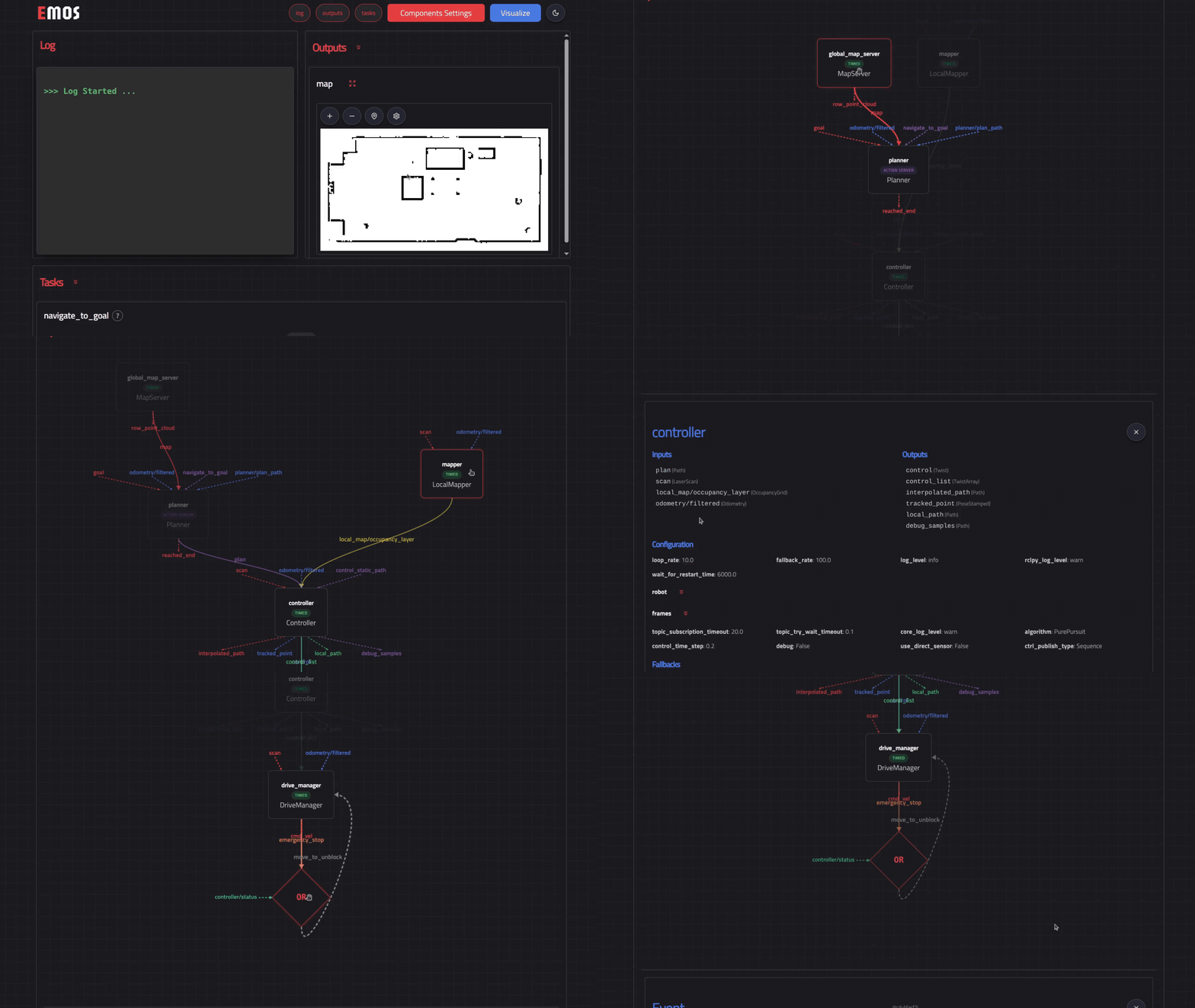
What you’ll see:
Component nodes – one per component, labelled with the component name, colour-coded by lifecycle state.
Topic edges – arrows in the direction of data flow. Input edges enter from the left of a component, output edges leave from the right.
Event nodes – yellow event markers placed between the component(s) whose topics the event watches and the action(s) it triggers.
Action nodes – blue markers attached to the events that fire them.
The whole graph is draggable and resizable, so you can pull a busy region out for a closer look without losing the rest.
Step 3: Inspect anything
Click any element to open its detail card – nodes, edges, events, and actions all have one.
Components – inputs/outputs, current lifecycle state, the model client (if any), declared
@component_actions, registered fallbacks.Topics – name, message type, the publishing component, the subscribing component(s), the latest message preview if applicable.
Events – the condition expression in serialised form (the same combinator logic
&/|/~you wrote, rendered as a tree), the topic(s) it watches, the action(s) registered against it, and the current trigger count.Actions – the target method, the arguments (including any bound topic data), and the count of times it has fired.
The detail card is the fastest way to confirm that an event you authored as ~event_a & event_b is registered with that exact shape, that a topic you thought was subscribed actually has a subscriber, or that a component is in the lifecycle state you expect.
Tip
If an event you expect to see never fires, the detail card’s trigger count = 0 is the easiest diagnostic. Combine it with the action-server logs surfaced in the main logging card to follow the full trace.
What to use it for
Sanity-checking a new recipe – confirm every component you added is wired the way you intended before you start chasing bugs.
Operator handover – the graph is a self-documenting handoff artefact. Screenshot it for a runbook.
Failure investigation – when an event isn’t firing, the detail card and trigger count usually point at the wiring problem before logs do.