
 EMOS
EMOS
VLA Manipulation#
Embodied AI is moving away from modular pipelines, perception then planning then control, toward end-to-end learning. A vision-language-action model takes camera images and an instruction in plain language and produces joint commands directly.
In this tutorial we build an agent that performs a manipulation task with the VLA component: an SO101 arm picks oranges off a kitchen counter and puts them in a bowl. The policy comes from the LeRobot ecosystem and is served by LeRobot’s policy server, and the arm runs in simulation, so you can follow the whole tutorial without hardware.
Important
The VLA component talks to LeRobot’s async policy server, which needs LeRobot 0.6.0 or later. The simulation setup below installs and starts it for you. On a setup of your own, install LeRobot as described here and start the server:
python -m lerobot.async_inference.policy_server --host=<HOST_ADDRESS> --port=<PORT>
Simulation setup#
The simulation lives in its own repository, embodied-agents-sim. It puts together NVIDIA Isaac Sim and Isaac Lab, the LeIsaac SO101 environments, and a GR00T N1.7 policy fine-tuned on the matching dataset, with a bridge that exposes the scene over ROS 2 topics. Everything is kept in distribution: the scene, the teleoperation dataset recorded in that scene, and a policy trained on that dataset.
        flowchart LR
    sim["Isaac Sim<br/>LeIsaac scene and ROS 2 bridge"]
    vla["VLA component"]:::component
    server["LeRobot policy server<br/>GR00T N1.7"]

    sim -- "joint states, front and wrist images" --> vla
    vla -- "joint commands" --> sim
    vla -- "observations over gRPC" --> server
    server -- "action chunks" --> vla

    classDef component fill:#e07a7a,stroke:#a64545,stroke-width:1.5px,color:#000000
You will need an NVIDIA RTX-class GPU, ideally with 24 GB of memory since the policy server and Isaac Sim share it, about 80 GB of disk, Ubuntu 22.04 or later, and a HuggingFace account with access to the gated nvidia/Cosmos-Reason2-2B model, which every GR00T checkpoint loads on first use. The repository’s README lists the prerequisites in full. Then, from a clone of the repository:
./doctor.sh        # preflight checks, with a fix for each problem it finds
./setup.sh         # installs everything; safe to run again after a failure
make server        # terminal A: the LeRobot policy server
make bridge        # terminal B: Isaac Sim with the kitchen scene and the ROS 2 bridge
make status        # confirms the topics are flowing
The first Isaac Sim launch compiles shaders and can take ten to twenty minutes with an unresponsive window. Later launches take a minute or two. make reset, or R in the Isaac window, resets the episode between attempts.
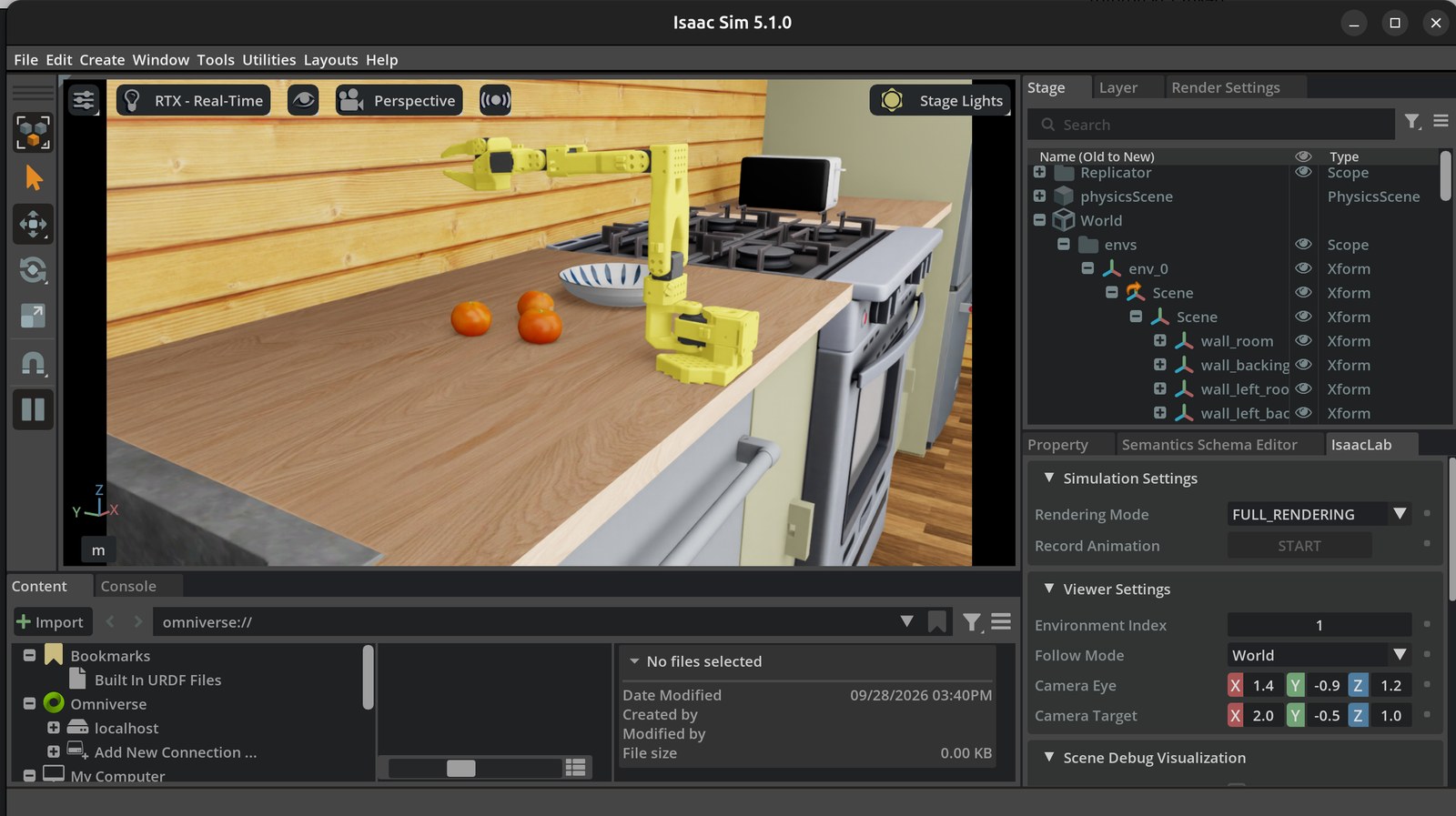
The kitchen scene at reset: the arm at rest, three oranges on the counter and the bowl.#
The bridge publishes and consumes these topics:
Topic |
Type |
Direction |
Notes |
|---|---|---|---|
|
|
sim to out |
Joint positions, in motor units. |
|
|
sim to out |
480 by 640, rgb8. |
|
|
sim to out |
480 by 640, rgb8. |
|
|
in to sim |
Absolute positions, in motor units. |
|
|
sim to out |
Publishes |
One thing to know about the units. The policy does not work in radians. LeIsaac datasets use the SO101’s motor space, each joint’s range mapped to -100 to 100 and the gripper to 0 to 100, and the bridge converts at the simulation boundary, so every topic above carries motor units and the recipe needs no unit handling of its own.
The senses and actuators#
A VLA agent is grounded in a body. We start by naming the topics that carry its proprioception, its vision and its commands, which here are the bridge’s:
from agents.ros import Topic

joint_states = Topic(name="/so101/joint_states", msg_type="JointState")
front_camera = Topic(name="/so101/front/image_raw", msg_type="Image")
wrist_camera = Topic(name="/so101/wrist/image_raw", msg_type="Image")
joint_cmd = Topic(name="/so101/joint_cmd", msg_type="JointState")
The policy#
LeRobotPolicy describes a policy trained with LeRobot and hosted on the HuggingFace Hub, and LeRobotClient talks to the server that runs it. We use a GR00T N1.7 fine-tune trained on the pick-orange dataset. The policy also needs the dataset’s info.json, which carries the normalisation statistics the model expects and the names of its features.
Important
The client needs two extra packages. A CPU build of PyTorch is enough on the robot side:
pip install grpcio protobuf
pip install torch --index-url https://download.pytorch.org/whl/cpu
from agents.clients import LeRobotClient
from agents.models import LeRobotPolicy

policy = LeRobotPolicy(
    name="pick_orange_gr00t",
    policy_type="groot",
    checkpoint="aleph-ra/gr00t17_pick_orange_lora",
    dataset_info_file="https://huggingface.co/datasets/LightwheelAI/leisaac-pick-orange/resolve/main/meta/info.json",
    actions_per_chunk=16,   # the checkpoint was trained with 16-step chunks
)

client = LeRobotClient(model=policy, host="127.0.0.1", port=8080)
Note
policy_type names the architecture: smolvla, pi0, pi05, groot, act, diffusion, tdmpc or vqbet. It has to match the checkpoint. A SmolVLA fine-tune on the same dataset, aleph-ra/smolvla_finetune_pick_orange_20000, works as a drop-in with policy_type="smolvla". It is much less accurate, but it needs no patch on the policy server, which the GR00T checkpoint does; the simulation’s setup script applies it.
VLA configuration#
This is the step that matters most. A policy expects its inputs named as they were in the training dataset, shoulder_pan.pos and so on, and a real robot’s URDF rarely uses those names. VLAConfig is the mapping layer between the two.
Joints. Map the dataset’s feature keys to the robot’s joint names. The bridge uses the dataset’s own names, so the map is the identity here; on a robot whose URDF calls the joints
Rotationorjoint_1, the values are those names.Cameras. Map the dataset’s camera names to the image topics.
Limits. The component caps every command to the joint limits. Give them directly, in the units the policy uses, or give the robot’s URDF and tell the component which units the policy was trained in with
policy_action_units. With the wrong units nearly every action gets capped, and the component warns when that happens.Timing. Play actions at the cadence the dataset was recorded at, and let each chunk of actions finish before the next replaces it.
from agents.config import VLAConfig

SO101_JOINTS = ["shoulder_pan", "shoulder_lift", "elbow_flex", "wrist_flex", "wrist_roll", "gripper"]

# Motor-unit limits, the space every bridge topic uses
limits = {joint: {"lower": -100.0, "upper": 100.0} for joint in SO101_JOINTS[:-1]}
limits["gripper"] = {"lower": 0.0, "upper": 100.0}

config = VLAConfig(
    joint_names_map={f"{joint}.pos": joint for joint in SO101_JOINTS},
    camera_inputs_map={"front": front_camera, "wrist": wrist_camera},
    joint_limits=limits,
    # The same limits from the URDF instead:
    # robot_urdf_file="assets/so101_new_calib.urdf", policy_action_units="normalized",
    observation_sending_rate=0.55,
    action_sending_rate=10.0,
    aggregate_fn_name="latest_only",
)
The three timing values follow from the simulation. The demonstrations were recorded at 30 frames per second of simulation time, and the bridge steps the simulation at about a third of real time, so action_sending_rate=10.0 reproduces the dataset cadence. observation_sending_rate=0.55 gives a full chunk of 16 actions, plus the inference time, room to execute before the next observation replaces it. And latest_only executes one self-consistent chunk at a time rather than blending chunks, which matters for this checkpoint because its actions are relative to the state at inference time. Playing actions faster than the dataset cadence, or abandoning chunks early, makes the arm fast and erratic. The repository’s README has the formula for a bridge that steps at another rate.
Tip
These values assume the bridge steps at close to 20 Hz, and make status shows the rate it actually reaches on /so101/joint_states. A CPU governor left on powersave, the default on many machines, holds the bridge at around 14 Hz. The actions then play too fast in simulation time and the policy rarely completes the task. sudo cpupower frequency-set -g performance brings the rate back up.
Warning
An incomplete joint_names_map is an error at initialization.
The VLA component#
The VLA component is an action server. A goal carries the instruction, and while the goal runs the component reads the state and the images, sends them to the policy server, and publishes the actions it gets back on the command topic. A task like this one is finite, so we also tell it when to stop: after a number of timesteps here, a generous budget of about three times the length of an average demonstration.
from agents.components import VLA

vla = VLA(
    inputs=[joint_states, front_camera, wrist_camera],
    outputs=[joint_cmd],
    model_client=client,
    config=config,
    component_name="vla_sim",
)

# 1800 timesteps at 10 Hz: about 60 s of simulation time
vla.set_termination_trigger(mode="timesteps", max_timesteps=1800)
Note
The termination trigger can be timesteps, keyboard or event. An event can come from another component watching the scene, such as a VLM that asks itself a question on a timer, or from the simulation’s own success marker. Event-Driven VLA does both.
Launching the agent#
We give the recipe a web interface with the goal control and the front camera, then bring it up. Run it in a normal ROS 2 environment, your EMOS or embodied-agents workspace, not in the Isaac virtual environment.
from agents.ros import Launcher

launcher = Launcher()
launcher.enable_ui(inputs=[vla.ui_main_action_input], outputs=[front_camera])
launcher.add_pkg(components=[vla])
launcher.bringup()
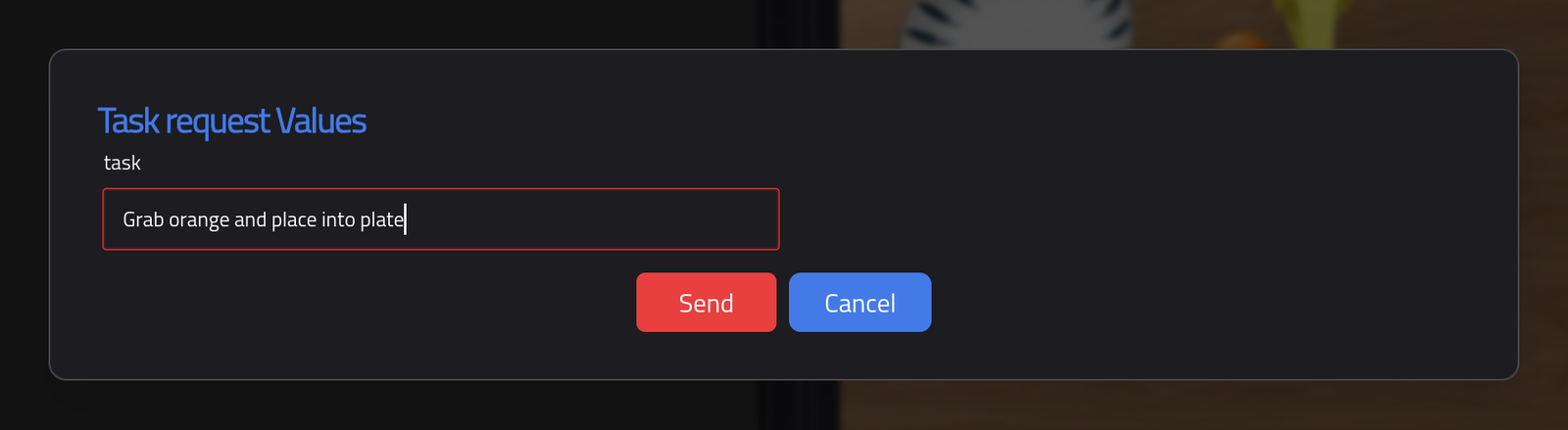
Once the log reports that the components started, open https://localhost:5001 and accept the self-signed certificate once. The front camera streams in the outputs panel, and the task card holds the VLA’s action. Start asks for the task:
Grab orange and place into plate
Warning
The task string matters. VLA policies are sensitive to the instruction they were trained with, so use the dataset’s exact phrasing. Reworded instructions degrade the policy.
While the goal runs, the card shows its state, the time it has taken and the feedback of every step, and the camera shows the arm at work:
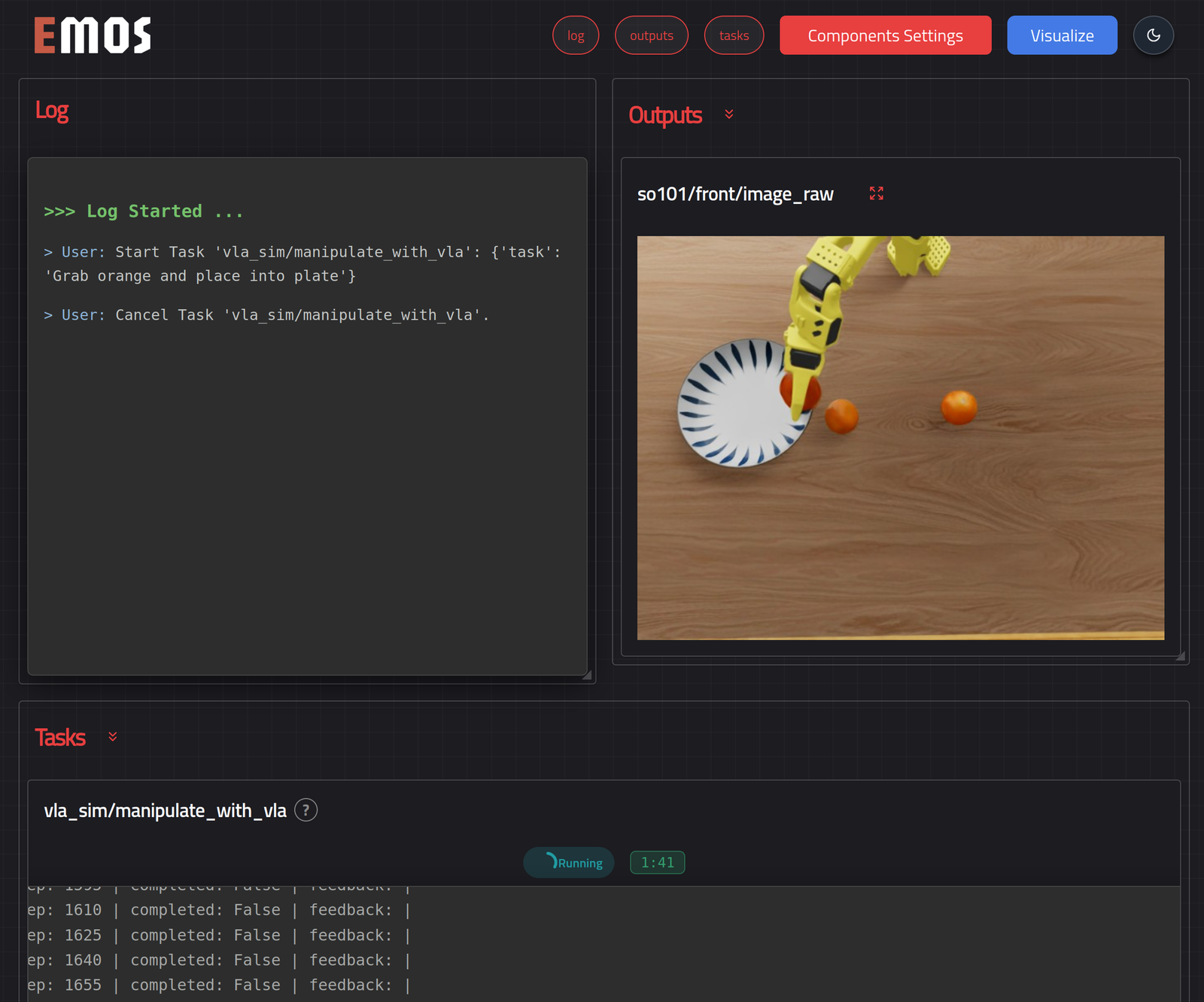
Mid-episode: the task is running and the arm carries an orange to the bowl.#
When the goal ends, the card reports the outcome and the log carries the result:
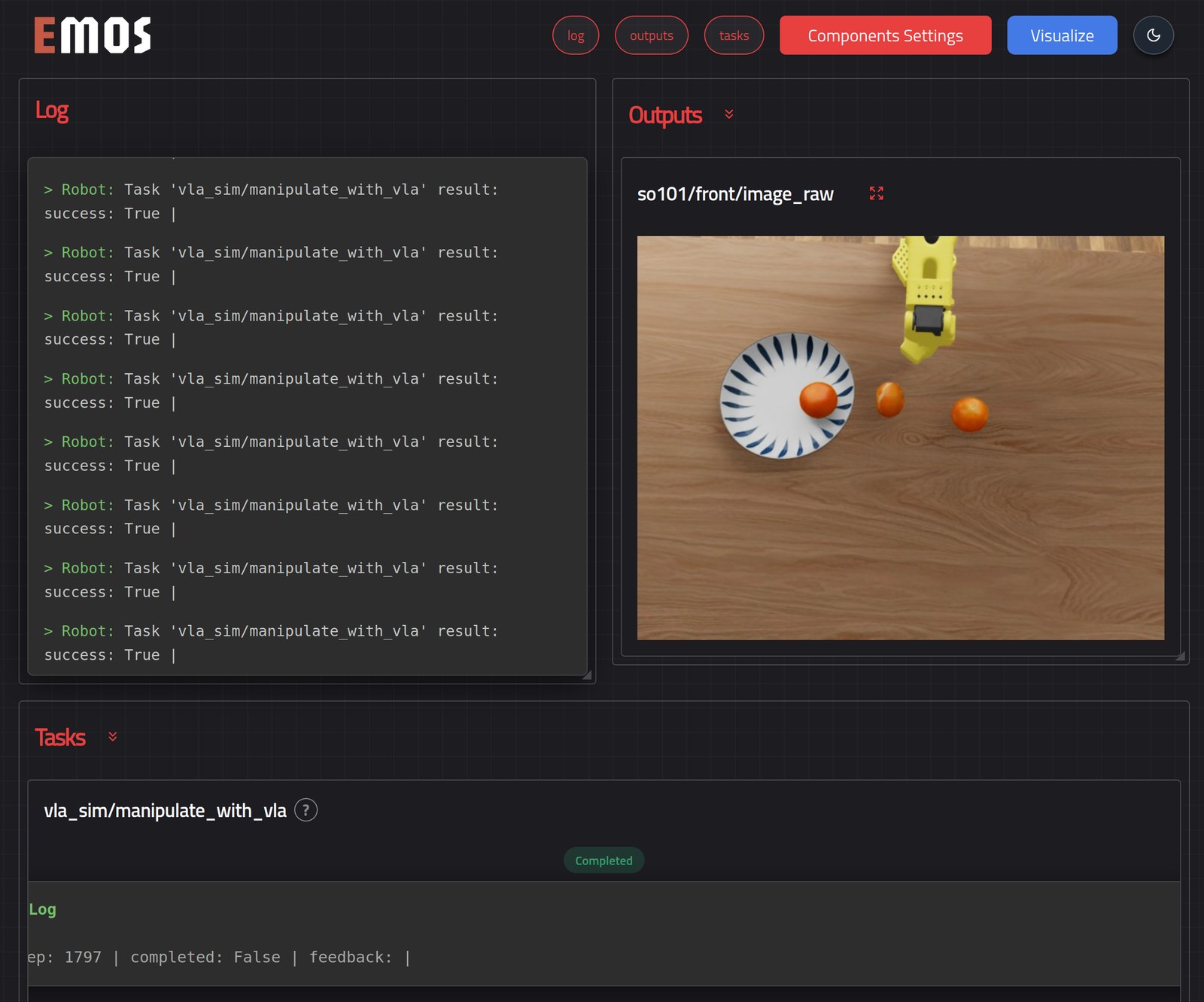
The simulation scores the task on its own. When all three oranges are in the bowl and the arm is back at rest, it resets the scene at once and publishes YES on /so101/task_success. The goal in this recipe does not listen to that and ends on its timestep budget, so after a success the arm starts over on the fresh scene until the budget runs out. Event-Driven VLA ends the goal on success instead.
The same goal can be sent from a terminal, since the component is an action server named <component_name>/manipulate_with_vla:
ros2 action send_goal /vla_sim/manipulate_with_vla \
    automatika_embodied_agents/action/VisionLanguageAction \
    "{task: 'Grab orange and place into plate'}"
Reset the scene between episodes with make reset. And that is an end-to-end VLA agent. The complete recipe follows.
 1from agents.clients import LeRobotClient
 2from agents.components import VLA
 3from agents.config import VLAConfig
 4from agents.models import LeRobotPolicy
 5from agents.ros import Launcher, Topic
 6
 7# --- Topics published and consumed by the simulation bridge ---
 8joint_states = Topic(name="/so101/joint_states", msg_type="JointState")
 9front_camera = Topic(name="/so101/front/image_raw", msg_type="Image")
10wrist_camera = Topic(name="/so101/wrist/image_raw", msg_type="Image")
11joint_cmd = Topic(name="/so101/joint_cmd", msg_type="JointState")
12
13# --- Policy ---
14policy = LeRobotPolicy(
15    name="pick_orange_gr00t",
16    policy_type="groot",
17    checkpoint="aleph-ra/gr00t17_pick_orange_lora",
18    dataset_info_file="https://huggingface.co/datasets/LightwheelAI/leisaac-pick-orange/resolve/main/meta/info.json",
19    actions_per_chunk=16,
20)
21client = LeRobotClient(model=policy, host="127.0.0.1", port=8080)
22
23# --- Mapping and timing ---
24SO101_JOINTS = ["shoulder_pan", "shoulder_lift", "elbow_flex", "wrist_flex", "wrist_roll", "gripper"]
25limits = {joint: {"lower": -100.0, "upper": 100.0} for joint in SO101_JOINTS[:-1]}
26limits["gripper"] = {"lower": 0.0, "upper": 100.0}
27
28config = VLAConfig(
29    joint_names_map={f"{joint}.pos": joint for joint in SO101_JOINTS},
30    camera_inputs_map={"front": front_camera, "wrist": wrist_camera},
31    joint_limits=limits,
32    observation_sending_rate=0.55,
33    action_sending_rate=10.0,
34    aggregate_fn_name="latest_only",
35)
36
37# --- Component ---
38vla = VLA(
39    inputs=[joint_states, front_camera, wrist_camera],
40    outputs=[joint_cmd],
41    model_client=client,
42    config=config,
43    component_name="vla_sim",
44)
45vla.set_termination_trigger(mode="timesteps", max_timesteps=1800)
46
47# --- Launch ---
48launcher = Launcher()
49launcher.enable_ui(inputs=[vla.ui_main_action_input], outputs=[front_camera])
50launcher.add_pkg(components=[vla])
51launcher.bringup()
Tip
Promote this recipe to production. While you are shaping it, run the script directly with python recipe.py. Once it is solid, drop it at ~/emos/recipes/<name>/recipe.py and start it with emos run <name>, or from the dashboard. Either way every run is logged under ~/emos/logs, and an operator gets a card to launch it from a browser. Running Recipes covers the two ways of running a recipe and what differs per install mode.